


Selection
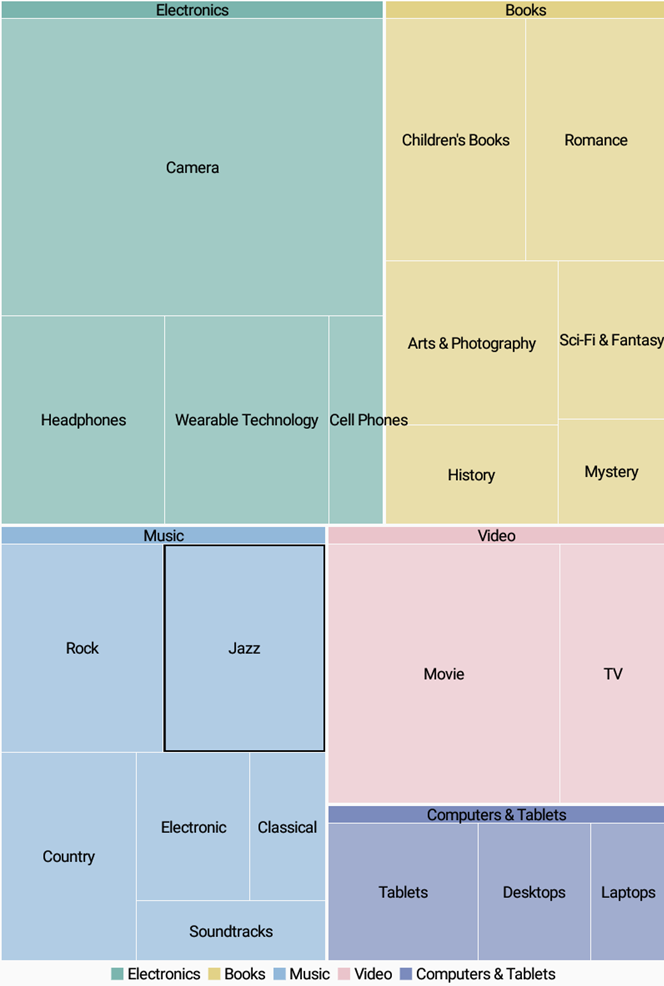
TreeMap lets you enable selection of its data items and groups. User can select a node and draw focus on it by simply clicking it. You need to set the SelectionMode property provided by the ChartBase class to either of the following values in the ChartSelectionMode enumeration:
None (default): Selection is disabled.
Point: A point is selected.
The following image illustrates default selection of a data point along with its children nodes in the hierarchy.
The following code snippet shows how to set the SelectionMode property for a tree map control.
In Code
Selection.cs
// Implement selection mode
treeMap.SelectionMode = ChartSelectionModeType.Point;
In XAML
Selection.xaml
<c1:C1TreeMap x:Name="treeMap" Binding="Sales" BindingName="Category" SelectionMode="Point" ChildItemsPath="Items">
</c1:C1TreeMap>
Customized TreeMap Selection
To customize the TreeMap selection, you can use SelectionStyle property and style the selected item as illustrated in the following image.
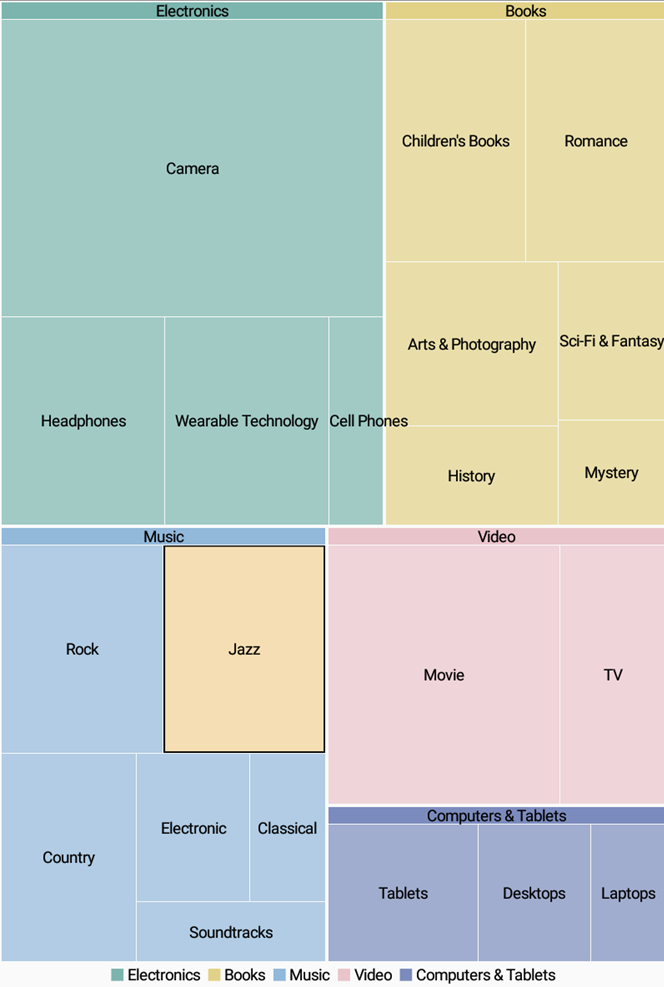
The following code snippet demonstrates using of SelectionStyle property to change fill color of the selected TreeMap node.
In Code
Selection.cs
// Apply custom color to the selection
treeMap.SelectionStyle.Fill = Color.Wheat;
In XAML
Selection.xaml
<c1:C1TreeMap x:Name="treeMap" Binding="Sales" BindingName="Category" SelectionStyle="Color.Wheat" ChildItemsPath="Items">
</c1:C1TreeMap>
Additionally, you can customize the behavior of TreeMap selection by handling SelectionChanged event. Also, you can utilize SelectedIndex and SelectedItem properties, and reuse the obtained information in your application.