


- SpreadJS Overview
- Getting Started
- JavaScript Frameworks
- Best Practices
- Features
- SpreadJS Designer
- SpreadJS Designer VSCode Plugin
- Tutorials
-
SpreadJS Designer Component
- Getting Started
- Quick Start
- Theme
- Designer Interface
- JavaScript Frameworks
- Template-Based Workbook Initialization
- Customizations
-
Work in Designer Component
- AutoSum Functions
- Set Range Template Cell
- Name Box
- Select Cells Using Go To
- Find and Replace
- Edit Font Size
- Edit Font Family
- Configure Cell Borders
- Manage Conditional Formatting Rules
- Shape Selection Pane
- Automatic Outline
- Format Painter
- Sort and Filter
- Table Slicer
- Data Source
- TableSheet
- GanttSheet Designer
- ReportSheet Designer
- Data Chart Designer
- Text to Columns
- Remove Duplicates
- Pivot Table
- Dockable Side Panel
- Command Palette
- Transform Cells with LAMBDA Formula
- Threaded Comments Panel
- What-If Analysis
- Insert Function Dialog
- Named Cell Templates
- Insert Pictures in Designer
- Toolbar Ribbon
- API Documentation
- SpreadJS Collaboration Server
- Touch Support
- Formula Reference
- Import and Export Reference
- Events
- API Documentation
- Release Notes
Managing Tables
The Data Source panel allows you to create and manage tables that are used by the Data Manager at runtime.
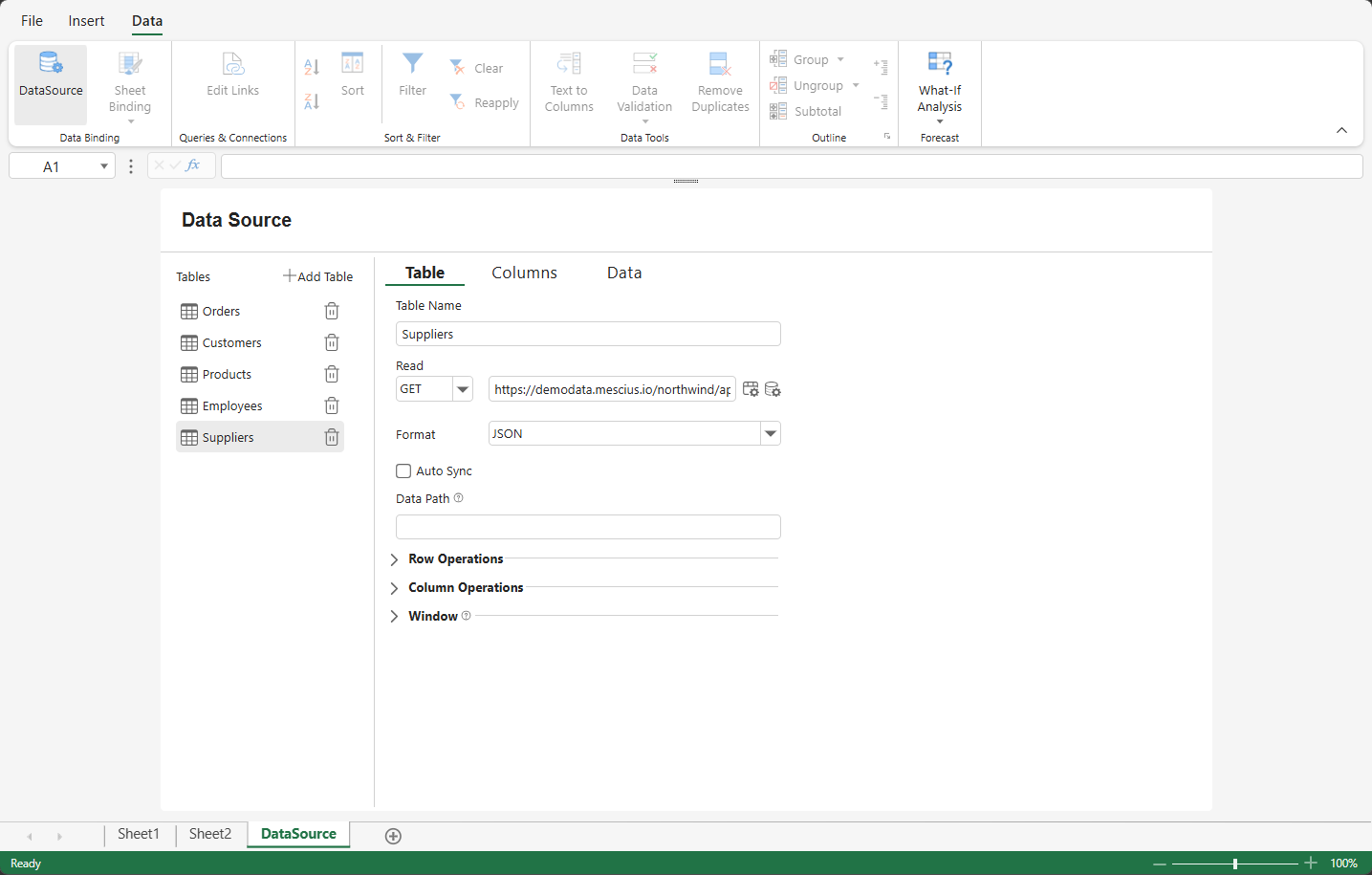
Opening the Data Source Panel
In SpreadJS Designer:
Go to the Data tab in the ribbon.
Click Data Source.

The Data Source panel opens with a list of existing tables on the left and configuration tabs on the right.
Creating a Table
To create a new table:
Click Add Table in the Tables panel.
A new table is created and automatically selected.
Configure its settings in the Table, Columns, and Data tabs.
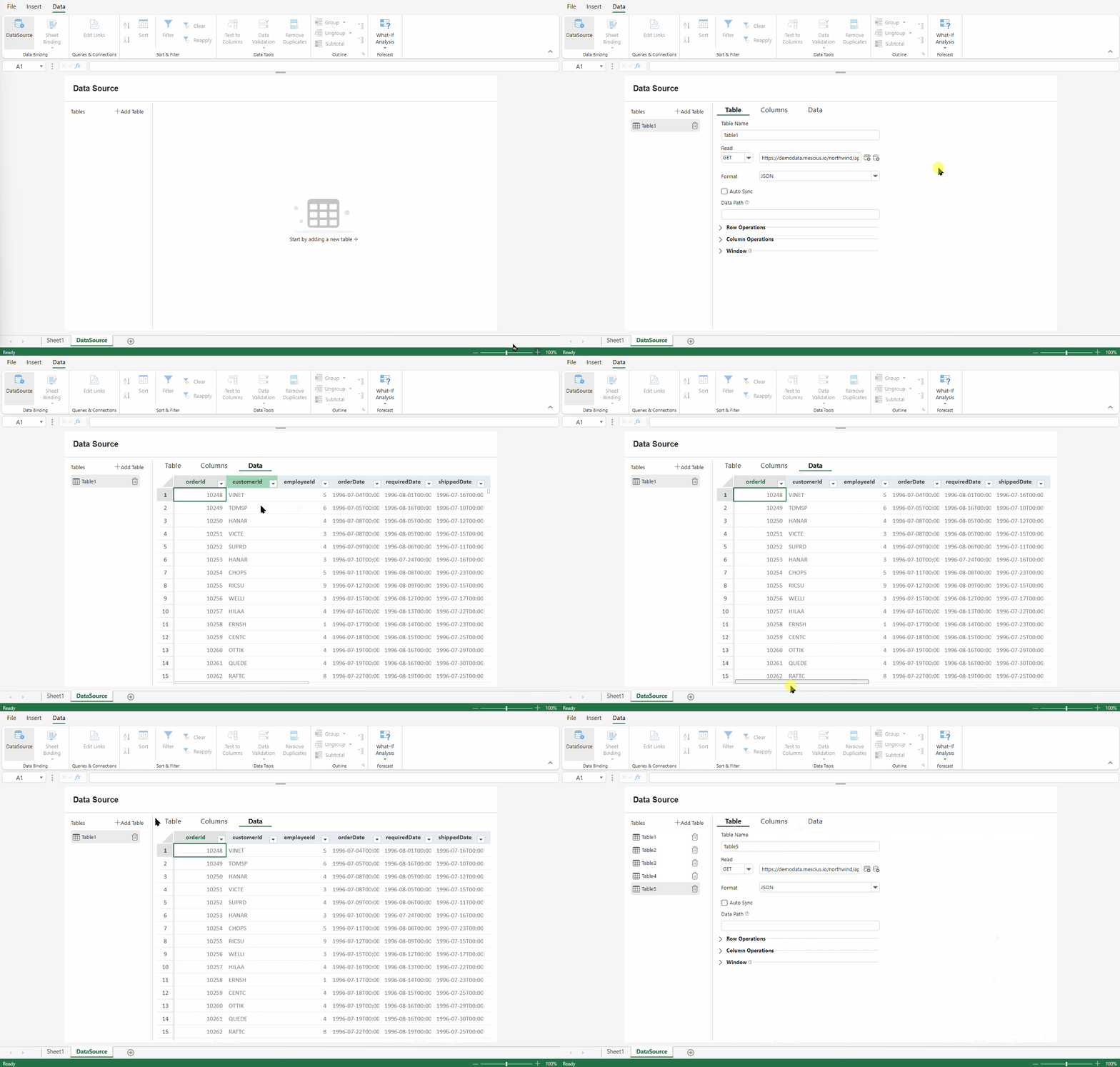
A default remote example URL may be populated when the table is created. You can replace it with your own data source.
Default Initialization
When a table is created:
A built-in sample remote endpoint is preconfigured for demonstration purposes.
The table is assigned a name using the pattern
Table1,Table2, and so on.Table names increment sequentially and are not reused, even if earlier tables are deleted.
If a duplicate name is entered, a numeric suffix (for example,
_1) is appended automatically to ensure uniqueness.
You can replace or remove the default data endpoint as needed.
Renaming a Table
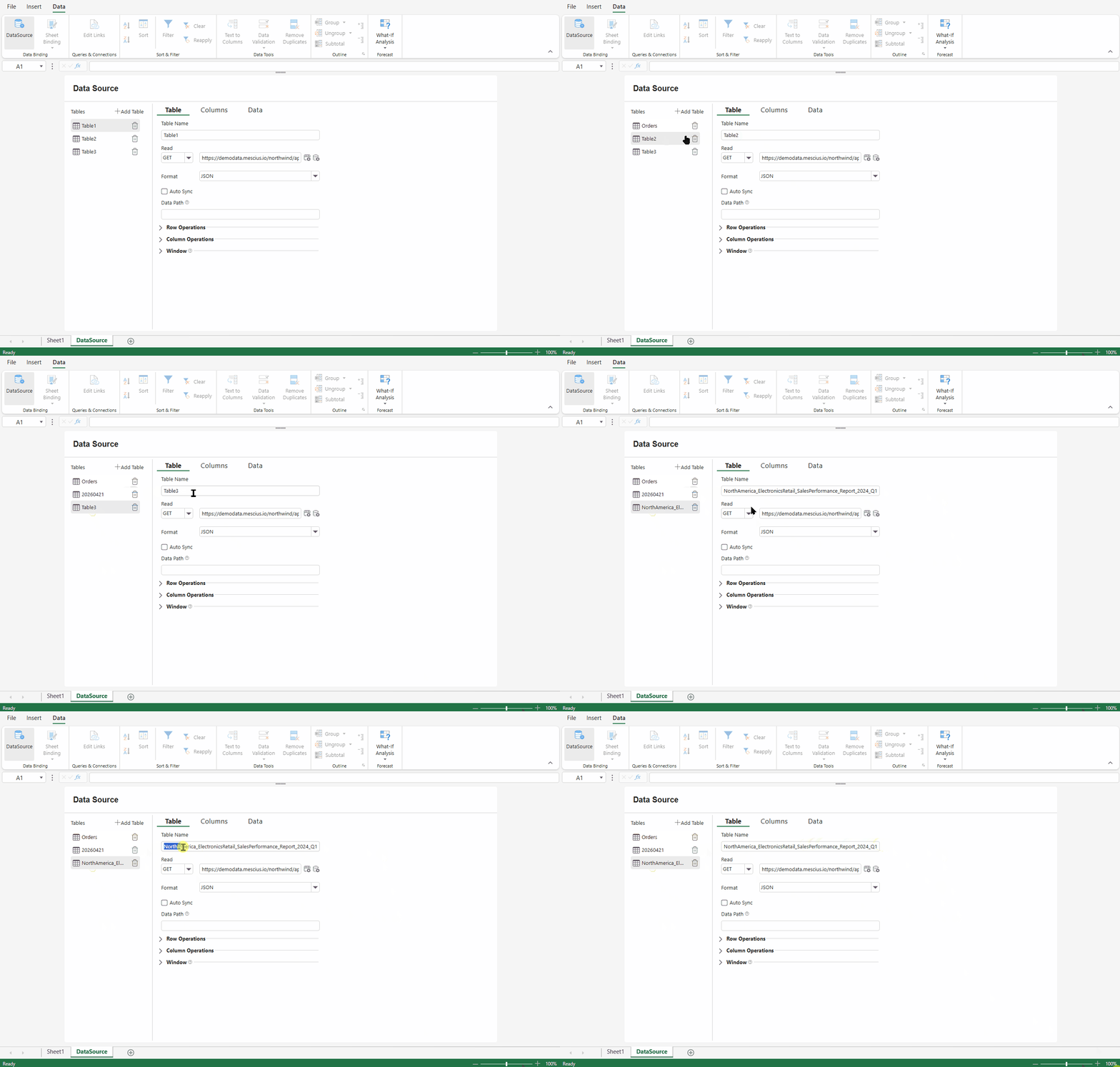
To rename a table:
Select the table in the Tables panel.
Edit the table name directly.
Table names support spaces, special characters, and Unicode characters.
Long names may be truncated in the panel display for layout purposes.
Switching Between Tables
All defined tables appear in the left panel.
To switch tables:
Click a table name in the list.
The configuration area updates to display the selected table’s settings.
Only one table can be configured at a time.
Deleting a Table
To delete a table:
Locate the table in the left panel.
Click the Delete (trash) icon
 next to the table name.
Deleting a table permanently removes it from the Data Manager model.
Any components bound to the table will no longer have access to its data.
This action cannot be undone.
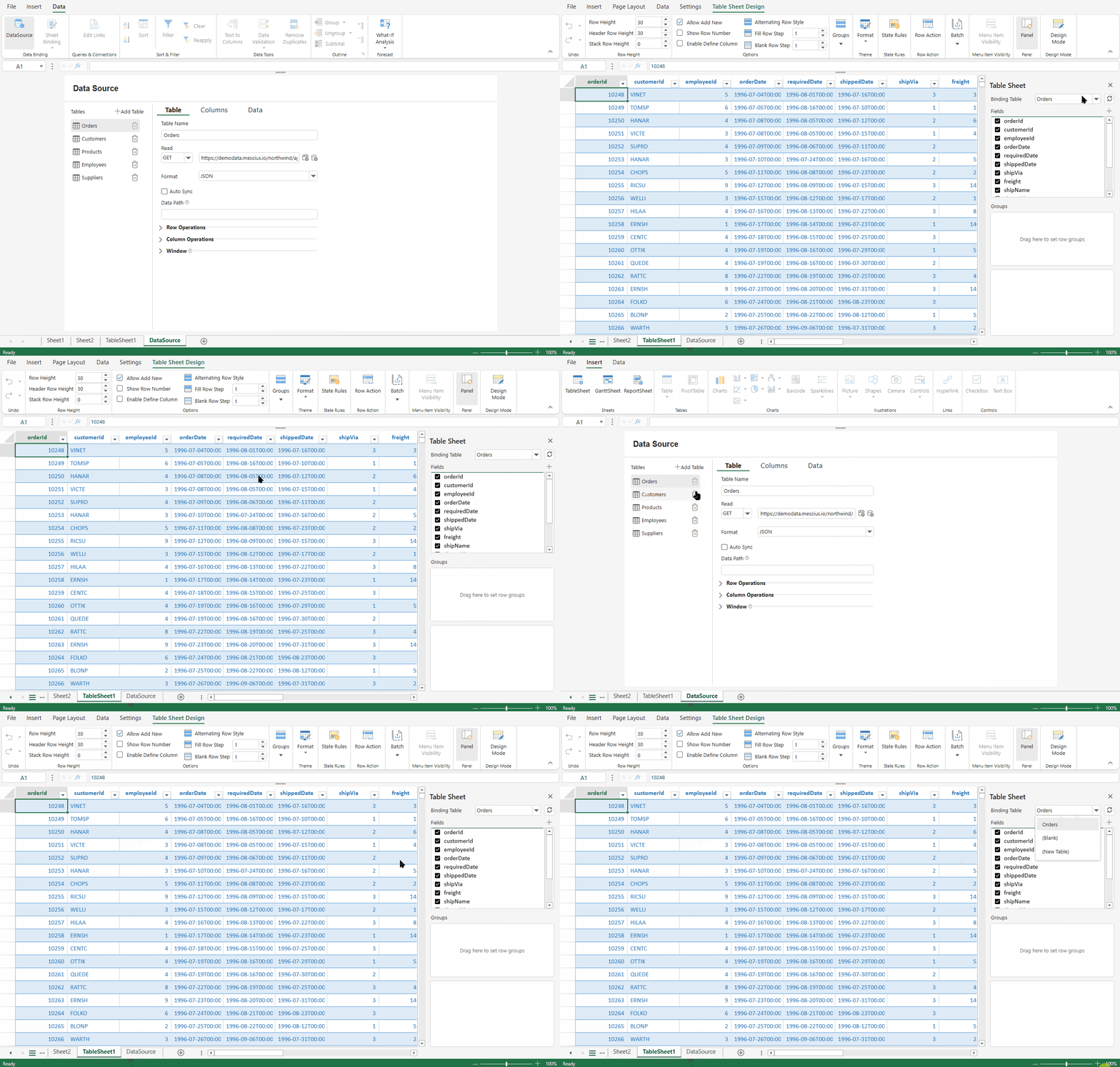
Table Configuration Tabs
Each table contains three configuration tabs:
Tab | Purpose |
|---|---|
Table | Configure data source, remote endpoints, synchronization, and table-level behavior |
Columns | Define column properties, schema, relationships, and hierarchy |
Data | Preview the table data in a read-only view |
These tabs separate data source configuration, structural modeling, and data inspection.
Converting an Existing Sheet Table
In addition to creating tables directly in the Data Source panel, you can convert an existing unbound sheet table into a Data Manager table.
When a sheet table is converted:
A corresponding Data Manager table is created.
The sheet table becomes bound to the new Data Manager table.
The original cell data is managed through the Data Manager model.
For detailed behavior and API usage, see Convert from/to Data Table.