- SpreadJS Overview
- Getting Started
- JavaScript Frameworks
- Best Practices
- Features
- SpreadJS Designer
- SpreadJS Designer VSCode Plugin
- Tutorials
-
SpreadJS Designer Component
- Getting Started
- Quick Start
- Theme
- Designer Interface
- JavaScript Frameworks
- Template-Based Workbook Initialization
- Customizations
-
Work in Designer Component
- AutoSum Functions
- Set Range Template Cell
- Name Box
- Select Cells Using Go To
- Find and Replace
- Edit Font Size
- Edit Font Family
- Configure Cell Borders
- Manage Conditional Formatting Rules
- Shape Selection Pane
- Automatic Outline
- Format Painter
- Sort and Filter
- Table Slicer
- Data Source
- TableSheet
- GanttSheet Designer
- ReportSheet Designer
- Data Chart Designer
- Text to Columns
- Remove Duplicates
- Pivot Table
- Dockable Side Panel
- Command Palette
- Transform Cells with LAMBDA Formula
- Threaded Comments Panel
- What-If Analysis
- Insert Function Dialog
- Named Cell Templates
- Insert Pictures in Designer
- Toolbar Ribbon
- API Documentation
- SpreadJS Collaboration Server
- Touch Support
- Formula Reference
- Import and Export Reference
- Events
- API Documentation
- Release Notes
Configuring Table Data Source
Data Source Mode
The Table tab allows you to configure how a table retrieves and synchronizes its data.
A table can operate in either:
Remote mode – Data is loaded from HTTP endpoints.
Local mode – Data is embedded directly in the table configuration.
Only one mode is active at a time.
Remote Mode
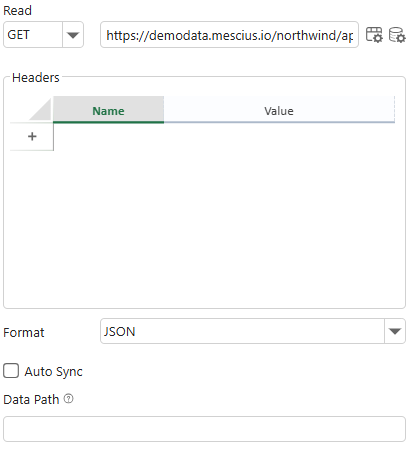
Remote mode connects the table to one or more HTTP endpoints.
Configuring the Read Endpoint
The Read section defines how the table loads data.
You can configure:
HTTP Method (GET)
URL
Request Headers
Format
Data Path
Auto Sync
Request Headers
Request headers allow you to customize the HTTP request sent to the server.
The Headers section is collapsed by default. To configure request headers, click the Settings icon  next to the URL field to expand the headers panel. Click the icon again to collapse it.
To configure headers:
Use the Add (+) button to insert a new header row.
Select or enter a header name in the Name field.
Enter the header value in the Value field.
Use the delete icon
 to remove a header.
Common header names (such as Authorization or X-API-Key) are available in the dropdown list, but you can enter any custom header name as needed.
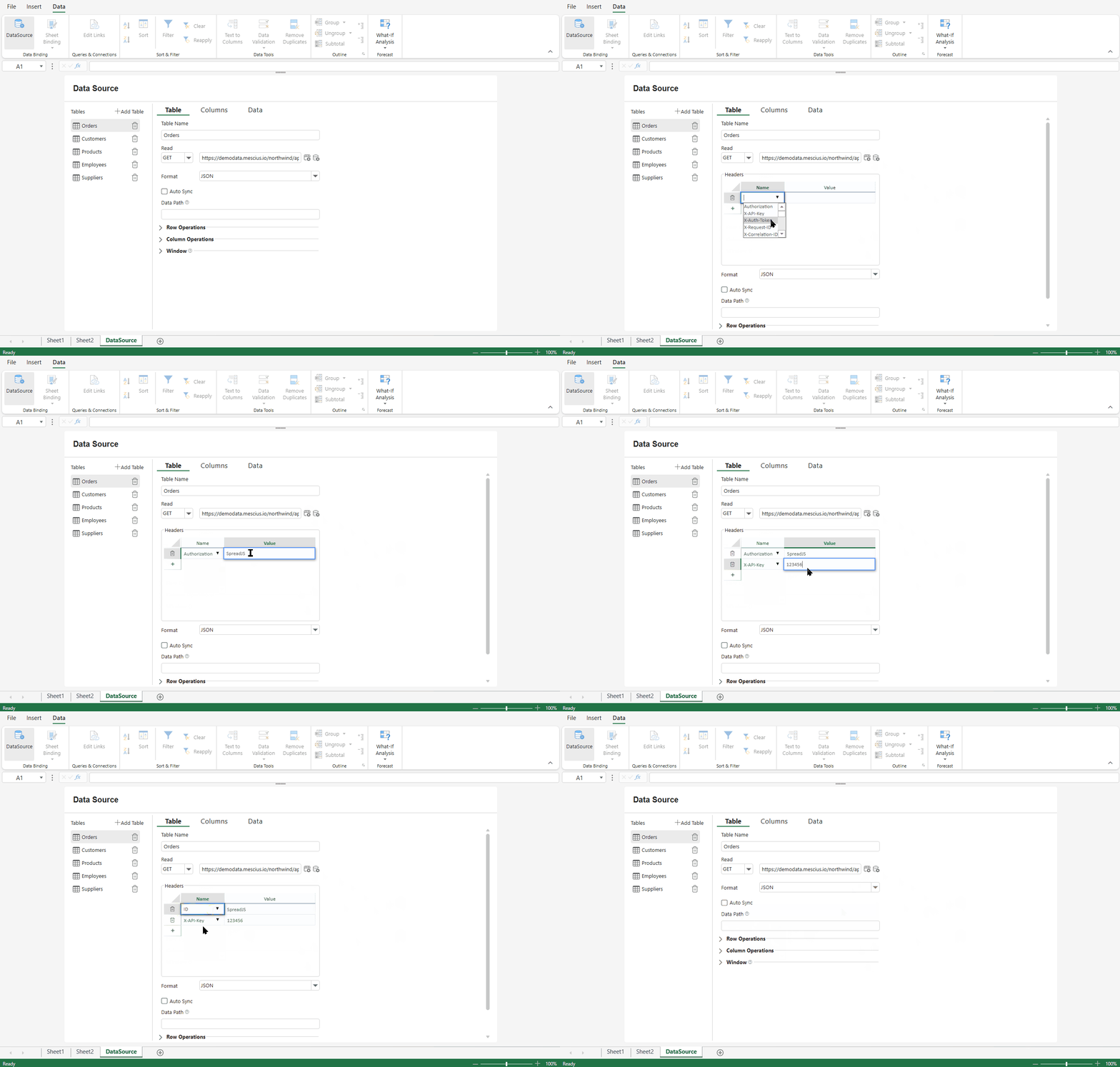
Only rows that contain both a name and a value are applied to the request. Empty or incomplete rows are ignored.
Auto Sync
When Auto Sync is enabled, the table automatically synchronizes data changes with the configured remote endpoints.
For details about synchronization behavior, refer to the Data Manager section in Features.
Local Mode
Local mode allows you to embed data directly into the table configuration instead of loading it from a remote endpoint.
To configure local data:
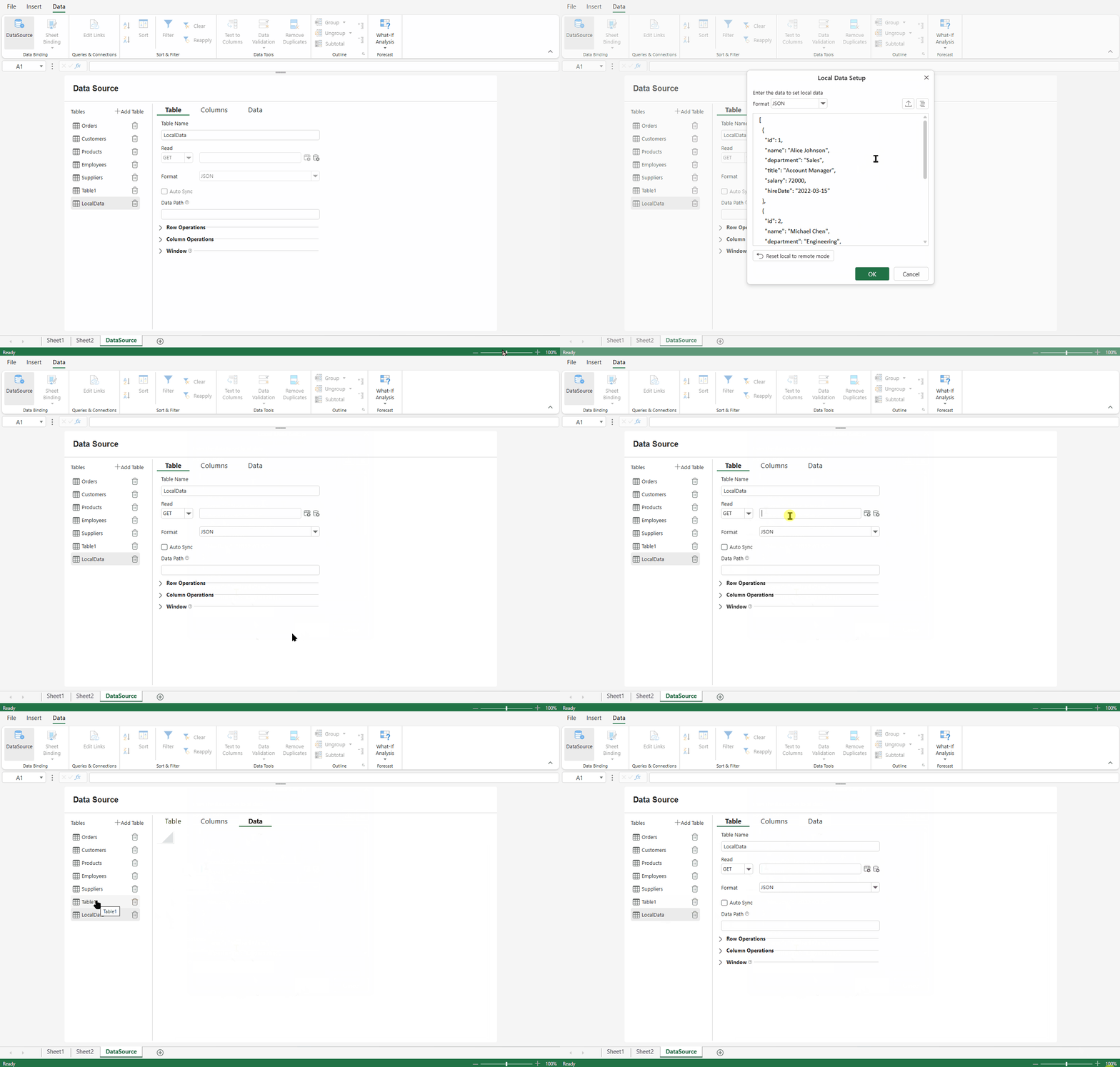
Click the Local Data Setup button
 next to the URL field.
In the Local Data Setup dialog:
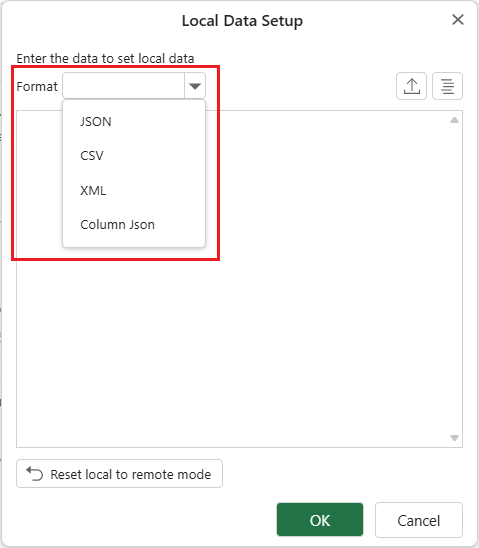
Select a Format (JSON, CSV, XML, or Column JSON).
Upload a file, or paste data directly into the editor.
Optionally use the Format Local Data button
 to improve readability.
Click OK to apply the data.
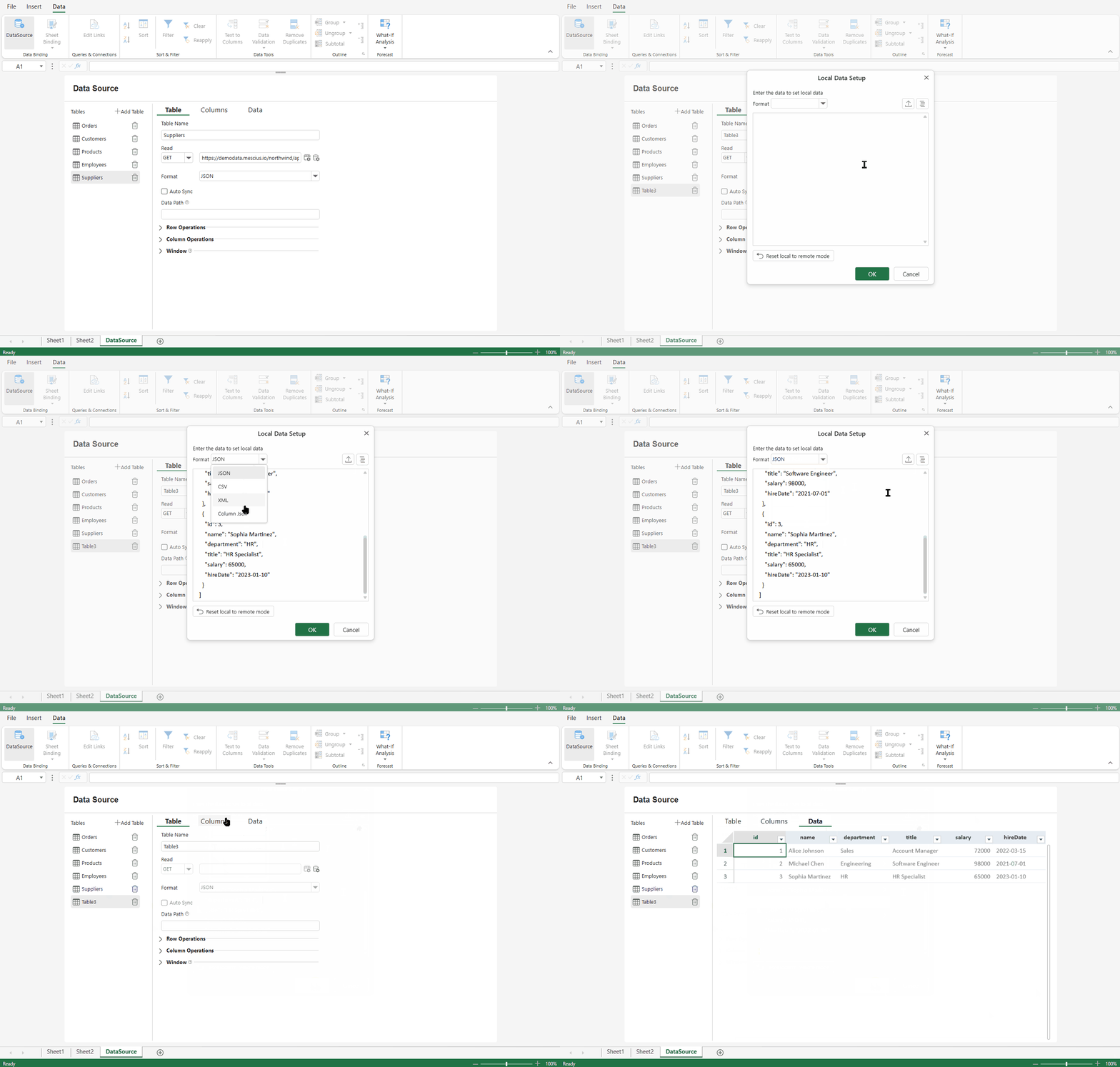
When Local mode is enabled:
Remote endpoint settings are disabled.
Row Operations and Column Operations are unavailable.
The table stores the data within its configuration.
To switch back to Remote mode, click Reset local to remote mode in the dialog. This clears the embedded data and restores remote configuration.
Schema Configuration (Mode‑Independent)
Data Format
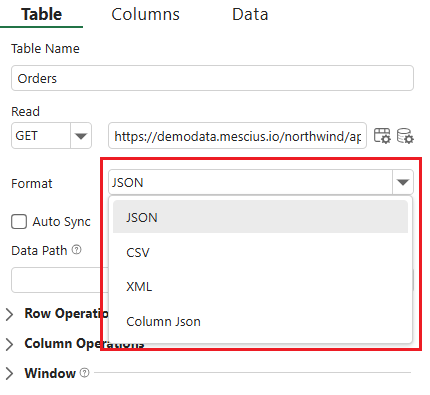
The Format option defines how the response data is interpreted.
The following formats are supported:
JSON
CSV
XML
Column JSON
Select the format that matches the structure of the server response.
Remote Mode
Local Mode
Data Path
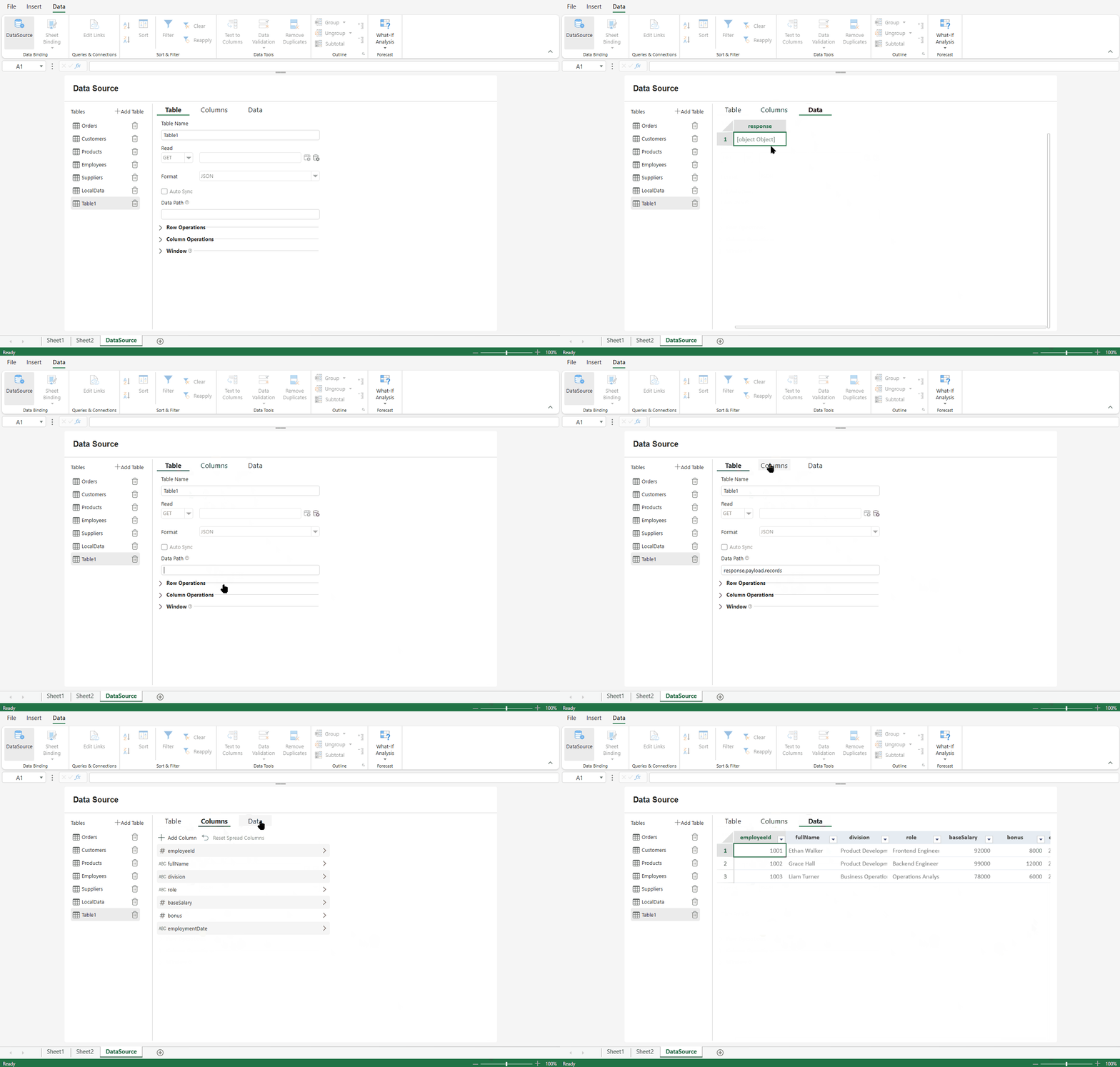
The Data Path option specifies where the main data collection is located within the parsed response.
If a Data Path is provided, the Data Manager retrieves the data collection from the specified property of the parsed result.
If no Data Path is specified, the entire parsed response object is used as the data source.
Use this option when the server response wraps the data array inside another object.
Window
The Window section allows you to define window-based configurations used by the table.
You can:
Add a window definition
Specify a name
Define a formula
Window definitions are applied as part of the table’s data behavior.
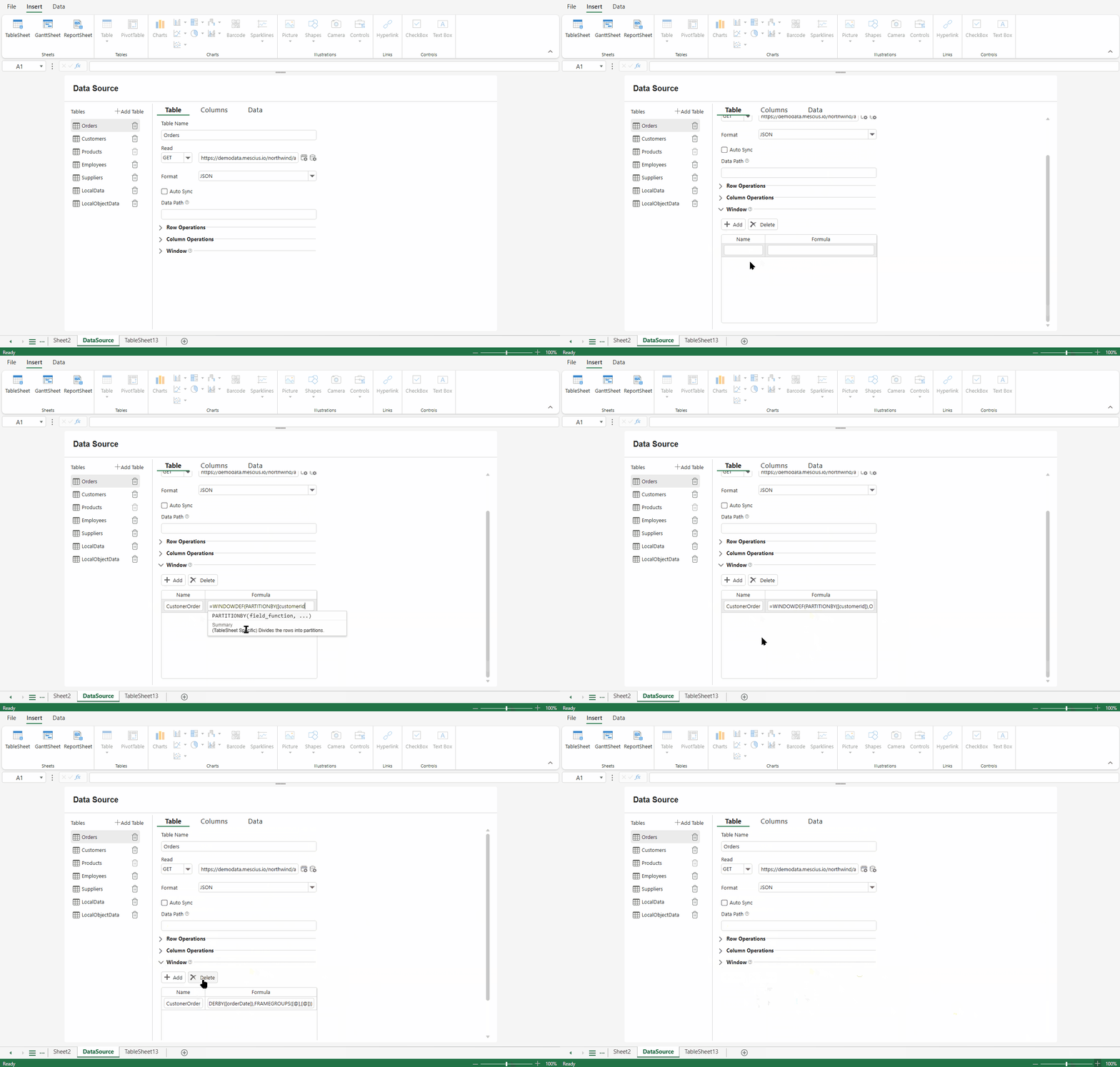
For conceptual details about window definitions, refer to the Data Manager documentation in Features.
Remote Submission Configuration (Remote‑Only)
When the table operates in Remote mode, you can configure endpoints for submitting data changes to the server.
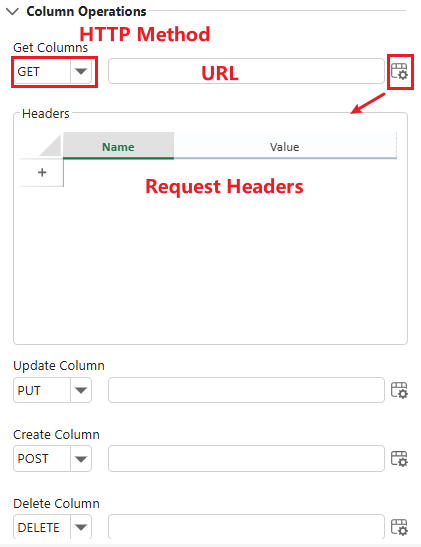
Each operation is configured in a dedicated section with the same structure:
HTTP method
URL
Optional Request Headers
The headers panel behaves the same way as in the Read configuration.
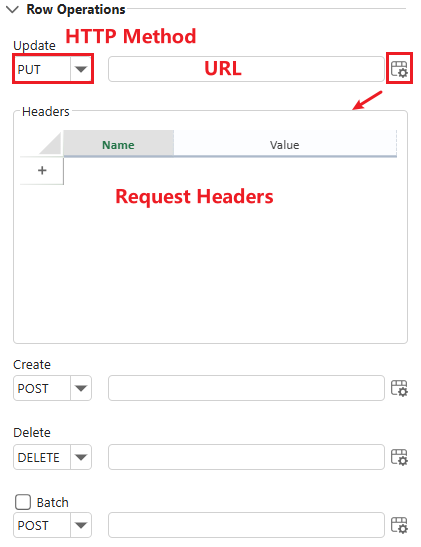
Row Operations
The Row Operations section defines how row-level changes are sent to the server.
You can configure separate endpoints for:
Update
Create
Delete
Batch
Each operation is configured independently.
These endpoints are triggered when row data changes are submitted.
Column Operations
The Column Operations section defines how column-level changes are synchronized with the server.
You can configure endpoints for:
Get Columns
Update Column
Create Column
Delete Column
Each operation follows the same configuration pattern as Row Operations.
This section is available only in Remote mode.