


Template-Based Workbook Initialization
When users create a new file in the SpreadJS Designer, they typically start from a blank workbook. In many applications, however, users are expected to begin with predefined layouts, styles, or business-specific structures.
The templatesConfig option allows you to define the starting experience of the Designer. Instead of opening a blank workbook, the Designer can initialize with a predefined template and provide multiple template choices in the New workflow.
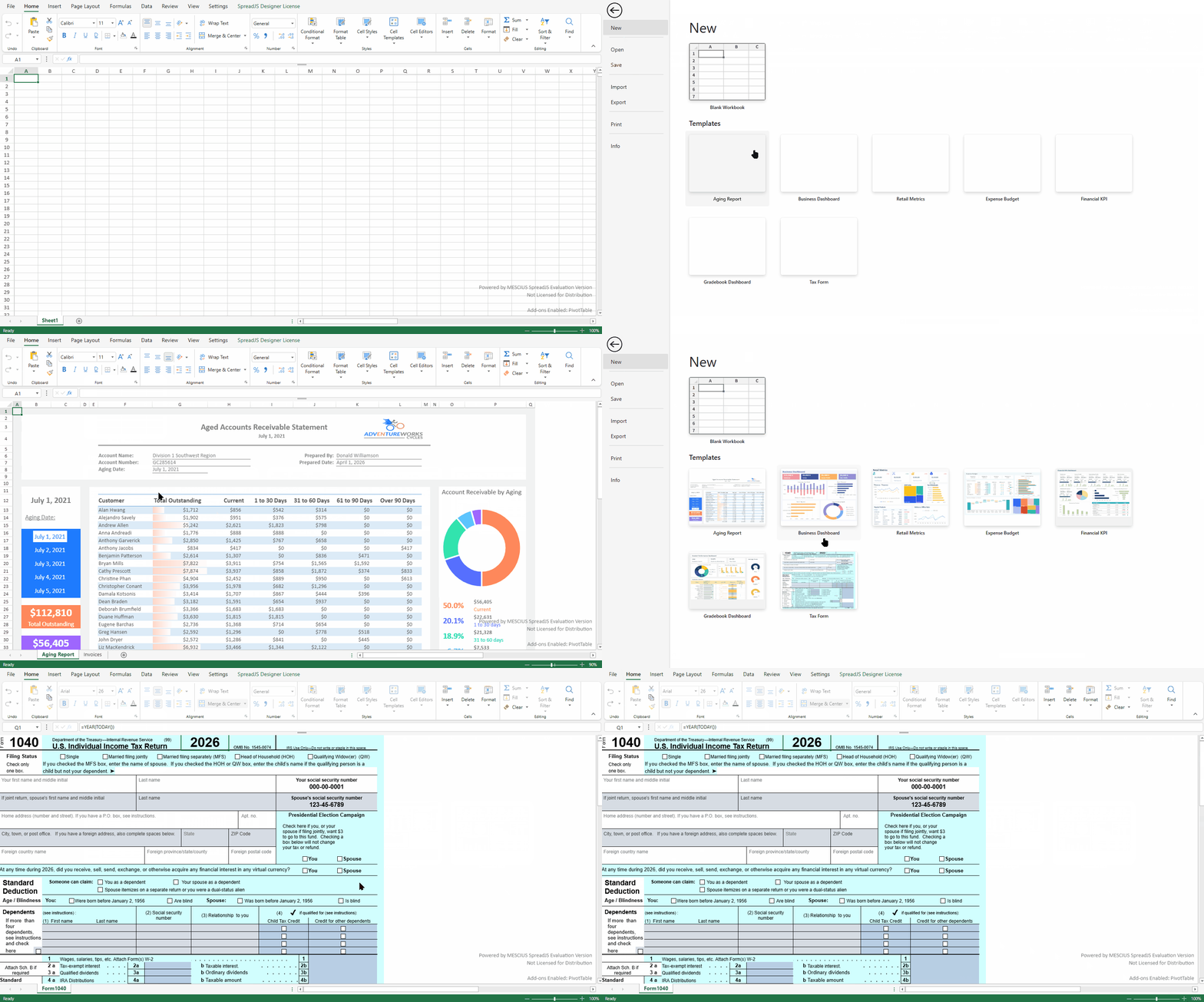
This feature is available in the Designer component only.
Enable Template-Based Initialization
To enable custom templates, specify the templatesConfig option when creating the Designer instance.
const designer = new GC.Spread.Sheets.Designer.Designer("container", {
  templatesConfig: "/templates/templatesConfig.json"
});
The value is a string representing the path to a JSON configuration file.
If templatesConfig is not specified, the Designer retains its default behavior and creates a blank workbook.
Template Configuration File Structure
The configuration file must contain a JSON array of template definitions.
Example:
[
  {
    "name": "Blank",
    "data": "./templates/blank.ssjson",
    "thumbnail": "./templates/blank.png"
  },
  {
    "name": "Aging Report",
    "data": "./templates/aging_report.sjs",
    "thumbnail": "./templates/aging_report.png"
  }
]
Template Properties
Property | Required | Description |
|---|---|---|
| Yes | Display name of the template shown in the UI. |
| No | Template content. Can be a URL to a template file or an inline Workbook JSON object. If omitted, the template is treated as blank. |
| No | Image URL or base64 string used as the template preview. If omitted, the default blank thumbnail is used. |
data Behavior
If
datais a string, it is treated as a URL. The Designer fetches the resource and determines the loading method based on the file extension.If
datais an object, it is treated as Workbook JSON data and applied directly.
Supported Template Formats
When data is a URL, the following formats are supported:
.ssjson.sjs.xlsx.xltx.xlsm.xltm
Default Template Behavior
The first template in the configuration array (templates[0]) is treated as the default template.
It is automatically applied in the following scenarios:
Designer initialization - After
new Designer()is called, the default template is loaded and applied to the workbook.Reset operations - When the user selects New or triggers a reset action, the default template is loaded instead of creating a blank workbook.
Other templates are applied only when explicitly selected by the user from the template picker.
After a template is successfully loaded, the workbook is treated as a clean, unmodified file.
Asynchronous Loading Considerations
The default template is loaded asynchronously.
If you access or modify the workbook immediately after creating the Designer instance, your changes may be overwritten when the template finishes loading.
If you need to operate on the workbook during initialization, wait for the template to finish loading:
const designer = new GC.Spread.Sheets.Designer.Designer("container", {
  templatesConfig: "/templates/templatesConfig.json"
});

await designer.waitForDefaultTemplateLoaded();

const workbook = designer.getWorkbook();
workbook.getActiveSheet().setValue(0, 0, "Safe to modify");
If templatesConfig is not configured, Designer initialization remains synchronous. Existing code from earlier versions continues to work without modification.
Update Templates at Runtime
You can update the template configuration after the Designer has been created.
Using setData:
designer.setData("templatesConfig", [
  {
    name: "Blank",
    data: "./templates/blank.ssjson",
    thumbnail: "./templates/blank.png"
  },
  {
    name: "Financial Report",
    data: "./templates/financial_report.sjs",
    thumbnail: "./templates/financial_report.png"
  }
]);
Using setConfig:
const config = {
  ...GC.Spread.Sheets.Designer.DefaultConfig,
  templatesConfig: "/templates/newTemplatesConfig.json"
};

designer.setConfig(config);
If setConfig includes the templatesConfig property, the Designer updates its template configuration accordingly.
If setConfig omits the templatesConfig property, the existing template configuration remains unchanged.
Changes to templatesConfig affect future reset operations. The currently loaded workbook is not modified automatically.
Events
DesignerResetDone
This event is triggered after a reset operation completes and the selected template has been fully loaded.
designer.bind(
  GC.Spread.Sheets.Designer.Events.DesignerResetDone,
  () => {
    console.log("Reset completed and template applied.");
  }
);
FileLoading and FileLoaded
Loading a template—whether during initialization, reset, or template selection—also triggers the standard file loading events. These events behave the same as when opening a file.
Fallback Behavior
If
templatesConfigis not set or is empty, the Designer creates a blank workbook and only the default blank option is available.If the default template fails to load, the Designer falls back to a blank workbook.
If a non-default template fails to load when selected, a blank workbook is used instead.