SpreadJS Designer VSCode Plugin
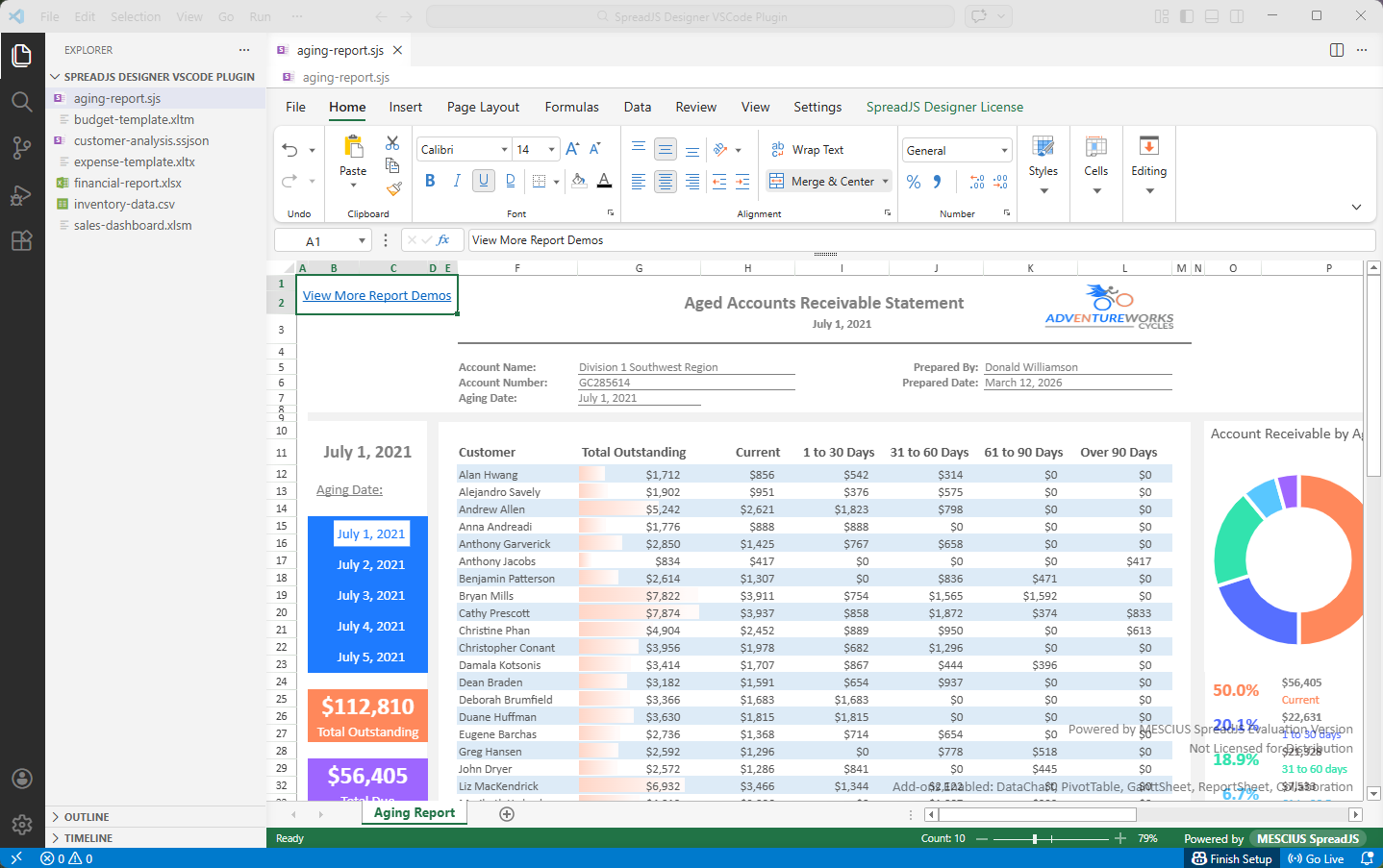
The SpreadJS Designer VSCode extension integrates the full-featured SpreadJS Designer into Visual Studio Code, allowing you to preview and edit spreadsheet files directly within the VSCode workspace.
The extension works as a custom editor and adapts to VSCode’s file system model, theme system, and security constraints.
Supported File Formats
The extension provides editing support for:
.sjs.ssjson.xlsx.xltx.xlsm.xltm.csv
It registers as a custom editor for these formats and can be configured as the default editor in VSCode.
Installation
Requirements
Visual Studio Code (Desktop) version 1**.107.0** or later
You can verify your VSCode version from:
Help → AboutInstall from Visual Studio Code Marketplace
Open Visual Studio Code.
Go to the Extensions view (
Ctrl+Shift+X).Search for
SpreadJS XLSX Editor
MESCIUS
Select the extension published by Mescius.
Click Install.
Alternatively, you can install from the Marketplace page.
After Installation
No window reload is required.
The extension does not automatically become the default editor for supported file types.
To set it as the default editor:
Open a supported file (for example,
.xlsx).Right-click the file tab.
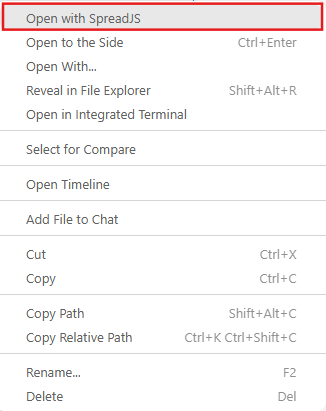
Select Open with SpreadJS.
Working with Files
Open Files
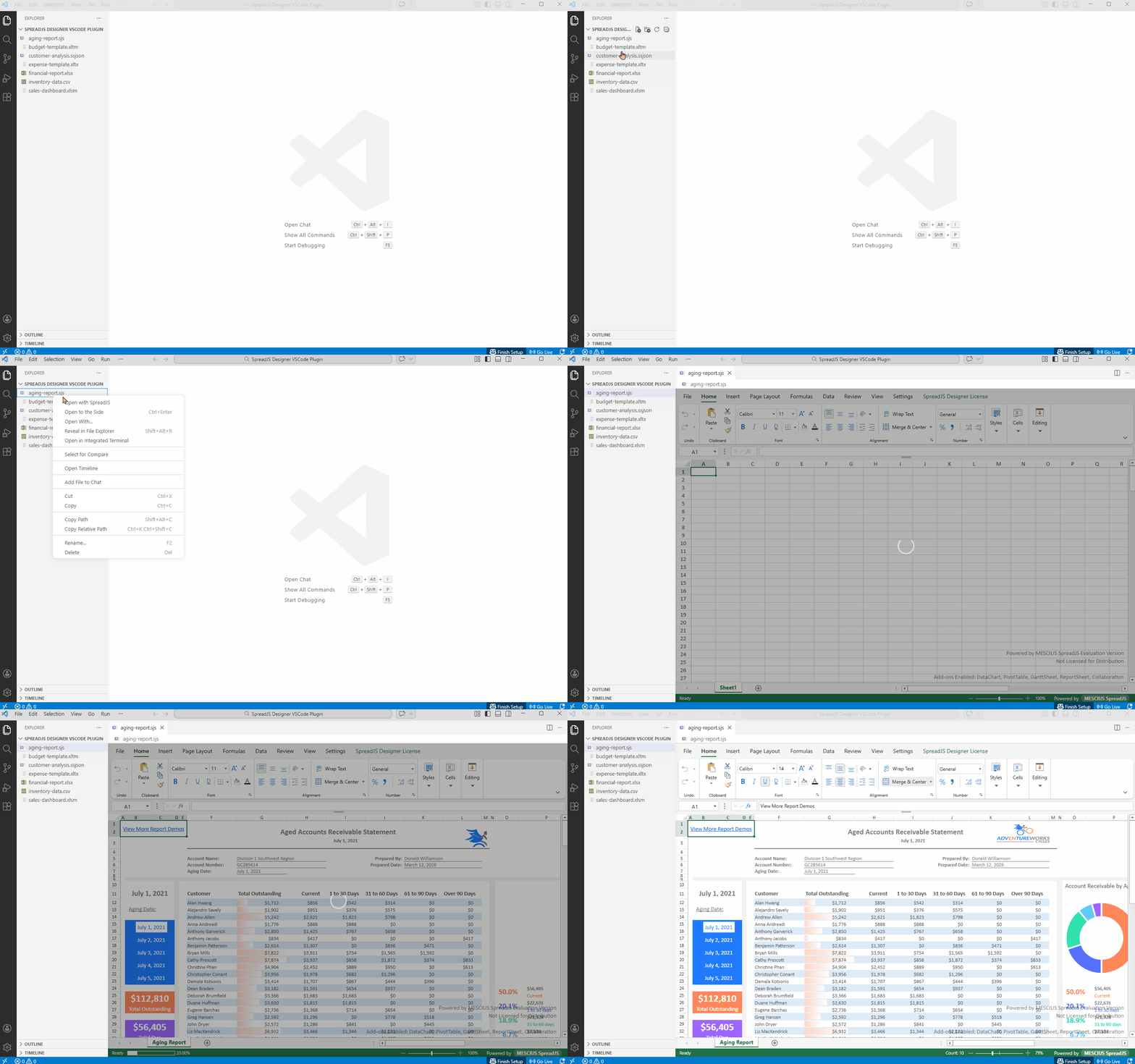
Supported files open directly in the SpreadJS Designer.
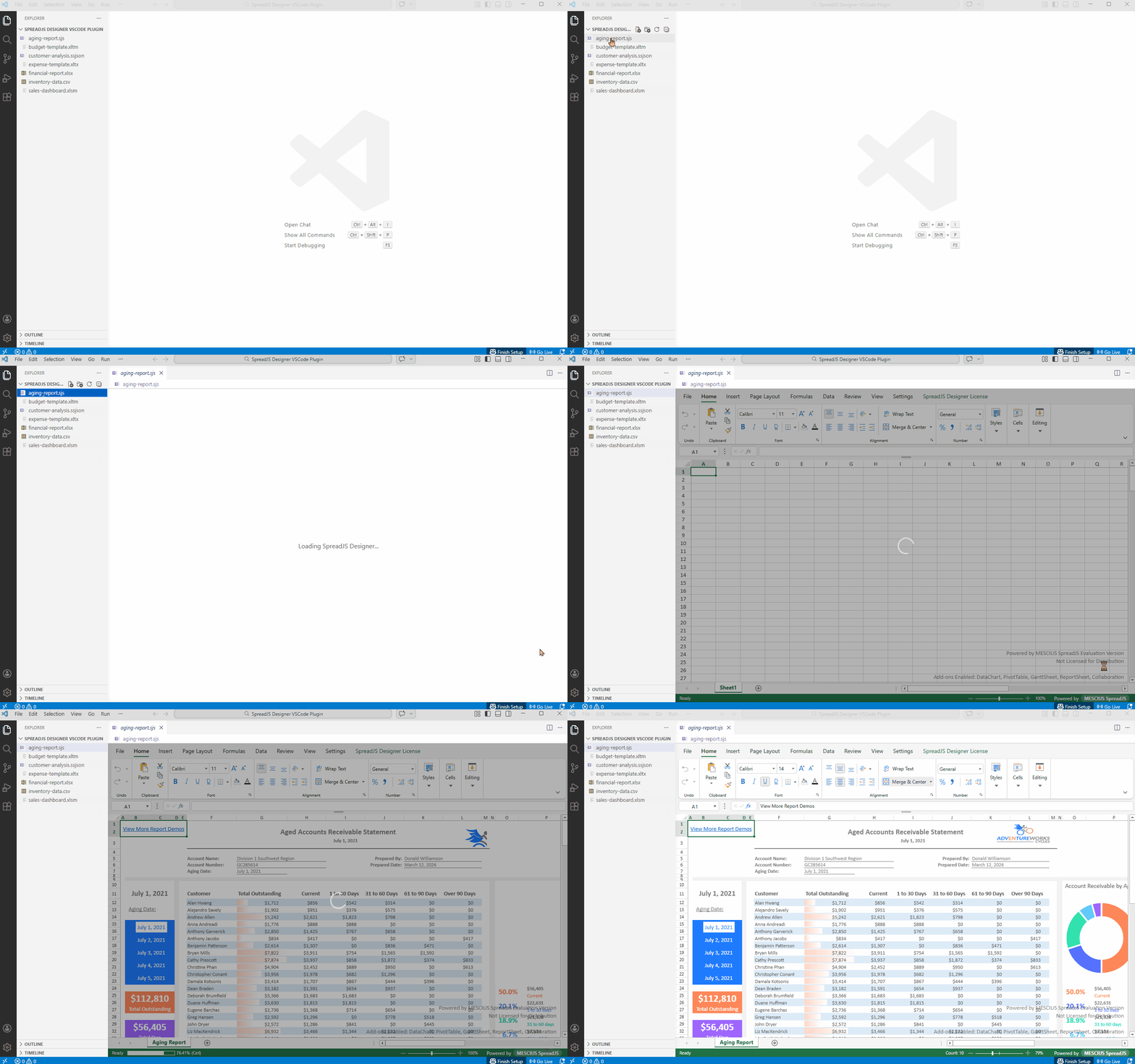
You can also explicitly open a file using:
Explorer → Right-click → Open with SpreadJS
Password-Protected XLSX
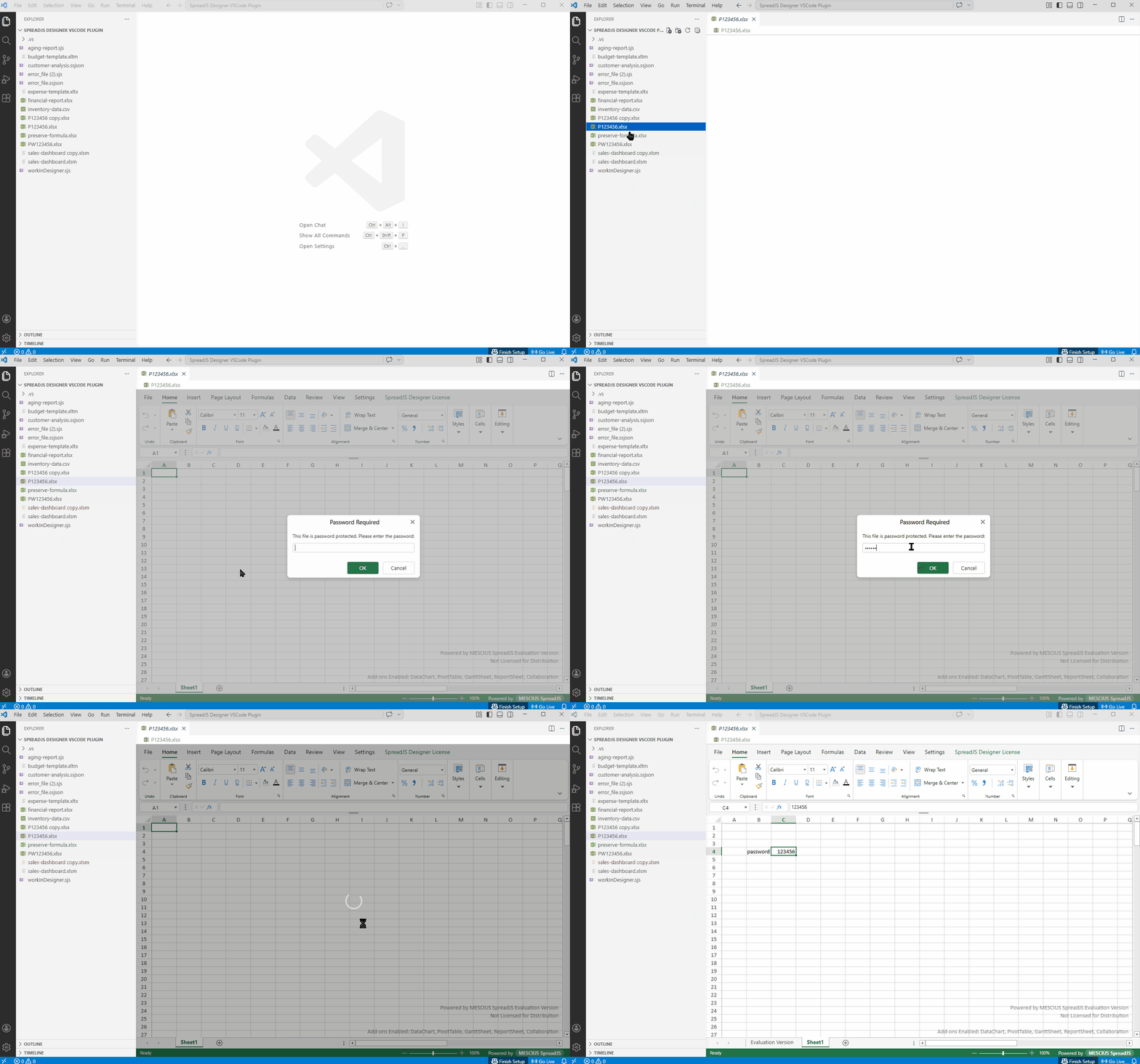
When opening a protected .xlsx file:
A password dialog is displayed.
If authentication succeeds, the file opens.
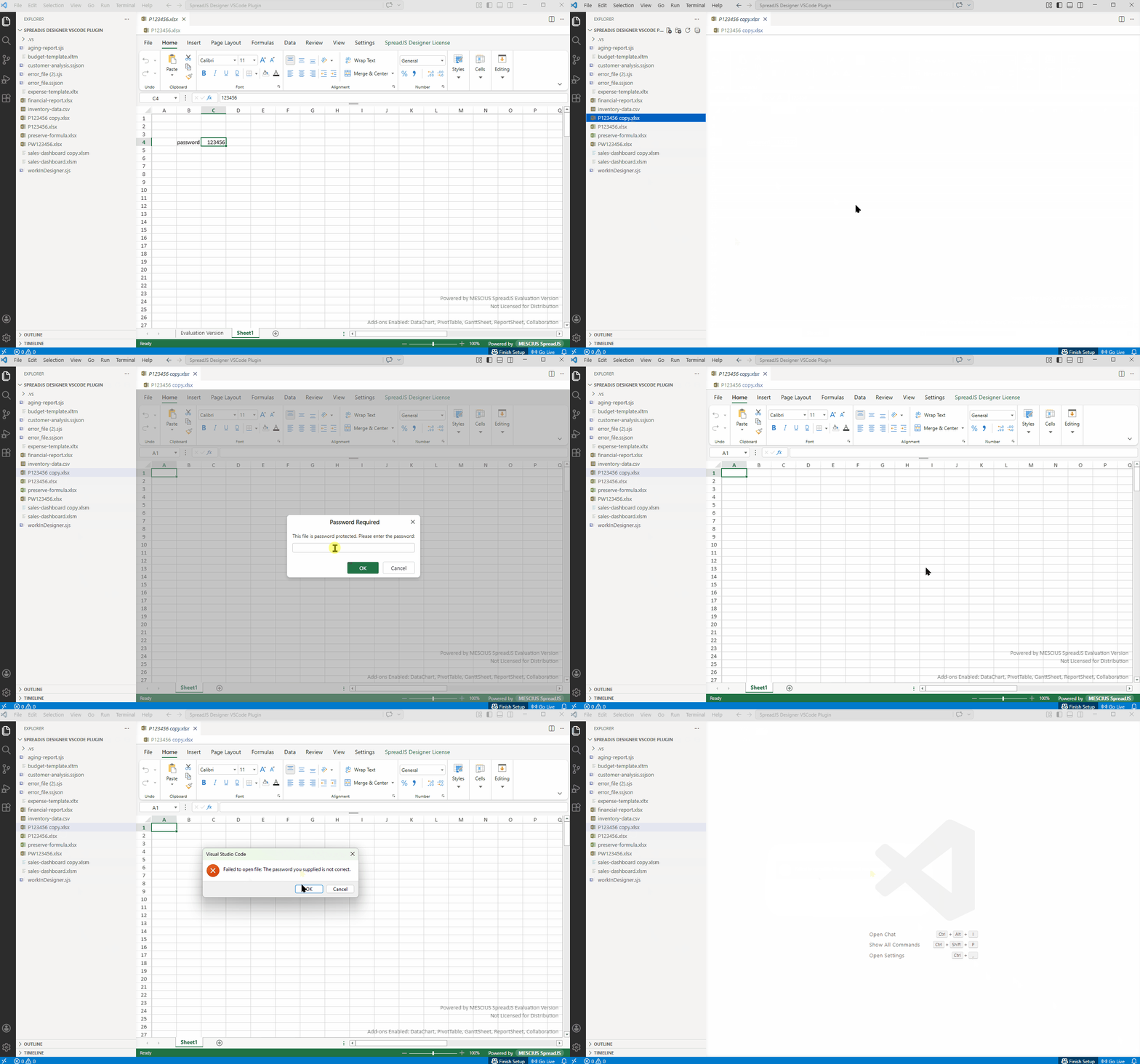
If authentication fails, an error message is shown and the tab closes.
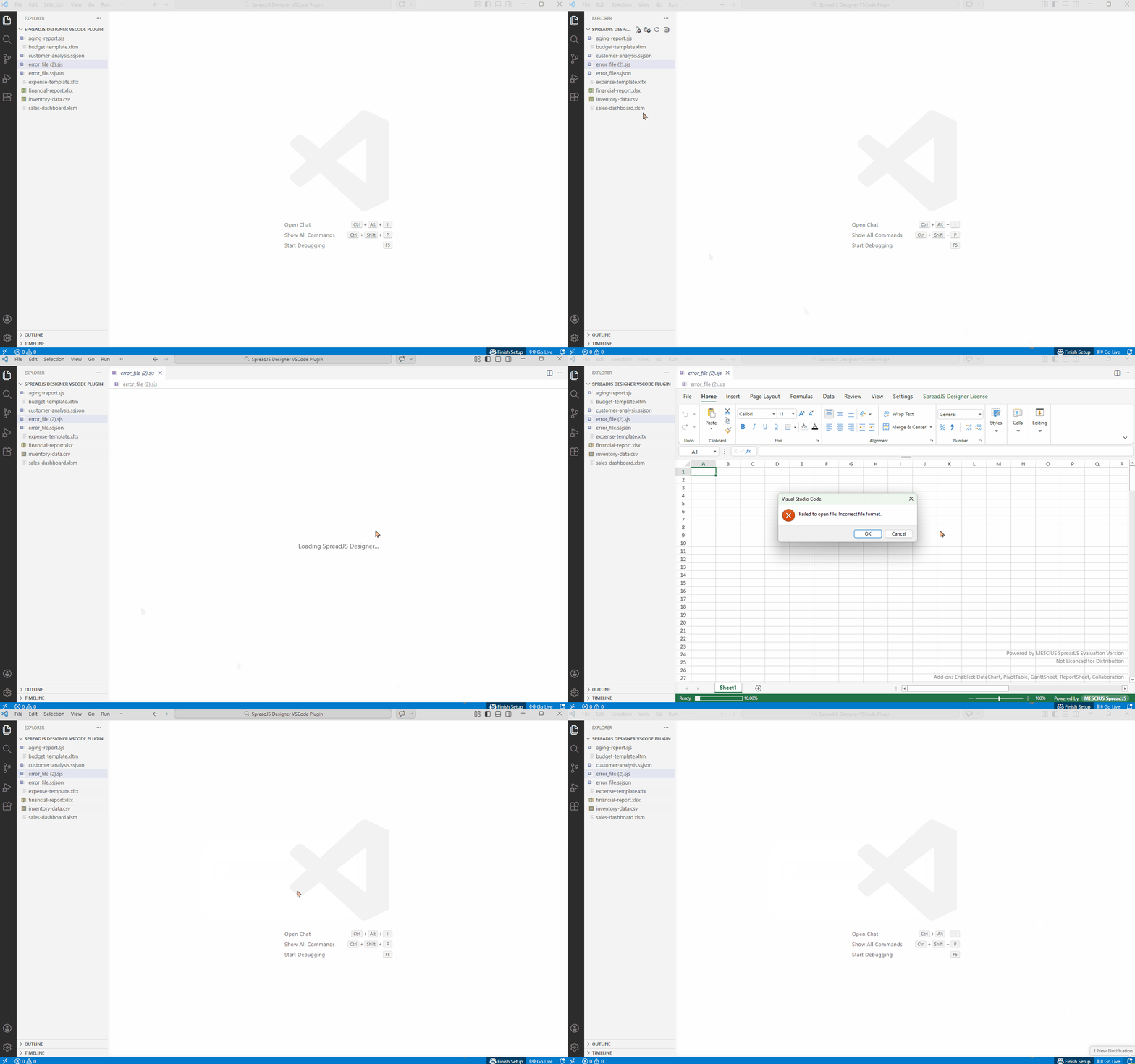
File Load Errors
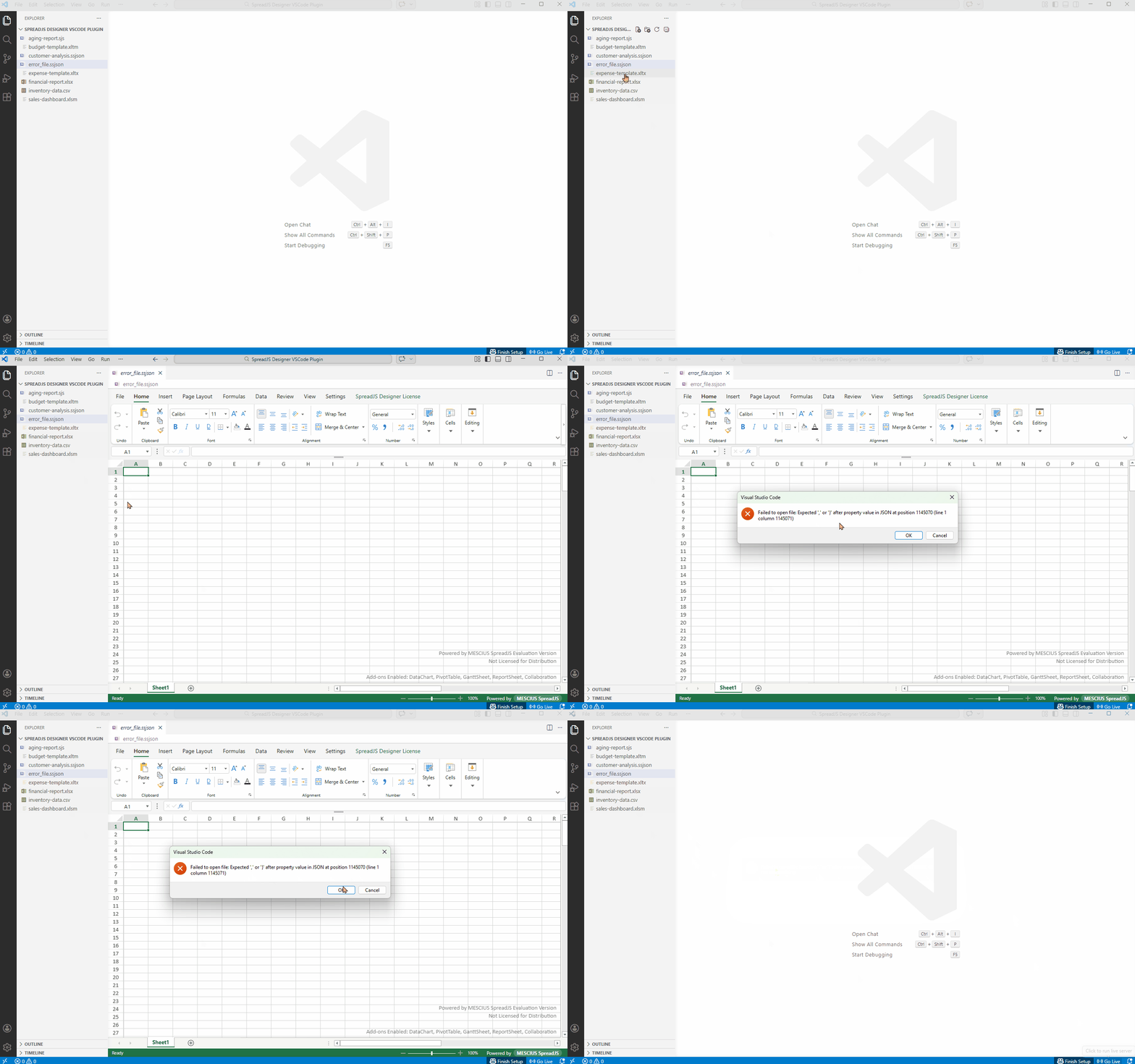
If a file cannot be opened, a dialog displays the error details.
Edit and Save
When a file is modified:
VSCode marks the tab as unsaved.
Press Ctrl+S to save.
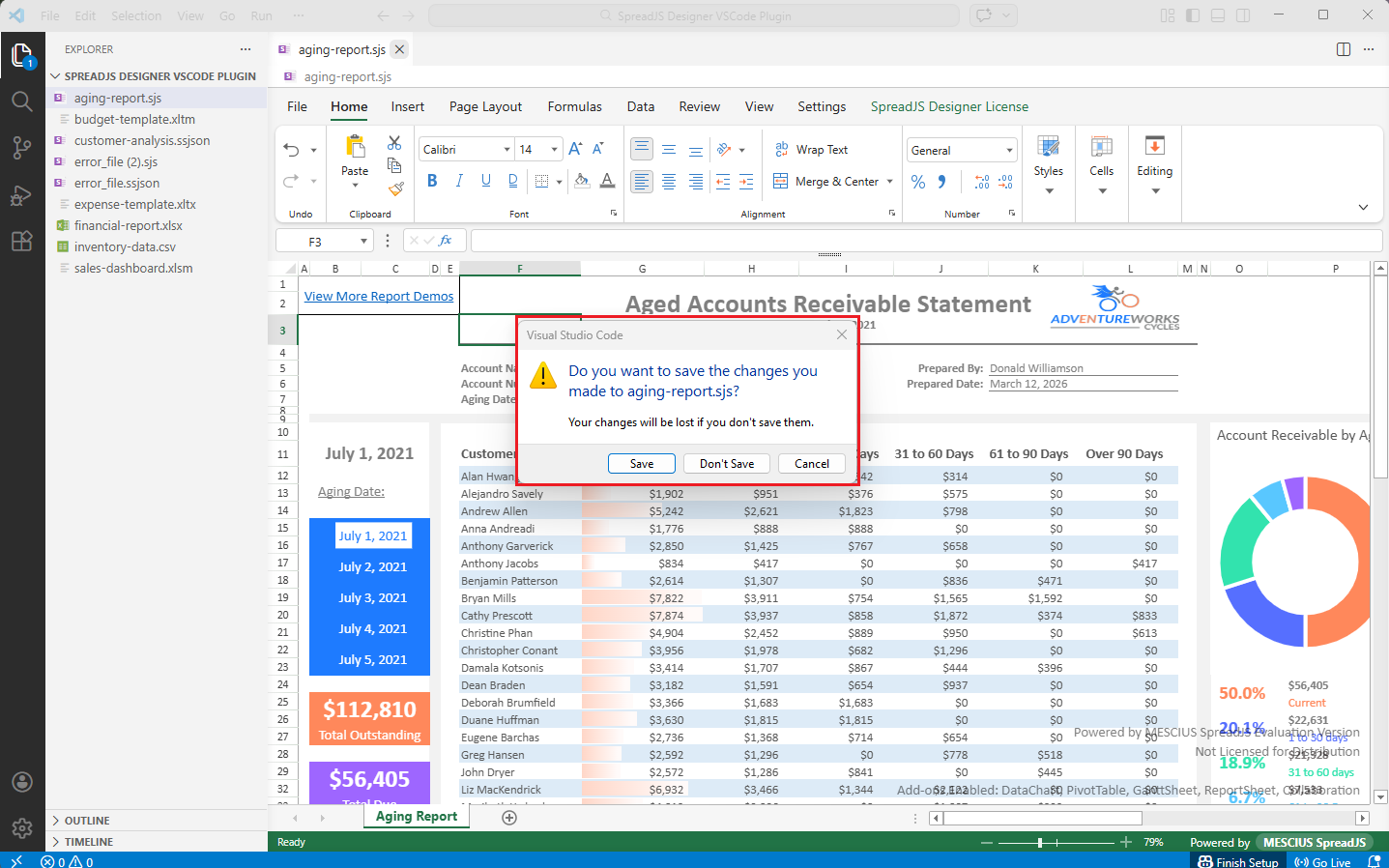
If you close a modified file without saving, VSCode prompts for confirmation.
Create New Files
The extension registers commands for creating new spreadsheet files.
To create a file:
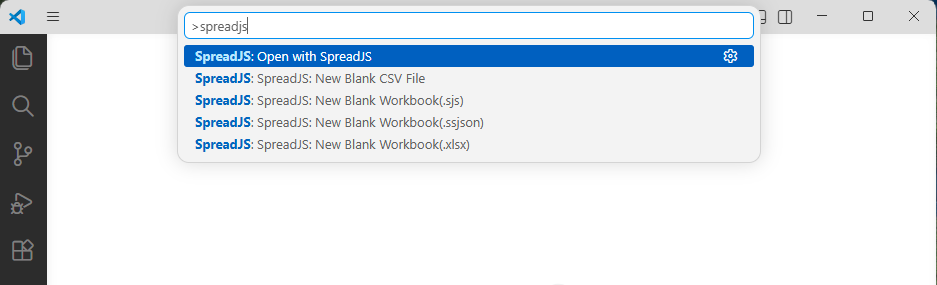
Press Ctrl+Shift+P
Run the corresponding SpreadJS command
New workbooks are initialized according to configured workbook options.
VSCode Integration
Customized File Menu
Because VSCode manages files through the file system, certain Designer Online actions are not applicable in the extension environment.
The following menu items are removed:
New
Open
Import
Save
Print
Printing is not supported because VSCode extensions cannot invoke the window.print API.
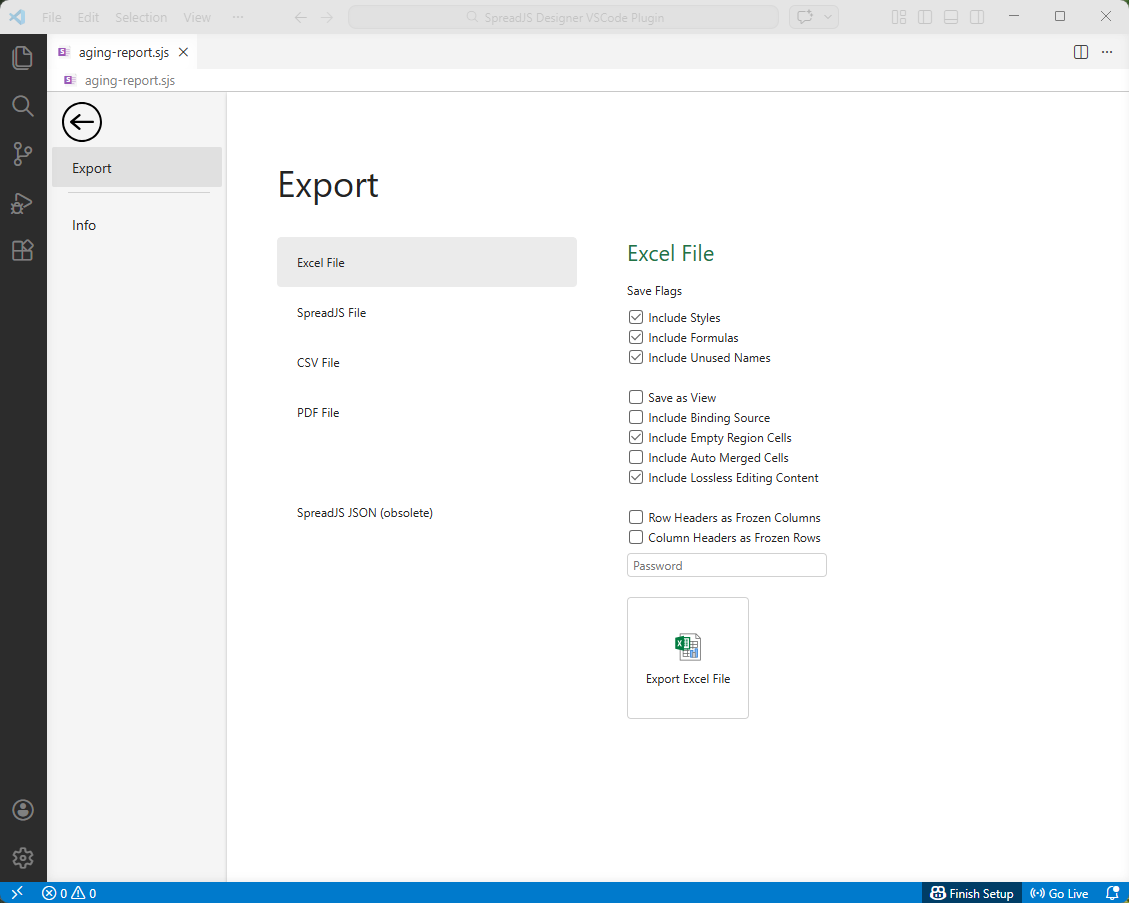
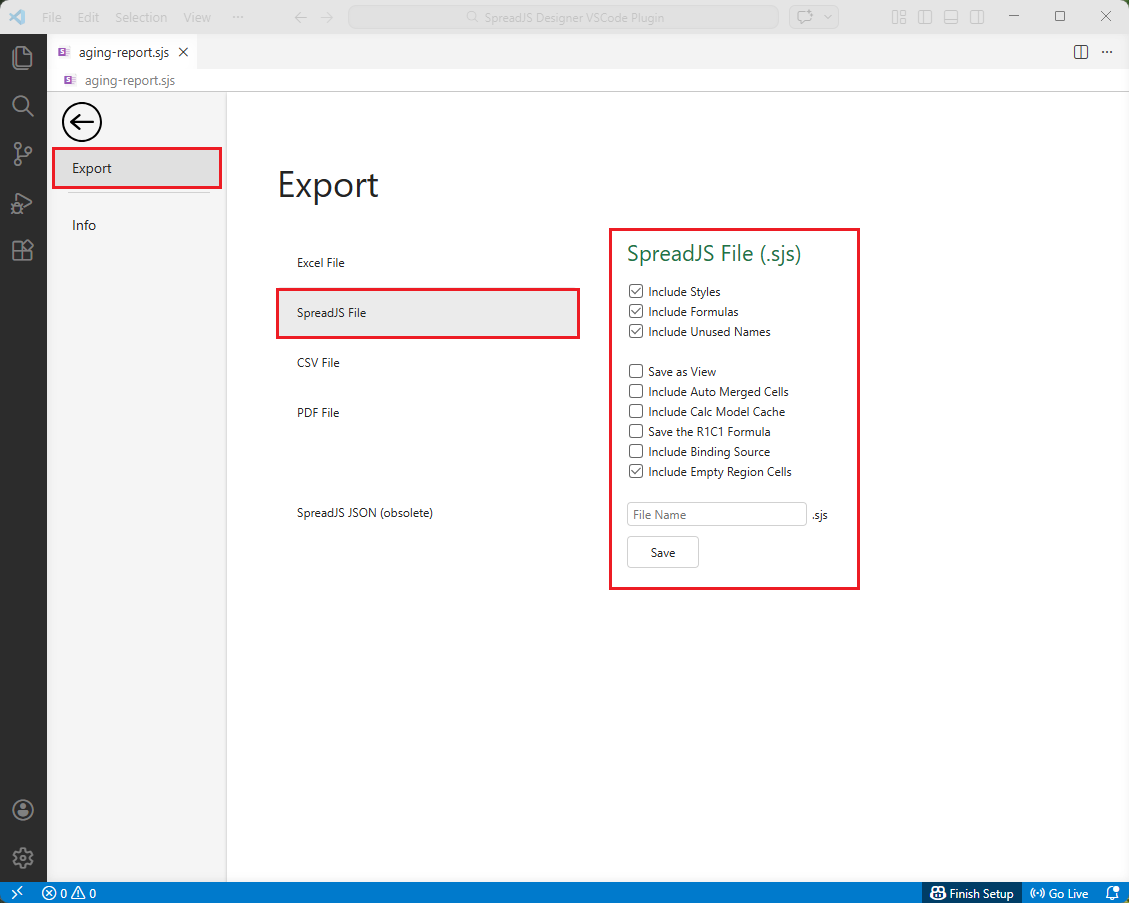
Export
Export functions as Save As.
Saving in SpreadJS format is available under:
Export > SpreadJS File
Ribbon Mode
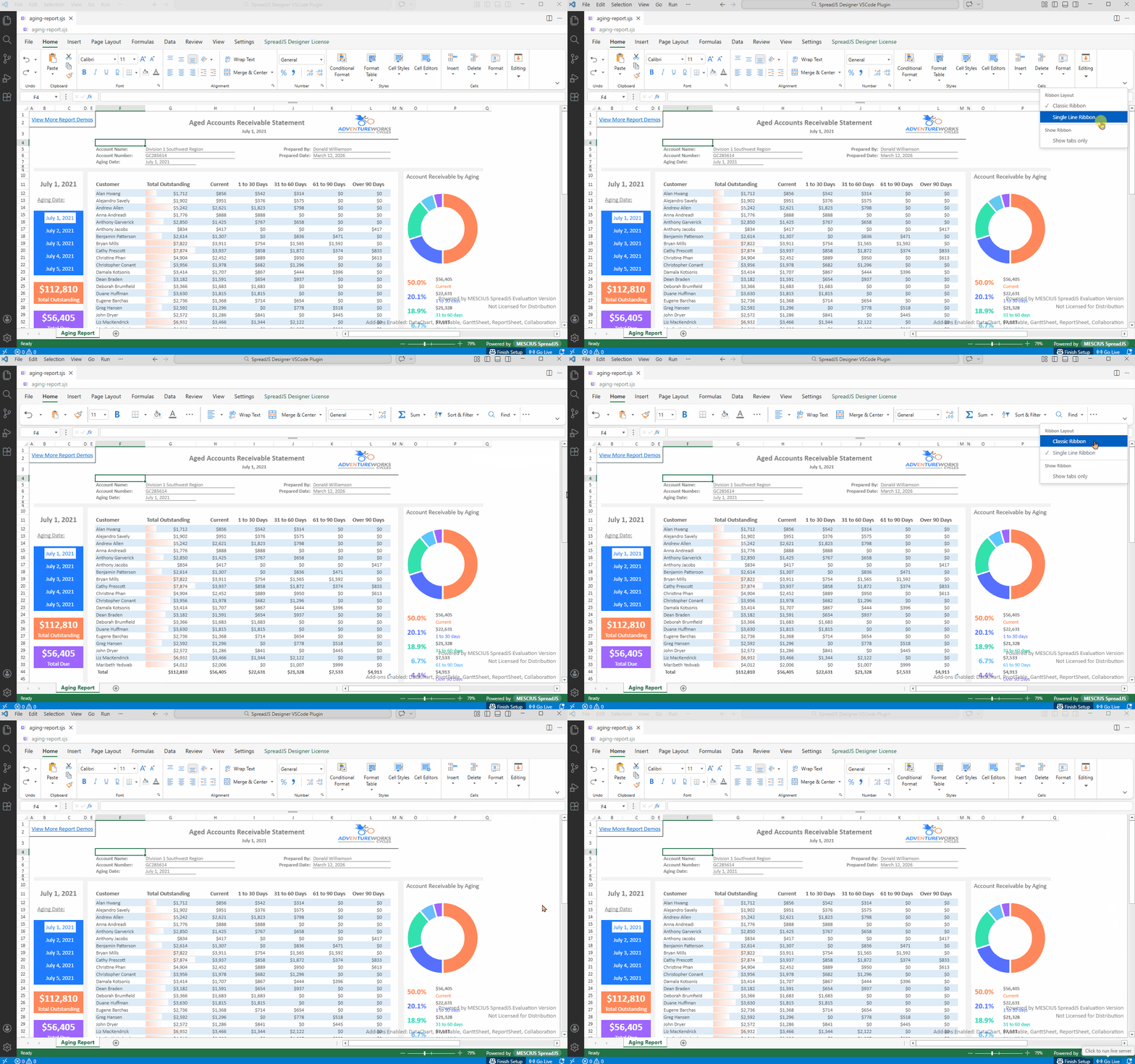
Two ribbon modes are supported:
classictoolbar
You can switch modes in the Designer UI or define a default in settings.json.
{
  "spreadjs": {
    "ribbonMode": "classic"
  }
}
Theme Support
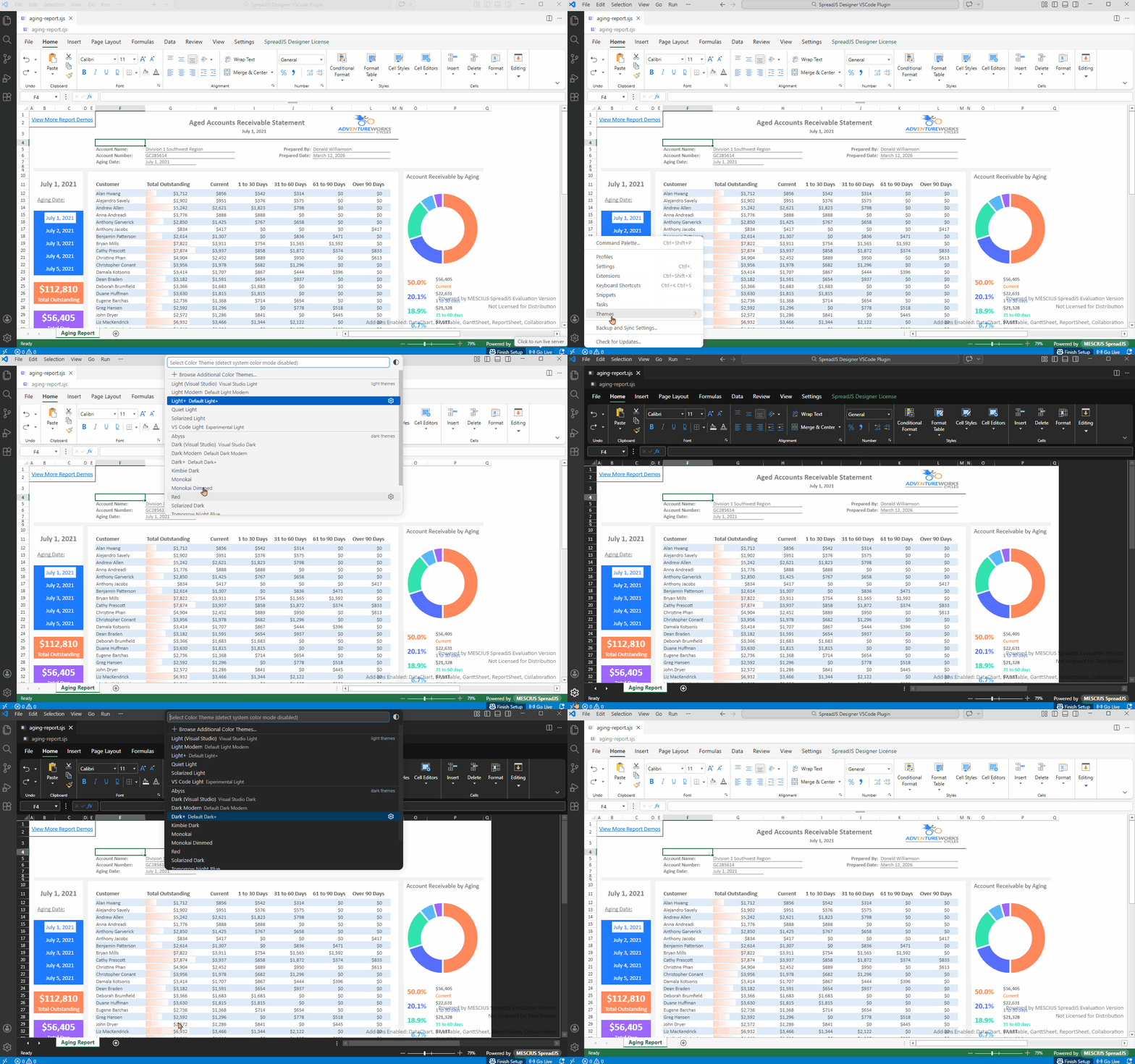
The Designer automatically adapts to the active VSCode theme:
Light themes → Light UI
Dark themes → Dark UI
No configuration is required.
Language and Culture
By default, the extension uses VSCode’s display language.
You can override this behavior:
{
  "spreadjs": {
    "language": "zh",
    "culture": "zh-cn"
  }
}
File Icons
The extension provides custom icons  for:
for:
.sjs.ssjson
This improves file identification in the Explorer.
Status Bar
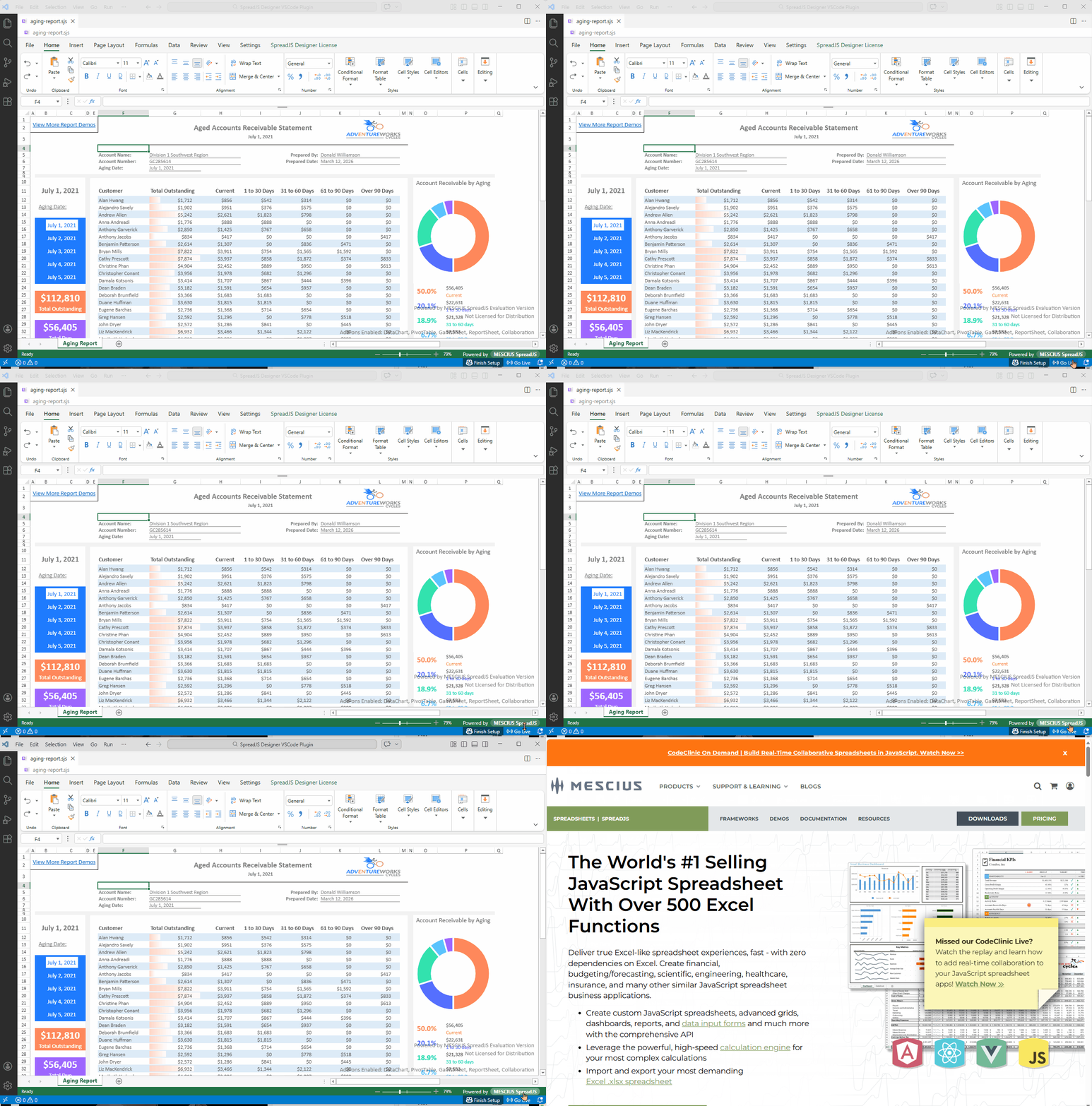
The extension contributes a status bar item labeled Powered by MESCIUS SpreadJS.
Clicking it opens the SpreadJS product homepage.
Filter Header Behavior
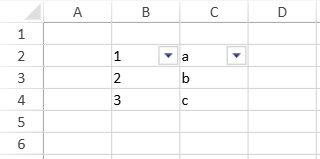
In the SpreadJS Designer VSCode Plugin, Use First Row as Filter Header is enabled by default.
When you create a sheet filter from a selected range, the first row of the selection is treated as the filter header row. The filter dropdown buttons are placed on that row, and the filter range starts from the row below it.
For example, if the selected range is B2:C4, Designer uses B2:C2 as the header row and creates the filter range for B3:C4.
Configuration
All configuration is defined in settings.json.
Workbook Options
Applied when creating a new blank workbook:
{
  "spreadjs": {
    "workbookOptions": {
      "allowDynamicArray": true,
      "allowInvalidFormula": true
    }
  }
}
See GC.Spread.Sheets.IWorkbookOptions in the API reference for supported properties.
File Open and Import Options
Applied when loading files:
{
  "spreadjs": {
    "openOptions": {},
    "importOptions": {},
    "importCsvOptions": {}
  }
}
Refer to:
Compatibility and Constraints
Version Compatibility
The extension always runs on the latest bundled SpreadJS runtime.
If a file was created with a different major or minor version, compatibility restrictions may apply.
When such a file is opened:
A notification is displayed.
Direct Save is disabled to prevent overwriting the original file with a newer version.
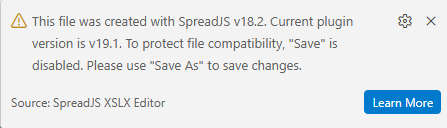
You can use Save As (Export) to save the content as a new file.
The file remains editable, but it cannot be saved back to the original version.
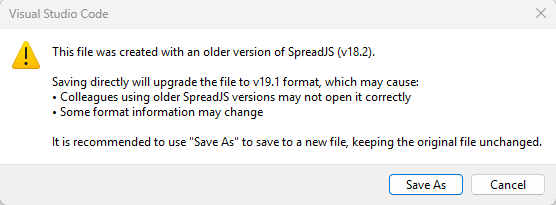
Why Saving Is Disabled?
Saving directly would upgrade the file to the current runtime version and permanently change its version metadata.
To avoid unintended upgrades, the extension blocks direct saving when version lines do not match.
Keyboard Shortcut Conflict
The Designer’s internal command palette shortcut conflicts with VSCode’s Go to File (Ctrl+P).
It is remapped to:
Ctrl + Alt + PExternal Hyperlinks
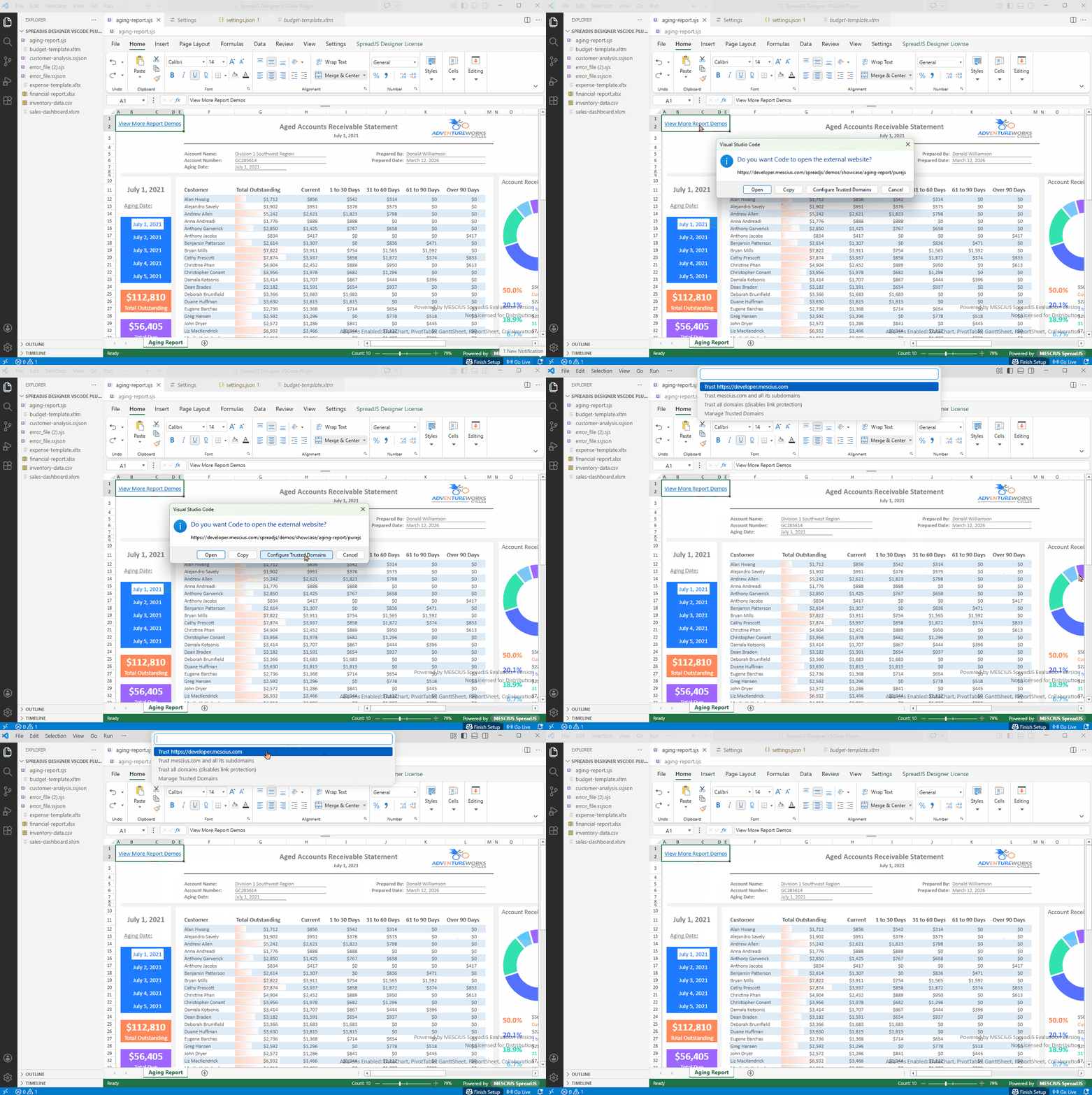
Due to VSCode security policies, opening external links requires user confirmation.
Licensing
No license key is required to install or activate the extension.
Without a commercial license, a trial watermark appears in the lower-right corner of the Designer.