- SpreadJS Overview
- Getting Started
- JavaScript Frameworks
- Best Practices
- Features
- SpreadJS Designer
- SpreadJS Designer VSCode Plugin
- Tutorials
-
SpreadJS Designer Component
- Getting Started
- Quick Start
- Theme
- Designer Interface
- JavaScript Frameworks
- Template-Based Workbook Initialization
- Customizations
-
Work in Designer Component
- AutoSum Functions
- Set Range Template Cell
- Name Box
- Select Cells Using Go To
- Find and Replace
- Edit Font Size
- Edit Font Family
- Configure Cell Borders
- Manage Conditional Formatting Rules
- Shape Selection Pane
- Automatic Outline
- Format Painter
- Sort and Filter
- Table Slicer
- Data Source
- TableSheet
- GanttSheet Designer
- ReportSheet Designer
- Data Chart Designer
- Text to Columns
- Remove Duplicates
- Pivot Table
- Dockable Side Panel
- Command Palette
- Transform Cells with LAMBDA Formula
- Threaded Comments Panel
- What-If Analysis
- Insert Function Dialog
- Named Cell Templates
- Insert Pictures in Designer
- Toolbar Ribbon
- API Documentation
- SpreadJS Collaboration Server
- Touch Support
- Formula Reference
- Import and Export Reference
- Events
- API Documentation
- Release Notes
Name Box
The name box in SpreadJS displays the address of the active cell in the worksheet. It can also be used to perform the following operations to work with cell ranges.
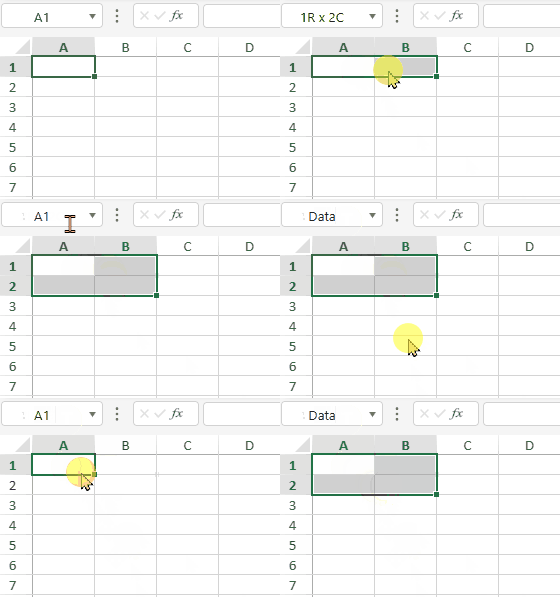
Create custom names for cell ranges by selecting a cell range and entering the name in the name box.
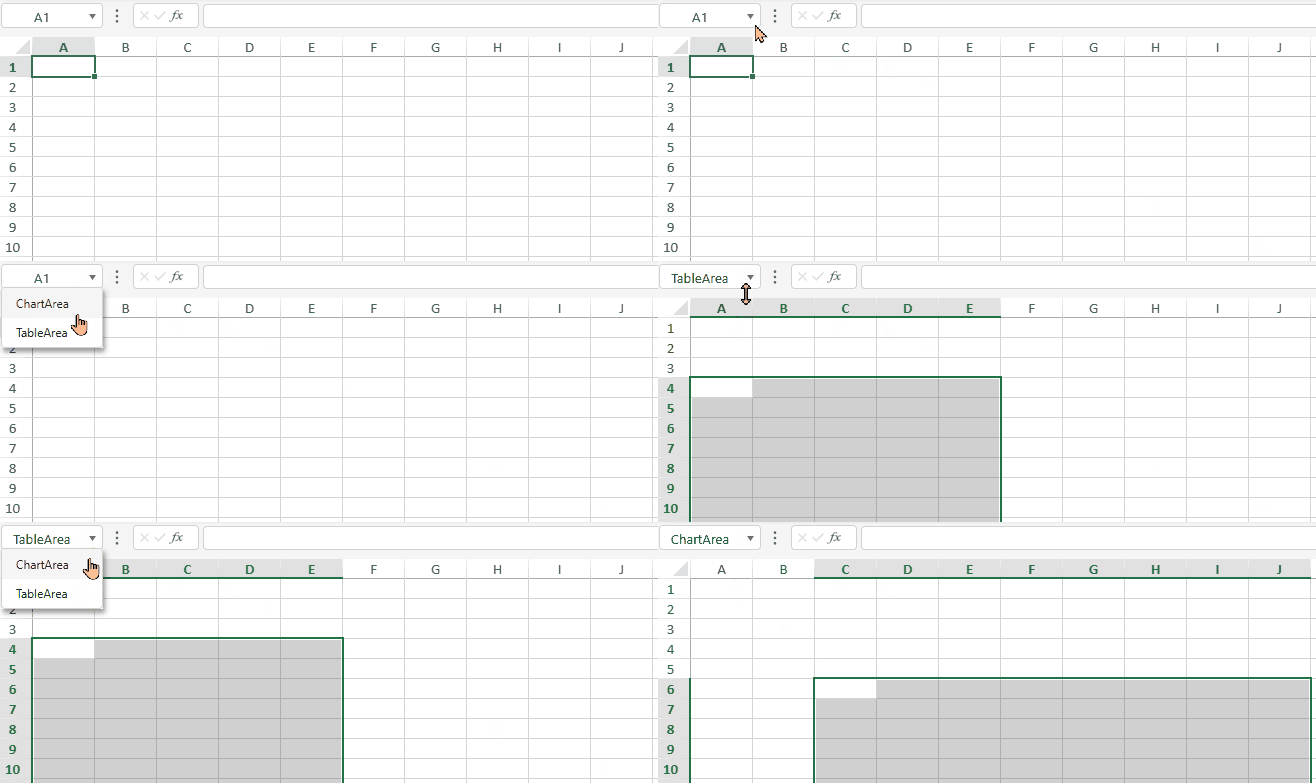
Access the saved cell regions by selecting the corresponding custom name from the name box dropdown.
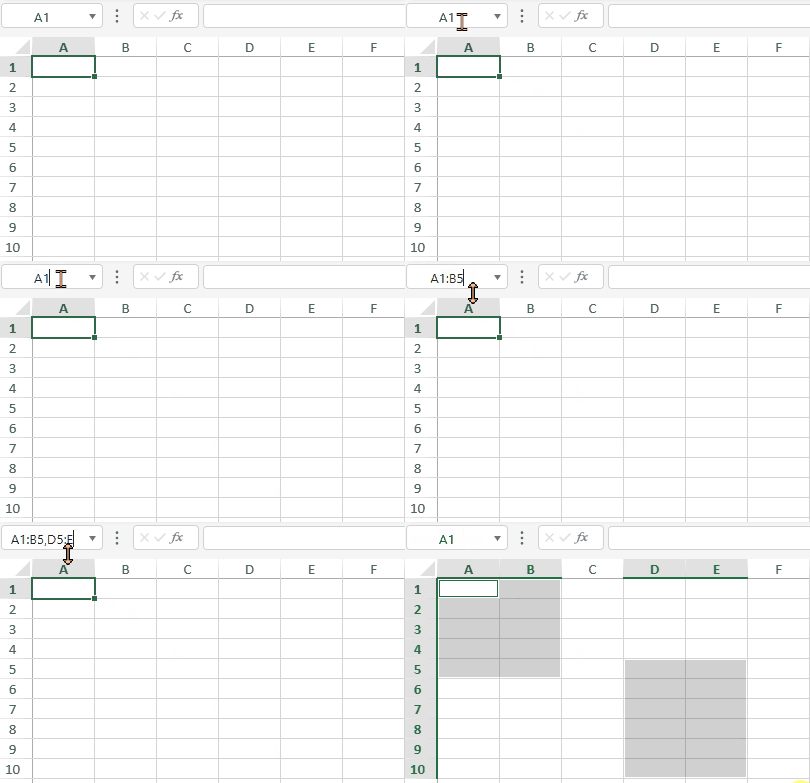
Automatically select cell regions by entering cell references in the name box.
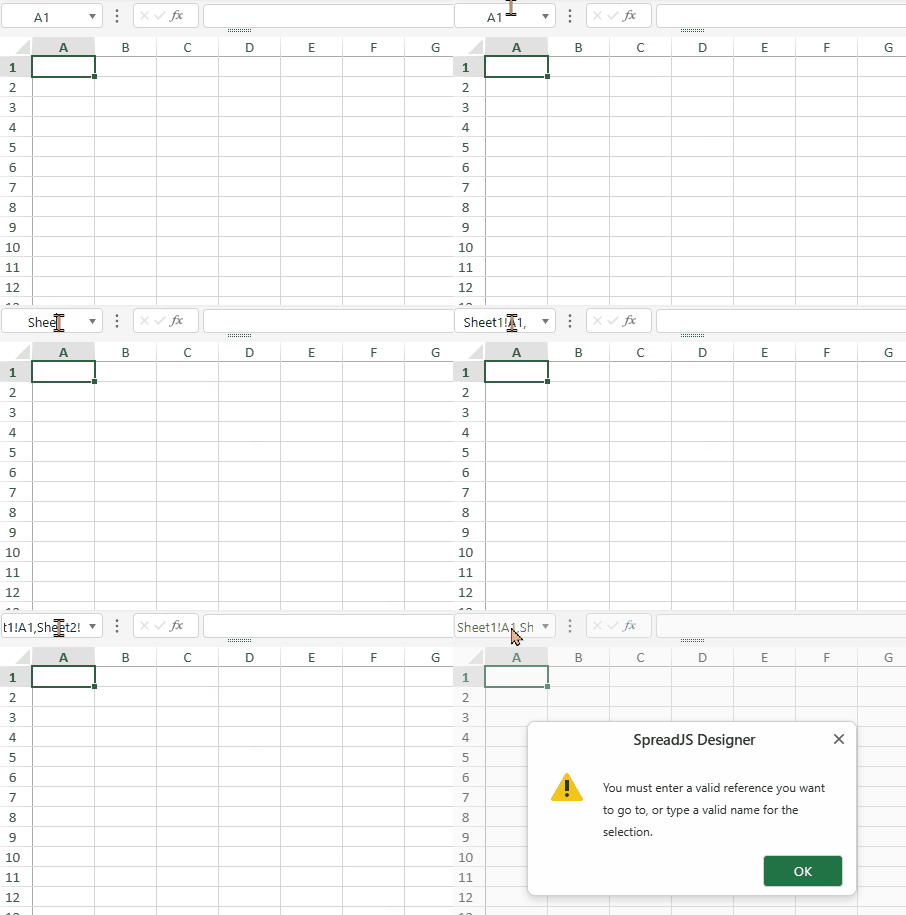
SpreadJS issues a warning in the following scenarios when entering text in the name box.
If the entered text cannot be parsed to a cell range or the entered name is invalid, that is, has spaces in between, starts with a number, etc.
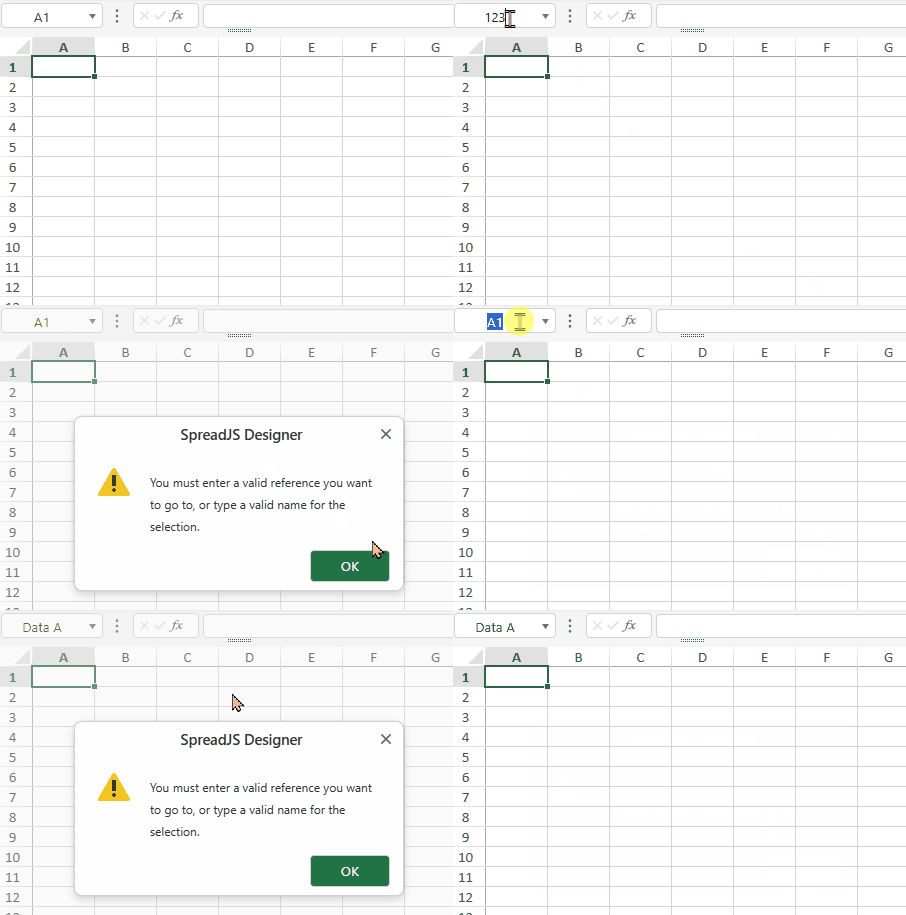
If the entered text is parsed as cell reference but does not exist in the same worksheet.
Using Name Manager Dialog
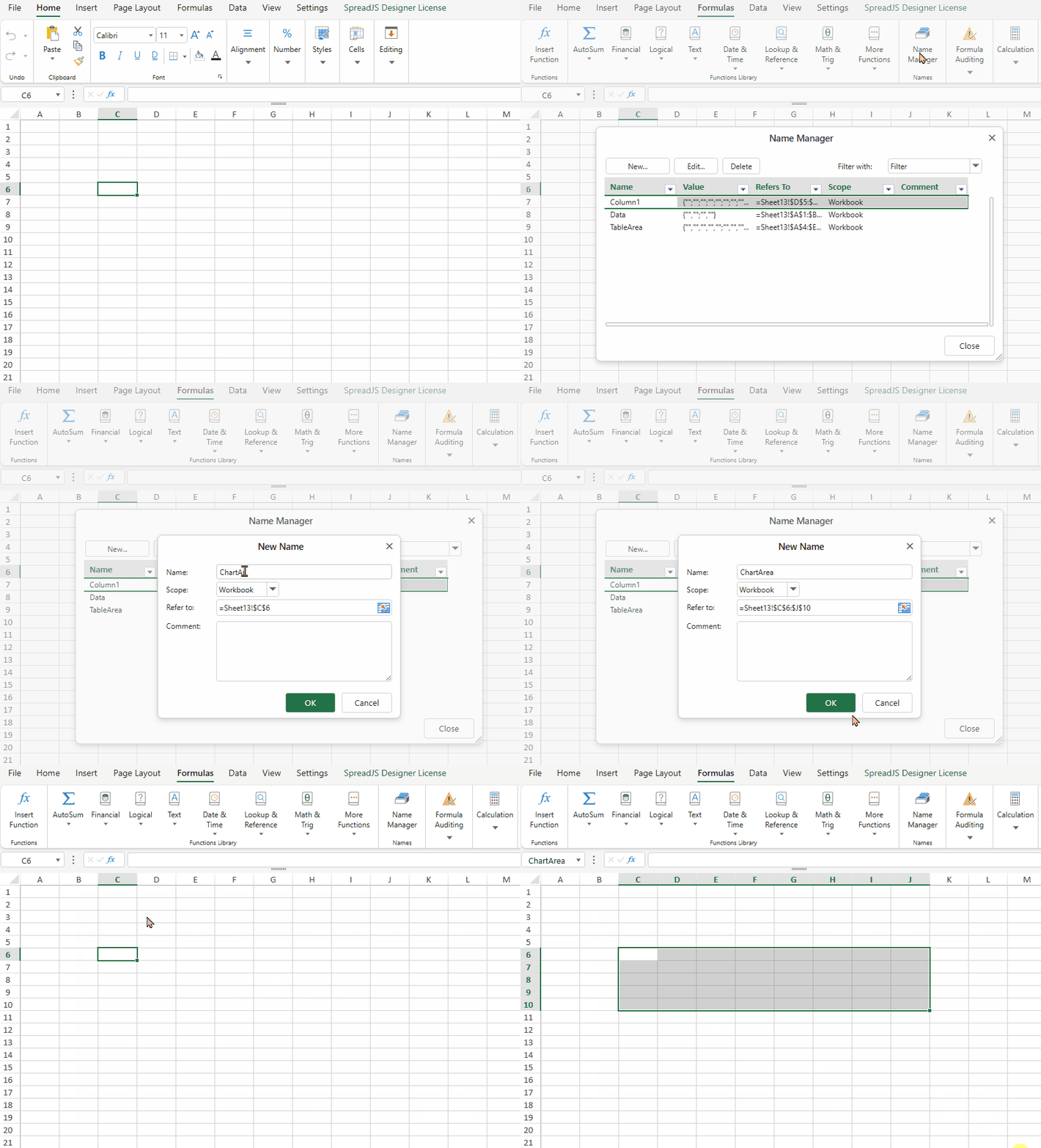
The SpreadJS Designer Name Manager Dialog can be found in the Formula tab, and can perform the following actions:
Create custom names for cell ranges
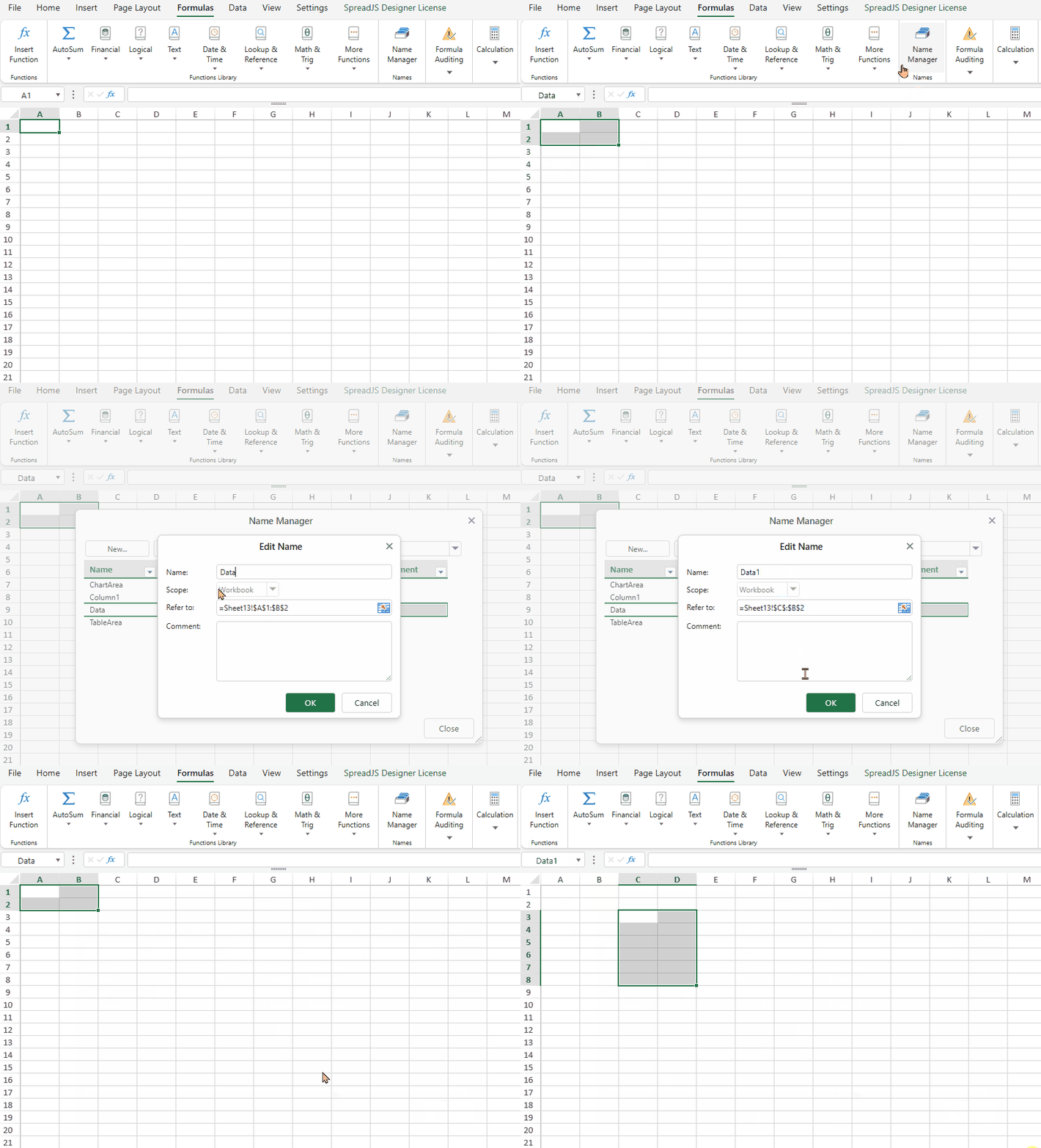
Edit custom names and cell range
Delete custom names
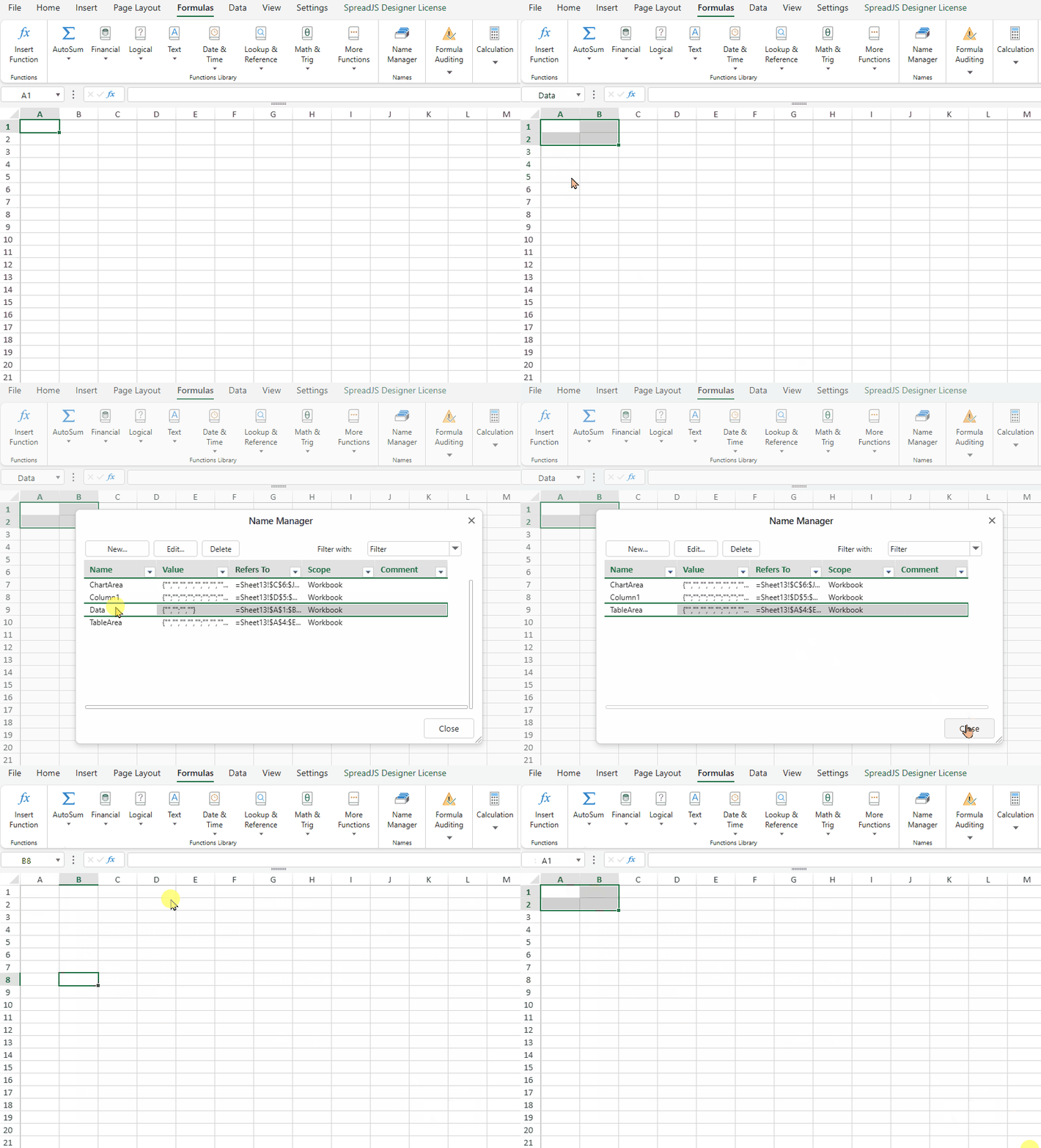
Bulk Deletion
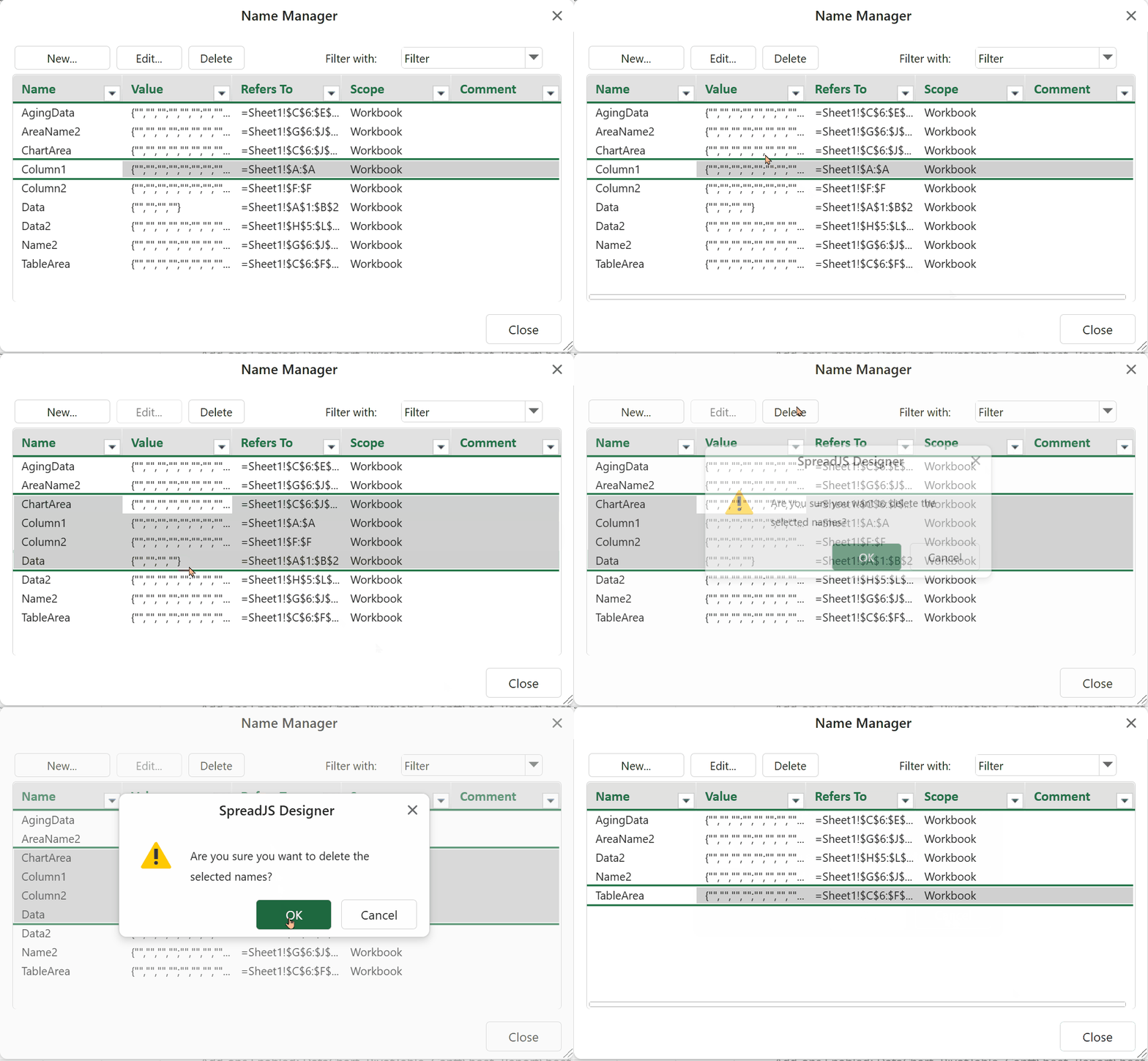
The following table summarizes the methods available on Windows and macOS for selecting multiple custom names using either the mouse or keyboard. Once the desired items are selected, you can delete them in bulk.
Windows | macOS | Description |
|---|---|---|
Mouse Click & Drag | Mouse Click & Drag | Hold the left mouse button and drag to select multiple consecutive rows. |
Shift + ↑ / ↓ | Shift + ↑ / ↓ | Expand the selection area upward or downward continuously. |
Ctrl + Shift + ↑ / ↓ | Command + Shift + ↑ / ↓ | Select all rows from the current row to the beginning or to the end (inclusive). |
Ctrl + Mouse Click | Command + Mouse Click | Add or remove individual rows from the selection. |
Ctrl + Mouse Click & Drag | Command + Mouse Click & Drag | Add or remove multiple rows continuously, based on the existing selection. |
Note:
Editing is not available when multiple rows are selected.
Using Mouse Click & Drag as an example, the animation below demonstrates how to select multiple rows and then delete them:
Filter custom names
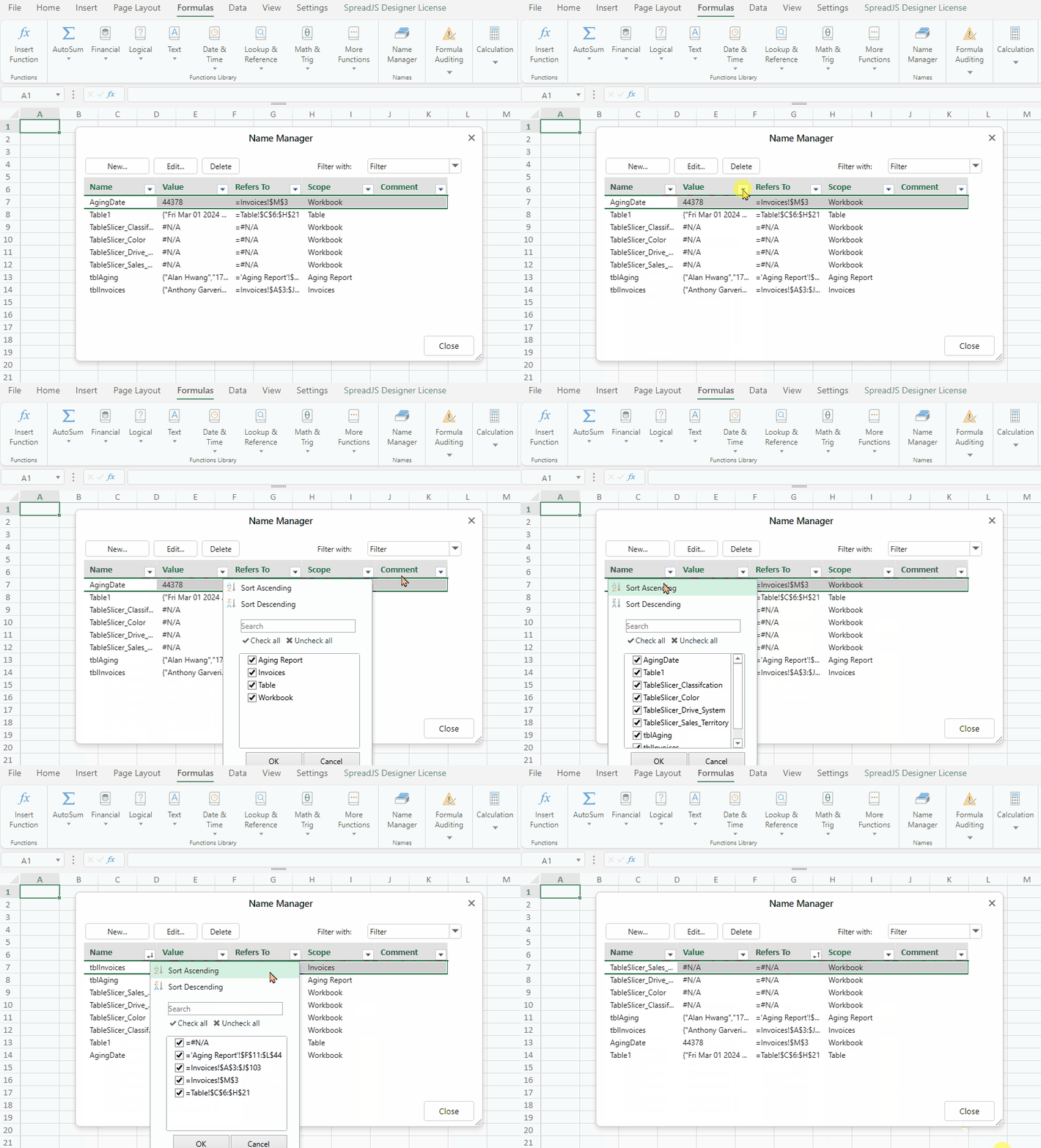
Filter via filter dropdown.
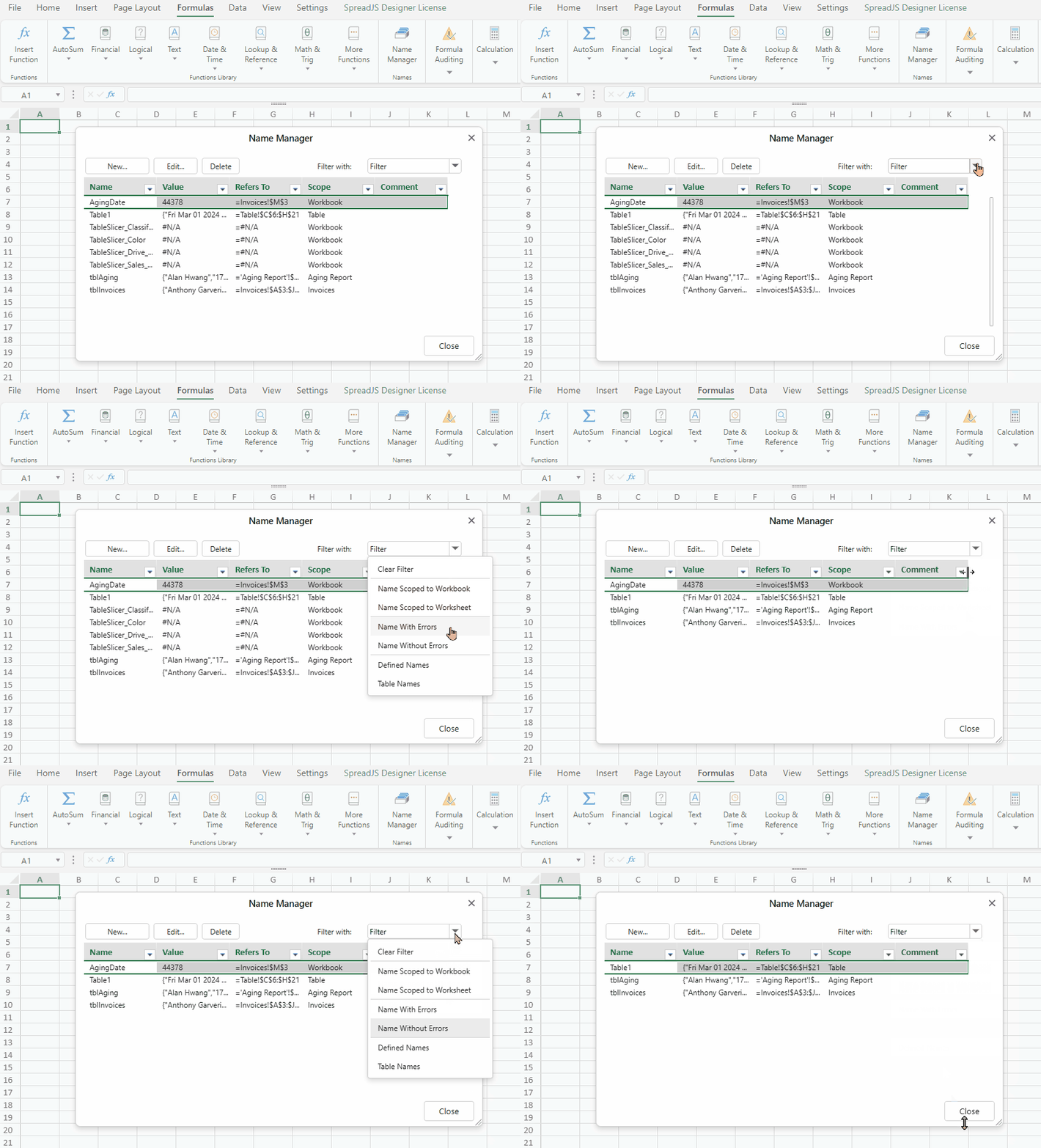
The filter dropdown is divided into three groups: Workbook/Worksheet, Error/Without Errors, and Defined Names/Table Names. You can select one filter item per group to create multiple selection criteria.
Filter via column list.
Check the boxes next to the values you wish to display.
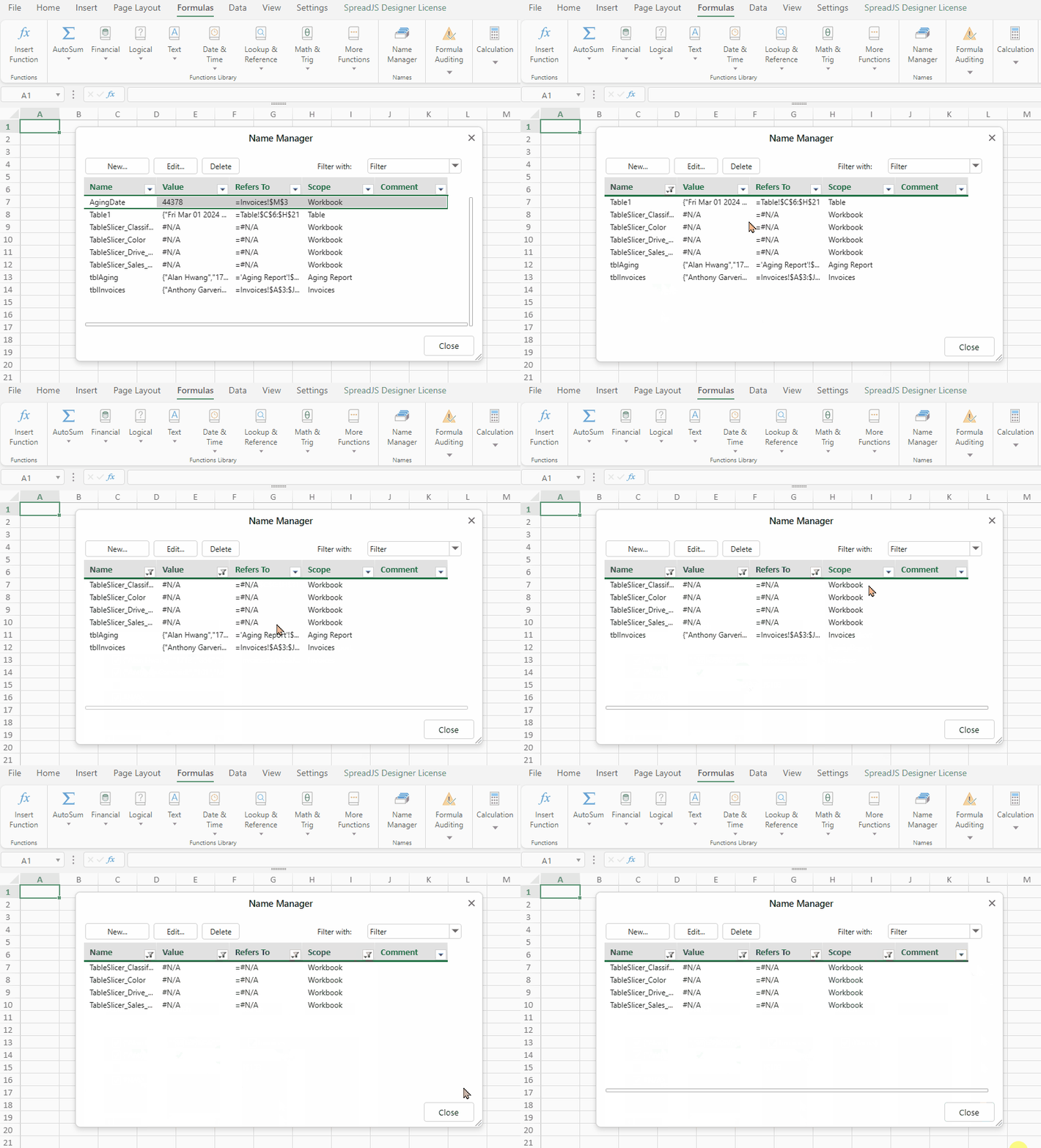
Check or uncheck all.
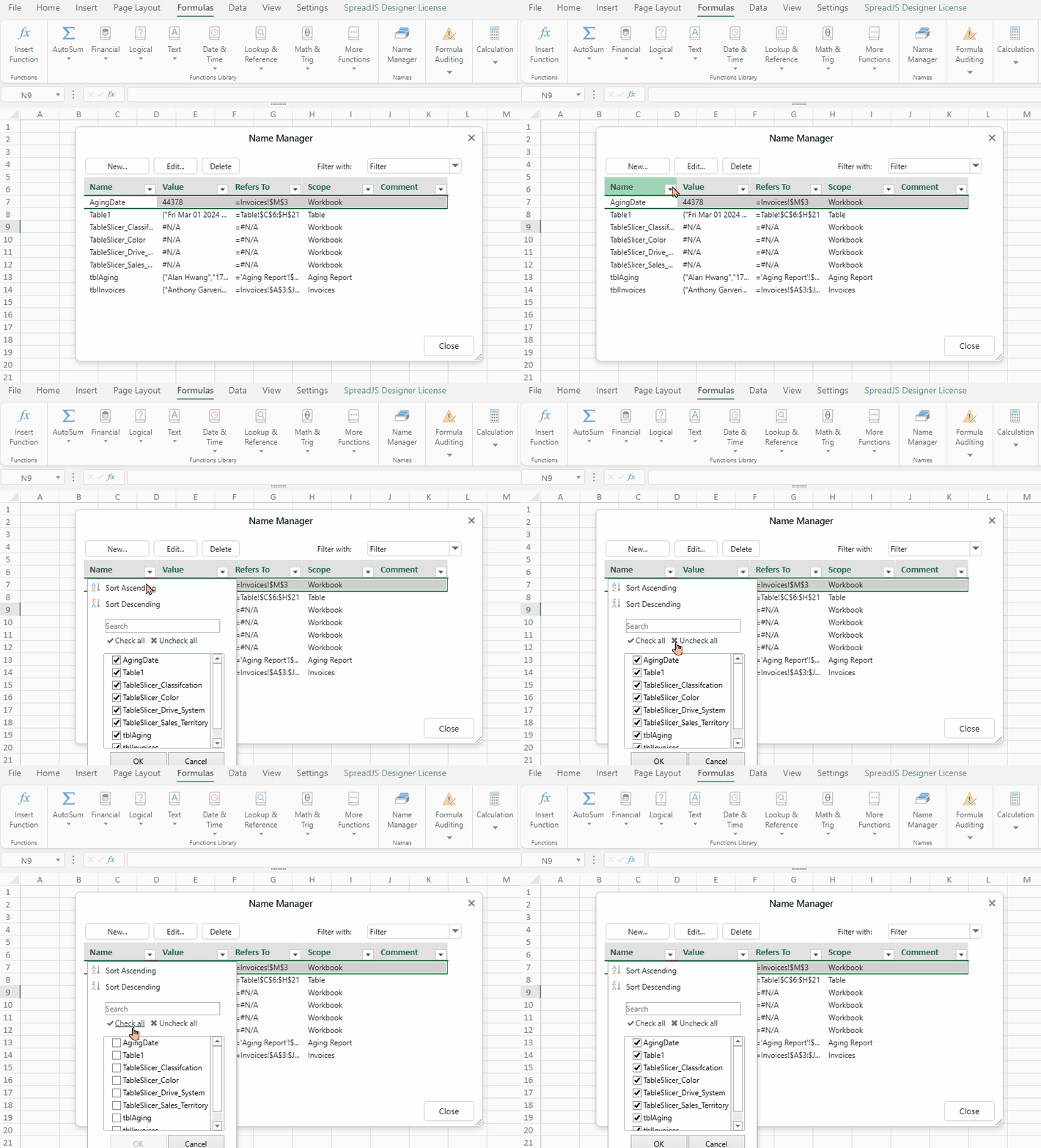
Enter criteria in search bar.
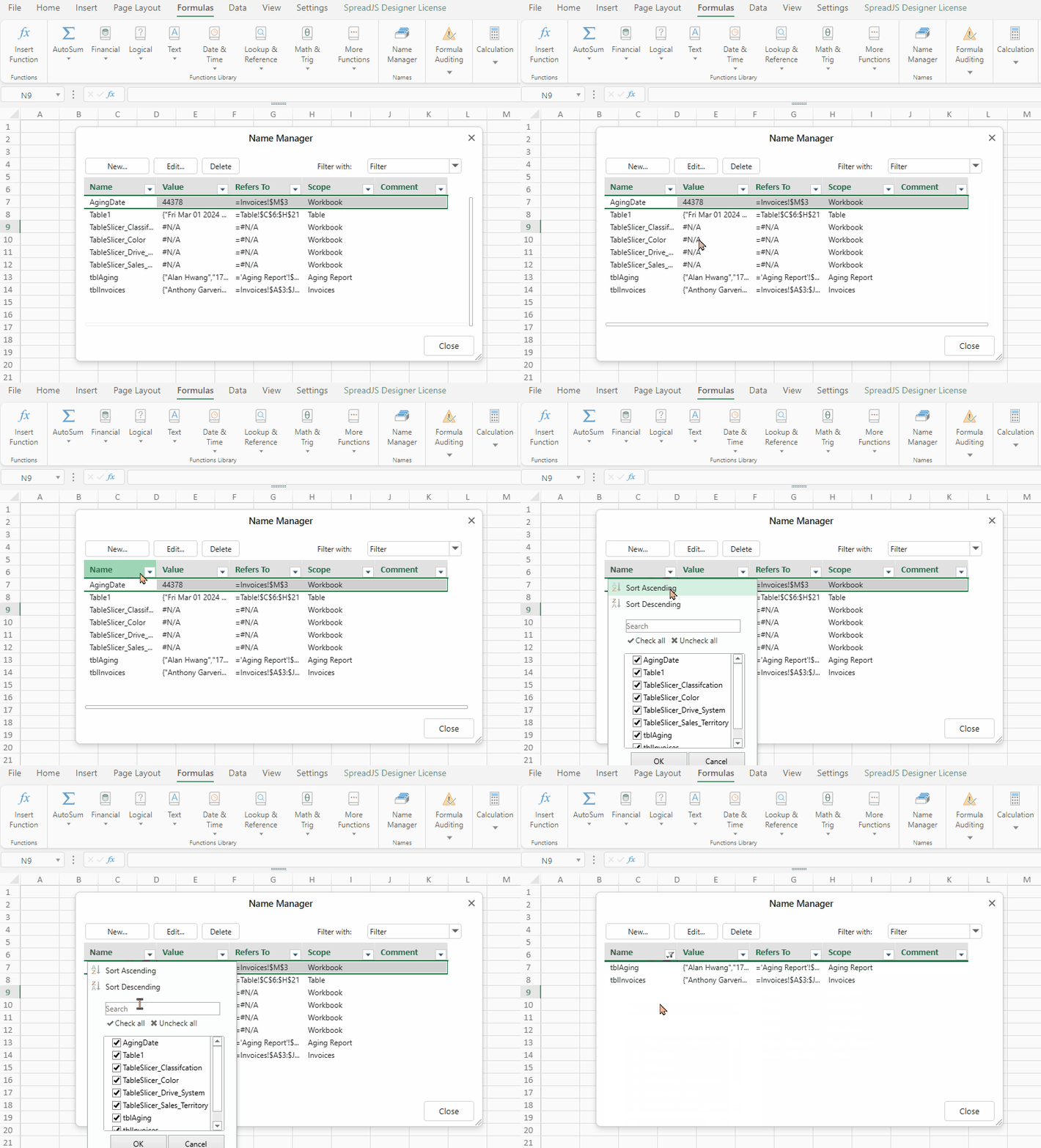
Sort custom names in ascending/descending order