- SpreadJS Overview
- Getting Started
- JavaScript Frameworks
- Best Practices
- Features
- SpreadJS Designer
- SpreadJS Designer VSCode Plugin
- Tutorials
-
SpreadJS Designer Component
- Getting Started
- Quick Start
- Theme
- Designer Interface
- JavaScript Frameworks
- Template-Based Workbook Initialization
- Customizations
-
Work in Designer Component
- AutoSum Functions
- Set Range Template Cell
- Name Box
- Select Cells Using Go To
- Find and Replace
- Edit Font Size
- Edit Font Family
- Configure Cell Borders
- Manage Conditional Formatting Rules
- Shape Selection Pane
- Automatic Outline
- Format Painter
- Sort and Filter
- Table Slicer
- Data Source
- TableSheet
- GanttSheet Designer
- ReportSheet Designer
- Data Chart Designer
- Text to Columns
- Remove Duplicates
- Pivot Table
- Dockable Side Panel
- Command Palette
- Transform Cells with LAMBDA Formula
- Threaded Comments Panel
- What-If Analysis
- Insert Function Dialog
- Named Cell Templates
- Insert Pictures in Designer
- Toolbar Ribbon
- API Documentation
- SpreadJS Collaboration Server
- Touch Support
- Formula Reference
- Import and Export Reference
- Events
- API Documentation
- Release Notes
Insert Function Dialog
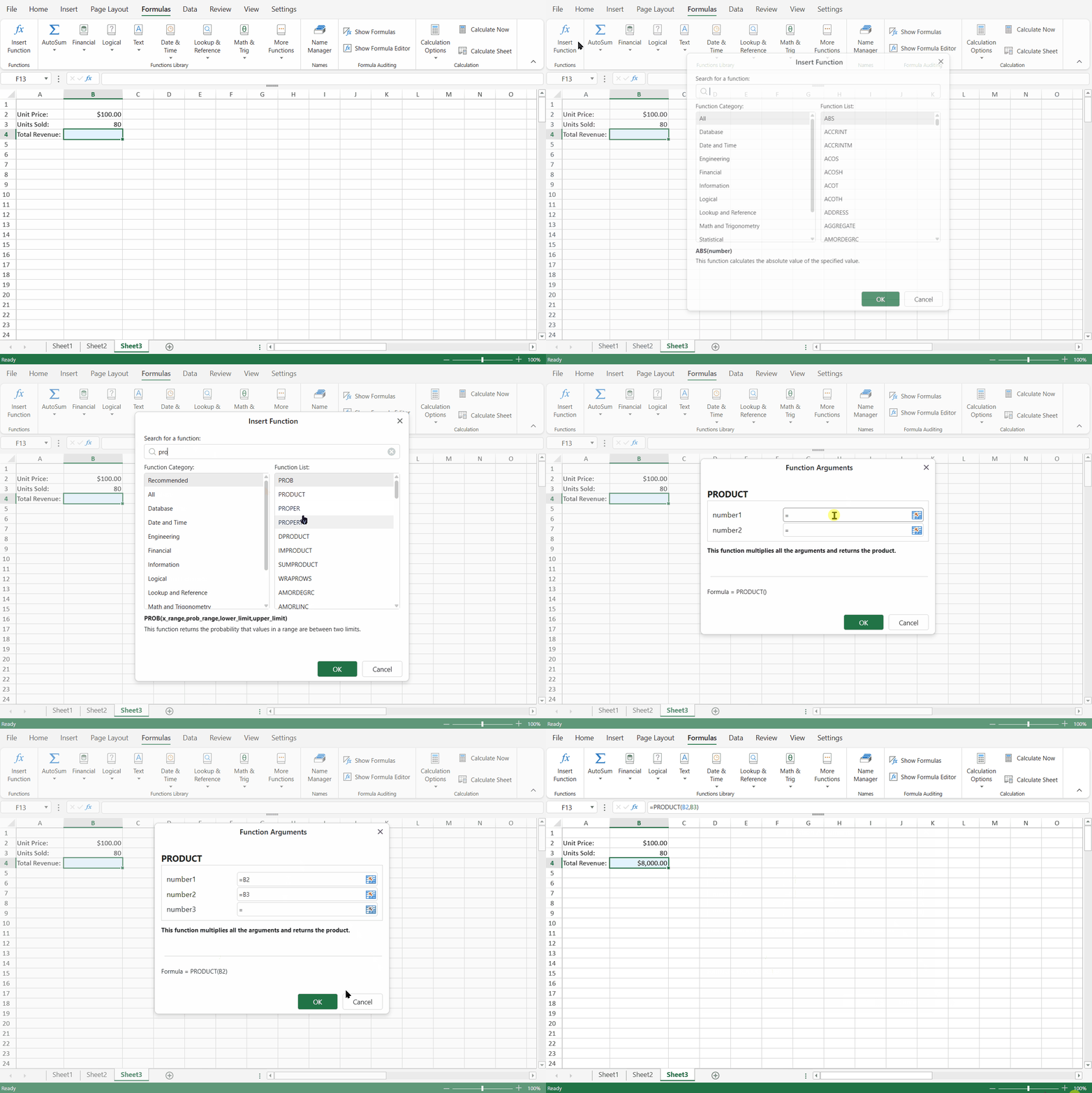
The Insert Function dialog allows users to browse, search, and insert built-in functions into a worksheet.
It provides categorized browsing, keyword search, keyboard navigation, and a description preview for the selected function.

Interface Overview
The dialog consists of the following areas:
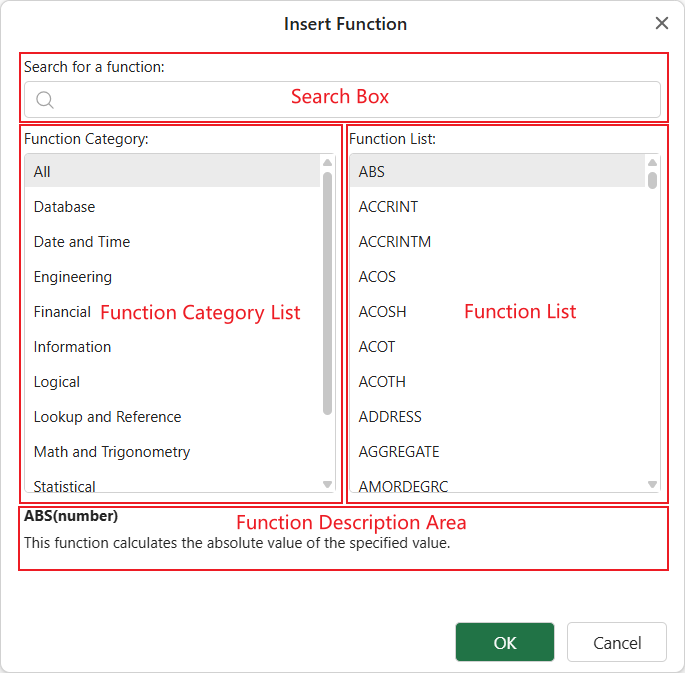
1. Search Box (Top)
Located at the top of the dialog.
Label: Search for a function
Supports keyword-based search
Displays a clear (X) button when text is entered
Maximum input length: 500 characters
Entering text filters functions in real time.
2. Function Category List (Left Panel)
Displays all available function categories:
Database
Date and Time
Engineering
Financial
Information
Logical
Lookup and Reference
Math and Trigonometry
Statistical
Text
Web
Selecting a category filters the functions shown in the Function List.
3. Function List (Right Panel)
Displays functions within the selected category.
Scrollable list
Click to select a function
Double-click to insert the selected function
4. Function Description Area (Bottom)
Displays a brief description of the currently selected function.
Searching for Functions
The search box enables quick function discovery.
Search Behavior
When text is entered:
A dynamic Recommended category appears at the top of the category list.
The Recommended category is automatically selected.
Matching functions are displayed in real time.
Results are ranked by relevance.
When the search text is cleared:
The Recommended category is removed.
The All category is automatically selected.
The full function list is restored.
Matching Rules
Search is case-insensitive and supports:
Partial match (e.g.,
summatchesSUM,SUMIF,DSUM)Token-based match
Metadata match, including:
Function name
Function description
Category name
Argument names
Result Ordering
Search results in the Recommended category are sorted by relevance score (highest first).
If multiple functions have the same score, they are sorted alphabetically using culture-aware comparison.
Keyboard Navigation
The dialog supports keyboard interaction:
Key | Action |
|---|---|
↓ Arrow | Move focus to the Function List |
↑ / ↓ | Navigate functions |
Enter | Insert the selected function |
Esc | Close the dialog |
Inserting a Function
To insert a function:
Select a category or enter search text.
Select a function from the Function List.
Click OK, press >Enter, or double-click the function.
After confirmation, the function is inserted into the worksheet formula editing area.