Working with Git and Developer Licenses, .sa3licx file VS 2022

Posted by: enrique.pv-ext on 5 October 2026, 4:32 am EST

  • Posted 5 October 2026, 4:32 am EST

    We are using MESCIUS ComponentOne WebForms in an ASP.NET WebForms application with Git (Azure DevOps) and 2 developers, each with their own activated Developer license.

    A .sa3licx file is generated in the root of the Visual Studio 2022 web project and is currently under Git source control.

    What happens when another developer checks out or pulls the same branch?

    Will the .sa3licx file be regenerated on their machine based on their own activated license, or will the version stored in Git continue to be used?

    If the file is regenerated locally, what is the recommended workflow when committing and pushing changes?

    Should the .sa3licx file be versioned in Git and shared between team members, or should each developer generate their own local copy and exclude it from source control?

    Could you clarify the recommended team development practice for WebForms projects using the new SA3 licensing mechanism?

    thanks a lot!!

  • Posted 5 October 2026, 8:04 am EST

    Hello Enrique,

    The .sa3licx file is the run-time license file of your application. It contains the license details and the application name. When it is generated, it validates the application name and the license activated on the machine, and its content does not change with each build.

    You can keep the .sa3licx file in Git. It is embedded in the application as a resource. Your CI/CD pipeline will use it during the build, so having it in source control saves you from generating the license file manually on the build server each time.

    Regards,

    Uttkarsh.

  • Posted 8 October 2026, 9:24 am EST - Updated 8 October 2026, 9:30 am EST

    I have now this case,

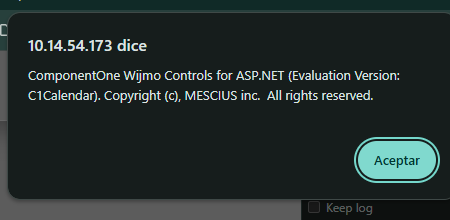
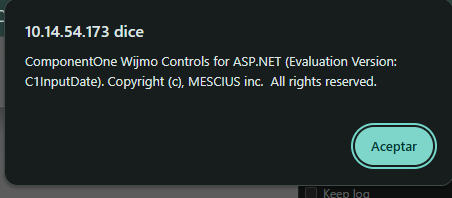
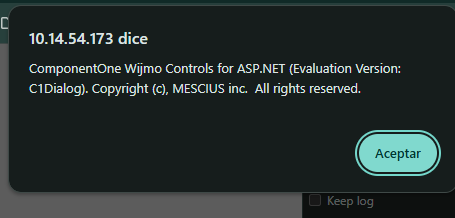
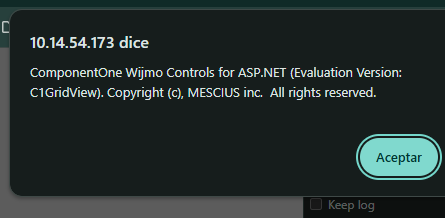
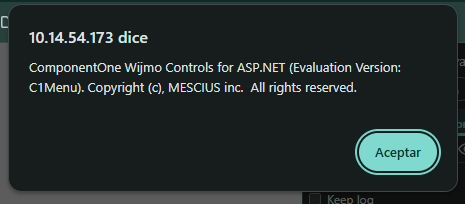
    I publish manually in a WebServer, copy publish in a folder website, I open http://server and I get c1 eval messages.

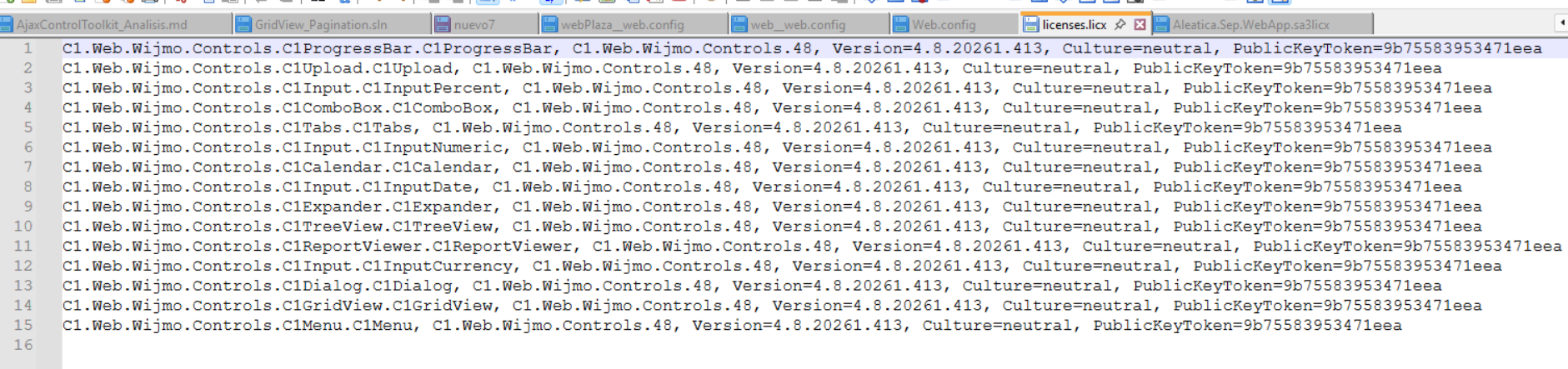
    I have licenses.licx and sa3licx:

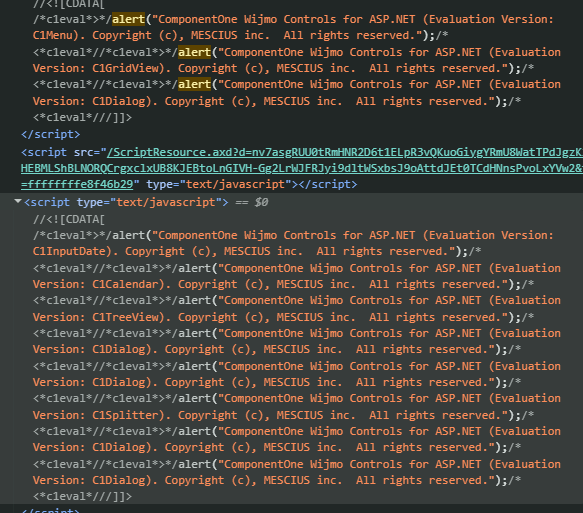
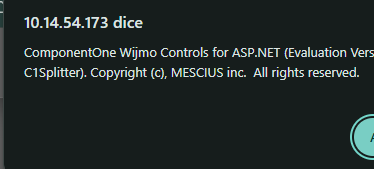
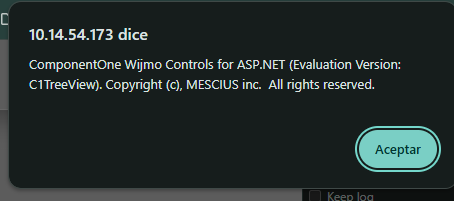
    I get alerts about eval

    alerts

    any help please ??

  • Posted 8 October 2026, 9:24 am EST - Updated 8 October 2026, 9:30 am EST

    I have now this case,

    I publish manually in a WebServer, copy publish in a folder website, I open http://server and I get c1 eval messages.

    I have licenses.licx and sa3licx:

    I get alerts about eval

    alerts

    any help please ??

  • Posted 8 October 2026, 11:09 am EST - Updated 9 October 2026, 8:16 am EST

    Using IA:

    Root cause identified: your SA3 license has already expired.

    The file WebApp.sa3licx contains an expiration field (Unix timestamp 1790762747) that corresponds to:

    30/09/2026 10:05:47 +00:00

    The current date is 08/10/2026, which means the MESCIUS/ComponentOne deployment license expired 8 days ago.

    When an SA3 license expires, Wijmo controls (such as C1Menu, C1GridView, C1Dialog, etc. — exactly the controls referenced in the injected alert() message) automatically switch to evaluation mode and display the evaluation popup, regardless of whether licenses.licx and .sa3licx are correctly embedded.

    I verified that:

    Both files are correctly included as EmbeddedResource in the .csproj.

    The assembly versions match 4.8.20261.413.

    Why this does not appear to be a configuration issue

    licenses.licx :heavy_check_mark: includes C1Menu, C1GridView, C1Dialog, etc.

    xxxWebApp.sa3licx :heavy_check_mark: embedded correctly, correct assembly name, correct hash.

    Assembly version in bin\ :heavy_check_mark: matches 4.8.20261.413.

    License key expiration :x: expired on 30/09/2026.

    Solution

    Renew or reactivate the MESCIUS Studio Enterprise (ComponentOne) subscription.

    Using the MESCIUS License Manager, generate a new xxxx.WebApp.sa3licx file with the new valid product key.

    Replace the current file in the project and perform a Rebuild of the solution.

    The license validation is performed during the build process, so after a license renewal the licensing artifacts must be regenerated to reflect the new entitlement.

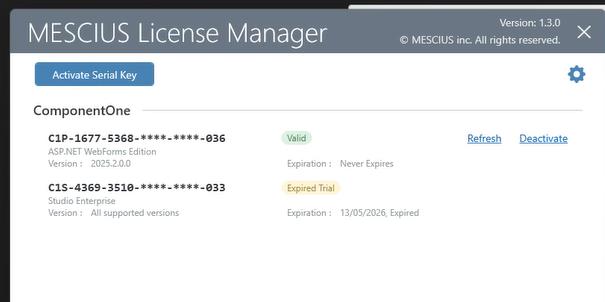
    I dont understand. Our license (Developer) is perpetual. Valid. Not Expires.

    Assembly version in bin\ :heavy_check_mark: matches 4.8.20261.413.

    License key expiration :x: expired on 30/09/2026.

    The publish was generated by my partner, using the branch, git, pull fecth in your machine. It has valid key developer license.

    please friends, any help ??

  • Posted 9 October 2026, 2:48 am EST

    please confirm this:

    How licensing actually works

    It is not a server license. The ComponentOne/MESCIUS licensing model for WinForms/WPF/ASP.NET Web Forms (.NET Framework) is: build once on a machine with an activated serial key, then deploy anywhere without requiring a license on the target server.

    During the build process, the combination of licenses.licx and .sa3licx / .gclicx is embedded as a resource inside the generated .dll. In your .csproj (around lines 1042-3528), you have entries such as:

    XML

    and the corresponding .gclicx file.

    The server does not require the MESCIUS installer or license activation. It only needs the already compiled DLL containing the embedded licensing resources.

    The key point is that these .sa3licx / .gclicx files are regenerated and validated only when building from Visual Studio with the MESCIUS extension loaded and a valid activated serial key.

    A command-line build using MSBuild.exe alone (without Visual Studio and without the MESCIUS extension) does not regenerate these files. It simply packages whatever versions already exist on disk, whether they are valid or not.

    Why the evaluation message appears on the server

    I checked your actual files:

    Plain Text

    xxx.WebApp.sa3licx 1408 bytes LastWriteTime 07/10/2026 12:54

    xxx.WebApp.gclicx 395 bytes LastWriteTime 07/10/2026 12:54

    These timestamps indicate that the licensing artifacts present in the project were generated or updated on 07/10/2026 at 12:54. However, by themselves, these timestamps do not prove whether the license is valid or invalid; they only show when the files were last written.

    To determine whether the evaluation popup is caused by licensing, you must verify the actual license status (for example, using the MESCIUS licensing tools or by checking the generated licensing content), rather than relying solely on the file dates.

    What to do

    Always publish from Visual Studio (using Build or Publish), not from a standalone MSBuild.exe command or an agent that does not have Visual Studio installed, and do so on a machine where the serial key is activated and valid. This forces the MESCIUS extension to regenerate licenses.licx, .sa3licx, and .gclicx before compiling.

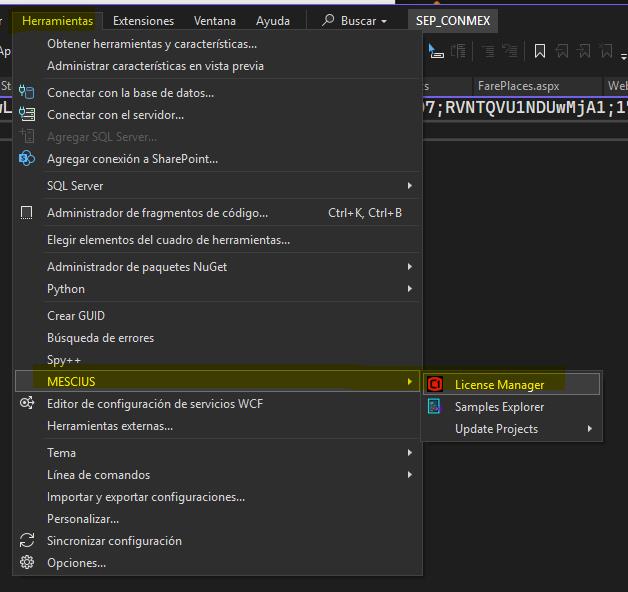
    If you use Tools > MESCIUS > Update Projects in Visual Studio 2022, these files are explicitly regenerated using your current license.

    Rebuild the solution and verify that xxx.WebApp.sa3licx and .gclicx receive a new date/time stamp after the build.

    Copy only the resulting:

    Plain Text

    bin\xxx.WebApp.dll

    to the server. There is no need to copy the standalone .sa3licx or .gclicx files, because they are embedded inside the compiled DLL.

    I need

    use MSBuild.exe command in my local machine (I have valid key activate) for publish my webapp

    how-to valid date/time stamp after the build for .WebApp.sa3licx and .gclicx using powershell ?

    thanks a lot !!! please, my friends, help me , please ? I need you for get solution…

  • Posted 9 October 2026, 3:31 am EST

    Hello,

    In one of your screenshots (the one showing the .sa3licx content), the license key starts with C1S. That prefix marks a subscription key, not a perpetual one.

    Please make sure a perpetual key, which starts with C1P, is activated on the build server before you publish the app.

    To look into this further, we need a few details. Some of them are sensitive, so you can mask part of the key or send everything through a private support ticket instead of posting it here.

    • A screenshot of the license key activated on the build server that produced your published build
    • The exact steps or commands you used to publish manually
    • The exact steps or commands you used to generate the .sa3licx and .licx files

    Regards,

    Uttkarsh

  • Posted 9 October 2026, 3:45 am EST

    Hello,

    Yes, MSBuild.exe can be used to build and publish your app, as long as the license key is activated on that machine and the .sa3licx and .licx files are valid and embedded correctly.

    There is no need to check or update the date/time stamps of the .sa3licx and .gclicx files. These files are produced by the licensing process itself, and their validity depends on their content and on the key activated at generation time, not on their file dates. Please avoid editing or touching them manually, since that can invalidate them.

    To move forward, please check my previous reply. The key type (C1S vs C1P) and the steps you used to generate the files are what we need to find the cause.

    Regards,

    Uttkarsh

  • Posted 9 October 2026, 8:15 am EST - Updated 9 October 2026, 8:23 am EST

    I’ll try recopiles all information ,s creenshots.

    It’s fails to my partner in his machine and using valid key activate, error in License Manager in VS 2022

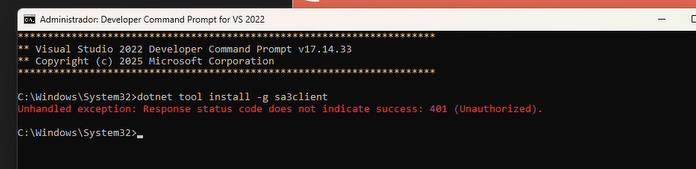
    in create Runtime, error: sa3client not found or not installed. Please install it using: dotnet tool install -g sa3client

    C:\Programdata\SA3 exists

    but not exists .dotnet\tools for sa3client

    C:\Users\aaaaaa.dotnet\tools\sa3client.exe

    Try cmd:

    dotnet tool install -g sa3client

    401 Unauthorized

    Cannot regenerate sa3licx

    Licencia ComponentOne (sa3client)

    sa3client list
    sa3client lc -k "C1P-6181-xxxx-022" -t "WebApp" -o "WebApp.sa3licx"
    Remove-Item "WebApp.sa3licx" -Force
    sa3client lc -k "C1P-6181-xxxx-022" -t "WebApp" -o "WebApp.sa3licx"
    

    publish MSBuild (sin robocopy)

    MSBuild.exe "WebApp.csproj" /p:Configuration=Release /p:Platform=AnyCPU /p:UseWPP_CopyWebApplication=True /p:PipelineDependsOnBuild=False /p:WebProjectOutputDir="<dest>\SEP_FRONT_LOCAL_<fecha>" /p:OutDir="<dest>\SEP_FRONT_LOCAL_<fecha>\bin\" /t:Rebuild /m /nologo /v:minimal
    

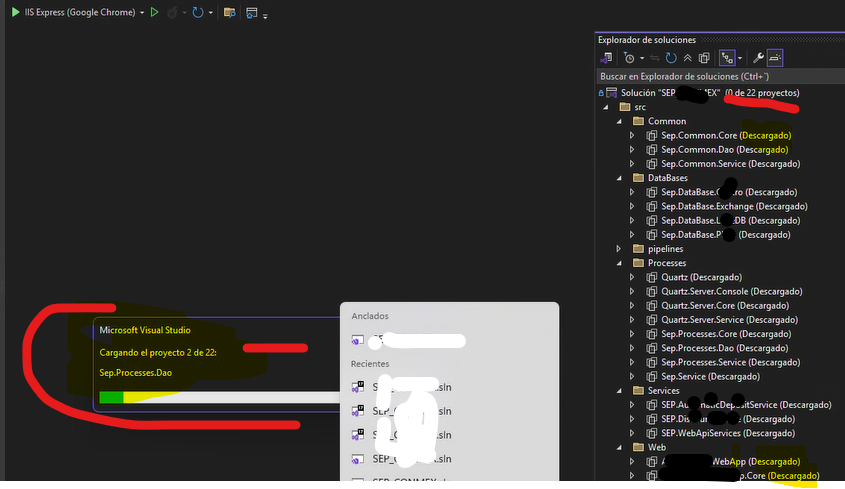
    another error in tools - Mescius - License Manager in VS 2022, when Load projects, there is a blocking windows in VS 2022. We have to kill process VS 2022

  • Posted 12 October 2026, 4:44 am EST

    Hello Enrique,

    Thank you for the details.

    1. The 401 Unauthorized on sa3client install

    A 401 from dotnet tool install usually means dotnet is using a NuGet source that needs credentials, such as a private Azure DevOps feed defined in a nuget.config, instead of nuget.org. Please run this on your partner’s machine and share the output:

    dotnet nuget list source
    

    Then try installing from nuget.org explicitly, from a folder that has no nuget.config:

    dotnet tool install -g sa3client --add-source https://api.nuget.org/v3/index.json
    

    After it installs, make sure ‘%USERPROFILE%.dotnet\tools’ is in your PATH, then reopen VS 2022 and the command prompt. Run ‘sa3client list’ and share its output too.

    1. The evaluation message after publishing

    The earlier .sa3licx showed a C1S key. Once sa3client works, please regenerate the file with the C1P key and the exact application name:

    sa3client lc -k "C1P-xxxx-xxxx-xxx" -t "WebApp" -o "WebApp.sa3licx"
    

    The -t value must match your project’s assembly name. Replace the old .sa3licx in the project, run a full Rebuild, and publish again. Please also confirm that the key activated in License Manager on build-server starts with C1P and not C1S. A C1S key that has expired will keep producing evaluation mode.

    1. License Manager freezing on “Load projects”

    Please share your exact VS 2022 version, and try the latest VS 2022 update as well. Also let us know whether the freeze happens with every solution or only this one. If it still happens after the steps above, please open a support ticket and attach the screenshots and the Visual Studio logs (devenv log), so we can investigate it separately.

    Regards,

    Uttkarsh

  • Posted 13 October 2026, 4:48 am EST - Updated 13 October 2026, 5:00 am EST

    NuGet combines (merges) all of these configuration files, starting from the current folder and moving up the directory hierarchy, eventually ending with the global configuration files:

    Current directory → .\NuGet.Config (or nuget.config; the filename is case-insensitive).

    Each parent folder up to the drive root (for example, the solution folder, repository folder, etc.).

    User configuration: %APPDATA%\NuGet\NuGet.Config

    In your case: C:\Users\xxxxxxxt\AppData\Roaming\NuGet\NuGet.Config

    Machine/IDE configuration (if present): %ProgramFiles(x86)%\NuGet\Config*.Config

    Priority: the configuration file closest to the current working directory has the highest precedence for settings that can be overridden.

    Search command used to locate NuGet.Config files in the repository and user configuration:

    Get-ChildItem -Path "C:\GIT\repos\SEP_xxxx" -Filter "nuget.config" -Recurse -Depth 3 -ErrorAction SilentlyContinue

    Confirmed: C:\GIT\repos\SEP_xxxx\nuget.config is the file that defines the CommonBIDll feed.

    The %APPDATA%\NuGet\NuGet.Config file (the global/user-level configuration) contains only the nuget.org source.

    nuget.config del repo │ C:\GIT\repos\SEP_xxx\nuget.config │ Fuente CommonBIDll (Azure Artifacts)

    │ Config de usuario │ %APPDATA%\NuGet\NuGet.Config │ Solo nuget.org │

    C:\GIT\repos\SEP_xxxx\nuget.config

    <?xml version="1.0" encoding="utf-8"?>
    <configuration>
      <packageSources>
        <clear />
        <add key="nuget.org" value="https://api.nuget.org/v3/index.json" protocolVersion="3" />
        <add key="CommonBIDll" value="https://pkgs.dev.azure.com/DesxxTD/Integraci%C3%B3nSEPzzz-BI/_packaging/CommonBIDll/nuget/v3/index.json" />
      </packageSources>
    </configuration>

    C:>dotnet nuget list source

    Orígenes registrados:
      1.  nuget.org [Habilitado]
          https://api.nuget.org/v3/index.json
      2.  Microsoft Visual Studio Offline Packages [Habilitado]
          C:\Program Files (x86)\Microsoft SDKs\NuGetPackages\

    C:\GIT\repos\SEP_xxxx>dotnet nuget list source

    Orígenes registrados:
      1.  nuget.org [Habilitado]
          https://api.nuget.org/v3/index.json
      2.  CommonBIDll [Habilitado]
          https://pkgs.dev.azure.com/DesxxxxTD/Integraci%C3%B3nSEPzzz-BI/_packaging/CommonBIDll/nuget/v3/index.json

    C:\Program Files (x86)\Nuget\Config

    <configuration>
      <fallbackPackageFolders>
        <add key="Microsoft Visual Studio Fallback Folder" value="C:\Program Files (x86)\Microsoft Visual Studio\Shared\NuGetPackages" />
      </fallbackPackageFolders>
    </configuration> 
    
    <configuration>
      <packageSources>
        <add key="Microsoft Visual Studio Offline Packages" value="C:\Program Files (x86)\Microsoft SDKs\NuGetPackages\"/>
      </packageSources>

    </configuration>

    “General” under Tools → Options → NuGet Package Manager

    The settings on the “General” tab (Global Packages Folder, Allow NuGet to download missing packages, Automatically check for missing packages, etc.) are stored in the Visual Studio user profile:

    %AppData%\Microsoft\VisualStudio<version>.…

    %AppData%\Microsoft\VisualStudio<versión>
    .… (ApplicationPrivateSettings / *.json / *.vssettings internos)

    These settings are typically saved in Visual Studio internal configuration files such as ApplicationPrivateSettings, *.json, and internal *.vssettings files.

    They are not stored in a NuGet XML configuration file that can be easily inspected using the NuGet CLI.

    1. fallbackPackageFolders

    <fallbackPackageFolders>
      <add key="Microsoft Visual Studio Fallback Folder" value="C:\Program Files (x86)\Microsoft Visual Studio\Shared\NuGetPackages" />
    </fallbackPackageFolders>
    

    2. packageSources → “Microsoft Visual Studio Offline Packages”

    <packageSources>
      <add key="Microsoft Visual Studio Offline Packages" value="C:\Program Files (x86)\Microsoft SDKs\NuGetPackages\"/>
    </packageSources>

  • Posted 13 October 2026, 11:37 pm EST

    Hello Enrique,

    Thank you for the NuGet details. They explain the 401.

    The nuget.config in your repository folder clears the default sources and adds nuget.org and the CommonBIDll feed on Azure Artifacts. When dotnet tool install runs from inside C:\GIT\repos\SEP_xxxx, NuGet also queries CommonBIDll, and that feed needs credentials, so it returns 401 Unauthorized. Your dotnet nuget list source output from C:\ shows only nuget.org, so the install should work from outside the repository.

    Please try this on your partner’s machine:

    1. Open a new command prompt and change to a folder outside the repository, for example C:\
    2. Run: dotnet tool install -g sa3client
    3. If you must run it from inside the repo, use: dotnet tool install -g sa3client --ignore-failed-sources
    4. Make sure %USERPROFILE%.dotnet\tools is in PATH, then reopen VS 2022 and the command prompt.
    5. Run sa3client list and share the output.

    After that, regenerate the file with your C1P key and the exact assembly name:

    sa3client lc -k "C1P-xxxx-xxxx-xxx" -t "WebApp" -o "WebApp.sa3licx"
    

    Replace the old .sa3licx in the project, run a full Rebuild, and publish again. Please also confirm that the key shown in License Manager on that machine starts with C1P.

    Regards,

    Uttkarsh

Need extra support?

Upgrade your support plan and get personal unlimited phone support with our customer engagement team

Learn More

Forum Channels