Posted 7 September 2026, 7:12 am EST
steps to reproduce
Enter data have spaces more than one say “ABC DEF GHI”
Now apply split text to column
click on delimited
choose space as a delimiter
observe the data preview
Forums Home / Spread / SpreadJS
Posted by: ajha on 7 September 2026, 7:12 am EST

ajha
Posted 7 September 2026, 7:12 am EST
steps to reproduce
Enter data have spaces more than one say “ABC DEF GHI”
Now apply split text to column
click on delimited
choose space as a delimiter
observe the data preview

priyam.kushwaha

Posted 8 September 2026, 3:07 am EST
Hi,
We are not sure about the exact issue you are facing. Could you please provide more details, along with an example and the exact steps to reproduce the issue?
Could you also check if the issue occurs in the latest version of the SpreadJS Designer using the following link?
SpreadJS Designer: https://developer.mescius.com/spreadjs/designer/index.html
If you are able to reproduce the issue in the latest version, please share the exact steps to reproduce it, along with the actual behavior and the expected behavior.
Regards,
Priyam
ajha
Posted 8 September 2026, 3:15 am EST - Updated 8 September 2026, 3:28 am EST
priyam.kushwaha
Posted 8 September 2026, 7:18 am EST - Updated 8 September 2026, 7:23 am EST
Hi,
We are not sure about the exact issue you are facing. SpreadJS is designed to work similarly to Excel, and we have also checked the behavior in Excel, where we observed the same behavior. Please refer to the attached GIF for comparison.
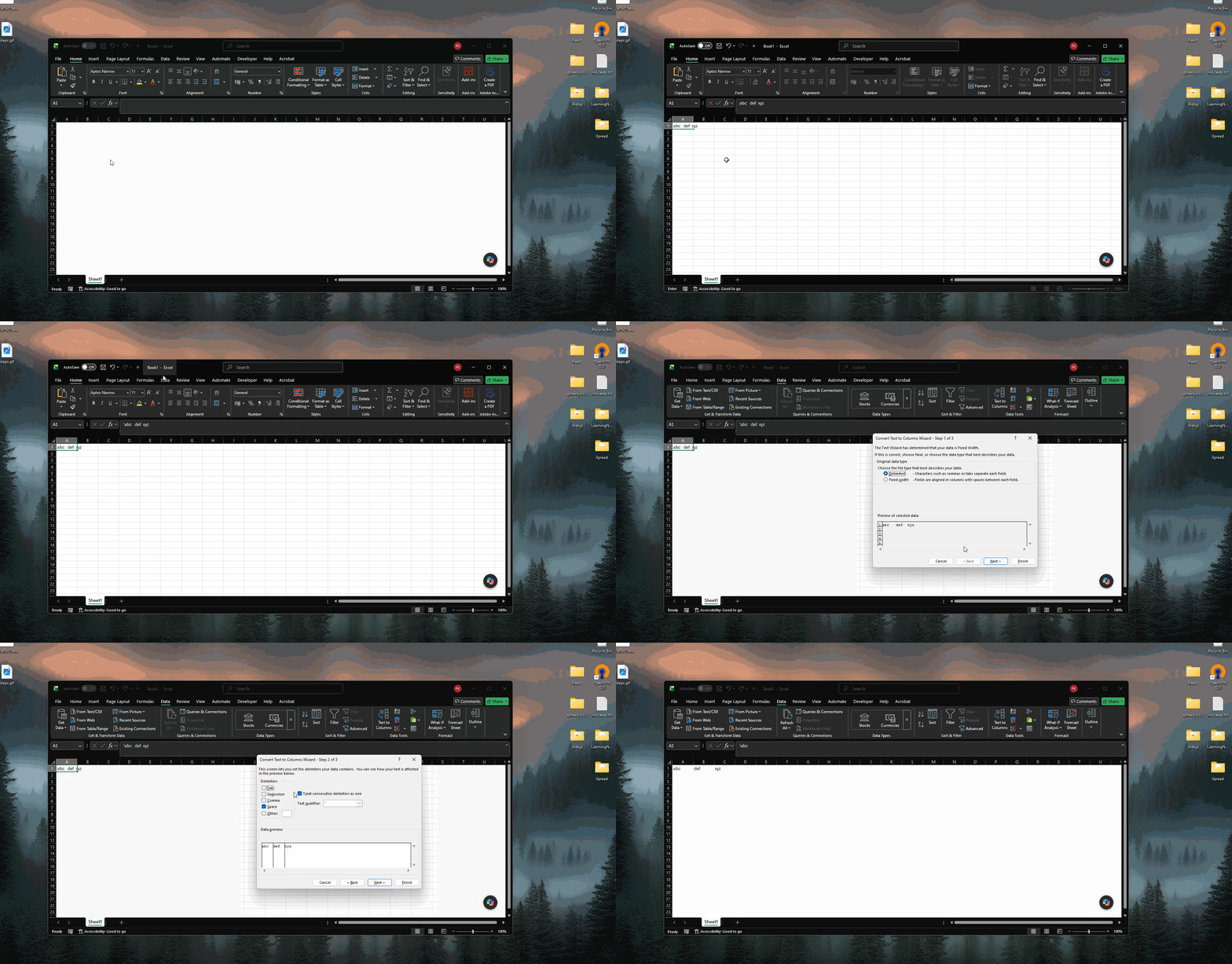
Could you please provide more details about the issue, including the actual behavior and the expected behavior, along with a specific example? This will help us better understand the issue and investigate it further.
Regards,
Priyam
ajha
Posted 8 September 2026, 7:33 am EST
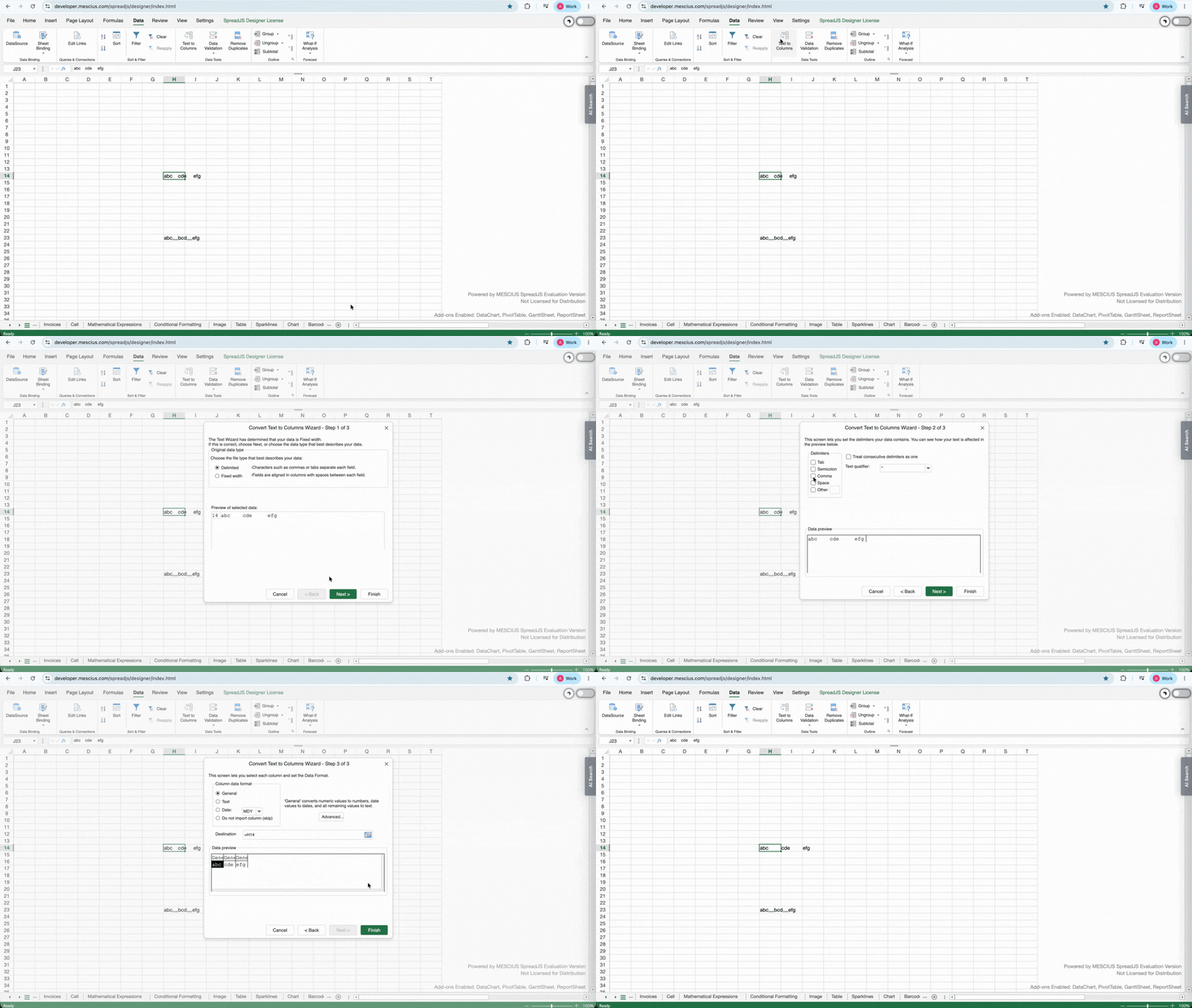
Hi Priyam, if you look at cell H14 in the GIF I posted earlier, the cell value is ABC DEF EFG (with multiple spaces between the words). When we open ‘Text to Columns’, the initial data preview shows the correct number of spaces. However, when we select Space as the delimiter, the preview collapses them to a single space. Clicking Finish then treats the multiple spaces as one, splitting the text using only a single space delimiter.
ajha
Posted 8 September 2026, 7:33 am EST
Hi Priyam, if you look at cell H14 in the GIF I posted earlier, the cell value is ABC DEF EFG (with multiple spaces between the words). When we open ‘Text to Columns’, the initial data preview shows the correct number of spaces. However, when we select Space as the delimiter, the preview collapses them to a single space. Clicking Finish then treats the multiple spaces as one, splitting the text using only a single space delimiter.
priyam.kushwaha
Posted 9 September 2026, 5:10 am EST - Updated 9 September 2026, 5:15 am EST
Hi,
Thank you for providing the clarification.
This behavior is expected and is designed to match Microsoft Excel’s standard behavior. Here is an explanation of what is happening:
Initial Preview:
When the Text to Columns wizard first opens, Tab is selected as the default delimiter. Because the text does not contain tab characters, the entire string “ABC DEF EFG” is displayed in a single column with all spaces visible.
When “Space” is selected:
When you check Space as a delimiter, the “Treat consecutive delimiters as one” checkbox is automatically enabled (matching Excel’s default behavior).
With this option enabled, multiple consecutive spaces between words are treated as a single delimiter boundary rather than multiple separate delimiters.
The spaces are consumed as the delimiter to split the values into separate columns: ABC (Column 1), DEF (Column 2), and EFG (Column 3).
Behavior Comparison:
“Treat consecutive delimiters as one” is Checked (Default for Space):
Consecutive spaces are grouped together as one delimiter.
Result: [ABC] [DEF] [EFG] (3 columns)
“Treat consecutive delimiters as one” is Unchecked:
Each individual space character creates a column break, resulting in empty columns for consecutive spaces.
Result: [ABC] [DEF] [EFG]
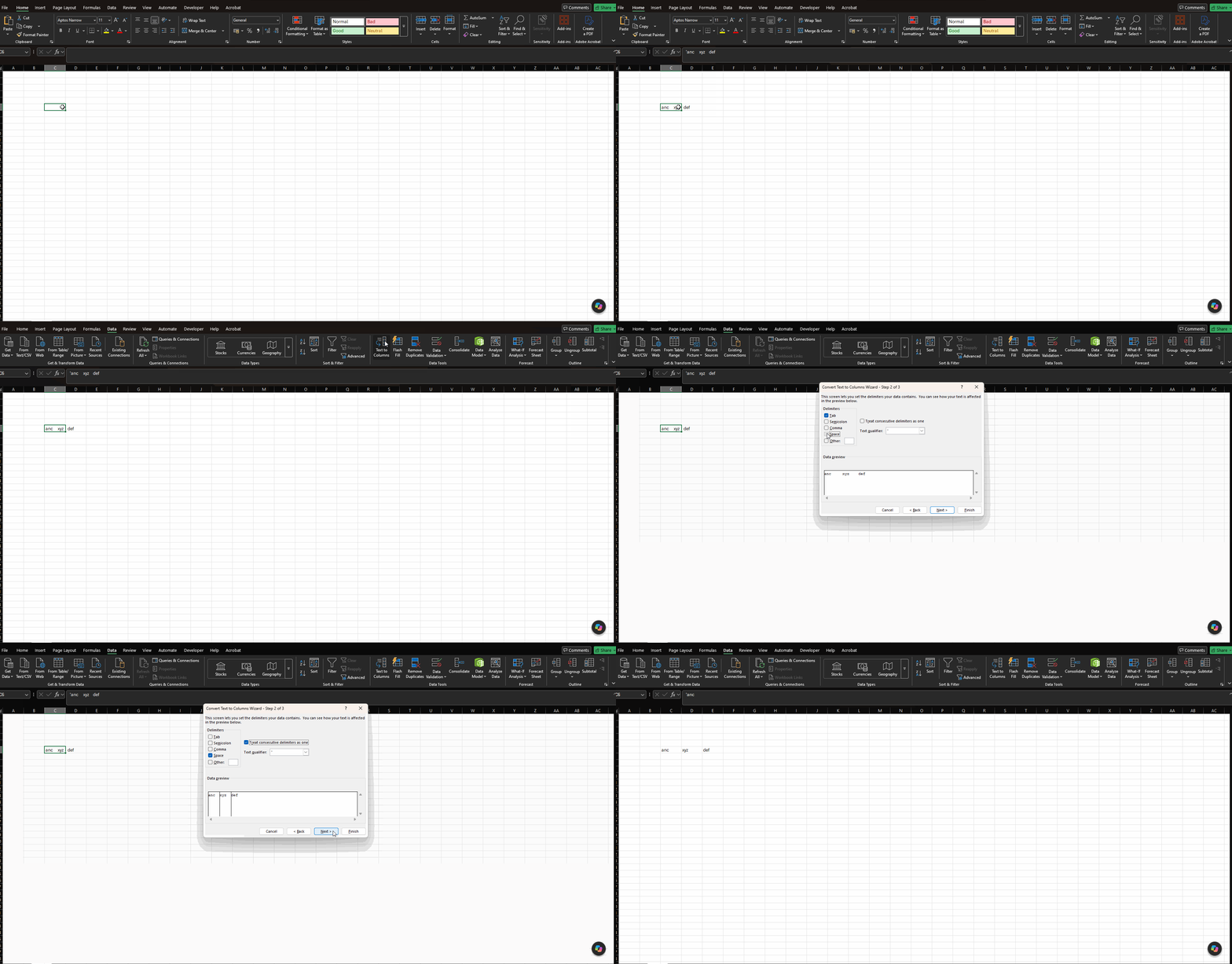
If your requirement is to split at every individual space (creating empty columns between values), you can simply uncheck the “Treat consecutive delimiters as one” option in Step 2 of the wizard.
Regards,
Priyam