Posted 30 August 2022, 12:38 am EST - Updated 3 October 2022, 9:04 am EST
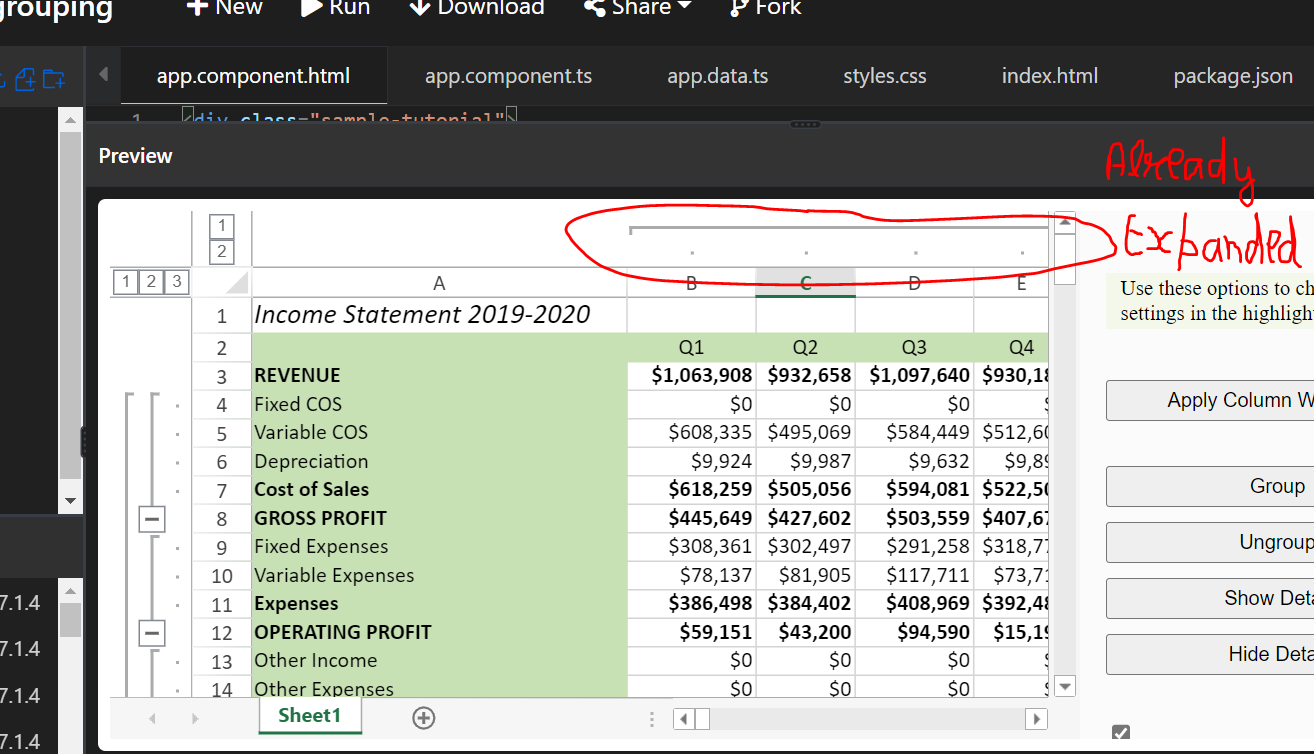
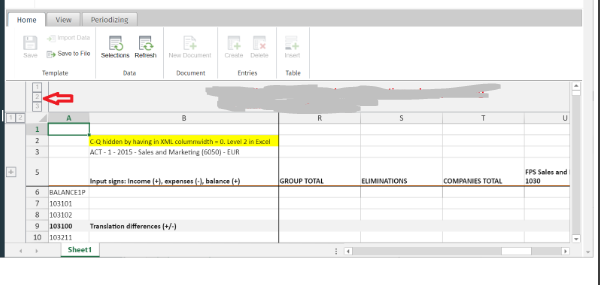
If we have set the columnwidth of the column as zero and then if we try grouping them by clicking on the 1 2 3 buttons nothing happens
Forums Home / Spread / SpreadJS
Posted by: aditya.chauhan on 30 August 2022, 12:38 am EST

aditya.chauhan
Posted 30 August 2022, 12:38 am EST - Updated 3 October 2022, 9:04 am EST
If we have set the columnwidth of the column as zero and then if we try grouping them by clicking on the 1 2 3 buttons nothing happens

ankit.kumar

Posted 30 August 2022, 3:33 am EST
Hi Aditya,
I was unable to replicate the issue at my end. You can refer to the following sample that I have used for testing: https://jscodemine.grapecity.com/share/I7a6riVgRUSulxsAlc5QGw/
Could you please share a working sample replicating the issue so that we can investigate it at our end? You could also modify the above sample and share with us.
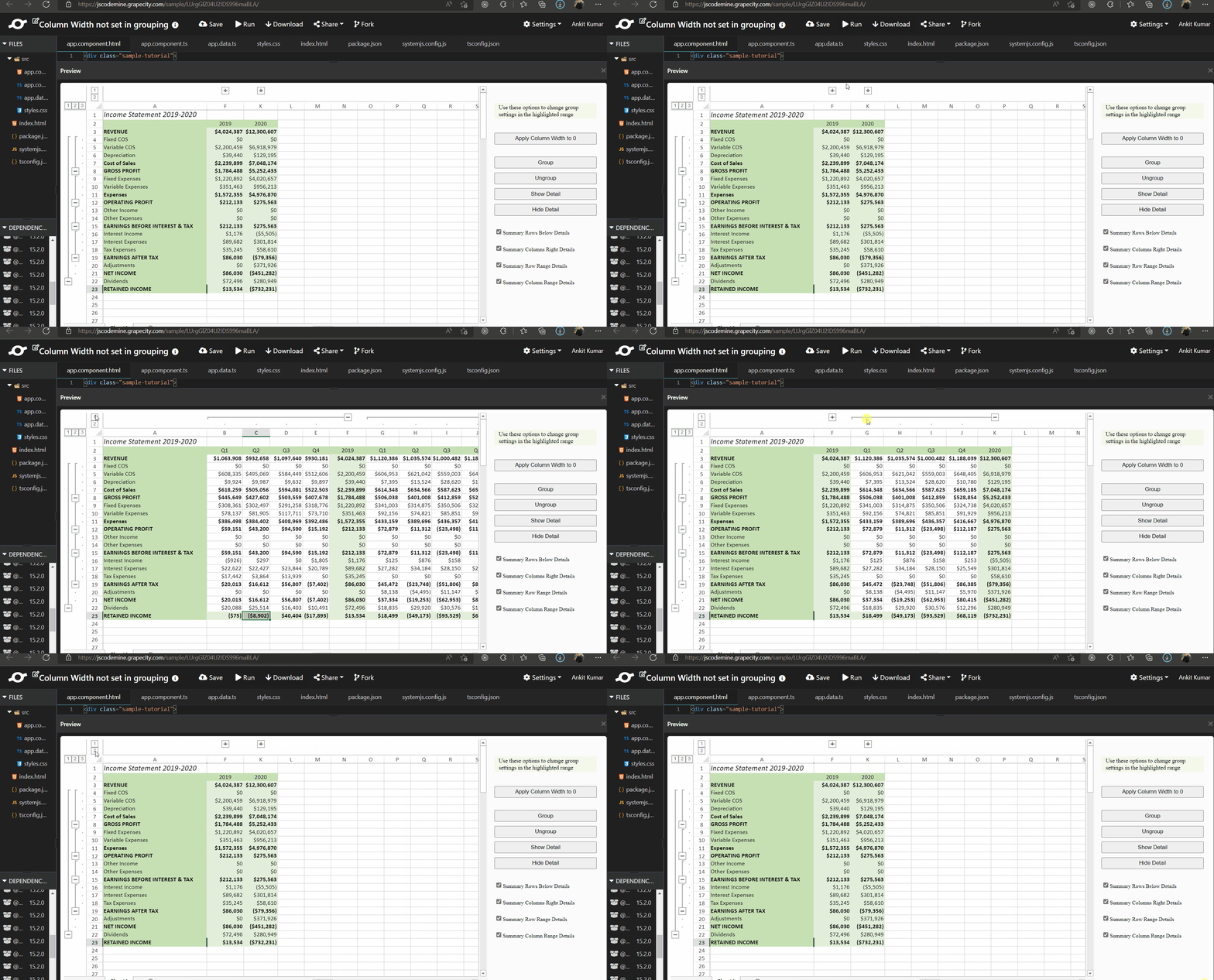
Also, is the attached steps that we have used for testing. Please let us know if we are missing any step.
Regards
Ankit
ankit.kumar
Posted 30 August 2022, 3:33 am EST - Updated 3 October 2022, 9:04 am EST
aditya.chauhan
Posted 30 August 2022, 3:39 am EST
Hi Ankit,
In your mentioned demo if i open the program then the columns are by default shown i.e. they are visible but In my case I wanted them to be hidden when I first open my application
that is why whenever I am opening my application I am updating the column width to zero so they by default does not get opened and only get visible when I click the grouping icon
updateColumnWidth(spread: GC.Spread.Sheets.Workbook) {
this.savedSheetData.Sheets.forEach(sheet => {
if (sheet.settings != null && sheet.settings != undefined && sheet.settings.ColumnWidths != null && sheet.settings.ColumnWidths != undefined) {
var colWidthList: any = sheet.settings.ColumnWidths.ColumnwidthList;
var colWidthCount: number = colWidthList.filter(filter => filter.ColumnWidth == 0).length;
    if (colWidthCount > 0) {
      var worksheet: GC.Spread.Sheets.Worksheet = spread.getSheet(sheet.SheetNo);
      var workSheetHeaders: any[] = this.getWorkSheetHeaders(worksheet);

      colWidthList.forEach(colWidth => {
        var headerLabel: any = (element) => element == colWidth.ColumnLabel.toUpperCase();
        var headerIndex: number = workSheetHeaders.findIndex(headerLabel);
        worksheet.setColumnWidth(headerIndex, colWidth.ColumnWidth);
      });
    }
  }
});
}
ankit.kumar
Posted 30 August 2022, 4:08 am EST
Hi Aditya,
I couldn’t understand what exactly you are tying to achieve. Could you please make the modifications in the above sample, fork the sample and share with us?
Also, mention the steps you are performing.
Regards
Ankit
aditya.chauhan
Posted 30 August 2022, 4:45 am EST
Above function only sets the column width to zero as they get hidden by default whenever user opens the sheet
In your project if you open it by default the columns are ungrouped.
I want them to be minimised(hidden) when I am first opening the project
ankit.kumar
Posted 31 August 2022, 8:15 am EST - Updated 3 October 2022, 9:04 am EST
Hi Aditya,
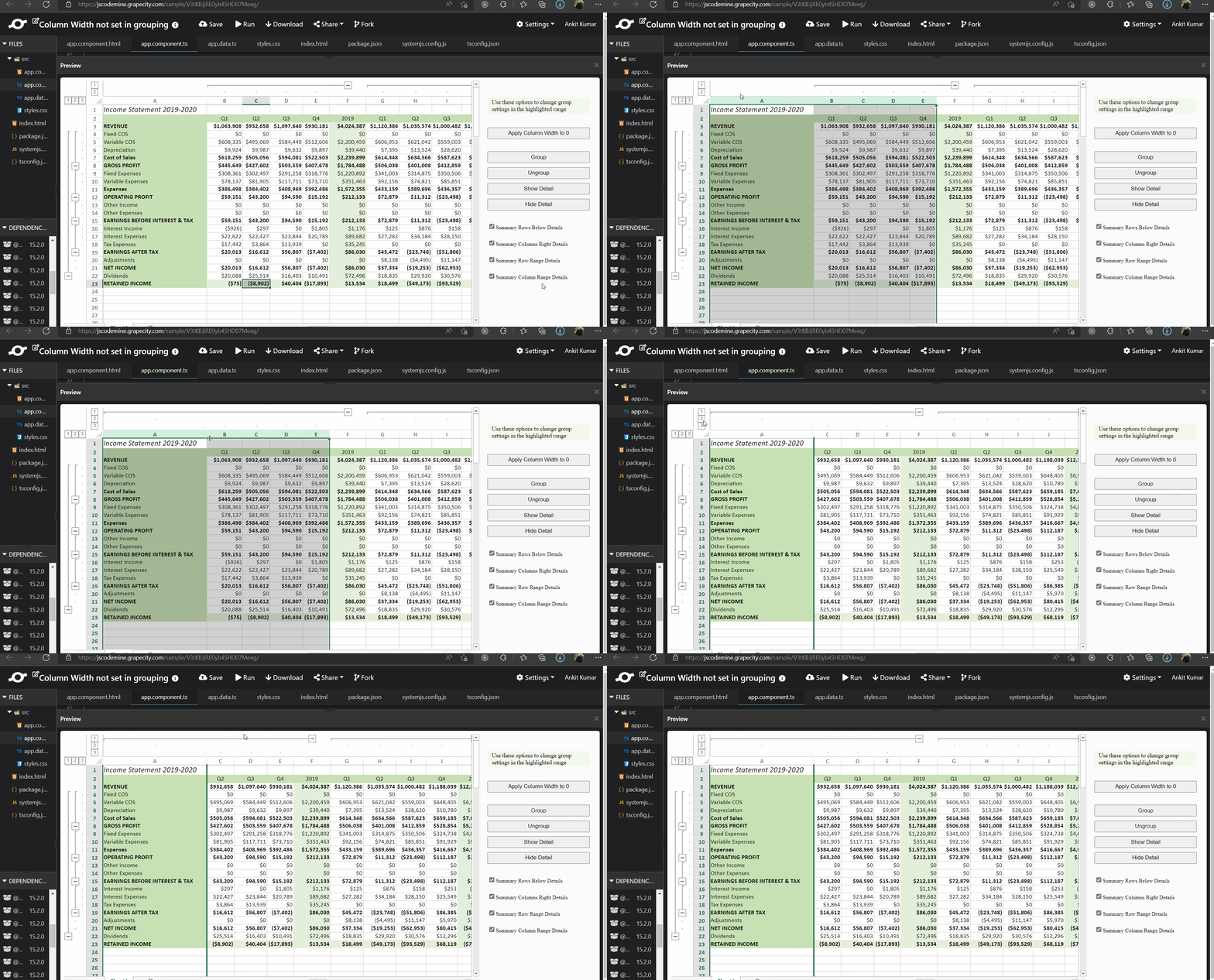
I have created a sample with initially the columns collapsed, and still I was unable to replicate the issue at my end.
You can refer to the following sample that I have used for testing: https://jscodemine.grapecity.com/share/lEub6kc27k2OqVawNmEZIw/
In the sample, clicking on the “2” group will expand the group. Could you please share a working sample? You can also modify the shared sample and share with us replicating the issue.
Regards
Ankit