Posted 13 August 2026, 6:10 am EST - Updated 13 August 2026, 6:15 am EST
When exporting a worksheet to PDF via Workbook.Save(stream, SaveFileFormat.Pdf), a picture that is already embedded in the .xlsx template (not inserted programmatically) is rendered with a distorted aspect ratio — visibly wider/shorter than the original image. The same worksheet, when opened in real Microsoft Excel and exported to PDF from there (Save As PDF), renders the picture with the correct proportions.
Repro steps:
Open a template .xlsx that contains a static picture shape (e.g. a badge/logo image anchored to a cell range).
Load it with Workbook.Open(templatePath).
Save directly to PDF: workbook.Save(stream, SaveFileFormat.Pdf).
Compare the picture in the resulting PDF against: (a) the same picture as shown in Excel, and (b) a PDF produced by opening the same .xlsx in Microsoft Excel and using File > Save As > PDF.
Expected: The picture’s aspect ratio in the DioDocs-exported PDF should match its original aspect ratio / match Excel’s own PDF export.
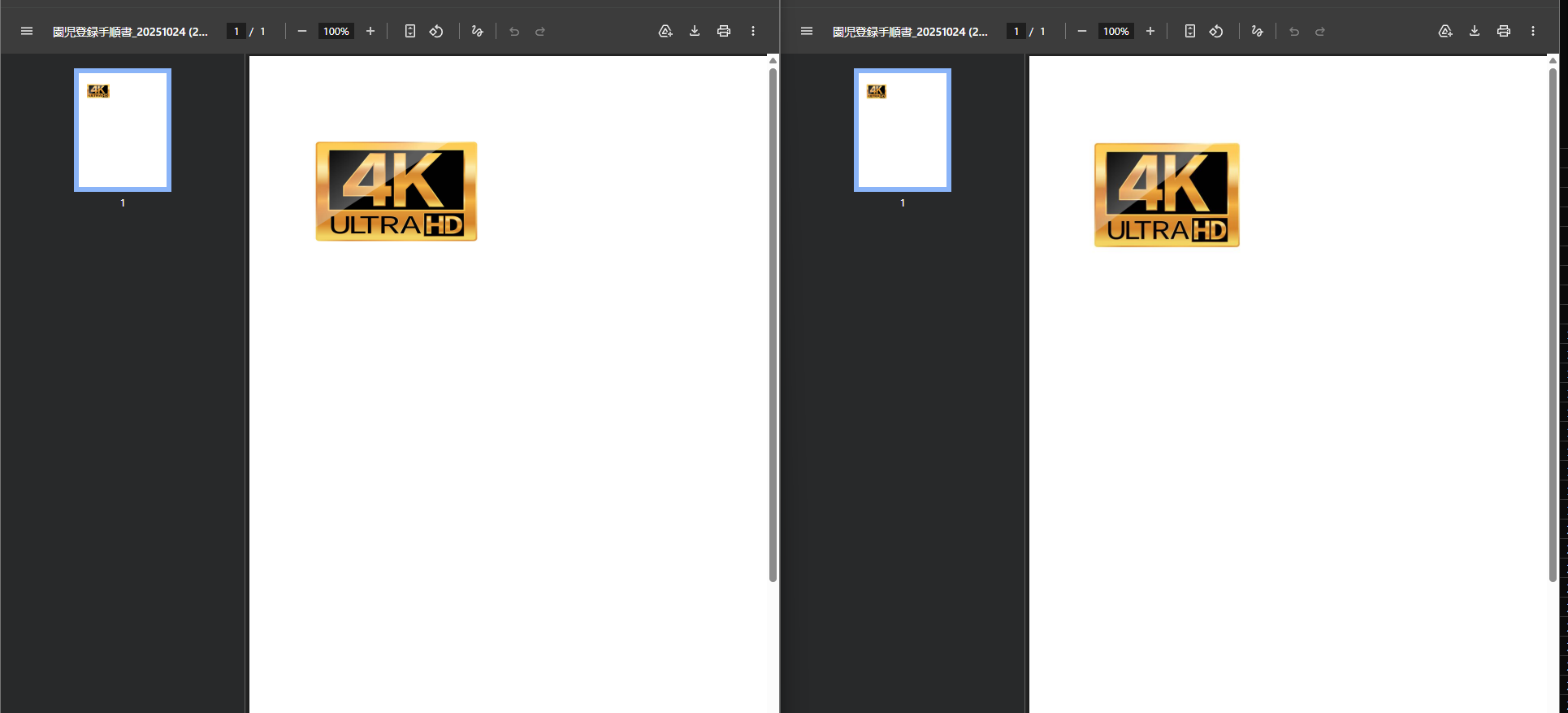
Actual: The picture is stretched (wider relative to height) in the DioDocs PDF export. See attached screenshot — left side is the PDF exported by DioDocs, right side is the PDF exported by Excel from the identical file; same picture, clearly different aspect ratio.
Question: Is this a known limitation of picture rendering in the PDF export pipeline? Is there any API/setting to make picture aspect ratio in the exported PDF match Excel’s native rendering?