Synchronizing TableSheet Edits with an In‑Memory Hierarchical Data Source

Posted by: ichioka.yuji on 2 March 2026, 2:59 am EST

  • Posted 2 March 2026, 2:59 am EST

    Hello,

    I am developing an application that edits hierarchical data (a collection of row data that contains a Level field) using a SpreadJS TableSheet.

    The data source for the hierarchical data is an in‑memory array of JSON objects. I want changes made by editing cells in the TableSheet to be automatically reflected in the in‑memory data source immediately after the edit.

    • When using the DataManager’s addTable() method, which of the following is the correct way to bind the in‑memory JSON object array as the data source for the table?
    • I want edits made in the TableSheet to be automatically reflected in the in‑memory data source right after a cell is edited. Is it correct to register a cell‑editing event handler using Workbook.bind(), and have that handler call saveRow()? Is there any other recommended approach?
    • When rows are added, deleted, or updated, how can the Table object or the data source detect these changes? Is it possible to know exactly which rows were added, deleted, or updated?

    I would greatly appreciate any advice you could provide.

  • Posted 2 March 2026, 12:08 pm EST

    I’m sharing my current implementation code. When a value is entered in the Name column, a string that ends with “.” represents a folder, and any other string represents an item. If a row is a folder, the rows that follow it are assigned a hierarchy level increased by one.

    interface Row {
      rowOrder: number;
      level: number;
      name?: string;
      type?: 'folder' | 'item';
    }
            const workbook = new Sheets.Workbook(host, { sheetCount: 0 });
            const tableSheet: TableSheet.TableSheet = workbook.addSheetTab(0, 'Tags', Sheets.SheetType.tableSheet);
    
            // An in-memory datasource of hierarchal row items
            const rows: Row[] = [];
    
            const dataManager = workbook.dataManager(); 
            const table = dataManager.addTable('', {
              data: rows,
              schema: {
                columns: {
                  rowOrder: { dataType: 'rowOrder' },
                  level: { dataType: 'number' },
                  name: { dataType: 'string' },
                },
                hierarchy: {
                  type: 'Level',
                  column: 'level',
                },
              },
            });
    
            table.fetch().then(() => {
              const view = table.addView(
                'myView',
                [
                  { caption: 'Name', value: 'name', outlineColumn: true },
                  { caption: 'Type', value: 'type', readonly: true },
                ]);
              tableSheet.setDataView(view);
            });
    
            const onEditEnded = (_: Sheets.Workbook, args: Sheets.IEditEndedEventArgs) => {
              tableSheet.saveRow(args.row).then(
                () => {
                  // Sort rows by order number before scanning them
                  rows.sort((r1, r2) => r1.rowOrder - r2.rowOrder);
    
                  let rowOrder: number = 0;
                  let level: number = 0;
    
                  for (const row of rows) {
                    const name = row.name;
                    if (name) {
                      // A row having a name ending with '.' means a folder.
                      if (name.endsWith('.')) {
                        row.type = 'folder';
                        row.level = level++;
                      }
                      else {
                        row.type = 'item';
                        row.level = level;
                      }
                    }
                    else {
                      delete row.type;
                      row.level = level;
                    }
    
                    // Re-assign an oder number for each row
                    row.rowOrder = rowOrder++;
                  }
    
                  tableSheet.getDataView().fetch(true).then(() => workbook.repaint());
                }
              );
            };
            workbook.bind(Sheets.Events.EditEnded, onEditEnded);
  • Posted 3 March 2026, 5:24 am EST

    Hi Yuji,

    Thank you for your detailed explanation.

    Below is a summary of the recommended approach when working with hierarchical data in a TableSheet using an in-memory JSON array.

    1. Binding the in-memory data source

      The correct way to bind an in-memory JSON array is by using DataManager.addTable() and passing the array through the data property:

         const table = dataManager.addTable("TagsTable", {
           data: rows,
           autoSync: true,
           schema: { ... }
         });

      When autoSync: true is enabled, the TableSheet and the underlying JSON array are automatically synchronized.

    2. Reflecting edits immediately in the JSON array

      In a TableSheet, cell edits are committed using:

         tableSheet.saveRow(rowIndex)

      It is recommended to call saveRow() inside the EditEnded event. Once saveRow() completes, the corresponding object in the in-memory array is updated immediately.

      No manual synchronization logic is required.

    3. Detecting added, updated, and deleted rows

      TableSheet internally tracks row-level changes. You can retrieve them using:

         const changes = tableSheet.getChanges();

      The returned object contains structured collections:

      • added
      • updated
      • deleted

    This allows you to determine exactly which rows were modified.

    1. Hierarchical behavior

      When using a Level-based hierarchy configuration in the schema, updating the level field or calling hierarchy APIs such as promoteHierarchyLevel() / demoteHierarchyLevel() correctly updates both the UI and the underlying data source.

    We have attached a working sample below demonstrating:

    • In-memory binding
    • Automatic synchronization
    • Change tracking
    • Hierarchical level management

    Please let us know if you require any further assistance.

    Best regards,

    Chirag

    Attachment: https://jscodemine.mescius.io/share/ZV6-XgVlB0SVvTjP7D_z8w

  • Posted 3 March 2026, 10:58 am EST - Updated 3 March 2026, 8:51 pm EST

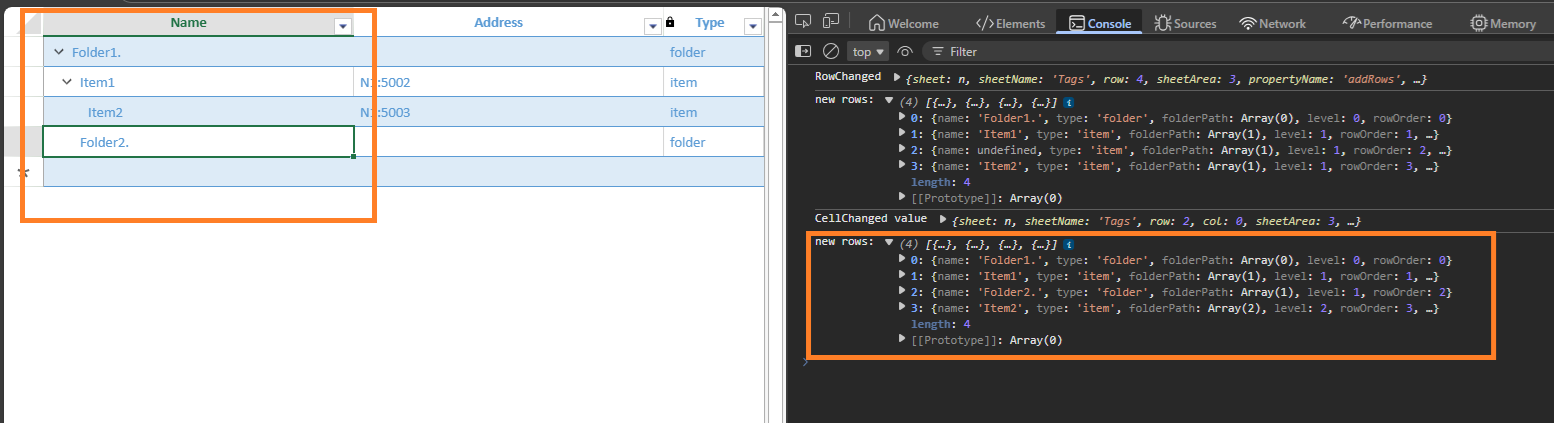
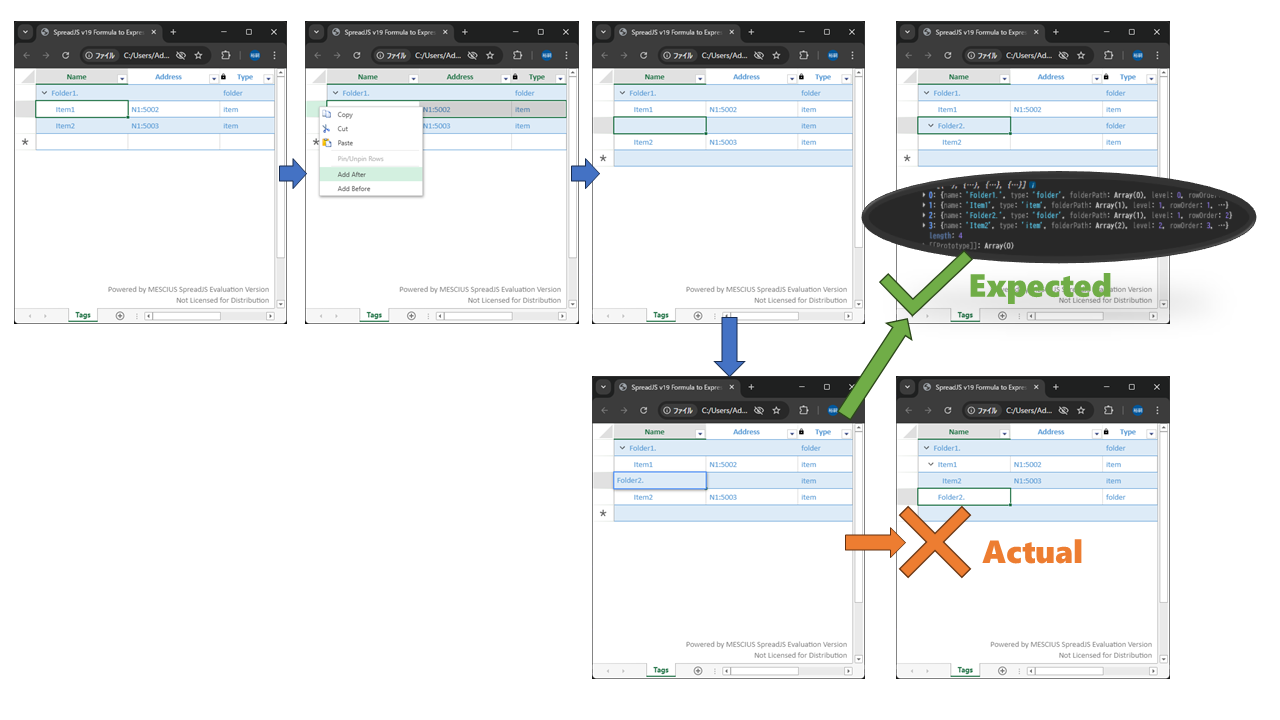
    Thank you for the sample. I tried it with several editing patterns. When changing “Folder 1.” to “Folder 1” in the top row, nothing happened, although I expected all rows to become flat at level 0. I couldn’t figure out what caused it. I would really appreciate it if you could help me further.

    Considering paste/delete operations on cell ranges and drag‑fill operations as well, I think the most reliable approach is to calculate/update all level values in the in‑memory data source and then reload the whole table whenever the name column of any row is edited. What do you think about this approach?

  • Posted 5 March 2026, 3:44 am EST

    Hi,

    Thank you for your detailed testing and for sharing your observations.

    You are correct that when the hierarchy is derived from the Level column, any logic that recalculates the level values in the in-memory data source must ensure that the TableSheet rebuilds its internal hierarchy tree. Simply updating the data source does not automatically refresh the hierarchy structure in the UI.

    Based on your suggestion, we implemented an approach similar to what you proposed:

    1. When a cell edit is completed, the edited row is committed using saveRow().
    2. The hierarchy is then recalculated in the in-memory data source by recomputing the type, level, and rowOrder values for all rows based on the rule (names ending with . are treated as folders).
    3. After updating these values, the DataView is refreshed using fetch(true).
    4. The view is then rebound to the TableSheet using setDataView() so that the hierarchy tree is rebuilt and the changes are immediately reflected in the UI.

    This ensures that scenarios such as:

    • converting a folder to an item (e.g., changing “Folder 1.” => “Folder 1”),
    • paste or drag-fill operations,
    • multiple row edits,

    correctly trigger a full hierarchy recalculation and update the TableSheet display accordingly.

    We have prepared a working sample demonstrating this approach here: https://jscodemine.mescius.io/share/XXrNl1Ag7UW_Yldj7uMCRg

    Please feel free to review the sample and let us know if you have any further questions.

    Best Regards,

    Chirag

  • Posted 6 March 2026, 12:59 am EST - Updated 6 March 2026, 4:38 am EST

    Thank you!! This brings me much closer to what I want to achieve.

    Based on your sample, I reviewed and updated my implementation, so I’d like to share it with you.

    index-table-sheet.zip

    However, one issue remains: among the editing operations in TableSheet, the following operation events cannot be captured:

    • Undo after a cell edit
    • Deleting or pasting a cell range

    I have an additional question. For the remote property included in the dataSourceOptions argument of the DataManager.addTable() method, I am supposed to assign an event handler of type RemoteChangeHandler. In this event handler, what value is the correct one to return?

    I would appreciate your guidance so I can make sure I understand it correctly.

    https://developer.mescius.com/spreadjs/api/modules/GC.Data#remotechangehandler

            const dataManager = spread.dataManager();
            const table = dataManager.addTable("TagsTable", {
                batch: true,
                schema: {
                    hierarchy: {
                        type: "Level",
                        column: "level"
                    },
                    columns: {
                        name: { dataType: "string" },
                        address: { dataType: "string" },
                        type: { dataType: "string" },
                        level: { dataType: "number", defaultValue: 0 },
                        rowOrder: { dataType: "rowOrder" },
                    }
                },
                remote: {
                  read: async () => window.rows,
                  batch: async (rows) => {
                    // Hierarchal rows recomputation after batch changes
                    const [newRows, shouldReload] = recomputeRows(rows);
                    window.rows = newRows;
    
                    if (shouldReload) {
                      setTimeout(async () => {
                        const view = sheet.getDataView();
                        await view.fetch(true);
                        sheet.setDataView(view);
                      });
                    }
    
                    // ** What value should be returned? **
                    return rows;
                  }
                }
            });
  • Posted 9 March 2026, 6:09 am EST

    Hi Yuji,

    Thank you for sharing your updated implementation — the overall architecture looks solid and well thought out. Let me address each of your outstanding questions.

    1. Capturing Undo, Paste, and Delete Operations

    You are right that most standard sheet events are not supported in TableSheet. For undo and delete operations, the recommended approach is to use commandManager().addListener(), which fires for every command executed through the UI. Inside the listener, you can check args.actionType === 1 to identify an undo action, and inspect args.command.cmd to handle specific commands like delete accordingly:

    spread.commandManager().addListener("App", (args) => {
      if (args.actionType == 1) {
        console.log("undo", args.command.cmd);
        requestIdleSubmitChanges();
      }
    });

    Regarding RangeChanged not firing: this event is only supported on regular Sheets, not TableSheets, so it can be safely removed from your implementation. Your existing use of CellChanged, DragDropBlockCompleted, and DragFillBlockCompleted is already the correct approach for those operations.

    For paste operations, bind to ClipboardPasted on the sheet:

    sheet.bind(GC.Spread.Sheets.Events.ClipboardPasted, (e, args) => {
      console.log('ClipboardPasted', args);
      requestIdleSubmitChanges();
    });
    1. What value should the batch handler return?

      According to the RemoteChangeHandler API, the batch function must return a Promise resolving to the rows that were actually committed — that is, the rows after all your custom logic has been applied.

    In your current implementation, you are returning the original rows argument before recomputeRows() runs. This can cause the DataManager’s internal cache to fall out of sync with window.rows, which may be the root cause of the unexpected behavior. The fix is straightforward — return newRows instead:

    batch: async (rows) => {
      const [newRows, shouldReload] = recomputeRows(rows);
      window.rows = newRows;
    
      if (shouldReload) {
        setTimeout(async () => {
          const view = sheet.getDataView();
          await view.fetch(true);
          sheet.setDataView(view);
        });
      }
    
      // Return the recomputed rows, not the original argument
      return newRows;
    }

    Best regards,

    Priyam

Need extra support?

Upgrade your support plan and get personal unlimited phone support with our customer engagement team

Learn More

Forum Channels