


- Document Solutions for PDF JS Overview
- Key Features
- Licensing and Redistribution
- Quick Start
- Memory Management
-
Features
- Create and Save
- Document Properties
- Pages
- Text
- Graphics
- Form XObjects
- Images
- Fonts
-
Annotations
- Text Annotation
- Free Text Annotation
- Line Annotation
- Polyline Annotation
- Square Annotation
- Circle Annotation
- Polygon Annotation
- 3D Annotation
- Stamp Annotation
- Ink Annotation
- File Attachment Annotation
- Link Annotation
- RichMedia Annotation
- Sound Annotation
- Widget Annotation
- Watermark Annotation
- Redact Annotation
- Text Markup Annotation
- Caret Annotation
- Appearance Streams
- Forms
- Output Intents
- Merge and Split PDFs
- Actions
- Outline
- Tagged PDF
- PDF Conformance
- Attachments
- Redact Annotation
- Security
- Digital Signatures
- Incremental Update
- Linearization
- Export
- Image Features
- Snippet Helpers
- Samples
- Tutorials
- API Reference
- Release Notes
Annotations
Annotations allow you to add notes or mark content on a PDF page. They can be used to highlight or associate information with text, images, or other visual elements. Annotations may contain text, shapes, sounds, file attachments, and other interactive elements.
Annotations can appear in either a closed or open state. In the closed state, they appear as a note, icon, or visual marker on the page, depending on the annotation type. In the open state, they display their associated content, such as a pop-up window with text.
DsPdfJS supports a variety of standard PDF annotation types, as listed below:
Each annotation type is represented by a dedicated class with properties that allow you to configure its appearance and behavior. You can also control annotation characteristics such as visibility and printing behavior by setting the flags property using values from the AnnotationFlags enum.
For more information about annotations and their behavior, see PDF Specification 2.0, Section 12.5.
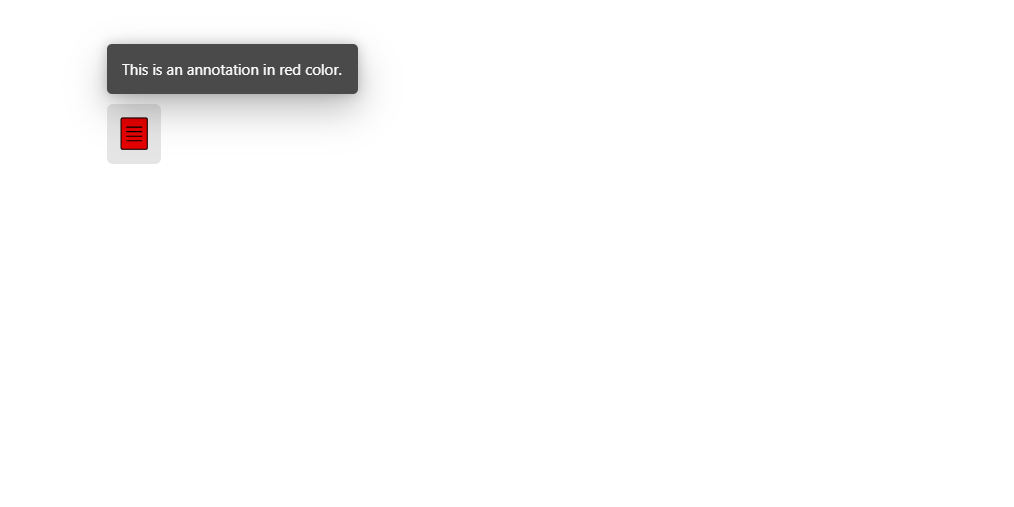
Add Annotations
DsPdfJS allows you to add annotations to a page in a PDF document. Annotations are stored in the annotations collection of the page on which they are placed.
To add an annotation to a page:
Create an instance of the class corresponding to the annotation type you want to add, for example TextAnnotation.
Call the add method on the page’s annotations collection (AnnotationCollection class) to add the annotation to the page.
Note: The examples on this page use helper functions from the Snippet Helpers module. These utilities are provided only to simplify the examples and are not part of the DsPdfJS API.
const doc = new PdfDocument();
const page = doc.newPage();

// ---------------
// Add Annotations
// ---------------
const textAnnot = new TextAnnotation();
textAnnot.contents = "This is an annotation in red color.";
textAnnot.color = "Red";
textAnnot.Name = "Text Annotation";
textAnnot.rect = { x: 72, y: 72, width: 0, height: 0 };
//Add the text annotation
page.annotations.add(textAnnot);

const docData = doc.savePdf();
Util.saveFile("annotations_add_text_annotation.pdf", docData);
Get Annotations
You can access annotations from the annotations collection of a page.
To get annotations from a page:
Access the page from the document using the pages collection.
Access the page’s annotations collection.
Retrieve an annotation from the collection by specifying its index using the getAt method.
//Get Annotation
const acol = doc.pages.getAt(0).annotations;
// Display the property values
console.log(`Annotation Type: ${acol.getAt(0).name}`);
Modify Annotations
You can modify an annotation by setting the properties of the annotation instance added to the page. For example, you can update the contents and color properties of a TextAnnotation to change the text and appearance of the annotation.
// Modify annotation
textAnnot.color = "BlueViolet";
textAnnot.contents = "This is a Text annotation.";
const docData2 = doc.savePdf();
Util.saveFile("annotations_modify_annotation.pdf", docData2);
Delete Annotations
You can delete a specific annotation or remove all annotations from a page using the page’s annotations collection.
To delete annotations from a page:
Call the removeAt method on the annotations collection and specify the index of the annotation to delete.
Call the clear method on the annotations collection to remove all annotations from the page.
// Delete a particular annotation
page.annotations.removeAt(0);

// Delete all annotations
page.annotations.clear();