


Graphics
Graphics are visual elements, such as shapes, lines, curves, and images, that can be embedded in a PDF document to supplement text and illustrate concepts.
DsPdfJS lets you draw graphics on a page using the drawing methods available in the PdfContext class, which represents a drawing context for a PdfPage. PdfContext extends the abstract DrawingContext class, which defines the core drawing surface API shared across rendering targets.
The following graphic elements are supported:
Path
Line
Lines (a open set of connected lines)
Polygon (a closed set of connected lines)
Rectangle (including rounded rectangles)
Ellipse (including circles)
Graphic Elements
To add and fill a graphic element in a PDF document:
Create an instance of PdfDocument.
Obtain a PdfContext by calling doc.newPageContext method.
Create a path using the createPath method and define its geometry using the appropriate path methods.
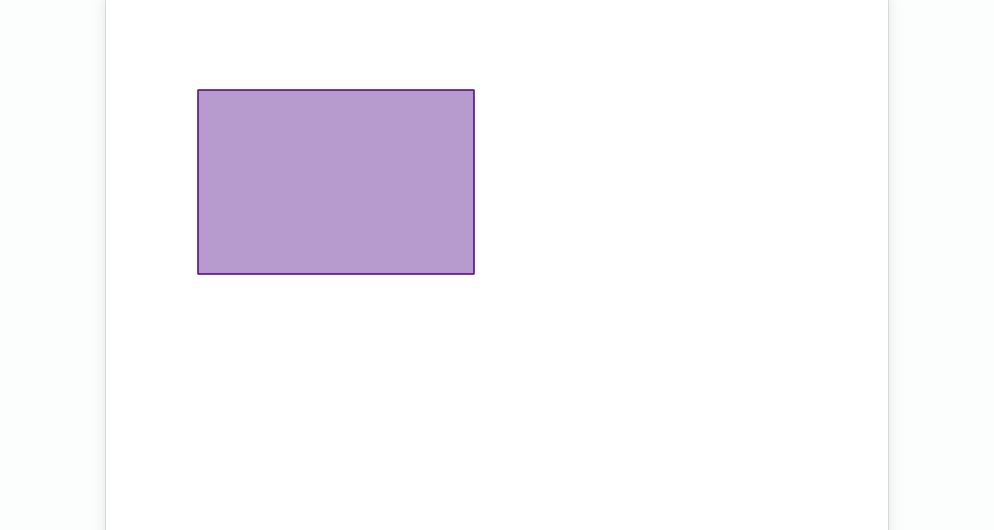
Render the shape using drawRect (or any method for the graphic element you're trying to draw), passing a style object that defines both stroke and fill properties.
const ds = window.DocSol;

async function createPdf() {
  const doc = new ds.PdfDocument();
  const ctx = doc.newPageContext();
  const inch = ctx.resolution;

  const pen = {
    lineColor: "Indigo",
    lineWidth: 1,
    lineJoin: ds.PenLineJoin.Round,
    fillColor: "#4B008264",
  };

  const x = inch;
  const y = inch;
  const width = inch * 3;
  const height = inch * 2;

  ctx.drawRect(x, y, width, height, pen);

  return doc;
}
Brushes
A brush defines how the interior of a shape or figure is filled. In DsPdfJS, brushes are represented by the Brush class and its subclasses. The following brush types are supported:
SolidBrush
LinearGradientBrush
RadialGradientBrush
HatchBrush
ImageBrush
The following code sample showcases the usage of Linear and Radial gradient brushes:
const doc = new ds.PdfDocument();

// Add a page to the PDF with some explanatory text:
const ctx = doc.newPageContext();
const margin = ctx.resolution / 2;
const tfCap = new ds.Format({ fontSize: 18, foreColor: "Black" });
const tfSwatch = new ds.Format({ fontSize: 14, foreColor: "Lime" });
const tlCap = new ds.Layout({
  marginTop: 0,
  marginLeft: margin,
  defaultFormat: tfCap,
});
// Function to draw a gradient swatch:
function drawSwatch(brush, txt, x, y, w, h)
{
  ctx.drawRect(x, y, w, h, {
    fillBrush: brush,
    strokePen: new ds.Pen({ color: "Magenta"})
  });
  const tlSwatch = new ds.Layout(tlCap, {
    marginAll: 0,
    maxWidth: w,
    maxHeight: h,
    defaultFormat: tfSwatch,
    paragraphAlignment: ds.ParagraphAlignment.Center,
    textAlignment: ds.TextAlignment.Center,
    runs: [{ text: txt }]
  });
  ctx.drawLayout(tlSwatch, x, y);
};
function pp(p) {
  if (p == undefined) {
    return "default";
  }
  return `(${p.x}, ${p.y})`;
}
let y = margin, swatchH = 72;
const gap = 12, swatchW = 360;
// Linear gradients:
tlCap.appendLine({ text: "Linear gradients:" });
ctx.drawLayout(tlCap, 0, y);
y += tlCap.contentY + tlCap.contentHeight + gap;

let bp = {startColor: "Red", endColor: "Blue"};
let b = new ds.LinearGradientBrush(bp);
drawSwatch(b, `LinearGradientBrush\nfrom ${pp(bp.startPoint)} to ${pp(bp.endPoint)}`, margin, y, swatchW, swatchH);
y += swatchH + gap;

bp = {startColor: "Red", endColor: "Green", startPoint: {x:0, y:0}, endPoint: {x:0, y:1} };
b = new ds.LinearGradientBrush(bp);
drawSwatch(b, `LinearGradientBrush\nfrom ${pp(bp.startPoint)} to ${pp(bp.endPoint)}`, margin, y, swatchW, swatchH);
y += swatchH + gap;

swatchH *= 1.5;
bp = {startColor: "Red", endColor: "Teal", startPoint: {x:0, y:0}, endPoint: {x:1, y:1} };
b = new ds.LinearGradientBrush(bp);
drawSwatch(b, `LinearGradientBrush\nfrom ${pp(bp.startPoint)} to ${pp(bp.endPoint)}`, margin, y, swatchW, swatchH);
y += swatchH + gap;

// Radial gradients:
tlCap.clear();
tlCap.appendLine({ text: "Radial gradients:" });
ctx.drawLayout(tlCap, 0, y);
y += tlCap.contentY + tlCap.contentHeight + gap;
// Centered:
bp = {startColor: "Purple", endColor: "Orange" };
b = new ds.RadialGradientBrush(bp);
drawSwatch(b, `RadialGradientBrush\nfrom ${pp(bp.startPoint)} to ${pp(bp.endPoint)}`, margin, y, swatchW, swatchH);
y += swatchH + gap;
// Center in bottom right corner:
bp = {startColor: "OrangeRed", endColor: "DarkBlue", centerOfStartCircle: {x:1, y:1} };
b = new ds.RadialGradientBrush(bp);
drawSwatch(b, `RadialGradientBrush\ncenterOfStartCircle: ${pp(bp.centerOfStartCircle)}`, margin, y, swatchW, swatchH);
y += swatchH + gap;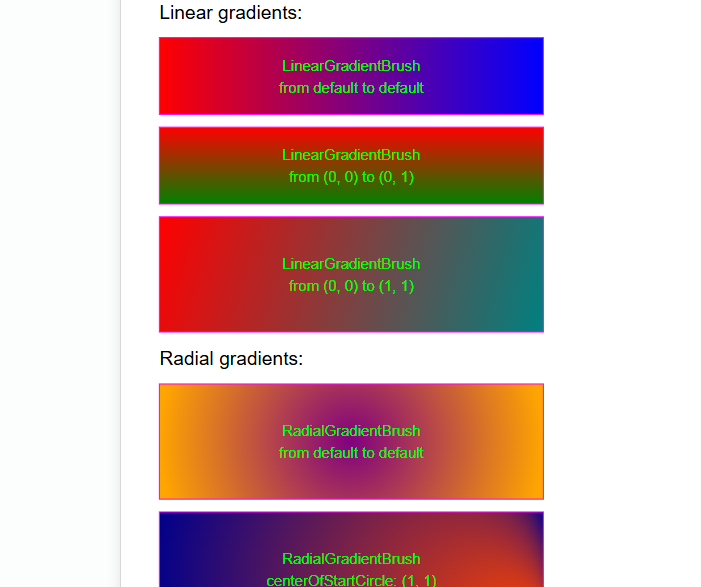
Transformations
Transformations modify how shapes and content are positioned, sized, and oriented on a page. In DsPdfJS, transformations are represented by the Transform class, which represents a 3x2 transformation matrix. You apply a transformation by setting the transform property on the PdfContext instance.
The following code sample shows how to apply transformations in a PDF document.
const doc = new ds.PdfDocument();
const ctx = doc.newPageContext();
const res = ctx.resolution;
const box = { x: 0, y: res / 2, width: res * 4, height: res * 2 };

const layout = new ds.Layout({
  maxWidth: box.width,
  maxHeight: box.height,
  defaultFormat: new ds.Format({ fontSize: 14, foreColor: "DarkBlue" }),
  paragraphAlignment: ds.ParagraphAlignment.Center,
  textAlignment: ds.TextAlignment.Center,
});

function drawBox(text, rect) {
  ctx.drawRect(rect.x, rect.y, rect.width, rect.height, {
    fillBrush: new ds.SolidBrush([0, 184, 204, 80]),
    strokePen: new ds.Pen({ color: [0, 193, 213] }),
  });
  layout.clear();
  layout.appendLine({ text });
  ctx.drawLayout(layout, rect.x, rect.y);
}

// Translation + scale:
let m = ds.Transform.createTranslation(res * 1, res * 4);
m.scale(0.5);
ctx.transform = m;
drawBox("Box translated by (1\",4\") and scaled by 0.5.", box);

// Scale + translation + rotation:
m = ds.Transform.createScale(0.7);
m.translate(res * 3, res * 5);
m.rotate(-70, ds.AngleUnits.Degrees);
ctx.transform = m;
drawBox("Box scaled by 0.7, translated by (3\",5\"), and rotated 70 degrees counterclockwise.", box);

// Translation + skew:
m = ds.Transform.createTranslation(res * 3, res * 7);
m.skew(-45, 20, ds.AngleUnits.Degrees);
ctx.transform = m;
drawBox("Box translated by (3\",7\") and skewed -45° on X and 20° on Y.", box);

ctx.transform = ds.Transform.createIdentity();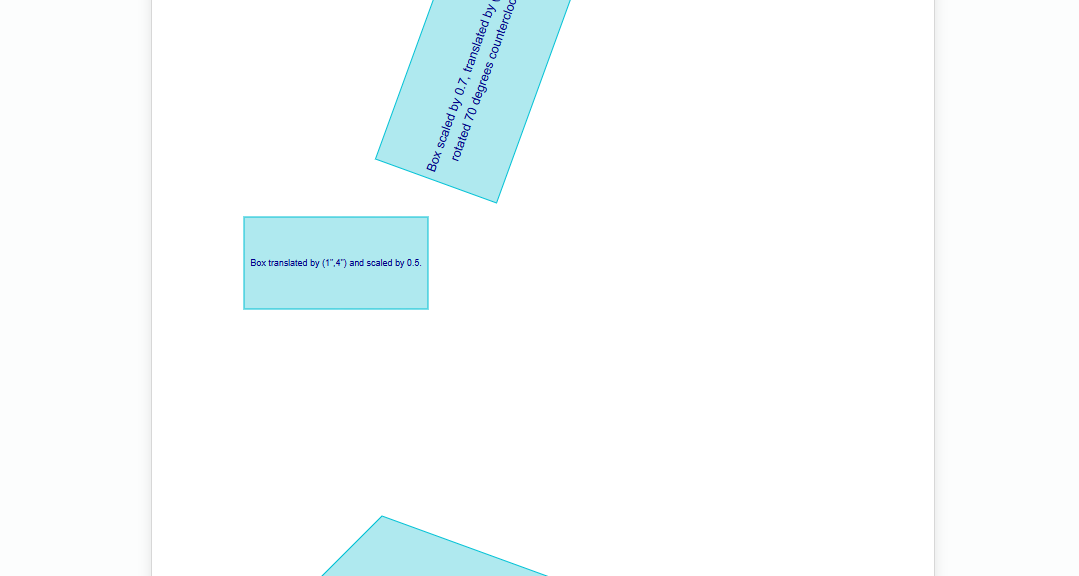
Blend Modes
Blend modes determine how colors are mixed when drawing on a surface that already contains color information. In other words, a blend mode controls the resulting color of a pixel when a new color is applied on top of it. The default blend mode is BlendMode.Normal, which replaces the existing color with the new one.
In DsPdfJS, blend modes are controlled through the blendMode property in PdfContext. Once set, the blend mode remains in effect for all subsequent drawing operations on that context, including images and text, until it is changed.
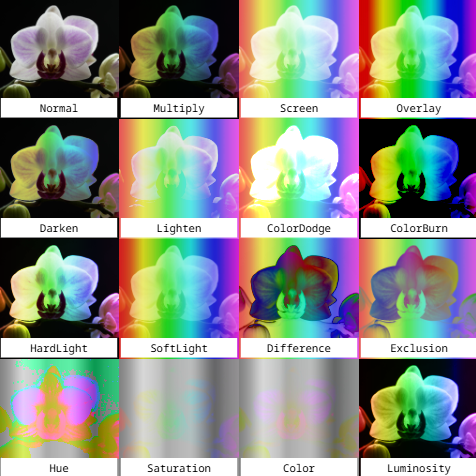
To apply blend modes in a PDF document:
Load the images using the Image.load method.
Create a Layout instance to define captions for each blend mode tile.
Set ctx.blendMode to the desired BlendMode value and render the images using ctx.drawImage.
The following code example shows how to apply blend modes to images in a PDF document.
const doc = new ds.PdfDocument();
const ctx = doc.newPageContext();

const iorchid = ds.Image.load(await loadFileAsArray("img/orchid.jpg"));
const ispectr = ds.Image.load(await loadFileAsArray("img/spectrum-pastel-500x500.png"));

const tileW = ctx.width / 2;
const tileH = iorchid.height * (tileW / iorchid.width);

// Tile 1: Multiply
ctx.blendMode = ds.BlendMode.Normal;
ctx.drawImage(ispectr, 0, 0, tileW, tileH, { keepAspectRatio: false });
ctx.blendMode = ds.BlendMode.Multiply;
ctx.drawImage(iorchid, 0, 0, tileW, tileH, { keepAspectRatio: false });

// Tile 2: Screen
ctx.blendMode = ds.BlendMode.Normal;
ctx.drawImage(ispectr, tileW, 0, tileW, tileH, { keepAspectRatio: false });
ctx.blendMode = ds.BlendMode.Screen;
ctx.drawImage(iorchid, tileW, 0, tileW, tileH, { keepAspectRatio: false });

ctx.blendMode = ds.BlendMode.Normal;
For more examples of working with graphics in DsPdfJS, please visit our demos.