


Fonts
DsPdfJS provides the Font class for loading and working with fonts in PDF documents. The following font types are supported:
TrueType (.ttf)
TrueType Collections (.ttc)
OpenType (.otf)
WOFF (.woff)
Note: Type1 and CFF fonts are supported only when rendering a PDF to an image or SVG, not when creating PDF documents directly.
Fonts are loaded from file data using the Font.load method and can be assigned to a Format instance for use in text rendering. The Font class exposes a wide range of properties describing the font's metrics, capabilities, and embedding permissions, which allows you to inspect font metadata programmatically before use.
For managing multiple fonts across a document, DsPdfJS provides the FontCollection class. It acts as a central registry for fonts, supporting operations such as adding, removing, searching, and retrieving fonts. Font fallback is also managed through FontCollection, using the addFallbackFont and removeFallbackFont methods to define substitution fonts for characters not covered by the primary font.
Standard PDF Fonts
DsPdfJS supports the 14 standard fonts defined in the PDF 2.0 specification (section 9.6.2). To use a standard PDF font, specify one of the StandardPdfFont enum values and obtain the corresponding font using Font.getPdfFont method.
The following code example shows how to use a standard PDF font in a PDF document.
Note: The examples on this page use helper functions from the Snippet Helpers module. These utilities are provided only to simplify the examples and are not part of the DsPdfJS API.
const doc = new PdfDocument();
const page = doc.newPage();
const ctx = page.context;

const textFormat = new Format({
    font: Font.getPdfFont(StandardPdfFont.HelveticaBold),
    fontSize: 14
});

// Render text using drawText() method
ctx.drawText("1. Test string.", textFormat, 72, 72);

// Save Document
const docData = doc.savePdf();
Util.saveFile("UsingStandardPdfFonts.pdf", docData);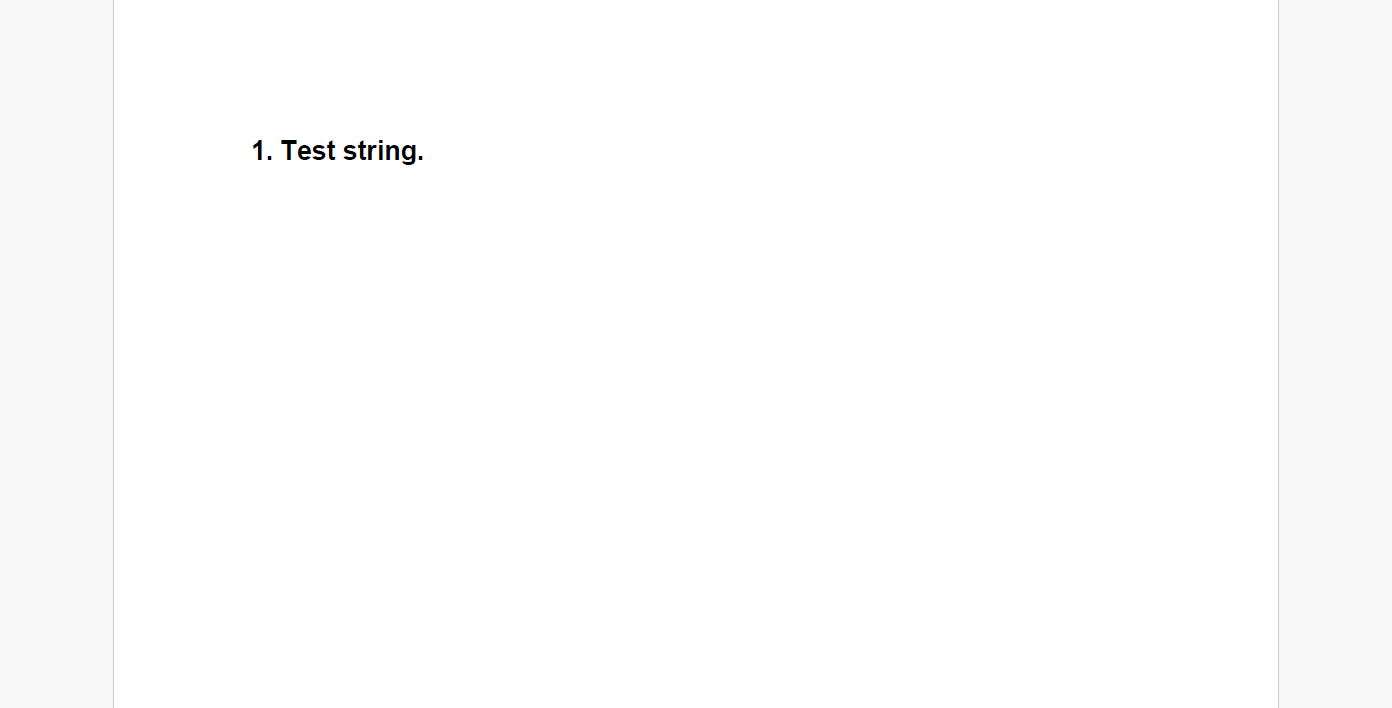
Font Embedding
When external fonts are used in a PDF document, the font data can be embedded in the file. By default, DsPdfJS embeds a subset of the font containing only the glyphs used in the document. This reduces the file size.
You can change this behavior by setting the PdfDocument.fontEmbedMode property. For example, setting it to FontEmbedMode.EmbedFullFont embeds the entire font in the PDF file, which may significantly increase the document size.
// load the font
const fontData = await Util.loadFile("fonts/Gabriola.ttf");
const gabriola = Font.load(fontData);

// Now that we have our font, use it to render some text
const tf = new Format({
    font: gabriola,
    fontSize: 16
});

const doc = new PdfDocument();

// Use PdfDocument object to set the FontEmbedMode
doc.fontEmbedMode = FontEmbedMode.EmbedFullFont;

const ctx = doc.newPage().context;
ctx.drawText(`Sample text drawn with font ${gabriola.fontFamily}.`,
    tf, 72, 72);

// Save Document
const docData = doc.savePdf();
Util.saveFile("FontEmbedding.pdf", docData);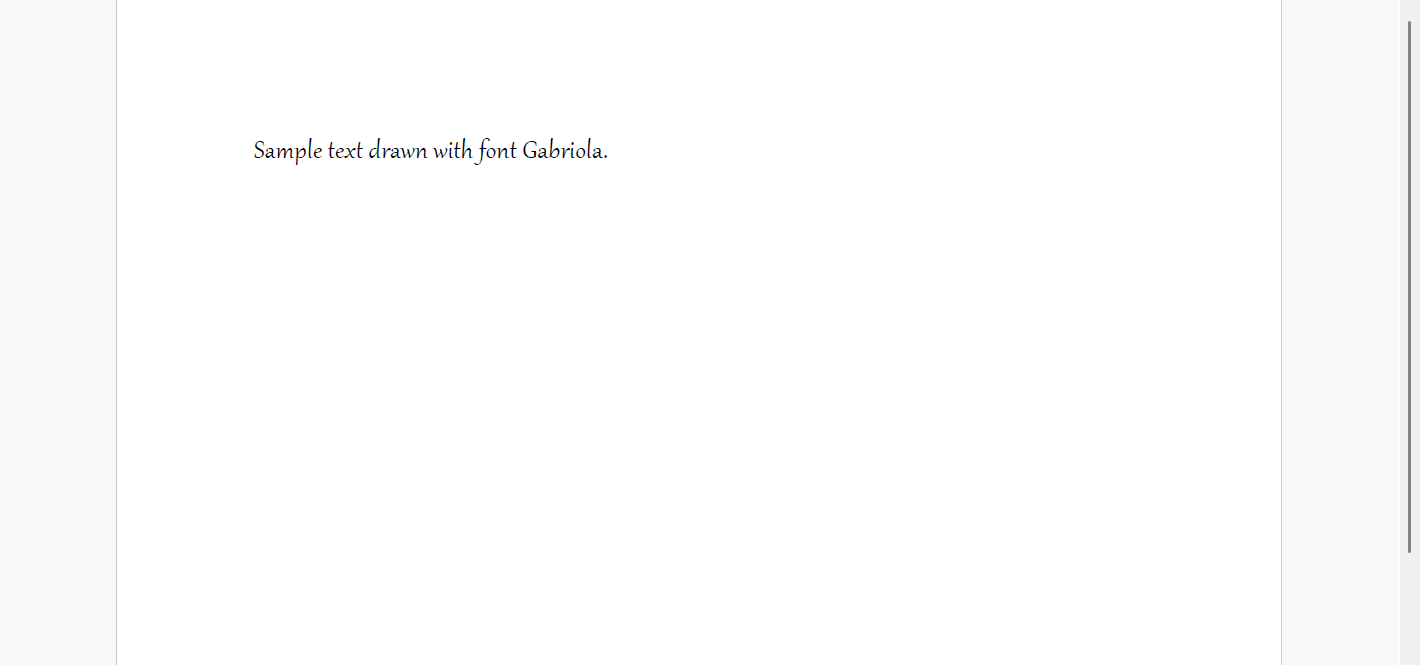
Font from File
You can use external font files by loading them into a Font object. This allows you to use fonts that are not part of the standard PDF font set.
Load the font file.
Create a font using the Font.load method.
Use the font in a Format object when drawing text.
// load the font
const fontData = await Util.loadFile("fonts/Gabriola.ttf");
const gabriola = Font.load(fontData);

// Now that we have our font, use it to render some text
const tf = new Format({
    font: gabriola,
    fontSize: 16
});

const doc = new PdfDocument();
const ctx = doc.newPage().context;
ctx.drawText(`Sample text drawn with font ${gabriola.fontFamily}.`,
    tf, 72, 72);

// Save Document
const docData = doc.savePdf();
Util.saveFile("UsingFontFromFile.pdf", docData);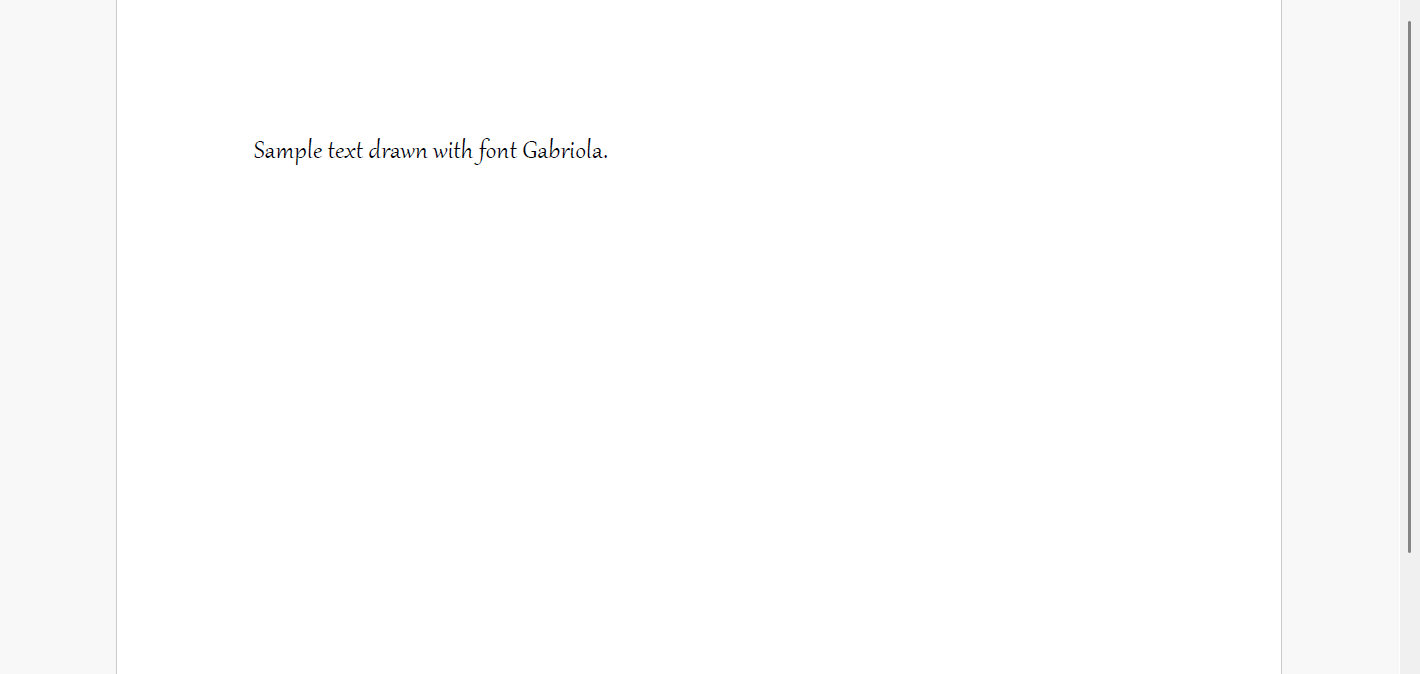
Font Collection
A FontCollection provides a centralized way to manage fonts used when rendering text in a PDF document. Fonts can be added to the collection and then used by drawing operations that reference the font family name.
To use a FontCollection:
Create an instance of the FontCollection class.
Load a font and add it to the collection using the addFont method.
Assign the font collection to the PdfContext.fontCollection property.
Draw text using PdfContext.drawText and specify the font family in a Format object.
// Create a FontCollection instance:
const fc = new FontCollection();

// load and add font
fc.addFont(Font.load(await Util.loadFile("fonts/georgia.ttf")));

// Generate a sample document using the font collection to provide fonts:
const doc = new PdfDocument();
const page = doc.pages.addNew();
const ctx = page.context;

// Allow the Layout created internally by PdfContext
// to find the specified fonts in the font collection:
ctx.fontCollection = fc;

// Use PdfContext.drawText to show that the font collection is also used
// by the graphics once the FontCollection has been set on it:
ctx.drawText("Text rendered using Georgia, drawn by PdfContext.drawText() method.",
    new Format({ fontFamily: "georgia", fontSize: 10 }),
    72, 72);

// Save Document
const docData = doc.savePdf();
Util.saveFile("FontCollection.pdf", docData);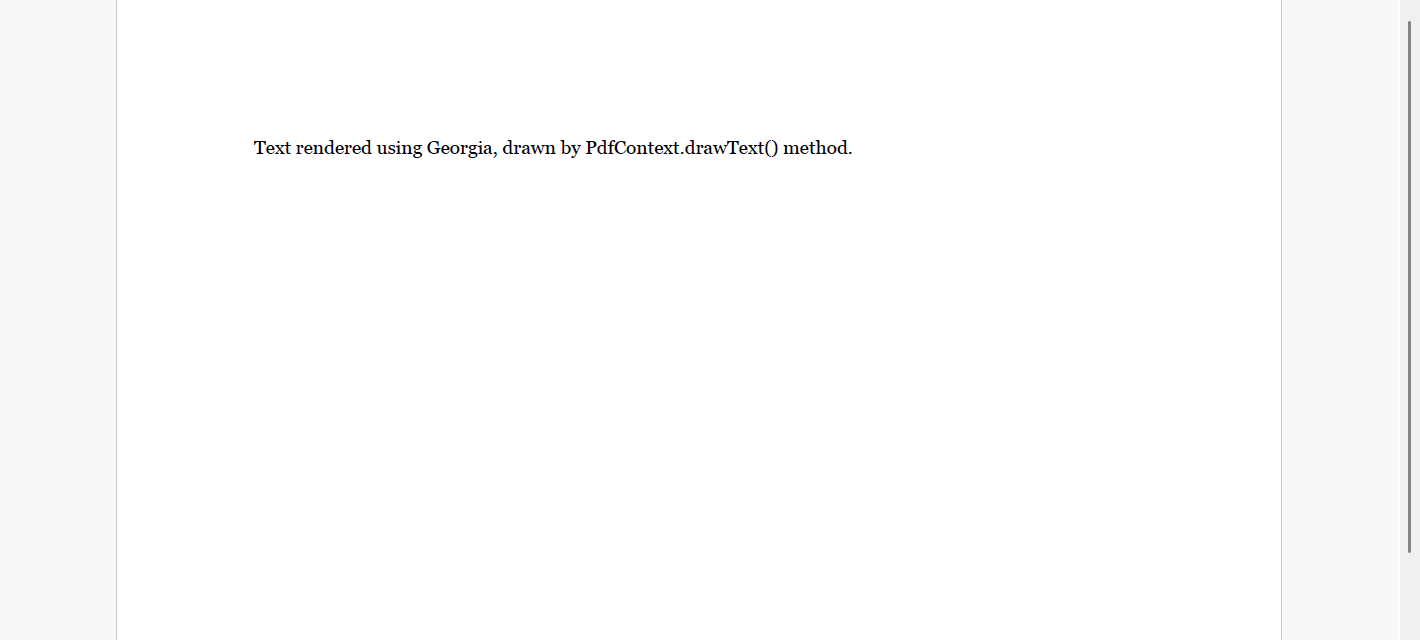
Fallback Fonts
Fallback fonts allow text to be rendered when the primary font does not contain glyphs for certain characters. When fallback fonts are configured, DsPdfJS searches the fallback list and uses a suitable font if the original font cannot render a character.
To use fallback fonts:
Create a PdfDocument object.
Load a font that contains the required glyphs.
Create a FontCollection instance and add the font as a fallback using the addFallbackFont method.
Assign the font collection to the PdfContext.fontCollection property.
Draw text using the PdfContext.drawText method.
// Set up GcPdfDocument:
const doc = new PdfDocument();
const ctx = doc.newPage().context;

// Initialize a text format with one of the standard fonts. Standard fonts are minimal
// and contain very few glyphs for non-Latin characters.
const tf = new Format({
    font: Font.getPdfFont(StandardPdfFont.Courier),
    fontSize: 14
});

// create FontCollection with fallback font,
// use ARIALUNI.TTF it contains japanese glyphs
const arialuni = Font.load(await Util.loadFile("fonts/arialuni.ttf"));
const fontCollection = new FontCollection();
fontCollection.addFallbackFont(arialuni);
ctx.fontCollection = fontCollection;

// As the fallback fonts are available, the Japanese text will render
// correctly as an appropriate fallback will have been found:
ctx.drawText("Sample text with fallbacks available: あなたは日本語を話せますか?", tf, 72, 72);

// Save Document
const docData = doc.savePdf();
Util.saveFile("FallbackFonts.pdf", docData);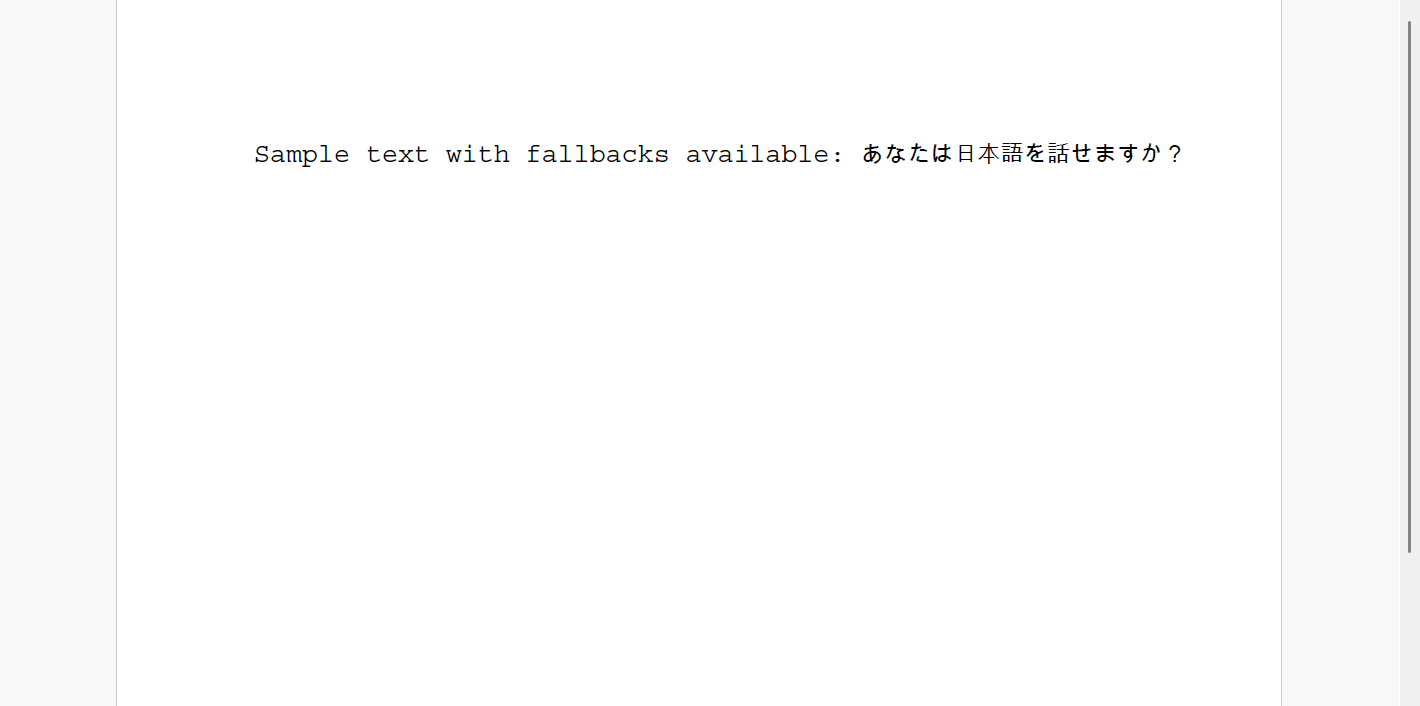
Enumerate Fonts
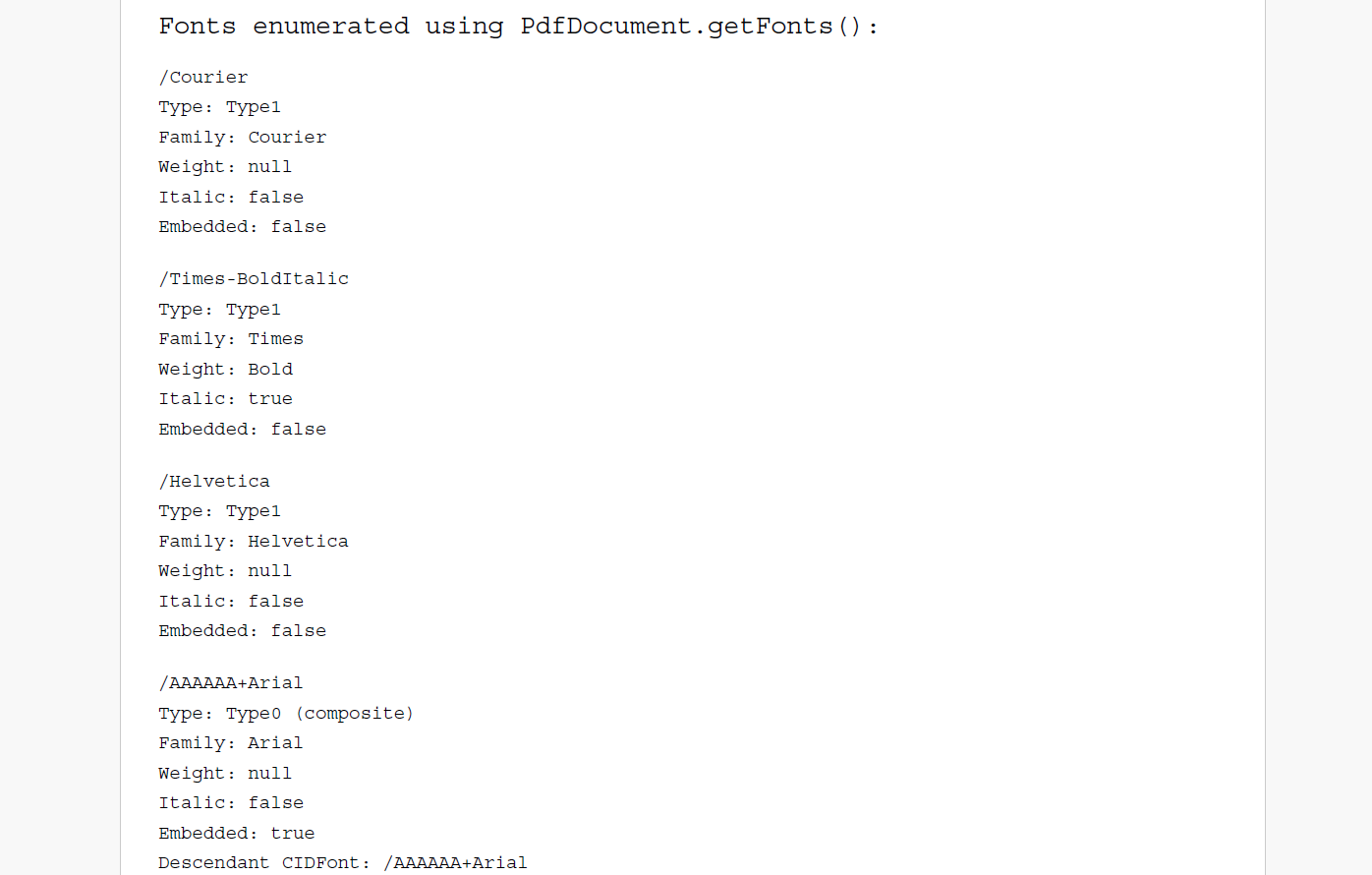
You can enumerate the fonts used in an existing PDF document using the PdfDocument.getFonts method. The method returns a collection of PdfFont objects representing the fonts referenced by the document. You can use these objects to inspect font properties such as the font name, type, attributes, and embedding state.
For composite (Type0) fonts, the descendant CIDFont can be accessed using the PdfFontType0.descendantFont property.
Note: The PdfFont class represents fonts already present in a PDF document and are separate from the Font class used for text rendering and PDF generation.
The following example loads a PDF document, enumerates its fonts, and prints information about each font.
// PdfDocument.getFonts(): list the fonts used in a PDF document together with their properties.
// The sample first generates a source PDF that uses several different fonts
// (an embedded TrueType font and non-embedded standard PDF fonts), then loads
// that PDF and enumerates its fonts with PdfDocument.getFonts(). For each font
// the PostScript name, PDF font type, family, weight, italic flag and embedding
// state are printed to the console; for composite (Type0) fonts the descendant
// CIDFont is shown as well.

// Returns the PDF font type of a PdfFont as a readable string.
function getFontTypeName(font) {
    if (font instanceof PdfFontType0)
        return 'Type0 (composite)';
    if (font instanceof PdfFontTrueType)
        return 'TrueType';
    if (font instanceof PdfFontType1)
        return 'Type1';
    if (font instanceof PdfFontType3)
        return 'Type3';
    return 'Unknown';
}
// Step 1: generate a source PDF that uses several different fonts.
const arial = Font.load(new Uint8Array(await readFile(path.join(__dirname, '..', 'Resources', 'arial.ttf'))));
const helvetica = Font.getPdfFont(StandardPdfFont.Helvetica);
const timesBoldItalic = Font.getPdfFont(StandardPdfFont.TimesBoldItalic);
const srcDoc = new PdfDocument();
const g = srcDoc.pages.addNew().context;
g.drawText('This line is drawn with Arial (a TrueType font embedded as a Type0 composite font).', arial, 12, 'Black', 20, 20);
g.drawText('This line is drawn with the standard PDF font Helvetica (not embedded).', helvetica, 12, 'Black', 20, 50);
g.drawText('This line is drawn with the standard PDF font Times-BoldItalic (not embedded).', timesBoldItalic, 12, 'Black', 20, 80);
const sourceFile = path.join(__dirname, 'ListFonts_source.pdf');
const sourceData = srcDoc.savePdf();
await writeFile(sourceFile, sourceData);
console.log(`Created source document ${sourceFile}`);
// Step 2: load the source PDF and list its fonts using PdfDocument.getFonts().
const doc = PdfDocument.load(sourceData);
console.log(`Fonts of ${path.basename(sourceFile)} listed by PdfDocument.getFonts():\n`);
for (const font of doc.getFonts()) {
    const { fontFamily, fontWeight, fontItalic } = font.getFontAttributes();
    console.log(`/${font.baseFont}`);
    console.log(`    type: ${getFontTypeName(font)}`);
    console.log(`    family: ${fontFamily}`);
    console.log(`    weight: ${fontWeight !== null ? PdfFontWeight[fontWeight] ?? fontWeight : null}`);
    console.log(`    italic: ${fontItalic}`);
    console.log(`    embedded: ${font.isEmbedded}`);
    // For composite (Type0) fonts the actual font data lives in the descendant CIDFont:
    if (font instanceof PdfFontType0)
        console.log(`    descendant CIDFont: /${font.descendantFont?.baseFont}`);
    console.log('');
}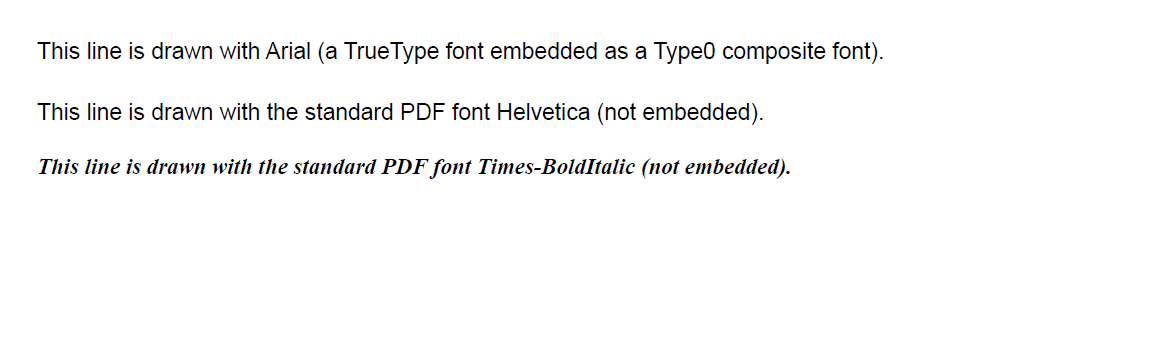
The following snapshot shows the generated PDF document and the enumerated font information:
Advanced Features
DsPdfJS supports a wide range of fonts that enable writing multilingual text in PDF documents.
For a working sample that demonstrates font features, please view the DsPdfJS sample browser.