- Document Solutions for PDF JS Overview
- Key Features
- Licensing and Redistribution
- Quick Start
- Memory Management
- Features
- Snippet Helpers
- Samples
- Tutorials
- API Reference
- Release Notes
Text
Text Rendering
DsPdfJS provides two ways to render text: drawText and drawLayout.
Use drawText for straightforward text output at a specified position, with support for specific formats, specified text attributes, or a text run.
Use drawLayout when you need more control over text composition, such as multi-line content, wrapping, alignment, character or line spacing. First create a Layout, append text to it, and then draw it at the desired position.
Check out the sample code below for drawText and drawLayout methods:
Note: The examples on this page use helper functions from the Snippet Helpers module. These utilities are provided only to simplify the examples and are not part of the DsPdfJS API.
const doc = new PdfDocument();
const ctx = doc.newPageContext();

const format = new Format({
    font: Font.getPdfFont(StandardPdfFont.Times),
    fontSize: 12
});

// Render text using drawLayout() method.
ctx.drawLayout({
    defaultFormat: format,
    maxWidth: 468,
    runs: [{
        text: "Turpis non ante pulvinar et massa nibh laoreet amet volutpat laoreet " +
            "molestie aliquet massa ullamcorper ac nisi ante massa lobortis Massa at laoreet" +
            "mauris aliquamfelis feugiat et non euismod magna eget molestie euismod elit dolor " +
            "eget erat euismod laoreetPharetra sit mauris nibh molestie ac nunc proin felis" +
            " erat lorem volutpat elit mi nunc magnamauris molestie tincidunt" +
            " sedMassa congue nibh volutpat eget non"
    }]
}, 72, 72);

// Render text using drawText() method.
ctx.drawText("1. Test string.", format, 150, 200);

Util.saveFile("renderText.pdf", doc.savePdf());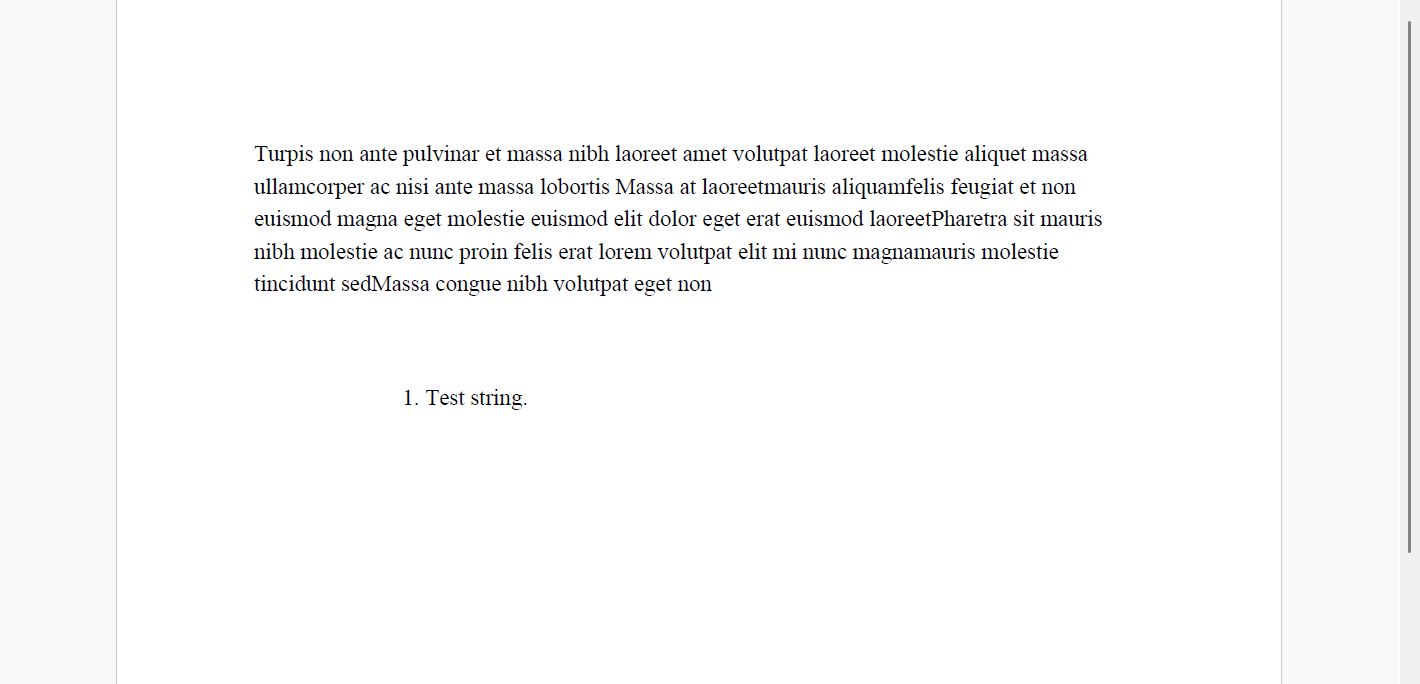
Text Formatting
To format text in a PDF document, use the Format class. It controls character-level formatting such as font, font size, color, and text style. Properties like hollow, fillBrush, strokePen, subscript, and superscript allow you to achieve a wide range of visual effects.
The following code example shows how to apply text formatting in a PDF document:
const doc = new PdfDocument();
const ctx = doc.newPageContext();

// Draw rotated text
const tf = new Format({
    font: Font.getPdfFont(StandardPdfFont.Times),
    fontSize: 24
});
let tl = new Layout({ runs: [{ text: "Rotated text.", format: tf }] });
tl.performLayout();
let x = 72;
let y = 72;
ctx.drawRect(x, y, tl.contentWidth, tl.contentHeight, { lineColor: "ForestGreen", lineWidth: 1 });
ctx.rotate(-45, AngleUnits.Degrees, x + tl.contentWidth / 2, y + tl.contentHeight / 2);
ctx.drawRect(x, y, tl.contentWidth, tl.contentHeight, { lineColor: "Black", lineWidth: 1 });
ctx.drawLayout(tl, x, y);
ctx.resetTransform();

// Draw vertical text
tl = new Layout({
    flowDirection: FlowDirection.VerticalLeftToRight,
    rotateSidewaysCounterclockwise: true,
    runs: [{
        text: "Hello,日本語でのテスト文字列です",
        font: Font.load(await Util.loadFile("fonts/NotoSansJP-Regular.ttf")),
        fontSize: 14
    }]
});
ctx.drawLayout(tl, 60, 170);

// Draw outline text and fill text
const tf0 = new Format({
    font: Font.load(await Util.loadFile("fonts/tccb.ttf")),
    fontSize: 48,
    hollow: true,
    foreColor: "DarkGreen"
});
ctx.drawText("Outline Text", tf0, 266, 66);
const tf1 = new Format(tf0, {
    hollow: false,
    fillBrush: new SolidBrush("Yellow"),
    strokePen: new Pen({ color: "DarkMagenta" })
});
ctx.drawText("Filled Text", tf1, 266, 126);

const tf2 = new Format(tf, { fontSize: 18 });

const camFont = Font.load(await Util.loadFile("fonts/cambria.ttc"));

//Apply Subscript
const tfcam = new Format(tf, { font: camFont });
const tfsub = new Format(tfcam, { subscript: true });
ctx.drawLayout({
    runs: [
        { text: "The chemical formula of water is ", format: tf2 },
        { text: "H", format: tfcam },
        { text: "2", format: tfsub },
        { text: "O", format: tfcam }
    ]
}, 226, 196);

//Apply Superscript
const tfsup = new Format(tfcam, { superscript: true });
ctx.drawLayout({
    runs: [
        { text: "Example of a math equation : ", format: tf2 },
        { text: "x", format: tf },
        { text: "2", format: tfsup },
        { text: "+", format: tf },
        { text: "y", format: tf },
        { text: "2", format: tfsup }
    ]
}, 226, 226);

Util.saveFile("formatText.pdf", doc.savePdf());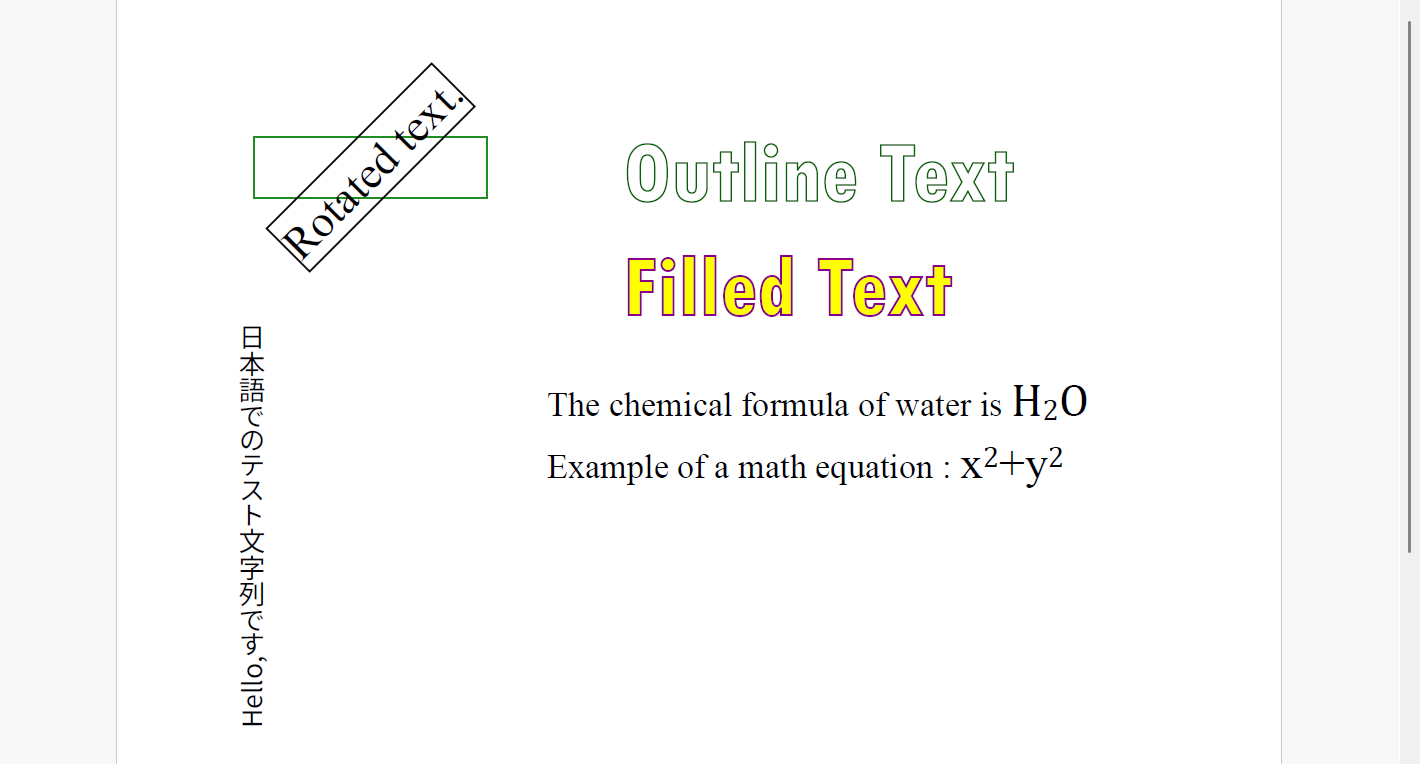
Paragraph Formatting
To handle paragraph formatting, use the Layout class. It controls paragraph-level properties such as text alignment, indentation, paragraph spacing, and overflow behavior. Use appendLine to add paragraphs, and truncate to handle text that exceeds the available area.
The following code example shows how to apply paragraph formatting in a PDF document:
const doc = new PdfDocument();
const ctx = doc.newPageContext();

const tf = new Format({
    font: Font.getPdfFont(StandardPdfFont.Helvetica),
    fontSize: 14
});

const tl = new Layout({
    maxWidth: ctx.width,
    maxHeight: ctx.height,
    marginAll: 72,
    defaultFormat: tf,
    textAlignment: TextAlignment.Justified,
    firstLineIndent: 72 / 2,
    paragraphSpacing: 10,
    ellipsisCharCode: 0x007E
});

tl.appendLine({
    text: "Turpis non ante pulvinar et massa nibh laoreet amet volutpat laoreet " +
        "molestie aliquet massa ullamcorper ac nisi ante massa lobortis Massa at laoreet" +
        "mauris aliquamfelis feugiat et non euismod magna eget molestie euismod elit dolor" +
        "eget erat euismod laoreetPharetra sit mauris nibh molestie ac nunc proin felis" +
        "erat lorem volutpat elit mi nunc magnamauris molestie tincidunt sed massa congue nibh volutpat " +
        "eget non nunc nonummy dolor consectetur at lorem eget et tellus dolore proin elit nisi nonummy volutpat " +
        "sem. Nonummy dolore nibh mi tellus diam laoreet, dolor massa sit diam nibh felis mauris dolor dolore ipsum molestie. " +
        "Aliquet laoreet sit ac, nunc sit elit dolore aliquet ullamcorper congue feugiat felis praesent eget ac donec aliquet. "
});
tl.appendLine({
    text: "Pharetra sit mauris nibh molestie ac nunc proin felis" +
        "erat lorem volutpat elit mi nunc magnamauris molestie tincidunt sed massa congue nibh volutpat " +
        "eget non nunc nonummy dolor consectetur at lorem eget et tellus dolore proin elit nisi nonummy volutpat " +
        "sem. Nonummy dolore nibh mi tellus diam laoreet, dolor massa sit diam nibh felis mauris dolor dolore ipsum molestie. " +
        "Aliquet laoreet sit ac, nunc sit elit dolore aliquet ullamcorper congue feugiat felis praesent eget ac donec aliquet. " +
        "Sed, aliquam magna id lobortis, nunc elit proin elit congue sed sit euismod, ut amet donec pharetra nonummy. Proin " +
        "elit id et molestie et donec elit, nibh et amet mauris proin id nibh dolor feugiat pulvinar. Lorem donec dolor dolor " +
        "sed erat consectetur id et laoreet diam massa, proin aliquam pulvinar massa aliquam diam. Nunc diam, dolor amet massa, " +
        "dolore congue feugiat id magna euismod magna lorem non sem nunc diam nibh. Sed erat tempus, aliquam eget aliquam, at " +
        "tempus, nisi, feugiat id lobortis mi praesent et nisi ullamcorper ante."
});
tl.appendLine({
    text: "Sit elit, elit, lorem nisi, sed laoreet dolore tellus laoreet diam magna feugiat amet lobortis diam " +
        "praesent, nunc. Lorem sed lorem proin ipsum elit et eget sed feugiat amet nibh volutpat donec praesent tincidunt " +
        "tellus massa. Molestie lobortis magna nibh erat mi eget volutpat aliquet magna magna, tincidunt amet mauris sem " +
        "congue lobortis aliquet. Adipiscing tempus volutpat id ullamcorper elit, dolore ac aliquam felis aliquet ante " +
        "aliquam ullamcorper pharetra magna molestie erat. Sem mauris ipsum praesent at id tempus sem pharetra, dolor nunc " +
        "tellus congue feugiat sem, diam lorem laoreet. Diam pulvinar mauris volutpat ante feugiat massa sed at ut, ante " +
        "pulvinar ipsum ipsum id consectetur nunc nisi. Lorem consectetur pulvinar amet nibh tellus aliquam amet, congue, " +
        "sed proin ullamcorper erat massa mauris praesent nisi nibh. Feugiat aliquet congue adipiscing congue, sed pulvinar " +
        "ipsum elit congue nisi sed adipiscing turpis id massa amet euismod."
});
tl.truncate(TrimmingGranularity.Word);
ctx.drawLayout(tl, 0, 0);

Util.saveFile("handleParagraph.pdf", doc.savePdf());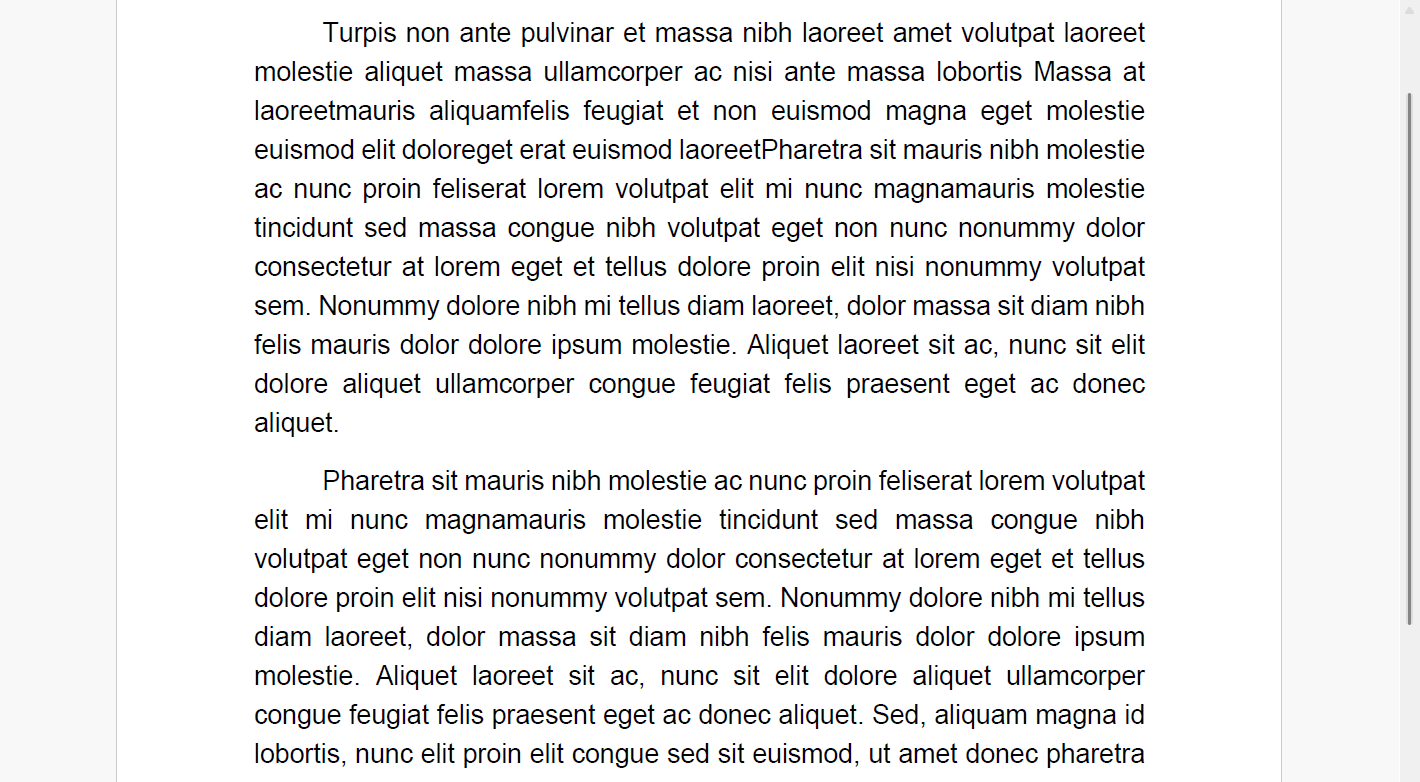
Subscript and Superscript
DsPdfJS supports subscript and superscript text through the Format.subscript and Format.superscript properties. In this scenario, text is built as a Layout with multiple runs. Each run can use a different Format to apply normal, subscript, or superscript styling before drawing the layout with drawLayout.
const doc = new PdfDocument();
const ctx = doc.newPageContext();

const tf = new Format({
    font: Font.getPdfFont(StandardPdfFont.Times),
    fontSize: 24
});

const tf2 = new Format(tf, { fontSize: 18 });

const camFont = Font.load(await Util.loadFile("fonts/cambria.ttc"));

//Apply Subscript
const tfcam = new Format(tf, { font: camFont });
const tfsub = new Format(tfcam, { subscript: true });
ctx.drawLayout({
    runs: [
        { text: "The chemical formula of water is ", format: tf2 },
        { text: "H", format: tfcam },
        { text: "2", format: tfsub },
        { text: "O", format: tfcam }
    ]
}, 226, 196);

//Apply Superscript
const tfsup = new Format(tfcam, { superscript: true });
ctx.drawLayout({
    runs: [
        { text: "Example of a math equation : ", format: tf2 },
        { text: "x", format: tf },
        { text: "2", format: tfsup },
        { text: "+", format: tf },
        { text: "y", format: tf },
        { text: "2", format: tfsup }
    ]
}, 226, 226);

Util.saveFile("subscriptSuperscript.pdf", doc.savePdf());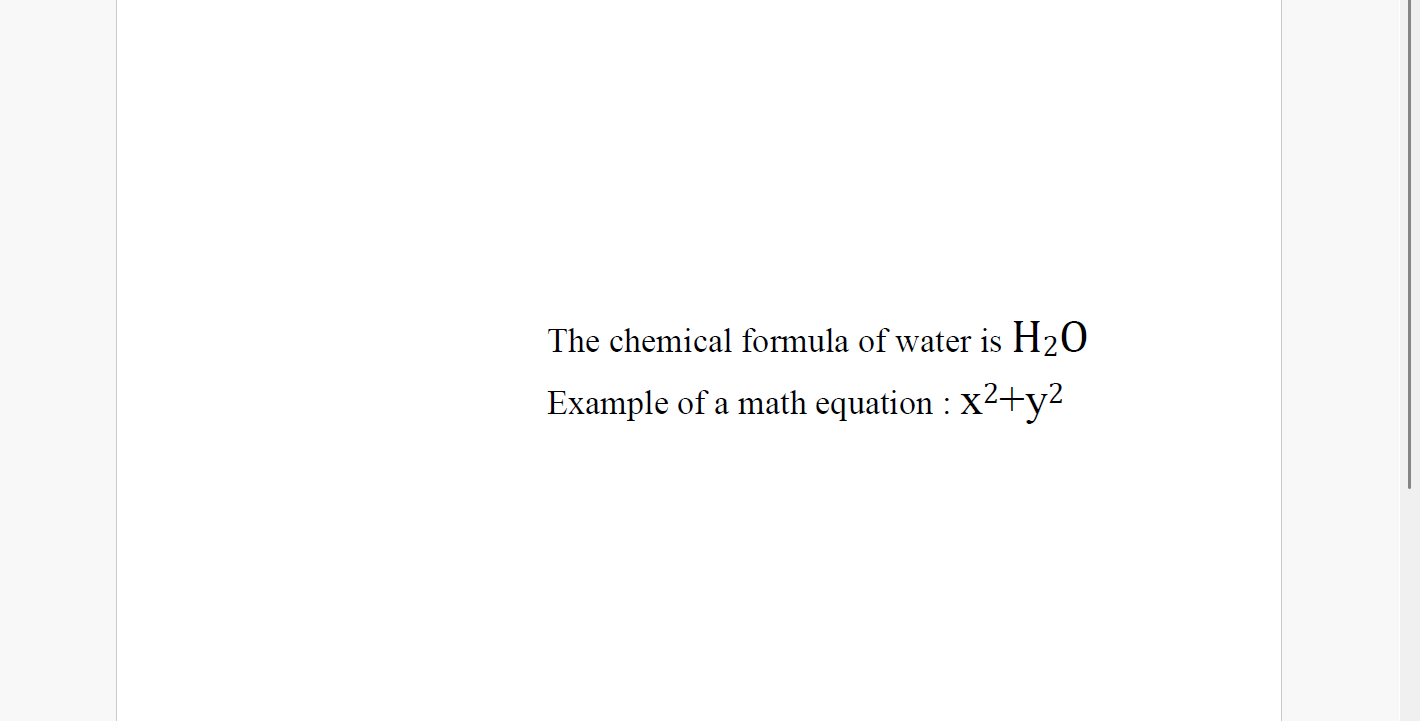
Text Alignment
DsPdfJS supports text alignment through Layout.textAlignment property. The layout can use alignment values such as Leading, Center, Trailing, Justified, and Distributed to control the text's positioning within the available width.
const tl = new ds.Layout({
  textAlignment: ds.TextAlignment.Trailing,
});
For more information about text alignment using DsPdfJS, see the demos.
Text Wrapping and Trimming
DsPdfJS supports text wrapping and trimming through wrapMode and trimmingGranularity properties of Layout class. Use WrapMode.WordWrap or WrapMode.CharWrap to control how text flows within the available space, and use WrapMode.NoWrap with trimming enabled when text should stay on one line.
You can use TrimmingGranularity.Character or TrimmingGranularity.Word along with properties like ellipsisCharCode, delimiterCharCode, and delimiterCharCount for different trimming options.
Refer to the demos for samples of text wrapping and trimming.
Line Breaking Rules
When text wrapping is enabled, the layout engine determines where automatic line breaks can occur. In DsPdfJS, the lineBreakingRules property of the Layout class controls the algorithm used for line breaking.
The LineBreakingRules enumeration provides the following options:
Unicode - Applies line breaking rules defined by Unicode Standard Annex #14.
Simplified - Uses simplified line breaking rules similar to those used by spreadsheet applications.
WhiteSpace - Allows automatic line breaks only at breakable whitespace characters.
Text Rotation
DsPdfJS supports rotated text by applying a Transform to the drawing context before calling drawLayout. You can use the createRotation method to rotate the layout around its center before rendering.
const doc = new PdfDocument();
const ctx = doc.newPageContext();

// Draw rotated text
const tf = new Format({
    font: Font.getPdfFont(StandardPdfFont.Times),
    fontSize: 24
});
let tl = new Layout({ runs: [{ text: "Rotated text.", format: tf }] });
tl.performLayout();
let x = 72;
let y = 72;
ctx.drawRect(x, y, tl.contentWidth, tl.contentHeight, { lineColor: "ForestGreen", lineWidth: 1 });
ctx.rotate(-45, AngleUnits.Degrees, x + tl.contentWidth / 2, y + tl.contentHeight / 2);
ctx.drawRect(x, y, tl.contentWidth, tl.contentHeight, { lineColor: "Black", lineWidth: 1 });
ctx.drawLayout(tl, x, y);
ctx.resetTransform();

Util.saveFile("formatText.pdf", doc.savePdf());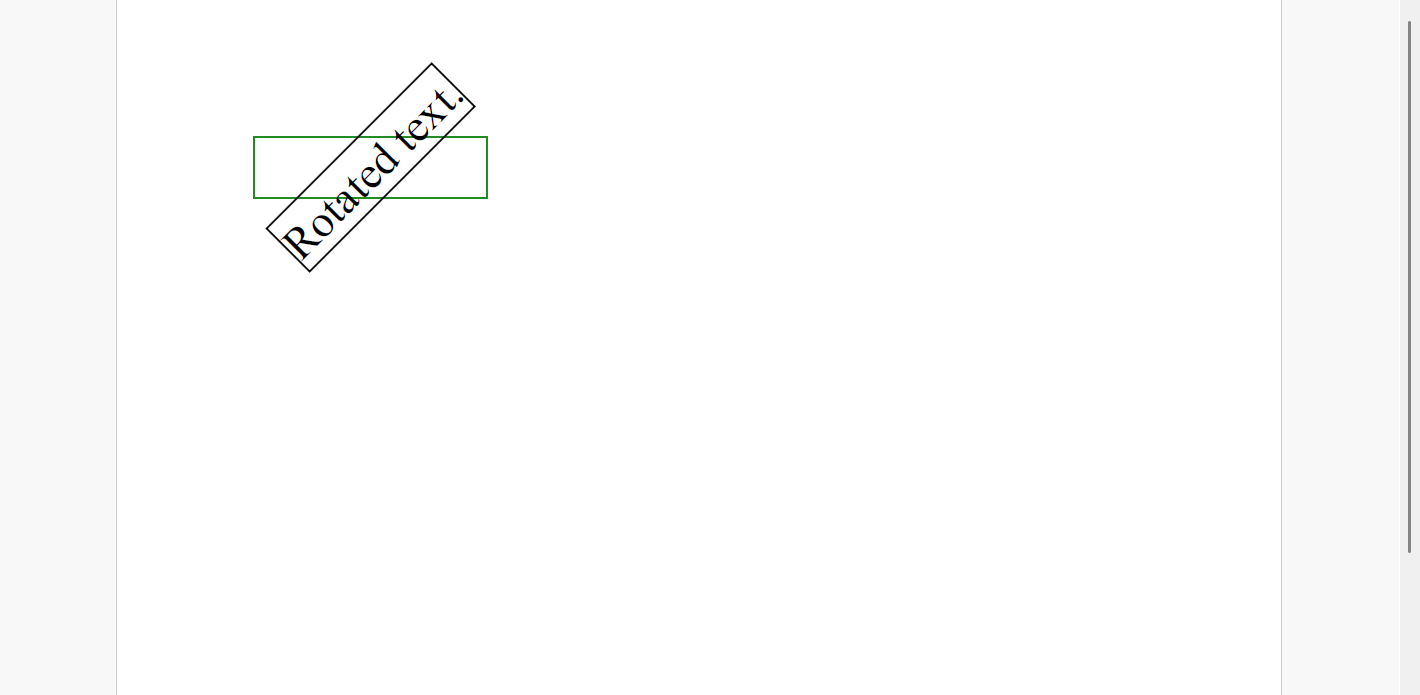
Vertical Text
DsPdfJS supports vertical text through the flowDirection property of the Layout class, which accepts a value from the FlowDirection enum. Set this property to FlowDirection.VerticalLeftToRight or FlowDirection.VerticalRightToLeft to render text vertically.
The Format class provides additional properties for controlling how text is displayed within a vertical layout. The uprightInVerticalText property renders characters upright rather than rotated, which is useful for displaying short Latin words or numbers inline within East Asian vertical text. The useVerticalLineGapForSideways property controls line spacing for sideways text runs.
const doc = new PdfDocument();
const page = doc.newPage();

const rect = Util.addNote(
    "Vertical text often includes short runs of horizontal numbers or Latin text. " +
    "In CSS this is referred to using the Japanese name 縦中横 (tate chu yoko). " +
    "It occurs in Chinese, Japanese and Korean vertical text. We support this by " +
    "providing a few related properties on LayoutProperties and FormatProperties.",
    page
);

const fntJp = Font.load(await Util.loadFile("fonts/NotoSansJP-Regular.ttf"));
const fntLat = Font.load(await Util.loadFile("fonts/NotoSans-Condensed.ttf"));

const ctx = page.context;
var hiliteFore = "DarkSlateBlue";
var hiliteBack = "#ffff99ff";

// Set text flow and other layout properties:
const tl = new Layout({
    flowDirection: FlowDirection.VerticalRightToLeft,
    maxWidth: ctx.width,
    maxHeight: ctx.height,
    marginAll: ctx.resolution,
    marginTop: rect.y + rect.height + 48,
    paragraphSpacing: 12,
    lineSpacingScaleFactor: 1.4
});

// Text format for upright text (short Latin words or numbers)
// (GlyphWidths turns on corresponding font features, but makes a difference
// only of those features are present in the font):
let fUpright = new Format({
    font: fntLat,
    fontSize: 14,
    uprightInVerticalText: true,
    glyphWidths: GlyphWidths.QuarterWidths,
    textRunAsCluster: true
});

// Text format for vertical Japanese and sideways Latin text:
let fVertical = new Format(fUpright, {
    font: fntJp,
    uprightInVerticalText: false,
    glyphWidths: GlyphWidths.Default,
    useVerticalLineGapForSideways: true,
    textRunAsCluster: false
});

// Two additional text formants for highlighted headers:
const fUpHdr = new Format(fUpright, {
    foreColor: hiliteFore,
    backColor: hiliteBack
});
const fVertHdr = new Format(fVertical, {
    foreColor: hiliteFore,
    backColor: hiliteBack
});

tl.append({ text: "PDF", format: fUpright });
tl.append({ text: "ファイルをコードから", format: fVertical });
tl.append({ text: "API", format: fUpright });
tl.append({ text: "を利用することで操作できます。クロスプラットフォーム環境で動作するアプリケーションの開発を支援する", format: fVertical });
tl.append({ text: "API", format: fUpright });
tl.append({ text: "ライブラリです。", format: fVertical });

// Smaller font size for the rest of the text:
fUpright = new Format(fUpright, { fontSize: 12 });
fVertical = new Format(fVertical, { fontSize: 12 });

// 1:
tl.appendParagraphBreak();
tl.append({ text: "PDF", format: fUpHdr });
tl.append({ text: "用の包括的な", format: fVertHdr });
tl.append({ text: "API", format: fUpHdr });

tl.appendSoftBreak();
tl.append({ text: "PDF", format: fUpright });
tl.append({ text: "バージョン「", format: fVertical });
tl.append({ text: "1.7", format: fUpright });
tl.append({ text: "」に準拠した", format: fVertical });
tl.append({ text: "API", format: fUpright });
tl.append({ text: "を提供し、レイアウトや機能を損なうことなく、豊富な機能を備えた", format: fVertical });
tl.append({ text: "PDF", format: fUpright });
tl.append({ text: "文書を生成、編集、保存できます。", format: fVertical });

// 2:
tl.appendParagraphBreak();
tl.append({ text: "完全なテキスト描画", format: fVertHdr });

tl.appendSoftBreak();
tl.append({ text: "PDF", format: fUpright });
tl.append({ text: "文書にテキストの描画情報が保持されます。テキストと段落の書式、特殊文字、複数の言語、縦書き、テキスト角度などが保持さるので、完全な形でテキスト描画を再現できます。", format: fVertical });

// 3:
tl.appendParagraphBreak();
tl.append({ text: ".NET Standard 2.0 準拠", format: fVertHdr });

tl.appendSoftBreak();
tl.append({ text: ".NET Core、.NET Framework、Xamarinで動作するアプリケーションを開発できます。Windows、macOS、Linuxなどクロスプラットフォーム環境で動作可能です。", format: fVertical });

// 4:
tl.appendParagraphBreak();
tl.append({ text: "100", format: fUpHdr });
tl.append({ text: "を超える", format: fVertHdr });
tl.append({ text: "PDF", format: fUpHdr });
tl.append({ text: "操作機能", format: fVertHdr });

tl.appendSoftBreak();
tl.append({ text: "ページの追加や削除、ページサイズ、向きの変更だけでなく、ファイルの圧縮、", format: fVertical });
tl.append({ text: "Web", format: fUpright });
tl.append({ text: "に最適化した", format: fVertical });
tl.append({ text: "PDF", format: fUpright });
tl.append({ text: "の生成など高度な機能も", format: fVertical });
tl.append({ text: "API", format: fUpright });
tl.append({ text: "操作で実現します。また、署名からセキュリティ機能まで様々な機能を含んだ", format: fVertical });
tl.append({ text: "PDF", format: fUpright });
tl.append({ text: "フォームを生成可能です。", format: fVertical });

// 5:
tl.appendParagraphBreak();
tl.append({ text: "高速、軽量アーキテクチャ", format: fVertHdr });

tl.appendSoftBreak();
tl.append({ text: "軽量", format: fVertical });
tl.append({ text: "API", format: fUpright });
tl.append({ text: "アーキテクチャでメモリと時間を節約できます。", format: fVertical });
tl.appendSoftBreak();
tl.append({ text: "また、他の生成用ツールに依存せずドキュメントを生成可能です。", format: fVertical });

ctx.drawLayout(tl, 0, 0);

Util.saveFile("verticalText.pdf", doc.savePdf());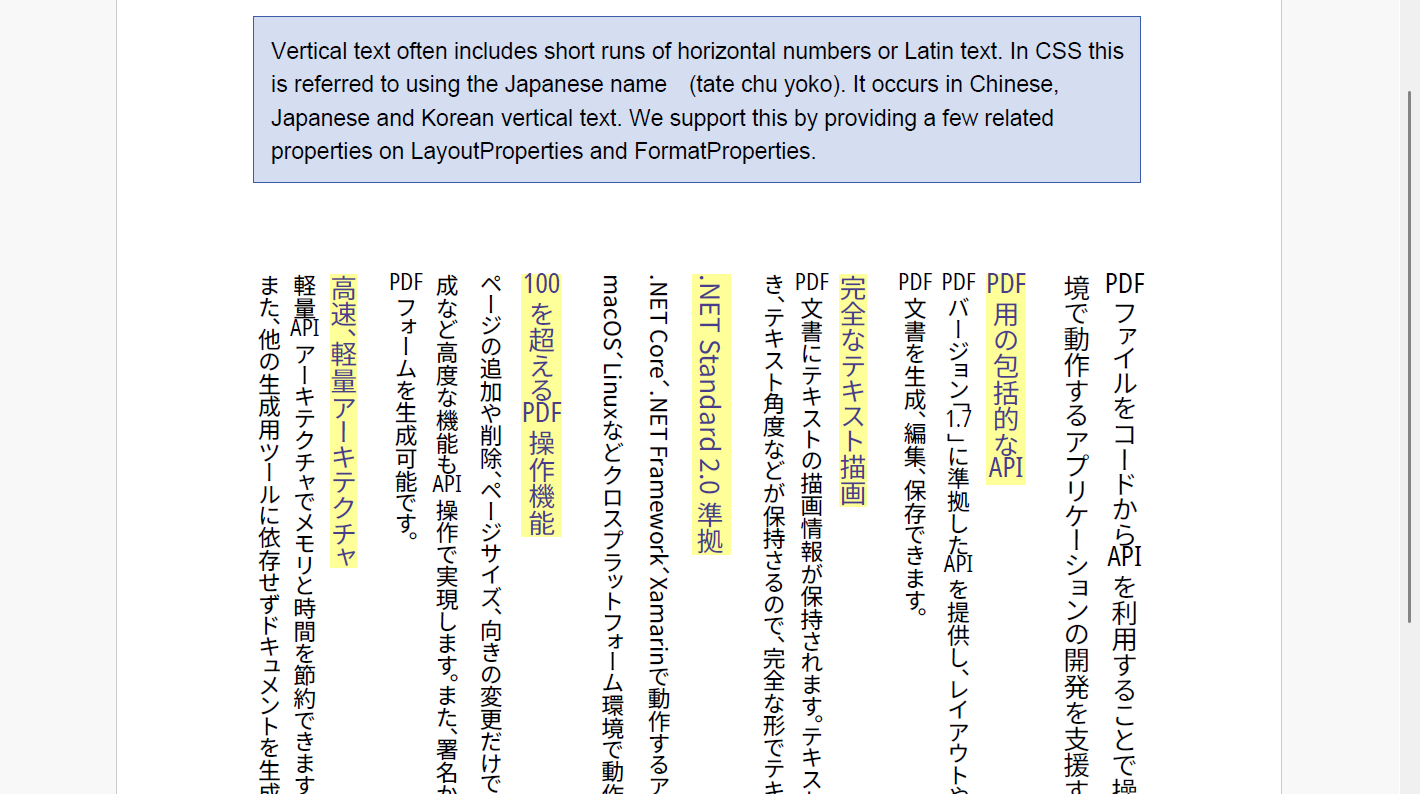
Text Fill and Outline
DsPdfJS supports text fill and outline styling through Format.fillBrush, Format.strokePen, and Format.hollow. In this sample, text is added to a Layout with appendLine. It is then rendered with drawLayout using different Format instances to show hollow text, solid outlines with Pen, and filled text with SolidBrush or LinearGradientBrush brushes, including multi-stop gradient fills.
For more information about text fill & outline using DsPdfJS, see the demos.
Text Measuring
DsPdfJS allows you to measure text dimensions before rendering, which is useful for aligning content or drawing bounding boxes around text.
For simple strings, use ctx.measureText, which returns a Size type, representing the actual width and height needed to draw the text.
For multi-run text, use a Layout instance and call layout.performLayout method to calculate the coordinates of all text lines and glyph runs.
const fc = new FontCollection();
fc.addFont(Font.load(await Util.loadFile("fonts/times.ttf")));
fc.addFont(Font.load(await Util.loadFile("fonts/timesbi.ttf")));
fc.addFont(Font.load(await Util.loadFile("fonts/timesi.ttf")));

const doc = new PdfDocument();
const ctx = doc.newPageContext({ width: 768, height: 465 });
ctx.fontCollection = fc;

const Inch = 72;

let tf = new Format({
    fontFamily: "Times New Roman",
    fontSize: 14
});

ctx.drawText("A long test string which will probably need more than the allocated " +
    "4 inches so quite possibly will wrap to show that drawText() can do that.", tf, Inch, Inch, Inch * 4);

tf = new Format(tf, { fontSize: 15 });

const text = "Test string to demo the measureText() function used with drawText().";
const maxWidth = Inch * 3;
const textSize = ctx.measureText(text, tf, maxWidth);
let x = Inch;
let y = Inch * 2;
ctx.drawRect(x, y, maxWidth, textSize.height, { lineWidth: 3, lineColor: "PeachPuff" });
ctx.drawRect(x, y, textSize.width, textSize.height, { lineWidth: 1, lineColor: "Blue" });
ctx.drawText(text, tf, x, y, maxWidth);

let layout = new Layout({
    defaultFormat: new Format(tf, { italic: true }),
    maxWidth: ctx.width - Inch * 2,
    firstLineIndent: Inch * 0.5,
    paragraphSpacing: Inch * 0.1,
    lineSpacingScaleFactor: 0.8,
    runs: [
        { text: "First test string added to the Layout object. ", format: tf },
        { text: "Second test string added to Layout, continuing the same paragraph. ", format: tf },
        { text: "\n", format: tf }, // Add a line break, effectively starting a new paragraph
        { text: "Third test string added to Layout, a new paragraph. ", format: tf },
        { text: "Fourth test string, with a different char formatting. ", format: tf, bold: true, italic: true, foreColor: "DarkSeaGreen" },
        { text: "Fifth test string, using the Layout's default format."}
    ]
});

layout.performLayout();
y = Inch * 3;

ctx.drawRect(x, y, layout.maxWidth, layout.contentHeight, { lineWidth: 3, lineColor: "PeachPuff" });
ctx.drawRect(x, y, layout.contentWidth, layout.contentHeight, { lineWidth: 1, lineColor: "OrangeRed" });
ctx.drawLayout(layout, x, y);

y = Inch * 4.3;
layout = new Layout(layout,
{
    runs: [
        { text: "This is text rendered re-using the same Layout object. " },
        { text: "More text added to Layout being re-used, continuing the same paragraph. ", format: tf },
        { text: "And finally, some more text added.", format: tf },
    ]
});
ctx.drawLayout(layout, x, y);
ctx.drawRect(x, y, layout.maxWidth, layout.contentHeight, { lineWidth: 3, lineColor: "PeachPuff" });
ctx.drawRect(x, y, layout.contentWidth, layout.contentHeight, { lineWidth: 1, lineColor: "Yellow" });

ctx.drawRect({ left: 1, top: 1, right: (ctx.width - 1), bottom: (ctx.height - 1) }, { lineColor: "ForestGreen", lineWidth: 2 });

Util.saveFile("textMeasuring.pdf", doc.savePdf());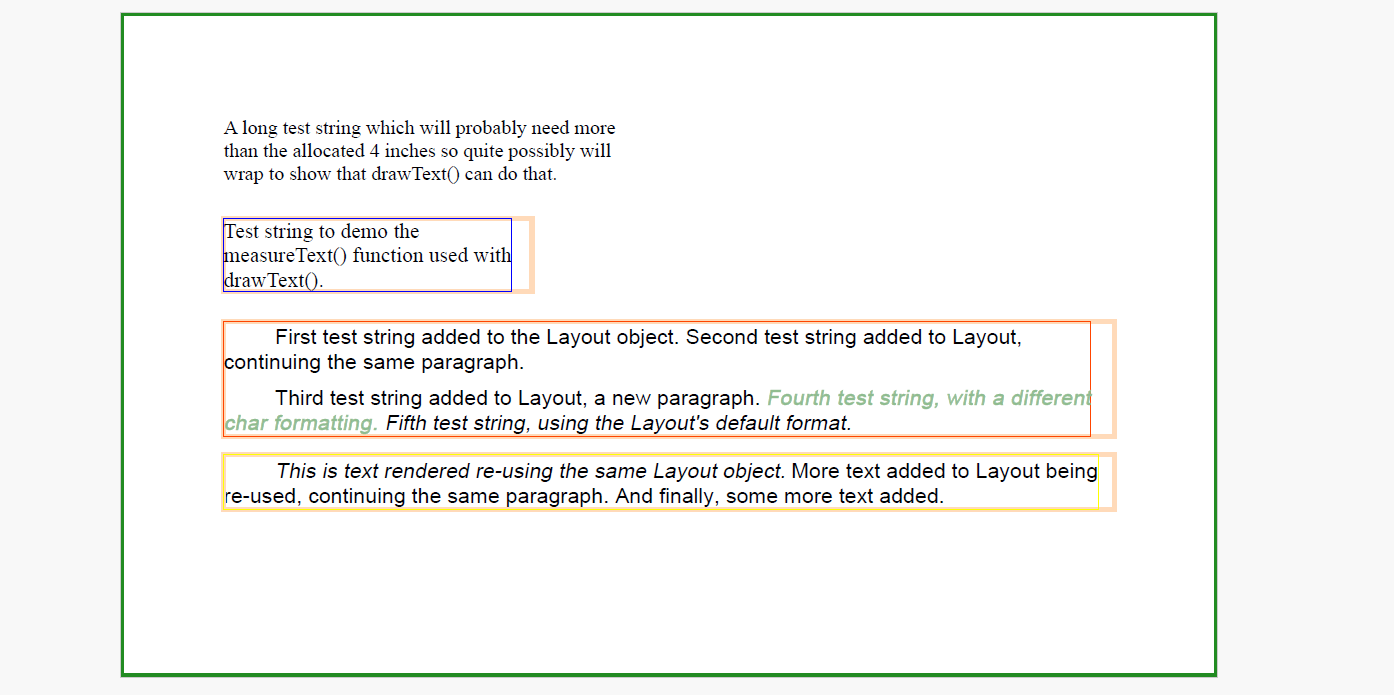
Note: performLayout method returns false if the text overflows the layout bounds, in which case layout.split must be called to move the remaining text into a new Layout instance.
Text Splitting
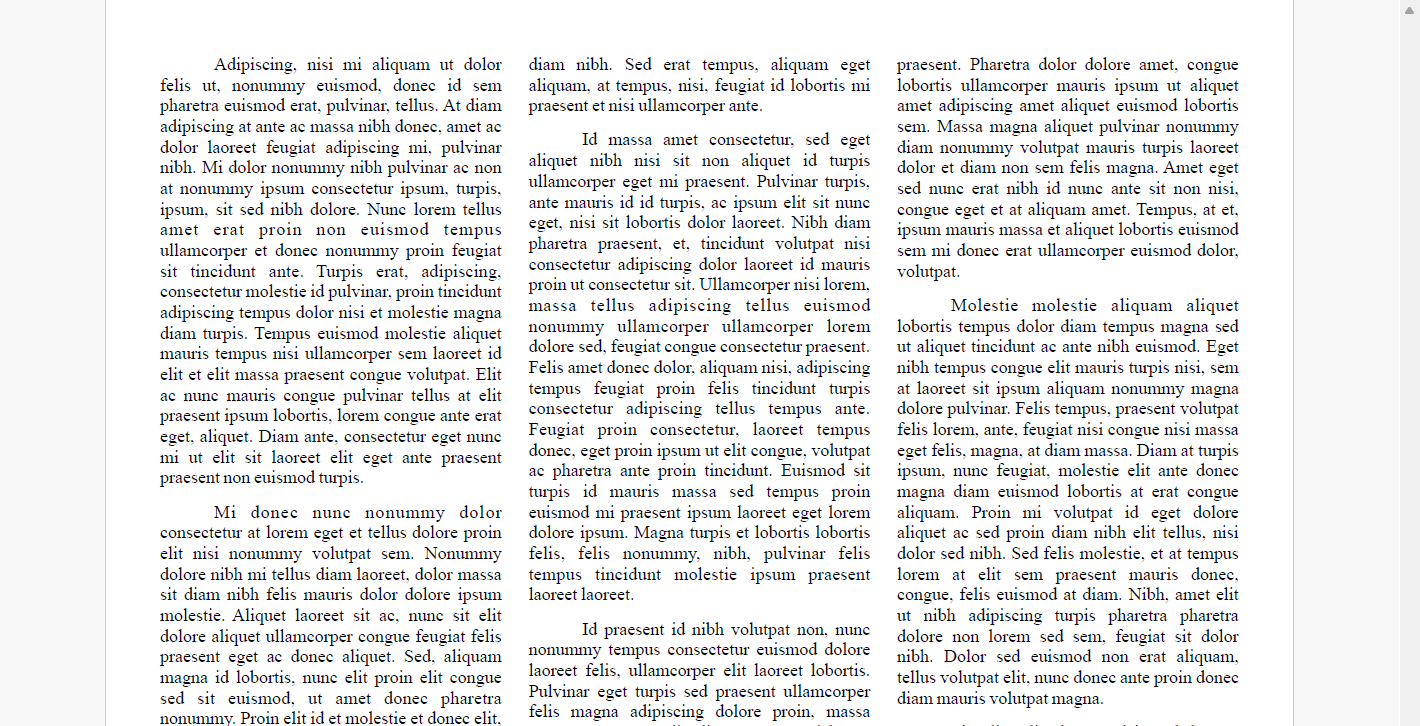
When text exceeds the bounds of a Layout instance, DsPdfJS allows you to split it across multiple areas, such as columns or pages, using layout.split method. This method fits as much text as possible into the current layout bounds and moves the remainder into a separate Layout instance passed as the rest parameter. It returns a SplitResult value indicating whether the text was fully accommodated or further splitting is required.
Splitting behavior can be fine-tuned using SplitOptions, which provides properties such as minLinesInFirstParagraph and minLinesInLastParagraph to avoid orphaned lines, and restMaxWidth and restMaxHeight to define the bounds of the receiving layout.
For text that doesn't need to flow further, call layout.truncate instead to remove any content that doesn't fit within the current layout bounds.
const timesFont = Font.load(await Util.loadFile("fonts/times.ttf"));

const doc = new PdfDocument();
const ctx = doc.newPageContext({ width: 792, height: 612 });

// Set up columns:
const colCount = 3;
const margin = 72 / 2; // 1 / 2" margins all around
const colGap = margin / 2; // 1/4" gap between columns
const colWidth = (792 - margin * 2 - colGap * (colCount - 1)) / colCount;

const fmt = new Format({ font: timesFont, fontSize: 12 });
let tl = new Layout({
    defaultFormat: fmt,
    textAlignment: TextAlignment.Justified,
    firstLineIndent: 72 / 2,
    paragraphSpacing: 72 / 8,
    maxWidth: colWidth,
    maxHeight: 612 - margin * 2
});

tl.appendLine({
    text:
        "Adipiscing, nisi mi aliquam ut dolor felis ut, nonummy euismod, donec id sem pharetra euismod erat, pulvinar, " +
        "tellus. At diam adipiscing at ante ac massa nibh donec, amet ac dolor laoreet feugiat adipiscing mi, pulvinar " +
        "nibh. Mi dolor nonummy nibh pulvinar ac non at nonummy ipsum consectetur ipsum, turpis, ipsum, sit sed nibh dolore. " +
        "Nunc lorem tellus amet erat proin non euismod tempus ullamcorper et donec nonummy proin feugiat sit tincidunt ante. " +
        "Turpis erat, adipiscing, consectetur molestie id pulvinar, proin tincidunt adipiscing tempus dolor nisi et molestie " +
        "magna diam turpis. Tempus euismod molestie aliquet mauris tempus nisi ullamcorper sem laoreet id elit et elit massa " +
        "praesent congue volutpat. Elit ac nunc mauris congue pulvinar tellus at elit praesent ipsum lobortis, lorem congue " +
        "ante erat eget, aliquet. Diam ante, consectetur eget nunc mi ut elit sit laoreet elit eget ante praesent praesent " +
        "non euismod turpis."
});
tl.appendLine({
    text: "Mi donec nunc nonummy dolor consectetur at lorem eget et tellus dolore proin elit nisi nonummy volutpat " +
        "sem. Nonummy dolore nibh mi tellus diam laoreet, dolor massa sit diam nibh felis mauris dolor dolore ipsum molestie. " +
        "Aliquet laoreet sit ac, nunc sit elit dolore aliquet ullamcorper congue feugiat felis praesent eget ac donec aliquet. " +
        "Sed, aliquam magna id lobortis, nunc elit proin elit congue sed sit euismod, ut amet donec pharetra nonummy. Proin " +
        "elit id et molestie et donec elit, nibh et amet mauris proin id nibh dolor feugiat pulvinar. Lorem donec dolor dolor " +
        "sed erat consectetur id et laoreet diam massa, proin aliquam pulvinar massa aliquam diam. Nunc diam, dolor amet massa, " +
        "dolore congue feugiat id magna euismod magna lorem non sem nunc diam nibh. Sed erat tempus, aliquam eget aliquam, at " +
        "tempus, nisi, feugiat id lobortis mi praesent et nisi ullamcorper ante."
});
tl.appendLine({
    text: "Id massa amet consectetur, sed eget aliquet nibh nisi sit non aliquet id turpis ullamcorper eget mi " +
        "praesent. Pulvinar turpis, ante mauris id id turpis, ac ipsum elit sit nunc eget, nisi sit lobortis dolor laoreet. " +
        "Nibh diam pharetra praesent, et, tincidunt volutpat nisi consectetur adipiscing dolor laoreet id mauris proin ut " +
        "consectetur sit. Ullamcorper nisi lorem, massa tellus adipiscing tellus euismod nonummy ullamcorper ullamcorper lorem " +
        "dolore sed, feugiat congue consectetur praesent. Felis amet donec dolor, aliquam nisi, adipiscing tempus feugiat proin " +
        "felis tincidunt turpis consectetur adipiscing tellus tempus ante. Feugiat proin consectetur, laoreet tempus donec, " +
        "eget proin ipsum ut elit congue, volutpat ac pharetra ante proin tincidunt. Euismod sit turpis id mauris massa sed " +
        "tempus proin euismod mi praesent ipsum laoreet eget lorem dolore ipsum. Magna turpis et lobortis lobortis felis, felis " +
        "nonummy, nibh, pulvinar felis tempus tincidunt molestie ipsum praesent laoreet laoreet."
});
tl.appendLine({
    text: "Id praesent id nibh volutpat non, nunc nonummy tempus consectetur euismod dolore laoreet felis, " +
        "ullamcorper elit laoreet lobortis. Pulvinar eget turpis sed praesent ullamcorper felis magna adipiscing dolore proin, " +
        "massa magna nonummy elit elit eget sem. Mi lorem pulvinar elit, sem, magna mi, sem ante amet sit nonummy mi massa " +
        "amet ut aliquam et. Adipiscing aliquet nisi nonummy aliquam aliquet laoreet mauris dolore consectetur magna pharetra " +
        "lobortis ipsum praesent, et eget praesent. Pharetra dolor dolore amet, congue lobortis ullamcorper mauris ipsum ut " +
        "aliquet amet adipiscing amet aliquet euismod lobortis sem. Massa magna aliquet pulvinar nonummy diam nonummy volutpat " +
        "mauris turpis laoreet dolor et diam non sem felis magna. Amet eget sed nunc erat nibh id nunc ante sit non nisi, " +
        "congue eget et at aliquam amet. Tempus, at et, ipsum mauris massa et aliquet lobortis euismod sem mi donec erat " +
        "ullamcorper euismod dolor, volutpat."
});
tl.appendLine({
    text: "Molestie molestie aliquam aliquet lobortis tempus dolor diam tempus magna sed ut aliquet tincidunt ac " +
        "ante nibh euismod. Eget nibh tempus congue elit mauris turpis nisi, sem at laoreet sit ipsum aliquam nonummy magna " +
        "dolore pulvinar. Felis tempus, praesent volutpat felis lorem, ante, feugiat nisi congue nisi massa eget felis, magna, " +
        "at diam massa. Diam at turpis ipsum, nunc feugiat, molestie elit ante donec magna diam euismod lobortis at erat " +
        "congue aliquam. Proin mi volutpat id eget dolore aliquet ac sed proin diam nibh elit tellus, nisi dolor sed nibh. Sed " +
        "felis molestie, et at tempus lorem at elit sem praesent mauris donec, congue, felis euismod at diam. Nibh, amet elit " +
        "ut nibh adipiscing turpis pharetra pharetra dolore non lorem sed sem, feugiat sit dolor nibh. Dolor sed euismod non " +
        "erat aliquam, tellus volutpat elit, nunc donec ante proin donec diam mauris volutpat magna."
});
tl.appendLine({
    text: "Sit elit, elit, lorem nisi, sed laoreet dolore tellus laoreet diam magna feugiat amet lobortis diam " +
        "praesent, nunc. Lorem sed lorem proin ipsum elit et eget sed feugiat amet nibh volutpat donec praesent tincidunt " +
        "tellus massa. Molestie lobortis magna nibh erat mi eget volutpat aliquet magna magna, tincidunt amet mauris sem " +
        "congue lobortis aliquet. Adipiscing tempus volutpat id ullamcorper elit, dolore ac aliquam felis aliquet ante " +
        "aliquam ullamcorper pharetra magna molestie erat. Sem mauris ipsum praesent at id tempus sem pharetra, dolor nunc " +
        "tellus congue feugiat sem, diam lorem laoreet. Diam pulvinar mauris volutpat ante feugiat massa sed at ut, ante " +
        "pulvinar ipsum ipsum id consectetur nunc nisi. Lorem consectetur pulvinar amet nibh tellus aliquam amet, congue, " +
        "sed proin ullamcorper erat massa mauris praesent nisi nibh. Feugiat aliquet congue adipiscing congue, sed pulvinar " +
        "ipsum elit congue nisi sed adipiscing turpis id massa amet euismod."
});

// Calculate glyphs and perform layout for the whole text:
tl.performLayout();

// In a loop, split and render the text in the current column:
let col = 0;
do {
    let rest = null;
    let splitResult;
    if (col < 2) {
        // The TextLayout that will hold the rest of the text which did not fit in the current layout:
        const tso = new SplitOptions(tl, { minLinesInLastParagraph: 2, minLinesInFirstParagraph: 2 });
        rest = new Layout();
        splitResult = tl.split(tso, rest);
    } else {
        // Text in the third column is trimmed.
        tl.truncate(TrimmingGranularity.Word);
        splitResult = SplitResult.FitAll;
    }
    ctx.drawLayout(tl, margin + col * (colWidth + colGap), margin);
    if (splitResult != SplitResult.Split) {
        break;
    }
    tl = rest;
    col++;
} while (col != colCount);

Util.saveFile("textSplitting.pdf", doc.savePdf());