Actions
DsPdfJS provides multiple actions that enhance interactivity within a document. These actions allow users to trigger specific behaviors when interacting with links, document outlines, and other elements.
ActionURI
A URI action allows you to create a hyperlink in a PDF document that navigates to a specific URI. DsPdfJS provides the ActionURI class and its properties, which enable you to define this action type in a PDF document.
The following code links text to Google's official site by using an ActionURI object.
Note: The examples on this page use helper functions from the Snippet Helpers module. These utilities are provided only to simplify the examples and are not part of the DsPdfJS API.
const doc = new PdfDocument();
const page = doc.newPage();
const ctx = page.context;

// Draw some text that will represent the link:
const tf = new Format({
    font: Font.getPdfFont(StandardPdfFont.Times),
    fontSize: 14
});
var tl = new Layout({
    runs: [{
        text: "Google google on the wall, please tell me all!",
        format: tf
    }]
});
tl.performLayout();
ctx.drawLayout(tl, 72, 72);

// Add a link associated with the text area:
page.annotations.add({
    type: 'link',
    rect: { x: 72, y: 72, width: tl.contentWidth, height: tl.contentHeight },
    action: new ActionURI("http://www.google.com")
});

//Save the document
Util.saveFile("ActionURI.pdf", doc.savePdf());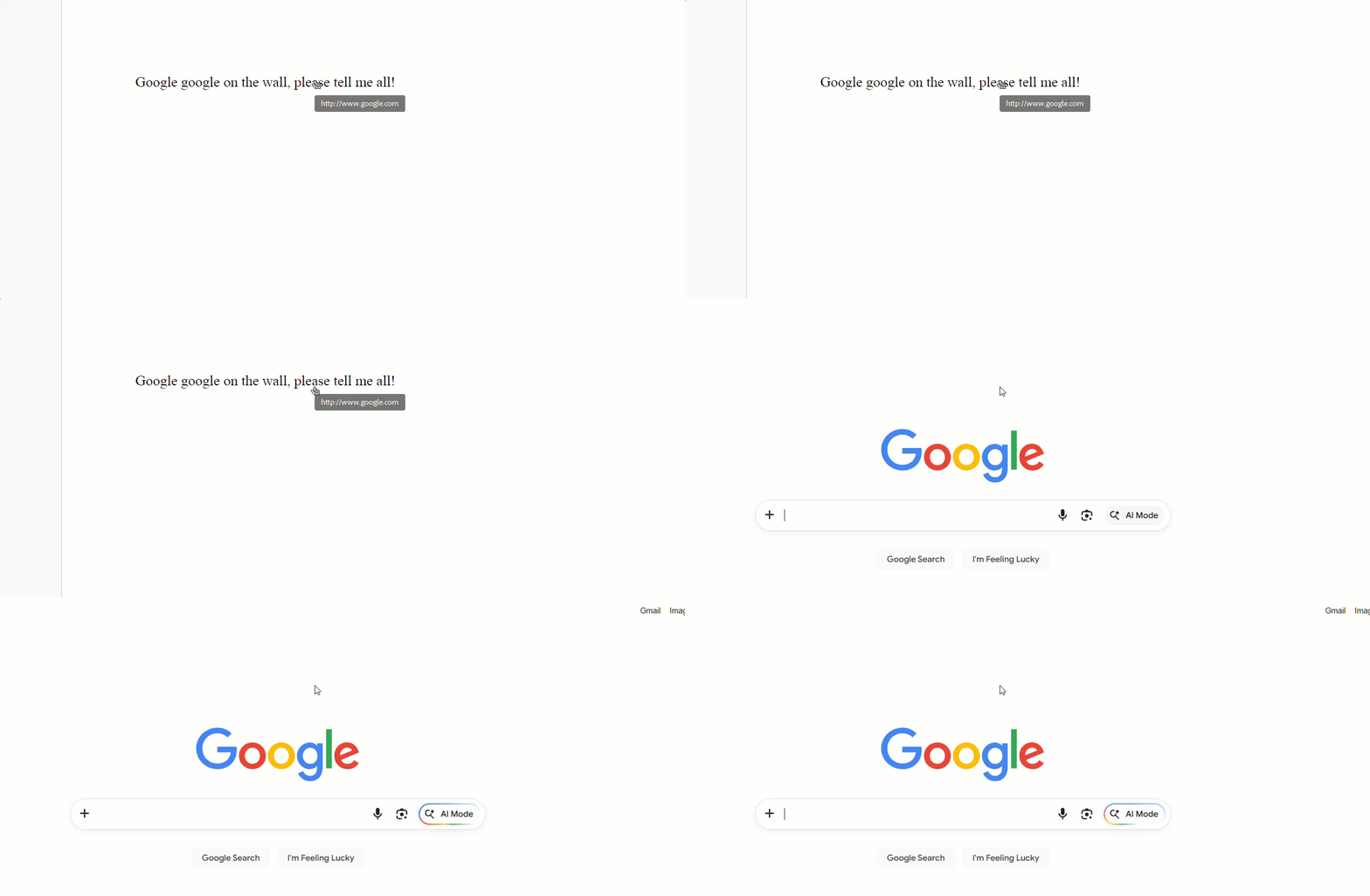
ActionSound
Sound action is an interactive feature that plays an audio file when interacting with a PDF document. You can interact by clicking a button, hovering over an area, or other user-triggered events in the document. DsPdfJS provides the ActionSound class and its properties that enable you to define this action type in a PDF document.
The following code demonstrates a document that plays sound effects when the user clicks the Accept and Reject buttons.
const sounds = [
    { fileName: "Accept.aiff", path: "sound/Accept.aiff" },
    { fileName: "Reject.wav",  path: "sound/Reject.wav"  },
];

const doc = new PdfDocument();
const page = doc.newPage();
const ctx = page.context;

const rc = await Util.addNote(
    "This sample creates a PDF with some pushbuttons, " +
    "and associates each button's click with a sound annotation that plays a sound file.",
    ctx);

const resolution = 72;
const fontSize = 14;
let x = resolution;
let y = rc.y + rc.height + resolution / 2;
const fldOffset = resolution * 2.5;
const fldHeight = fontSize * 1.2;
const dY = resolution * 0.4;

// Add pushbuttons with overlaid SoundAnnotations –
// the JS equivalent of ActionSound on a PushButtonField's MouseDown event:
for (const sound of sounds) {
    const audioData = await Util.loadFile(sound.path);
    const soundName = sound.fileName.replace(/\.[^.]+$/, "");

    const btn = new PushButtonField();
    btn.widget.page = page;
    btn.widget.rect = { x: x + fldOffset, y: y, width: resolution, height: fldHeight };
    btn.widget.buttonAppearance.caption = soundName;
    if (soundName === "Accept") {
        btn.widget.backColor = "green";
    } else if (soundName === "Reject") {
        btn.widget.backColor = "red";
    }
    btn.widget.highlighting = HighlightingMode.Invert;
    doc.acroForm.fields.add(btn);

    const sa = new ActionSound();
    sa.sound = new SoundObject(audioData);
    //sa.icon = "Speaker";
    //sa.rect = { x: x + fldOffset, y: y, width: resolution, height: fldHeight };
    //page.annotations.add(sa);

    btn.widget.mouseDown = sa;

    y += dY;
}

const pdfData = await doc.savePdf();
Util.saveFile("ActionSound1.pdf", pdfData);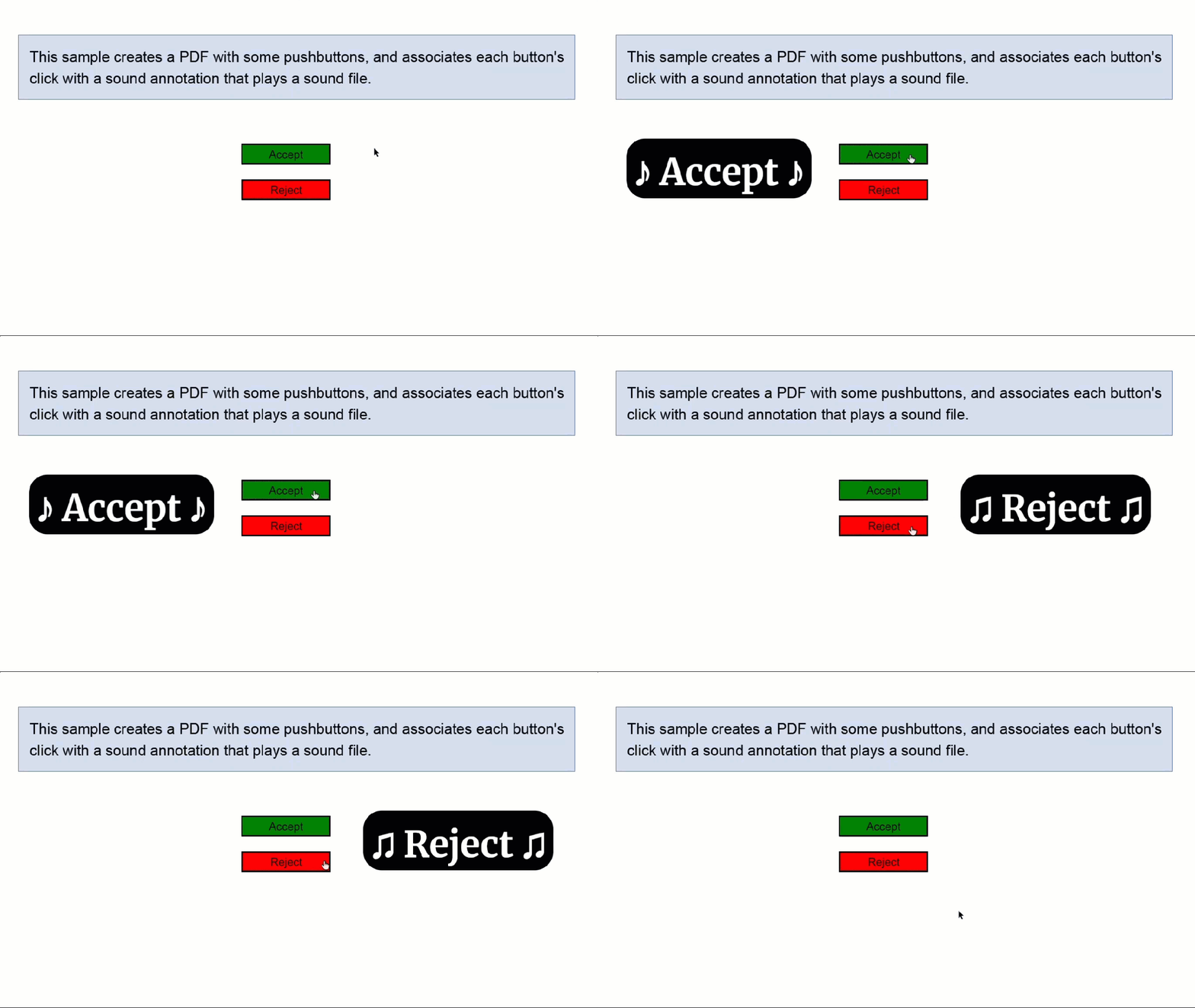
Limitations
Adobe Acrobat ignores Volume property of ActionSound class.
ActionJavaScript
A JavaScript action allows you to run a snippet of JavaScript code that's embedded in the PDF document. You can run the JavaScript code simply by opening the document or other triggering events. DsPdfJS provides the ActionJavaScript class and its properties, which enable you to define this action type in a PDF document.
The following code demonstrates text that runs JavaScript code when clicked. The script displays a popup menu with multiple options and alerts the option that the user picked.
const js =
    "var cChoice = app.popUpMenu(\"Introduction\", \" - \", \"Chapter 1\",\r\n" +
    "[ \"Chapter 2\", \"Chapter 2 Start\", \"Chapter 2 Middle\",\r\n" +
    "[\"Chapter 2 End\", \"The End\"]]);\r\n" +
    "app.alert(\"You chose the '\" + cChoice + \"' menu item\");";

const doc = new PdfDocument();
const page = doc.newPage();

// Add warning about this possibly not working in a browser:
Util.addNote("Note that JavaScript may not work in some PDF viewers such as built-in browser viewers.",
    page);

// Draw the link string in a rectangle:
const ctx = page.context;
var tf = new Format({
    font: Font.getPdfFont(StandardPdfFont.Times),
    fontSize: 14
})
const text = "Click this to show the popup menu.";
const textSize = ctx.measureText(text, tf);
const rect = { x: 72, y: 72 * 2, width: textSize.width, height: textSize.height };
ctx.drawRect(rect, { fillColor: 'LightGoldenrodYellow' });
ctx.drawText(text, tf, rect.x, rect.y);

// create LinkAnnotation with ActionJavaScript
const la = new LinkAnnotation();
la.rect = rect;
la.action = new ActionJavaScript(js);
page.annotations.add(la);

//Save the document
Util.saveFile("ActionJavaScript.pdf", doc.savePdf());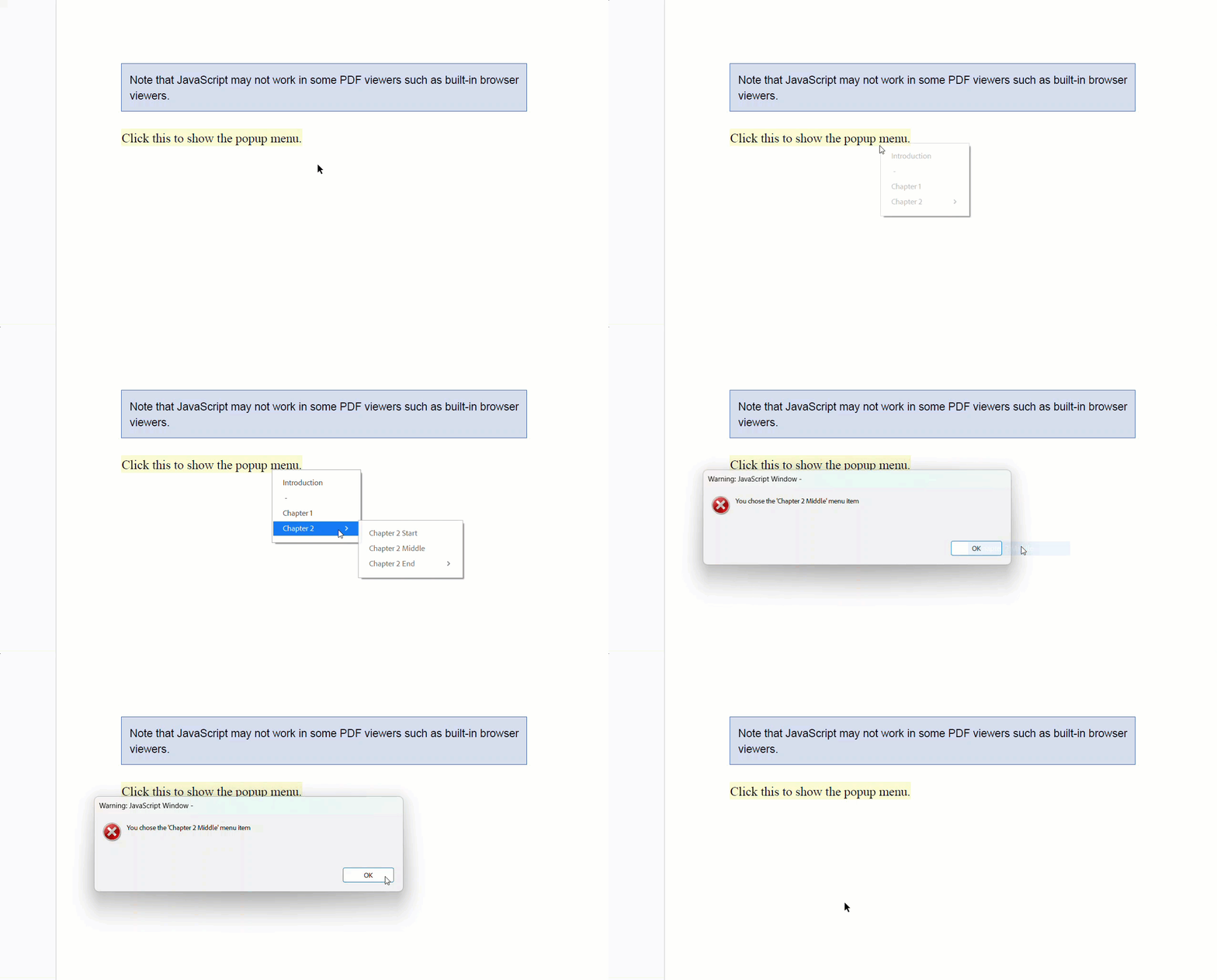
Limitations
JavaScript may not work in some PDF viewers (e.g. built-in browser viewers).
ActionSubmitForm
A SubmitForm action allows you to submit interactive form fields to a specified URL. This is typically the address of a web server that processes the form fields and returns a response. DsPdfJS uses the ActionSubmitForm class and its properties, which enable you to define this action type in a PDF document.
The following code demonstrates a form that, when submitted, sends the data to a sample server. The server receives it and sends the data back in a simple HTML page, displaying the form field names and their respective values.
const doc = new PdfDocument();
const page = doc.newPage();

const rc = Util.addNote(
    "In this sample the Submit button is associated with the ActionSubmitForm action, " +
    "with the URL pointing to a POST handler running on our sample server. " +
    "When the form is submitted, that handler receives a collection of form field names " +
    "and field values from the filled form, and sends it back in a simple HTML page. " +
    "If you download this sample, to successfully run it you will need to set up your own " +
    "handler, and change the Submit button action's URL to point to that handler.",
    page);

const ctx = page.context;
const tf = new Format({
    font: Font.getPdfFont(StandardPdfFont.Times),
    fontSize: 14
});
let x = 72;
let y = rc.y + rc.height + 36;
const fldOffset = 72 * 2 + 46;
const fldHeight = tf.fontSize * 1.2;
const dY = 32;

// Text field:
ctx.drawText("First name:", tf, x, y);
var fldFirstName = new TextField();
fldFirstName.name = "FirstName";
fldFirstName.value = "John";
fldFirstName.widget.page = page;
fldFirstName.widget.rect = { x: x + fldOffset, y: y, width: 72 * 3, height: fldHeight };
fldFirstName.widget.defaultAppearance.font = tf.font;
fldFirstName.widget.defaultAppearance.fontSize = tf.fontSize;
doc.acroForm.fields.add(fldFirstName);
y += dY;

// Text field:
ctx.drawText("Last name:", tf, x, y);
const fldLastName = new TextField();
fldLastName.name = "LastName";
fldLastName.value = "Smith";
fldLastName.widget.page = page;
fldLastName.widget.rect = { x: x + fldOffset, y: y, width: 72 * 3, height: fldHeight };
fldLastName.widget.defaultAppearance.font = tf.font;
fldLastName.widget.defaultAppearance.fontSize = tf.fontSize;
doc.acroForm.fields.add(fldLastName);
y += dY;

// Checkbox ("json" syntax):
ctx.drawText("Subscribe to Mailing List:", tf, x, y);
doc.acroForm.fields.add({
    type: 'checkbox',
    name: 'Subscribe',
    value: true,
    widget: {
        page: page,
        rect: { x: x + fldOffset, y: y, width: fldHeight, height: fldHeight }
    }
})
y += dY;

// Multiline TextBox:
ctx.drawText("Additional information:", tf, x, y);
const fldAdditionalInfo = new TextField();
fldAdditionalInfo.name = "AdditionalInfo";
fldAdditionalInfo.multiline = true;
fldAdditionalInfo.widget.page = page;
fldAdditionalInfo.widget.rect = { x: x + fldOffset, y: y, width: 72 * 3, height: fldHeight * 2 };
fldAdditionalInfo.widget.defaultAppearance.font = tf.font;
fldAdditionalInfo.widget.defaultAppearance.fontSize = tf.fontSize;
doc.acroForm.fields.add(fldAdditionalInfo);
y += dY * 2;

// Submit form button:
const btnSubmit = new PushButtonField();
btnSubmit.widget.rect = { x: x + fldOffset, y: y, width: 72, height: fldHeight };
btnSubmit.widget.buttonAppearance.caption = "Submit";
btnSubmit.widget.highlighting = HighlightingMode.Invert;
btnSubmit.widget.page = page;

// The URL for the submission:
btnSubmit.widget.activate = new ActionSubmitForm("/Samples/HandleFormSubmitFields");
doc.acroForm.fields.add(btnSubmit);

//Save the document
Util.saveFile("ActionSubmitForm.pdf", doc.savePdf());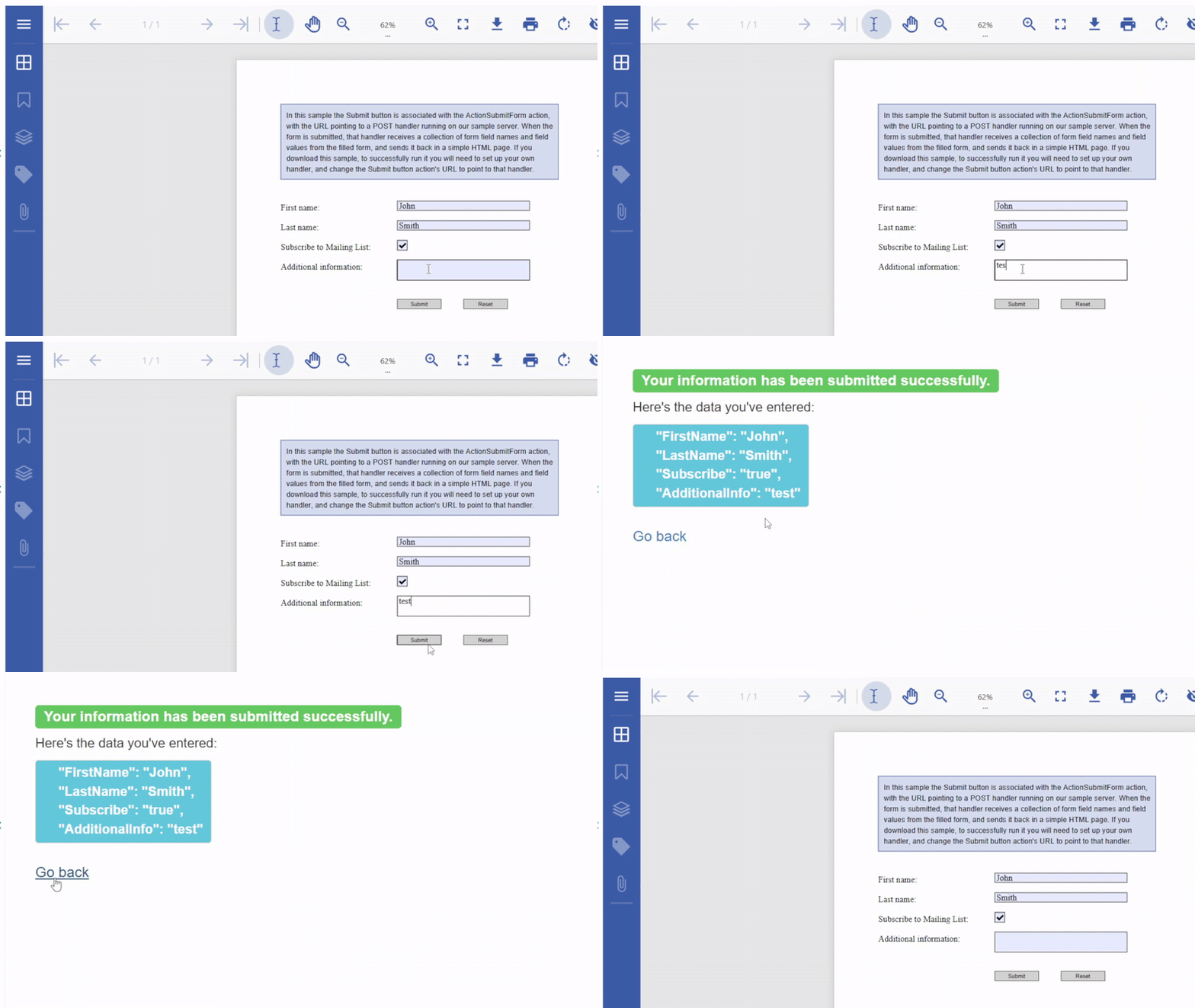
ActionResetForm
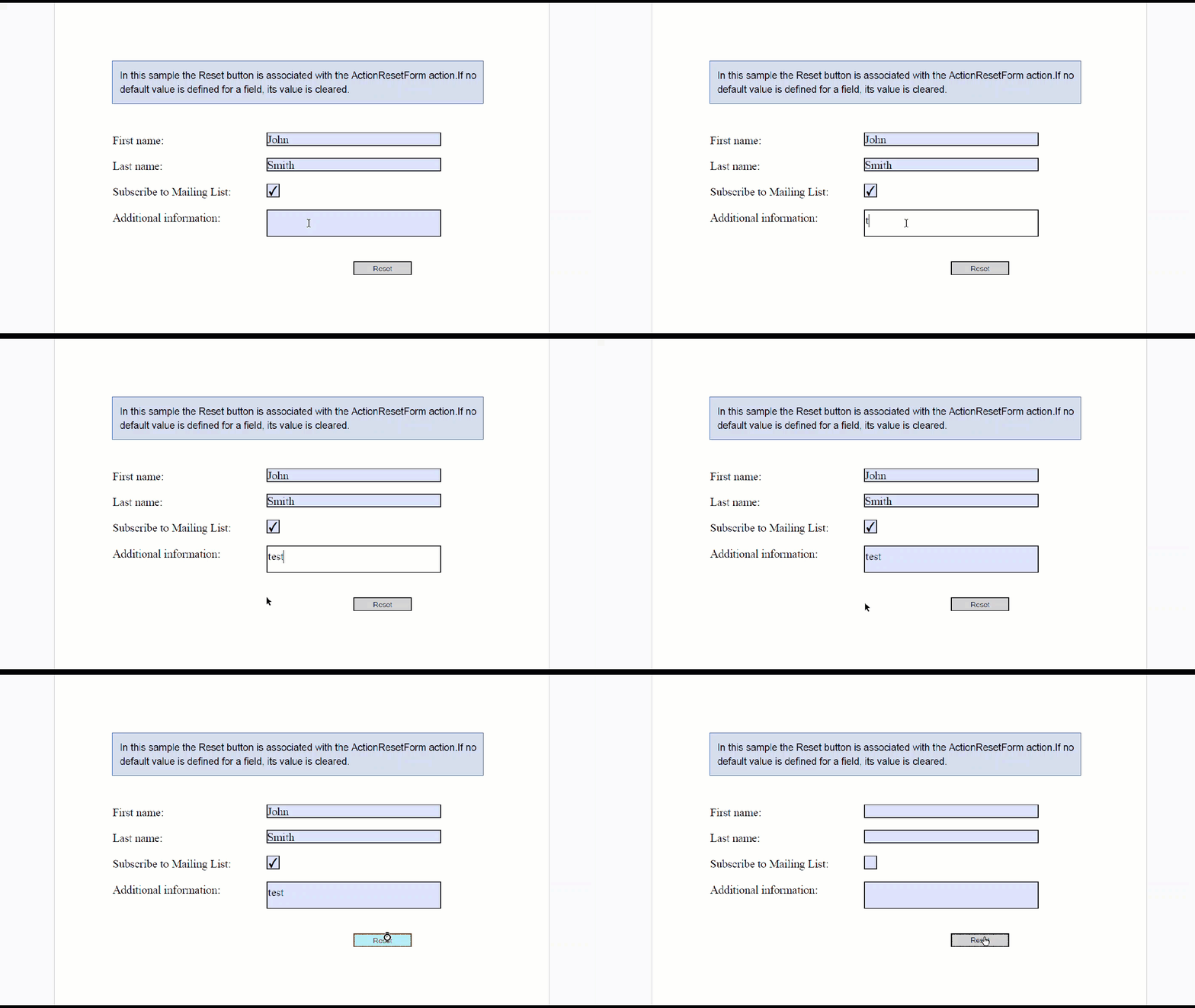
A ResetForm action allows users to reset interactive form fields to their default values. If no default value is defined for a field, its value is cleared. For fields that can't have a value, such as PushButtonField, the action has no effect. DsPdfJS uses the ActionResetForm class and its properties, which enable you to define this action type in a PDF document.
The following code demonstrates a form with a reset button that resets the form fields to their default values when clicked.
const doc = new PdfDocument();
const page = doc.newPage();

const rc = Util.addNote(
    "In this sample the Reset button is associated with the ActionResetForm action." +
    "If no default value is defined for a field, its value is cleared.",
    page);

const ctx = page.context;
const tf = new Format({
    font: Font.getPdfFont(StandardPdfFont.Times),
    fontSize: 14
});
let x = 72;
let y = rc.y + rc.height + 36;
const fldOffset = 72 * 2 + 46;
const fldHeight = tf.fontSize * 1.2;
const dY = 32;

// Text field:
ctx.drawText("First name:", tf, x, y);
var fldFirstName = new TextField();
fldFirstName.name = "FirstName";
fldFirstName.value = "John";
fldFirstName.widget.page = page;
fldFirstName.widget.rect = { x: x + fldOffset, y: y, width: 72 * 3, height: fldHeight };
fldFirstName.widget.defaultAppearance.font = tf.font;
fldFirstName.widget.defaultAppearance.fontSize = tf.fontSize;
doc.acroForm.fields.add(fldFirstName);
y += dY;

// Text field:
ctx.drawText("Last name:", tf, x, y);
const fldLastName = new TextField();
fldLastName.name = "LastName";
fldLastName.value = "Smith";
fldLastName.widget.page = page;
fldLastName.widget.rect = { x: x + fldOffset, y: y, width: 72 * 3, height: fldHeight };
fldLastName.widget.defaultAppearance.font = tf.font;
fldLastName.widget.defaultAppearance.fontSize = tf.fontSize;
doc.acroForm.fields.add(fldLastName);
y += dY;

// Checkbox ("json" syntax):
ctx.drawText("Subscribe to Mailing List:", tf, x, y);
doc.acroForm.fields.add({
    type: 'checkbox',
    name: 'Subscribe',
    value: true,
    widget: {
        page: page,
        rect: { x: x + fldOffset, y: y, width: fldHeight, height: fldHeight }
    }
})
y += dY;

// Multiline TextBox:
ctx.drawText("Additional information:", tf, x, y);
const fldAdditionalInfo = new TextField();
fldAdditionalInfo.name = "AdditionalInfo";
fldAdditionalInfo.multiline = true;
fldAdditionalInfo.widget.page = page;
fldAdditionalInfo.widget.rect = { x: x + fldOffset, y: y, width: 72 * 3, height: fldHeight * 2 };
fldAdditionalInfo.widget.defaultAppearance.font = tf.font;
fldAdditionalInfo.widget.defaultAppearance.fontSize = tf.fontSize;
doc.acroForm.fields.add(fldAdditionalInfo);
y += dY * 2;

// Reset form button:
doc.acroForm.fields.add({
    type: 'button',
    name: 'btnReset',
    caption: 'Reset',
    widget: {
        page: page,
        rect: { x: x + fldOffset + 72 * 1.5, y: y, width: 72, height: fldHeight },
        highlighting: HighlightingMode.Invert,
        activate: {
            type: 'reset'
        }
    }
})

//Save the document
Util.saveFile("ActionResetForm.pdf", doc.savePdf());