Posted 18 December 2025, 5:38 am EST
- Updated 18 December 2025, 5:43 am EST
Hi,
As per my understanding, you want to achieve the following:
- You have a signed URL from your cloud storage bucket (AWS S3, Google Cloud Storage, or Azure Blob).
- You want to fetch the Excel file using this signed URL.
- You want to display it in SpreadJS as a read-only workbook in your React application.
How to Load an Excel File from a Signed URL in SpreadJS (React)
Below is the recommended approach.
Step-by-Step Approach
Step 1: Fetch the Excel file from the signed URL
Use the fetch() API to request the file from the signed URL.
Since the URL is already signed, no additional authorization headers are required.
Step 2: Convert the response to a Blob
Convert the fetched response into a Blob.
SpreadJS requires a Blob object to open Excel files.
Step 3: Initialize the SpreadJS React component
Use the component along with the workbookInitialized callback.
This callback provides access to the workbook instance.
Step 4: Open the Excel file in SpreadJS
Use the spread.import(blob, successCallback, errorCallback) method.
Pass the Blob obtained in Step 2.
Handle success and error callbacks as needed.
Step 5: Make the workbook read-only
After the file is loaded successfully, iterate through all sheets.
Set sheet.options.isProtected = true for each sheet: https://developer.mescius.com/spreadjs/demos/features/worksheet/protection/purejs.
Configure the protection options to disable editing.
Key Points
SpreadJS cannot load files directly from URLs — the file must be fetched and converted to a Blob first.
Signed URLs are pre-authenticated — no extra authorization headers are required.
Always use spread.import() with a Blob, not a URL string.
Apply sheet protection after loading to ensure true read-only behavior.
We have created a sample using the above approach. In the sample, the client requests the file from the signed URL provided by the server, converts it into a Blob, and then loads it into SpreadJS.
Please refer to the attached sample: Sample.zip
Gif: 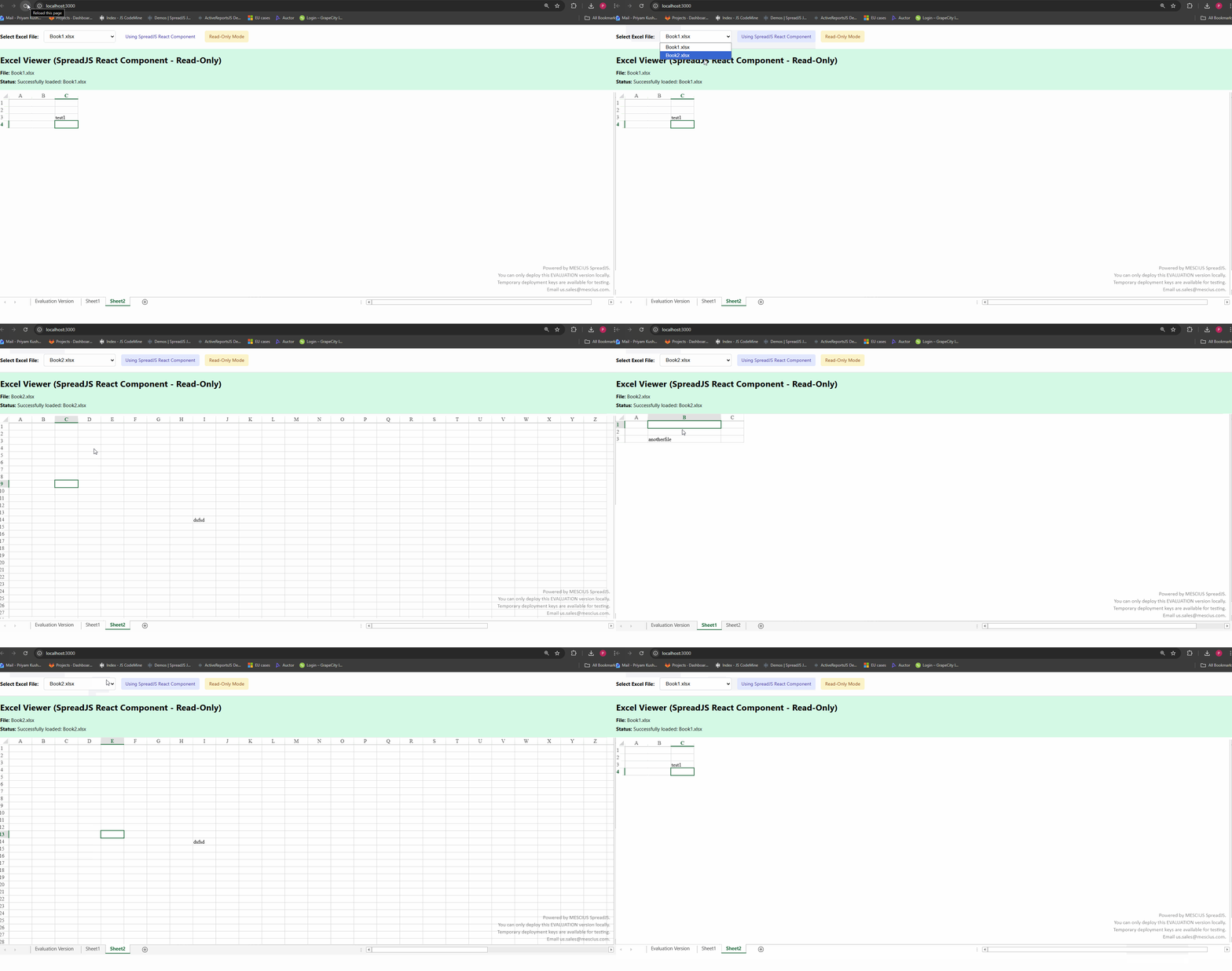
Regards,
Priyam