Posted 18 June 2025, 8:18 pm EST
How do you get the start and end index (char) of the selected text in the pdf document?
Forums Home / Document Solutions / Document Solutions for PDF .NET
Posted by: gsnow on 18 June 2025, 8:18 pm EST

gsnow
Posted 18 June 2025, 8:18 pm EST
How do you get the start and end index (char) of the selected text in the pdf document?

prabhat.sharma

Posted 20 June 2025, 1:19 am EST - Updated 20 June 2025, 1:24 am EST
Hi,
In DsPdfViewer, the concept of start and end character indices does not directly apply like it would in plain-text editors, because PDF documents are not stored as linear text. Instead, selected text is based on visual regions (bounding rectangles) rather than index positions.
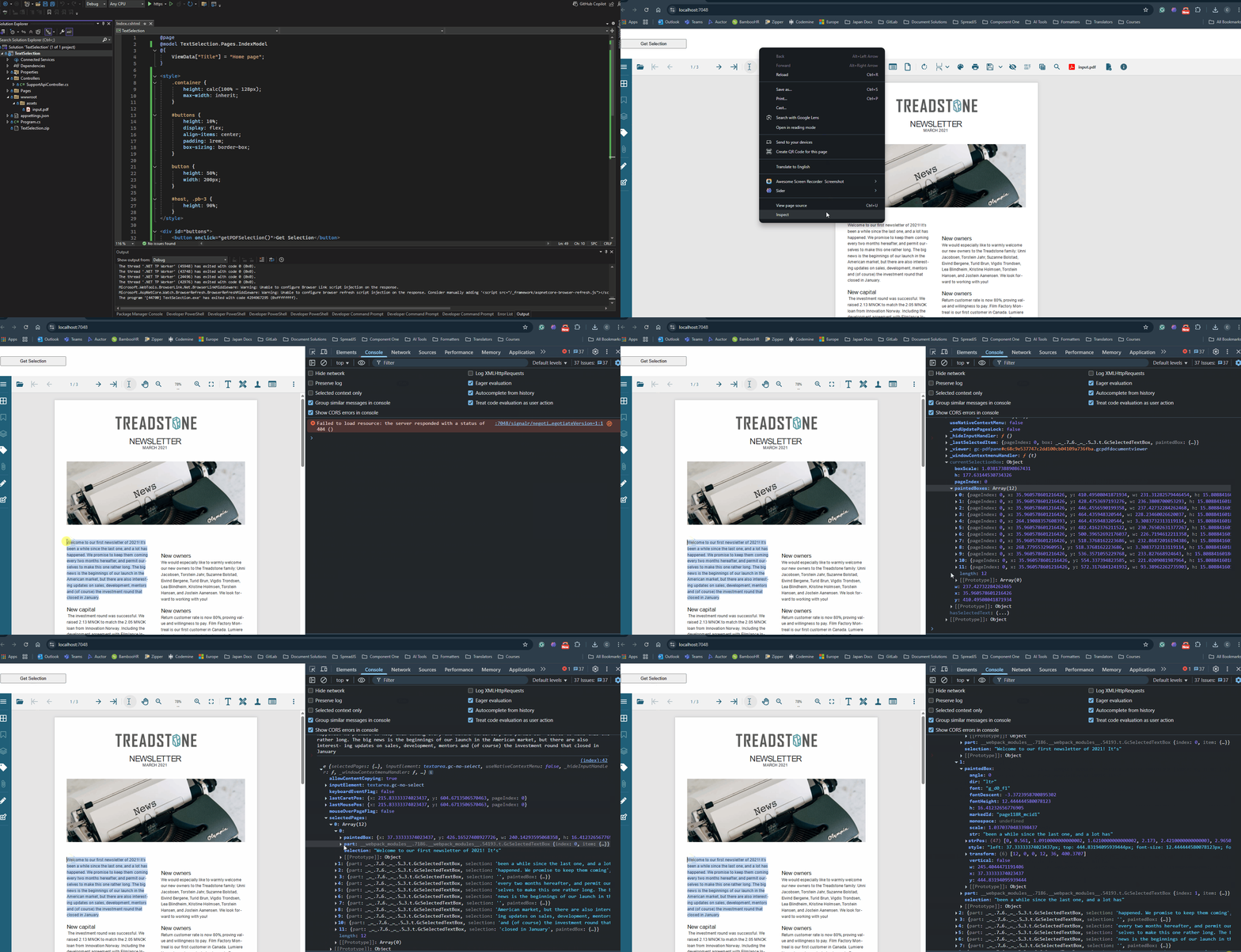
However, it is possible to extract the visual region of the selected text using the viewer.selectionCopier object.
<button onclick="getPDFSelection()">Get Selection</button>
<div id="host"></div>
<script>
    var viewer = new DsPdfViewer("#host");
    viewer.addDefaultPanels();
    function getPDFSelection() {
        console.log(viewer.getSelectedText()); // Get the selected text
        console.log(viewer.selectionCopier);   // Get the selected text information
    }
</script>
So while you can’t get character-level start/end indices, you can identify exactly where the selection is visually on the PDF, which is how DsPdfViewer internally represents and processes selections.
You can further refer to the attached sample that uses the above code snippet and gets the bounding rectangles containing the selected text (see below).
Please let us know if you need any further guidance. If you could share more about your use case, we can provide further assistance tailored to your requirements.
Regards,
Prabhat Sharma.
gsnow
Posted 23 June 2025, 5:12 pm EST
Many thanks for your feedback. I was hoping to store the start and end index of the highlighted text so I could use the “highlightTextSegment” method to re-highlight text that had been previously stored. I want to store these highlighted text segments outside of the document. It is much more cumbersome to store all the bounding rectangles.

chirag.gupta
Posted 24 June 2025, 4:10 am EST - Updated 24 June 2025, 4:15 am EST
Hi,
Thanks for sharing your user story.
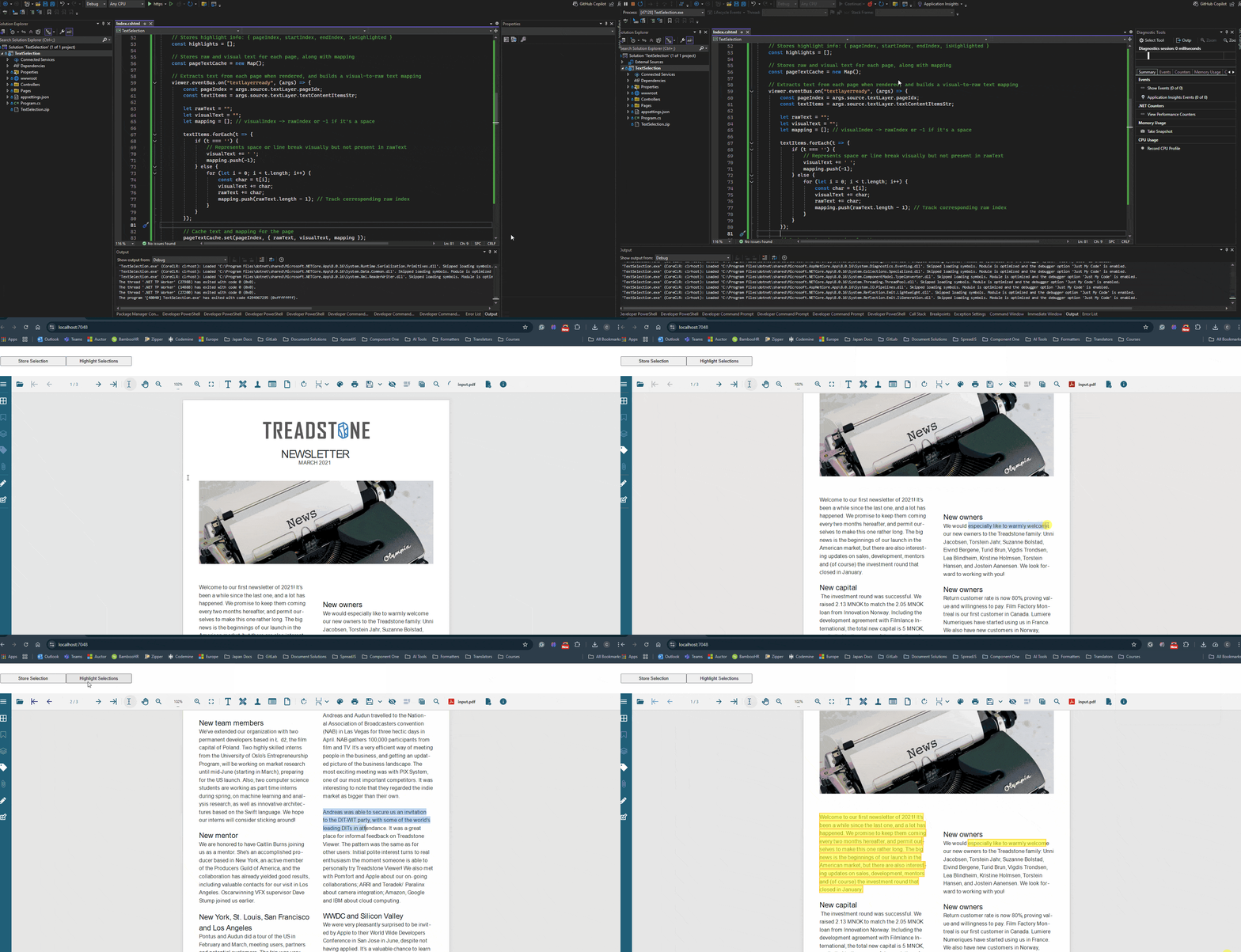
While DsPdfViewer does not provide a direct method to retrieve the start and end indices of selected text, it is possible to extract them using the following approach:
Please refer to the attached sample, which demonstrates this approach and highlights the selected text as expected (see below).
Please note that this is a proof-of-concept sample. If the same text appears multiple times on a page, additional logic may be required to compare the selection rectangles and accurately identify the intended text segment.
Let us know if any further assistance is needed.
Kind Regards,
Chirag Gupta
Attachment: TextSelection.zip
gsnow
Posted 10 July 2025, 7:07 pm EST
Many thanks for your feedback! Easily the best I have received on any developer forum! I can’t thank you enough!!!
I have a couple more questions:
chirag.gupta
Posted 14 July 2025, 1:53 am EST
Hi,
We are delighted that the previous solution worked for your use case.
Regarding the follow-ups:
window.onload = function () {
    var viewer = new DsPdfViewer('#viewer', { restoreViewStateOnLoad: false });
    viewer.addDefaultPanels();

    var pdf = "/path/to/your/file.pdf";
    loadPdf(viewer, pdf, "shorelines");
}

async function loadPdf(viewer, pdf, searchText) {
    await viewer.open(pdf);

    var findOptions = {
        Text: searchText,
        MatchCase: true,
        WholeWord: true
    };

    const searchIterator = await viewer.searcher.search(findOptions);
    const result = await searchIterator.next();
    const item = result.value;

    // Use bounding box of the found text to calculate scroll position
    const x = item.ItemArea.left;
    const y = item.ItemArea.top + item.ItemArea.height;

    // Scroll to the text position with optional padding
    viewer.loadAndScrollPageIntoView(item.PageIndex, [
        null,
        { name: 'XYZ' },
        x - 10,
        y + 10,
        1.0 // Zoom factor (1.0 = 100%)
    ]);
}
You can adapt this to scroll to any previously stored location — for example, from saved highlight metadata — by storing the page index and bounding rectangle or offset coordinates.
References:
Please let us know if you require any further assistance.
Kind Regards,
Chirag Gupta
gsnow
Posted 11 November 2025, 6:30 pm EST
Thanks for your previous assistance. How do you use the highlight manager? There is no documentation on it. I want to store all the highlighted text (i.e. pageIndex, startIndex, endIndex) that the user has selected. Do I use highlightManager.textItems?
chirag.gupta
Posted 12 November 2025, 2:56 am EST
Hi Greg,
The highlightManager is listed in the public API of DsPdfViewer (see Reference 1). However, the ITextHighlightManager interface is not publicly documented, although its prototype and available methods can be inspected through the developer console.
If you prefer to use the highlightManager directly for adding highlights instead of the viewer’s highlightTextSegment method, you can do so as follows:
await viewer.highlightManager.highlightTextSegment(
    highlight.pageIndex,
    highlight.startIndex,
    highlight.endIndex,
    { color: 'rgba(255, 255, 0, 0.5)' }
);
Please let us know if you require any further assistance.
Best Regards,
Chirag
References:
gsnow
Posted 12 November 2025, 4:25 pm EST
Thanks for the quick reply. I’ve seen that documentation already and I know how to use the highlightManager to highlight text. What I want to know is how to use it to return what has been highlighted in the pdf. Can you provide an example of how to iterate through the highlighted text items in the pdf, returning the pageIndex, startIndex, endIndex? Thanks!
chirag.gupta
Posted 13 November 2025, 4:21 am EST - Updated 13 November 2025, 4:26 am EST
Hi Greg,
Thanks for your question about retrieving highlight information from DsPdfViewer.
The highlightManager stores highlight data, but it doesn’t directly expose the start/end indices in a simple format. The highlights are stored with the text content and internal positioning data that needs to be converted to linear character indices.
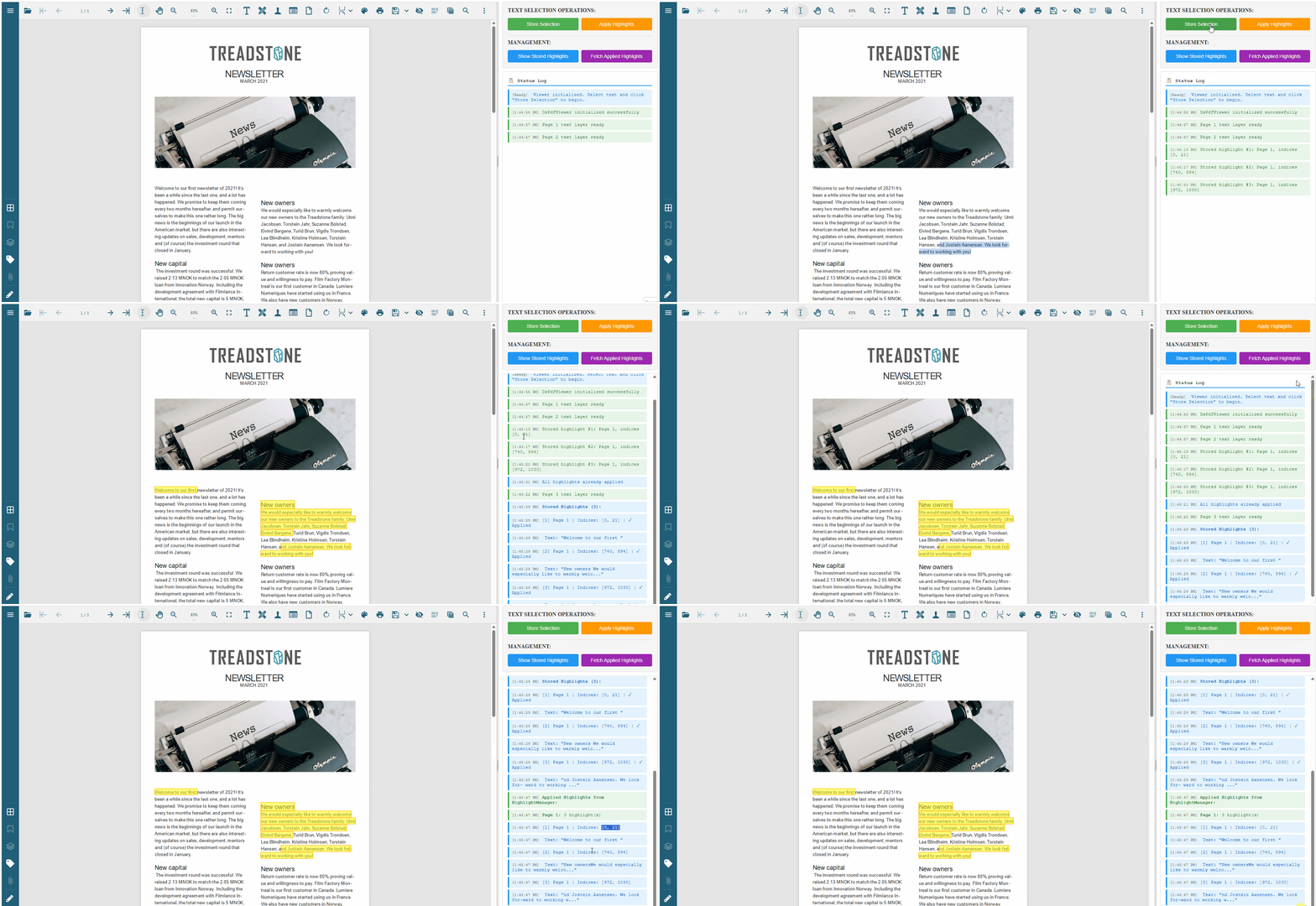
I’ve created a complete working solution that demonstrates how to iterate through the highlightManager.highlights and calculate the pageIndex, startIndex, and endIndex for each highlight. The implementation:
Please see the attached code sample and demonstration video showing the solution in action. The example includes a “Fetch Applied Highlights” button that retrieves and displays all highlight information with their indices.
Let me know if you have any questions about the implementation.
Best regards,
Chirag
Attachments: TextSelection.zip
Working:
gsnow
Posted 14 November 2025, 6:02 am EST
Amazing! This is the best support I have ever received for a software product. I’ll let you know if I have any problems.
gsnow
Posted 18 November 2025, 11:25 am EST
Is it possible to get the polygon of the selected text rather the the startIndex and endIndex?
chirag.gupta
Posted 18 November 2025, 10:43 pm EST - Updated 19 November 2025, 1:53 am EST
Hi Greg,
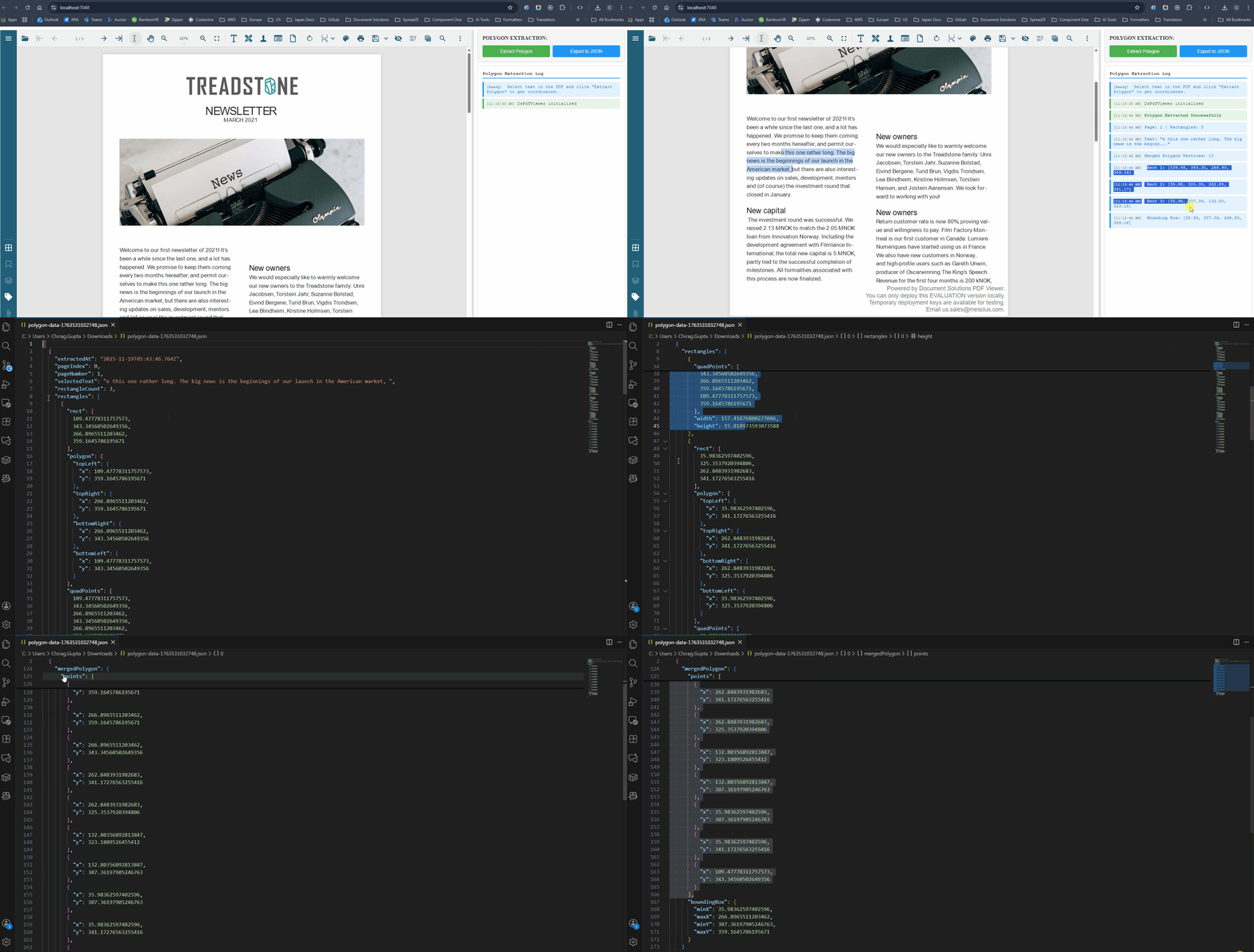
As discussed previously, PDF text highlights are internally represented using bounding rectangles. This makes it possible to retrieve the full polygon shape of a selected text based on the rectangle information.
Please refer to the attached code sample demonstrating how to extract polygon data from the selected text in DsPdfViewer.
Please let us know if you need any further assistance.
Kind Regards,
Chirag
Attachment: TextSelection.zip
Working:
gsnow
Posted 19 November 2025, 8:36 am EST
Thanks. How do you highlight using a set of polygon coordinates (not a rect)?
chirag.gupta
Posted 21 November 2025, 12:30 am EST
Hi Greg,
Apologies for the delay caused.
Currently, PDF text highlights are implemented as a collection of rectangular regions, commonly referred to as quads or quad points. Each rectangle corresponds to a contiguous block or line of text, and multiple rectangles together represent multi-line selections. This approach aligns with the official PDF specification and is supported by all major PDF viewers, including DsPdfViewer.
These rectangles are essentially four-vertex polygons that map directly to the bounding areas of the selected text. This ensures reliable and consistent rendering across different PDF viewers and platforms.
Highlighting text using arbitrary polygons with an unrestricted number of vertices is not supported by the PDF text highlight standard.
For this reason, the solution we provided uses the standard rectangle (quadPoints) approach, as it preserves text semantics and ensures predictable behavior across viewers.
Please let us know if you have any further questions.
Kind regards,
Chirag