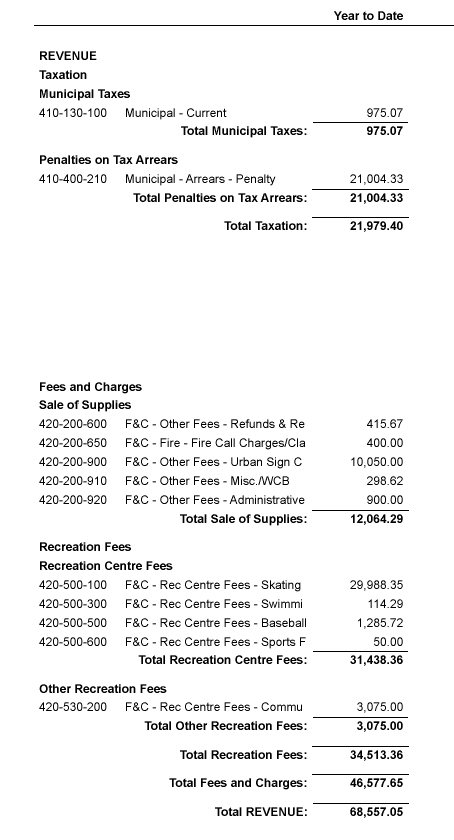
Automatically shrinking a row with nested tables

Posted by: mdynna on 3 December 2025, 12:54 pm EST

  • Posted 3 December 2025, 12:54 pm EST - Updated 3 December 2025, 12:59 pm EST

    We have a system in our application that helps users rapidly create custom reports that are built by nesting tables. This allows them to build reports with varying levels of headers and sub-totalling footers. When they run the report they can select a range of dates to run, and this can result in some of the sub-sections having no data to display since all records in that category are 0. The table has a Filter to exclude all 0 records, but the users would like the entire sub-section to be hidden. We are able to make this work by putting a Visiblity expression on the row of the parent table that contains the sub-section table. All the other sub-sections within that row automatically move up but is seems the row of the “outer” table doesn’t shrink based on what was printed, so the following section in the “outer” table has a gap before it is printed.

    For example, here is the report structure showing the nested tables:
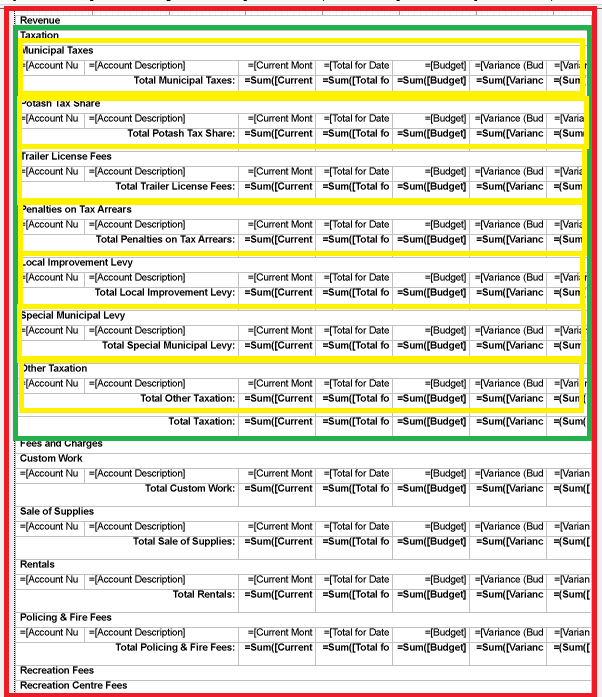


    The red section is the “outer most” table. It has two rows with two large “level 1” sections, the first outlined in green. Each “level 1” table has multiple rows each containing “level 2” tables, outlined in yellow (for the first table). Each of the Yellow tables filters any “all 0” records, with each row in teh “green” table filtering out the whole table if it empty (all rows are 0). All the yellow (level 2) tables move up to fill any gaps, and the footer of the “green” table moves up as well. What doesn’t move up is the next “green” (level 1) table.

    The row height for the row for the “red” table that contains the entire “green” table doesn’t change. Inspecting the properties I see that the internal “CanShrink” property of that row is False even though all TextBoxes on all reports have their CanShrink property set to True.

    Is there a way to get that row to shrink so that the next row at the same level?

  • Posted 5 December 2025, 5:44 am EST

    Hi Mark,

    There could be various reasons why the space was not shrunk down when the visibility of the TextBoxes is set to false.

    However, what we suspect the issue here may be is that the TextBoxes are hidden, but the row is still being visible, causing a blank row to render.

    To fix this, you can try assigning the same Visibility.Hidden condition in the row. And as the Row itself cannot shrink (it has a fixed size) you can manually reduce its height to the lowest value it can be shrunken down to and keep the ‘CanGrow’ property of the TextBoxes contained within it to ‘True’.

    This way, when the Cells are hidden, the Row will take up the minimum height we specified, and when the Row Cells are visible, it will automatically grow to take up the required height.

    If the issue persists, please try sharing a sample that replicates the issue so we can test the issue on our end and further investigate the same.

    Regards,

    Anand

  • Posted 5 December 2025, 7:05 pm EST

    Setting the row to minimum height with all elements inside CanGrow = True does work. It’s a non-ideal solution as it makes it impossible to see and edit any of the elements inside that row since (in the Designer) they are all compressed to the point of unreadability. Since the row’s “CanGrow” property seems to cascade or inherit from the children it would be great if “CanShrink” would do the same.

    I’ll work on creating a data agnostic version of what we are seeing, hopefully we just need to change something with our structure to make it work.

  • Posted 8 December 2025, 3:56 am EST

    Hi Mark,

    It would be difficult to provide a solution/workaround for your specific scenario without actually going through a sample replicating the issue.

    Could you please share a minimal runnable sample of your report so we can debug the cause of the issue on our end and further investigate the issue?

    Thanks,

    Anand

  • Posted 8 December 2025, 12:48 pm EST - Updated 8 December 2025, 12:54 pm EST

    Hi Anand,

    I’ve attached a sample page report (RPX) that demonstrates the issue. Sample data is hard-coded into the report so it should run anywhere that can run a Page Report. We are running this through the built-in Active Reports Designer that is part of Active Reports 17.

    The report has an “outer” table (REVENUE), that table has two rows which each in turn contain tables with multiple rows (Taxation and Fees). All sub-tables for Fees have data, but some of the sub-tables for Taxation return rows with a 0 balance (Local Levy and Special Municipal Levy). The rows containing the Local Levy and Special Municipal Levy sub-tables have a Visibilty condition that sets them to Hidden if the data in the row has a total balance of 0. What results is the “Taxation” table shrinks properly, with the footer row moving up but the “outer” row from the REVENUES table does not shrink so there is a large gap before the “Fees and Charges” section starts.

  • Posted 9 December 2025, 3:25 am EST

    Hi Mark,

    Seems like your report didn’t get attached, can you please retry attaching the same? Also, for PageReports and Rdl Reports, the extension should be ‘.rdlx’ as the ‘.rpx’ extension is used by Section Reports.

    Please Note: This site has an upload limit of 5 MB. If your attachment is greater than 5 MB in size, then you can upload your file to a cloud storage and share the link with us here.

    Regards,

    Anand

  • Posted 9 December 2025, 10:31 am EST

    Trying to attach again.

    Sample.zip

  • Posted 10 December 2025, 7:40 am EST

    Hi Mark,

    Thank you for the attached sample. We were unable to run your report on our end as the SQL datasource was unable to make a connection.

    However, we tried to create a report with a similar report structure to yours. We could observe that in your case, the Row you are hiding does actually shrink and moves the content below it up, but as the row it is contained within has a fixed height (as it cannot be shrunken and is not hidden) and thus leaves blank space below.

    To fix the issue, can you restructure your table such that all your tables are within the detail rows of the parent table instead of having two tables in the parent table and then nesting three tables in the two tables?

    We have attached both of our report samples for your reference.

    Regards,

    Anand

    Reports.zip

Need extra support?

Upgrade your support plan and get personal unlimited phone support with our customer engagement team

Learn More

Forum Channels