


- SpreadJS Overview
- Getting Started
- JavaScript Frameworks
- Best Practices
- Features
- SpreadJS Designer
- SpreadJS Designer VSCode Plugin
- Tutorials
-
SpreadJS Designer Component
- Getting Started
- Quick Start
- Theme
- Designer Interface
- JavaScript Frameworks
- Template-Based Workbook Initialization
- Customizations
-
Work in Designer Component
- AutoSum Functions
- Set Range Template Cell
- Name Box
- Select Cells Using Go To
- Find and Replace
- Edit Font Size
- Edit Font Family
- Configure Cell Borders
- Manage Conditional Formatting Rules
- Shape Selection Pane
- Automatic Outline
- Format Painter
- Sort and Filter
- Table Slicer
- Data Source
- TableSheet
- GanttSheet Designer
- ReportSheet Designer
- Data Chart Designer
- Text to Columns
- Remove Duplicates
- Pivot Table
- Dockable Side Panel
- Command Palette
- Transform Cells with LAMBDA Formula
- Threaded Comments Panel
- What-If Analysis
- Insert Function Dialog
- Named Cell Templates
- Insert Pictures in Designer
- Toolbar Ribbon
- API Documentation
- SpreadJS Collaboration Server
- Touch Support
- Formula Reference
- Import and Export Reference
- Events
- API Documentation
- Release Notes
Gantt Chart Format Tab
The GANTT CHART FORMAT tab provides options to customize taskbar appearance, gridlines, Progress Lines, layout, and text within the GanttSheet. When you insert a GanttSheet in SpreadJS, the GANTT CHART FORMAT tab appears by default.

The following table lists the sections available in this tab along with their descriptions:
Section | Description |
|---|---|
Format | Provides options to configure gridlines, Progress Lines, and chart layout settings. |
Bar Styles | Provides options to modify the style of specific taskbars using preset style rules. |
Gridlines
The Gridlines button is available in the Format group. It allows you to adjust gridline settings for the Gantt chart, including timescale column gridlines, task row gridlines, and project-level date gridlines.
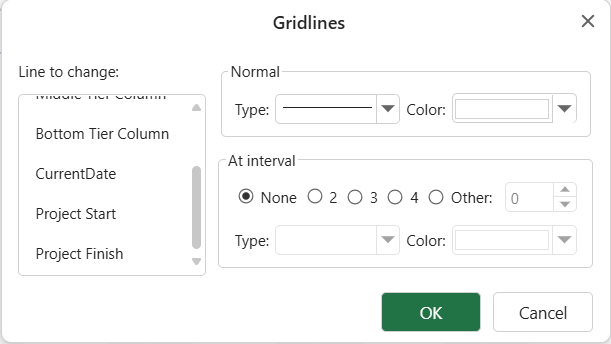
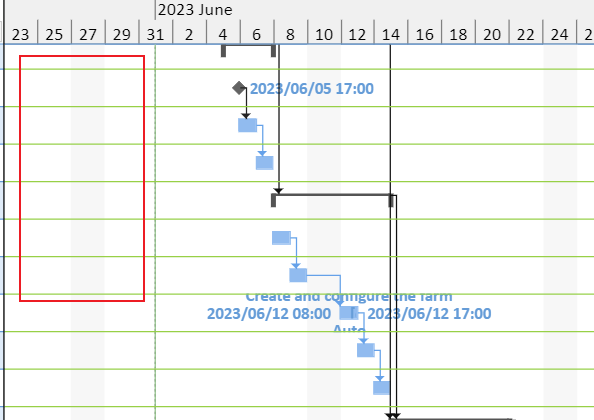
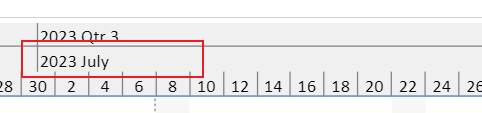
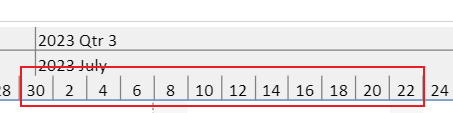
SpreadJS Gantt chart has the following types of gridlines:
Gridline | Description | Example |
|---|---|---|
Gantt Rows | Separates task rows in the Gantt chart area. |
|
Top Tier Column | Separates top-tier timescale columns. |
|
Middle Tier Column | Separates middle-tier timescale columns. |
|
Bottom Tier Column | Separates bottom-tier timescale columns. |
|
Current Date | Marks the project current date. |
|
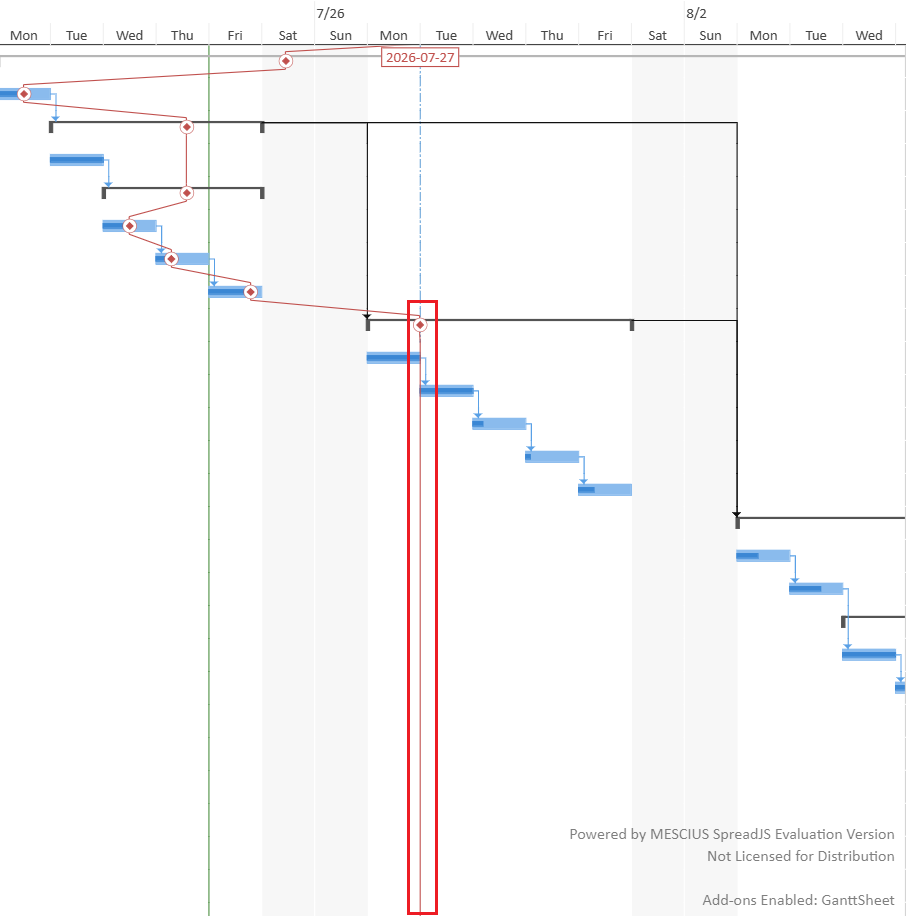
Status Date | Marks the project status-reporting date. |
|
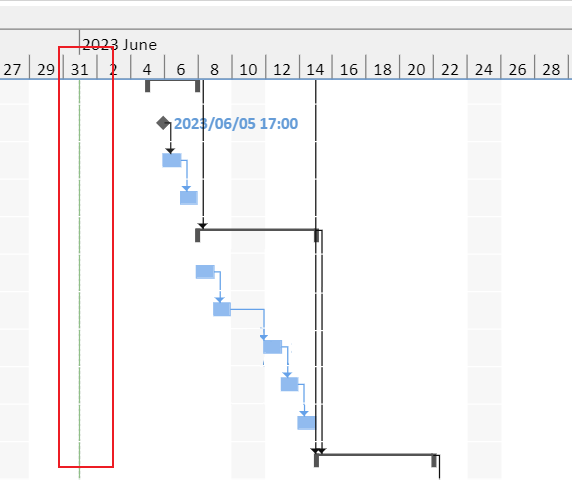
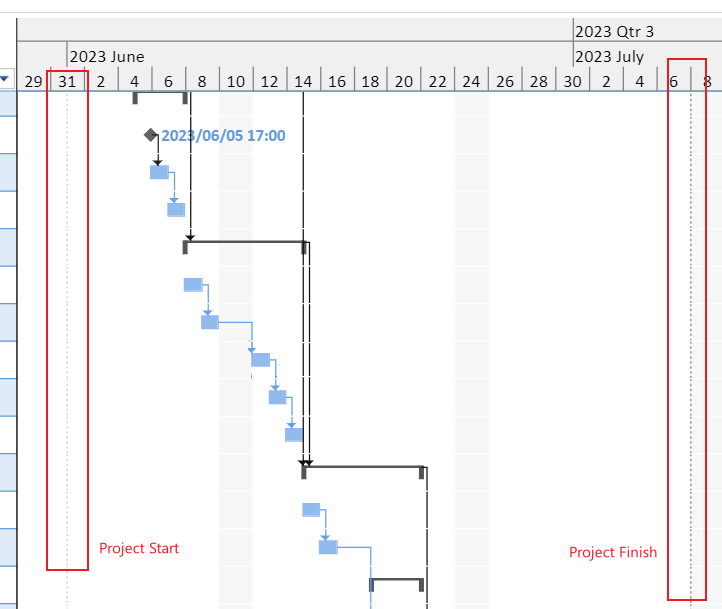
Project Start | Marks the project start date. |
|
Project Finish | Marks the project finish date. |

Progress Lines
The Progress Lines button is available in the Format group. It opens the Progress Lines dialog, where you can display a Progress Line and configure its reference date, path type, line style, progress point style, and date label.
A Progress Line is an analytical overlay that connects task progress points relative to a selected project reference date.

Dates
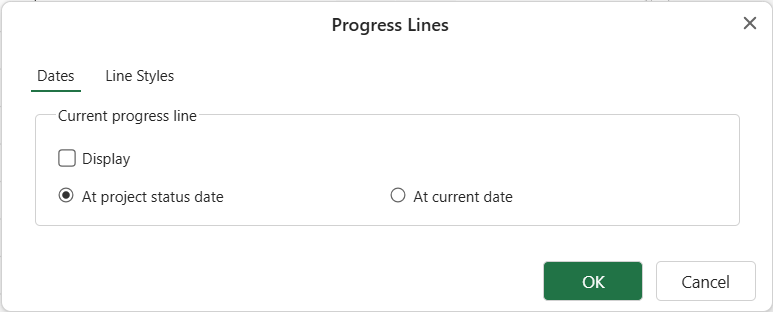
The Dates tab controls whether the Progress Line is displayed and which project date is used as the reference date.
Option | Description |
|---|---|
Display | Shows or hides the Progress Line. When this option is cleared, the Progress Line path, progress points, and date label are not displayed. |
At project status date | Uses the project status date as the Progress Line reference date. The status date is set in PROJECT > Project Information. If no status date is specified, the current date is used as the effective reference date. |
At current date | Uses the project current date as the Progress Line reference date. The current date is set in PROJECT > Project Information. |
Line Styles
The Line Styles tab controls how the Progress Line is routed and displayed.
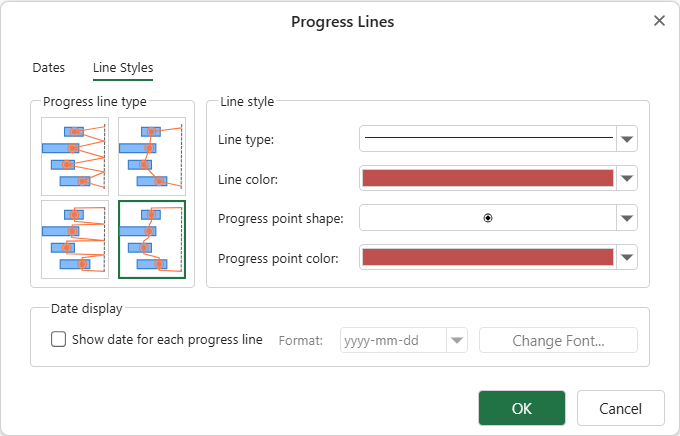
Option | Description |
|---|---|
Progress line type | Sets how the Progress Line connects progress points. The available types combine whether the line returns to the reference date and whether the connections are diagonal or orthogonal. |
Line type | Sets the line type of the Progress Line path. |
Line color | Sets the color of the Progress Line path. The date label uses the same color. |
Progress point shape | Sets the shape of the progress point displayed on task bars. |
Progress point color | Sets the color of progress points. |
Show date for each progress line | Displays a date label for the Progress Line. The label shows the active reference date. |
Format | Sets the date format used by the Progress Line label. |
Change Font | Sets the font used by the Progress Line date label. |
For more information about runtime Progress Line behavior, see Progress Line.
Layout
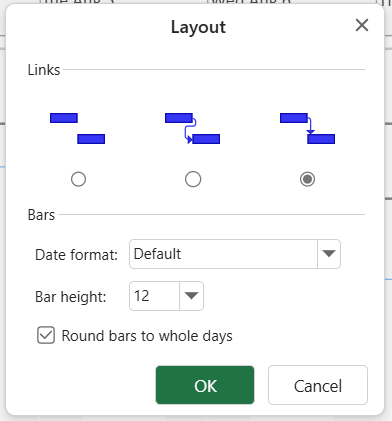
The Layout button also comes under the Format group which enables you to customize taskbar dependencies and appearance for better organization.
In the Gantt chart, you can configure the task layout with link line mode, taskbar height, date-text format, and round the taskbar to whole days.
Format
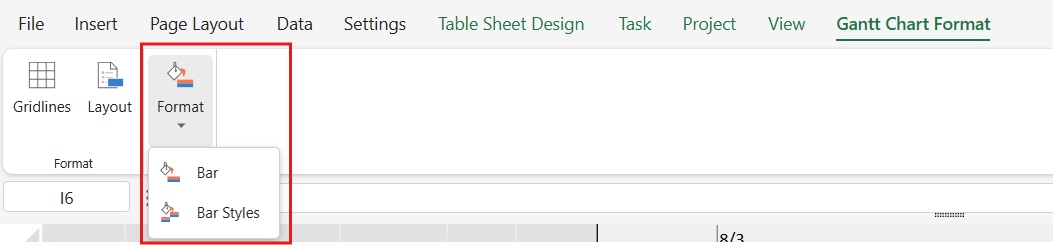
The Format button is available in the Bar Styles group, and it allows you to customize taskbar styles based on predefined rules and apply the selected style to all matching tasks.
The Format button contains two sub-items: Bar and Bar Styles.
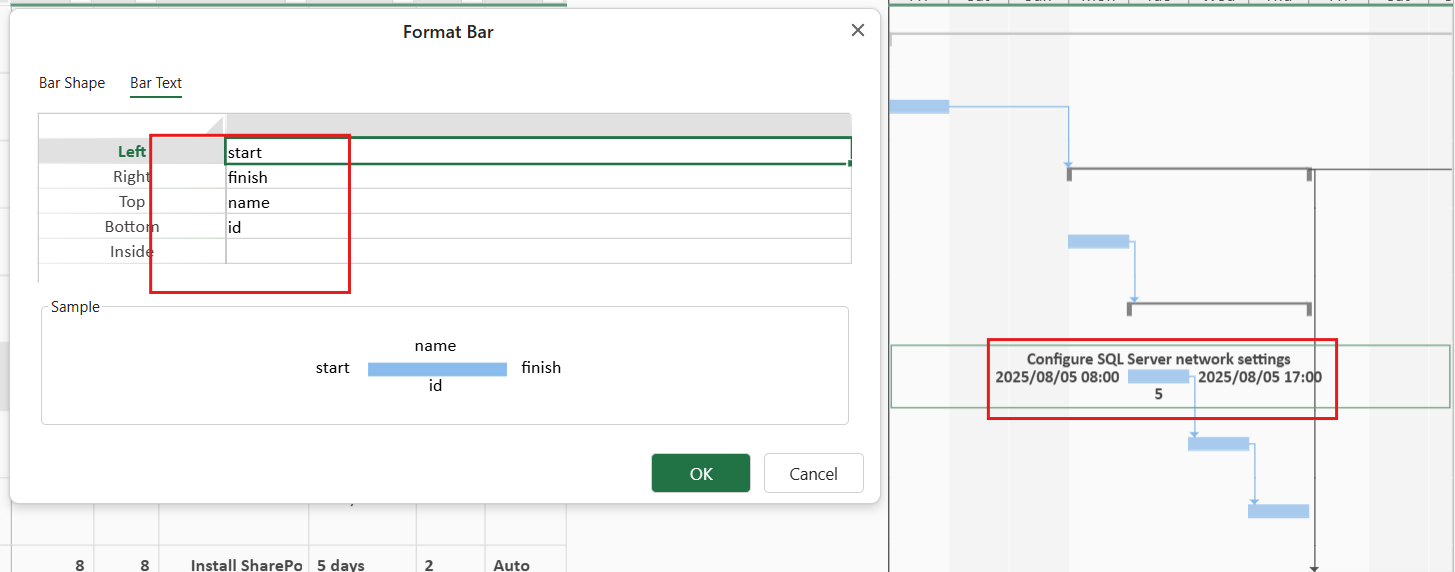
When you click Bar, the Format Bar dialog appears. Here, you can customize the bar shape and text for the selected taskbar. Note that if more than one task is specified, the modifications will be applied only to the first task selected, by default.
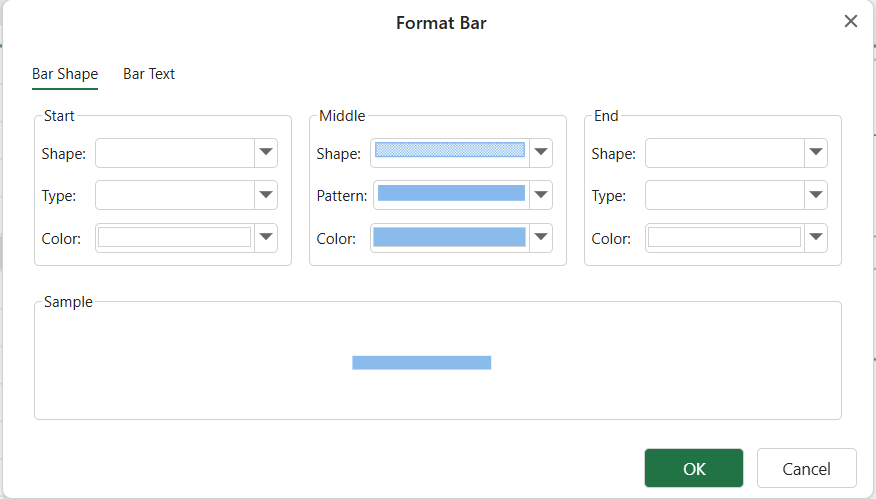
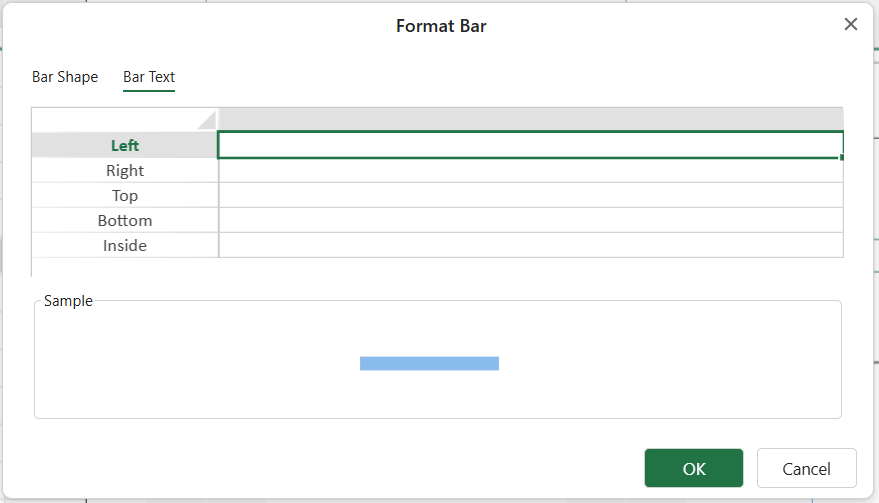
Currently, only the information provided in the column can be set as bar text on the taskbar.
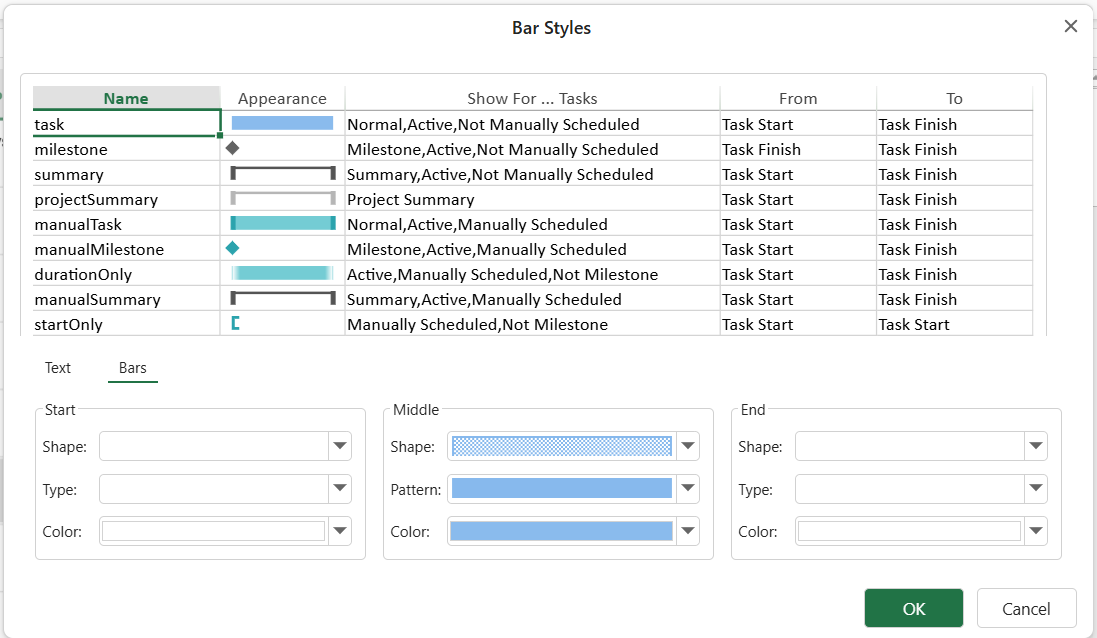
On the other hand, if you click Bar Styles, the Bar Styles dialog appears. SpreadJS provides a total of 15 predefined taskbar styles. You can change the style of a certain taskbar by specifying style rules, and the changes will be applied to all tasks that match the rule. Note that if a taskbar has its own style, that style will be applied first.
For more information on gridlines, Progress Lines, task layout, and taskbar formatting styles, see Gridlines, Task Layout, Progress Line, and Taskbar Styles pages.