


- SpreadJS Overview
- Getting Started
- JavaScript Frameworks
- Best Practices
- Features
- SpreadJS Designer
- SpreadJS Designer VSCode Plugin
- Tutorials
-
SpreadJS Designer Component
- Getting Started
- Quick Start
- Theme
- Designer Interface
- JavaScript Frameworks
- Template-Based Workbook Initialization
- Customizations
-
Work in Designer Component
- AutoSum Functions
- Set Range Template Cell
- Name Box
- Select Cells Using Go To
- Find and Replace
- Edit Font Size
- Edit Font Family
- Configure Cell Borders
- Manage Conditional Formatting Rules
- Shape Selection Pane
- Automatic Outline
- Format Painter
- Sort and Filter
- Table Slicer
- Data Source
- TableSheet
- GanttSheet Designer
- ReportSheet Designer
- Data Chart Designer
- Text to Columns
- Remove Duplicates
- Pivot Table
- Dockable Side Panel
- Command Palette
- Transform Cells with LAMBDA Formula
- Threaded Comments Panel
- What-If Analysis
- Insert Function Dialog
- Named Cell Templates
- Insert Pictures in Designer
- Toolbar Ribbon
- API Documentation
- SpreadJS Collaboration Server
- Touch Support
- Formula Reference
- Import and Export Reference
- Events
- API Documentation
- Release Notes
Project Tab
The PROJECT tab has options to manage selected projects and calendar information.

Project Information
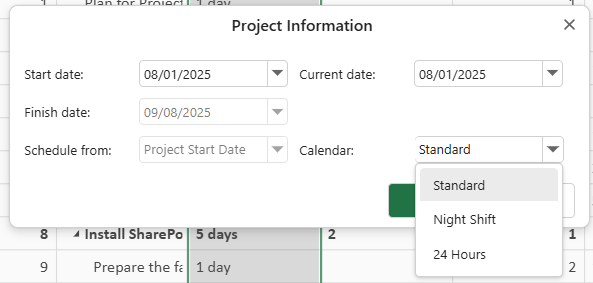
The Project Information button, present in the Properties group, enables you to modify the project's start date, finish date, current date, status date, and calendar type.
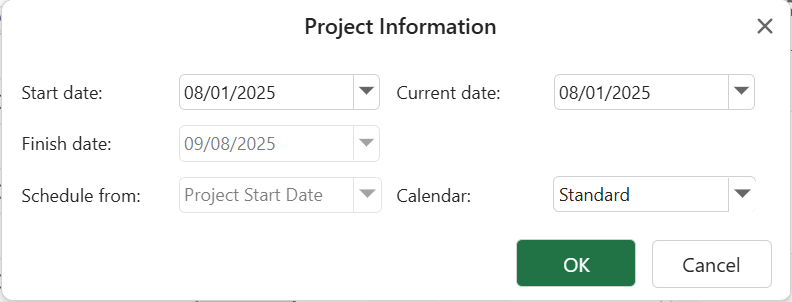
Start date: Represents the initiation date of the project, which impacts the overall project timeline calculation.
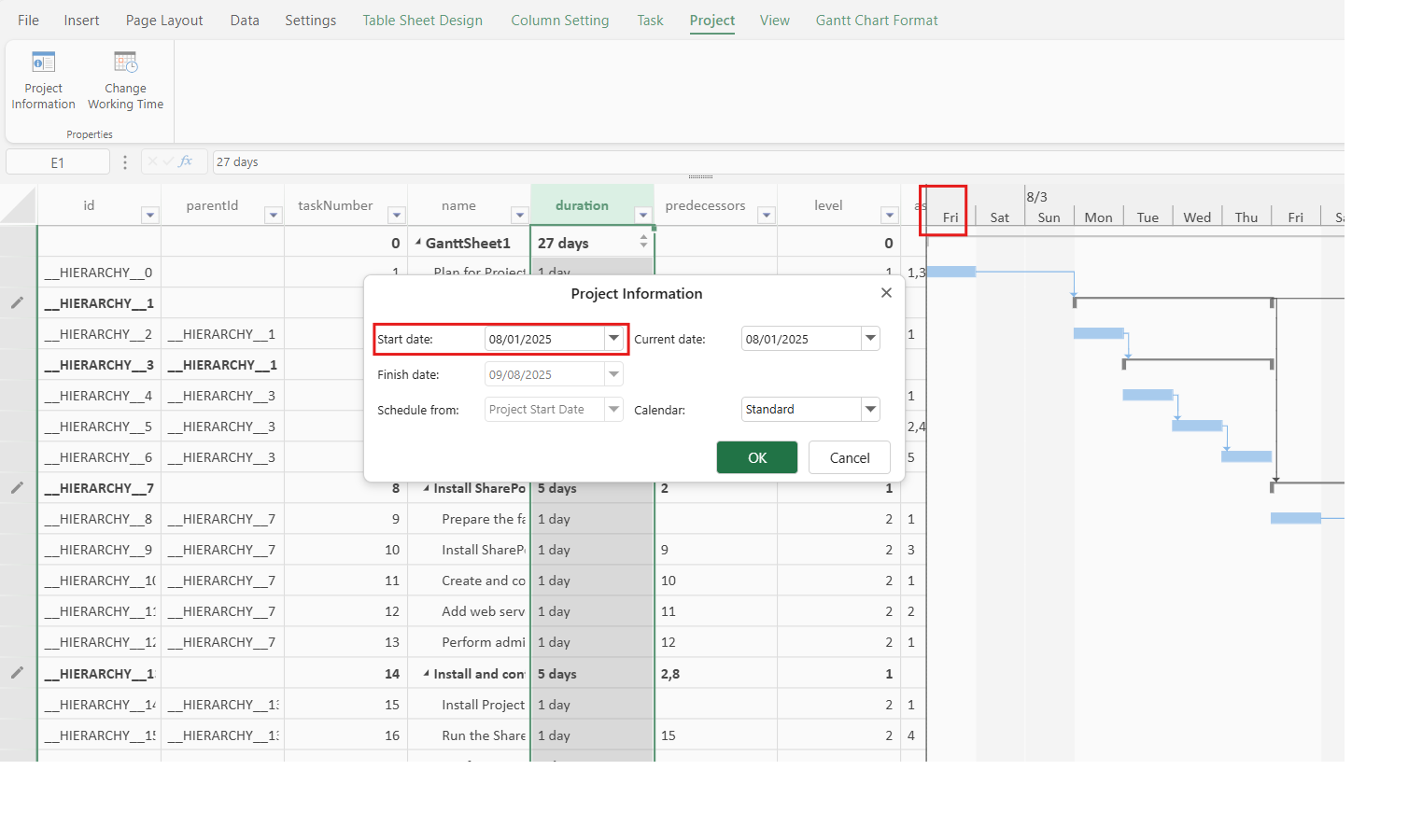
Current date: Represents the present date. The green line is the most visible depiction of the current date in the Gantt chart. If you make any changes to the current date using the UI, the current date indication line will relocate.
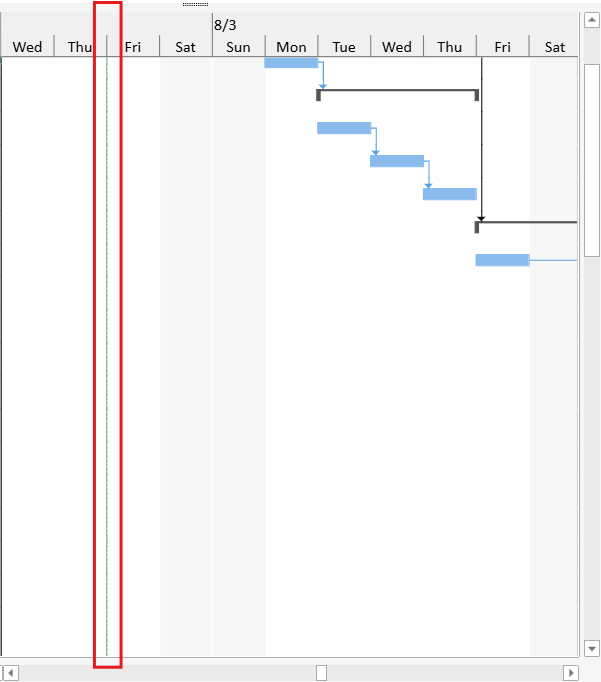
Status date: Represents the project's status-reporting date. The Status Date gridline can use this date to mark the reporting point in the Gantt chart. A Progress Line can also use the status date as its reference date.
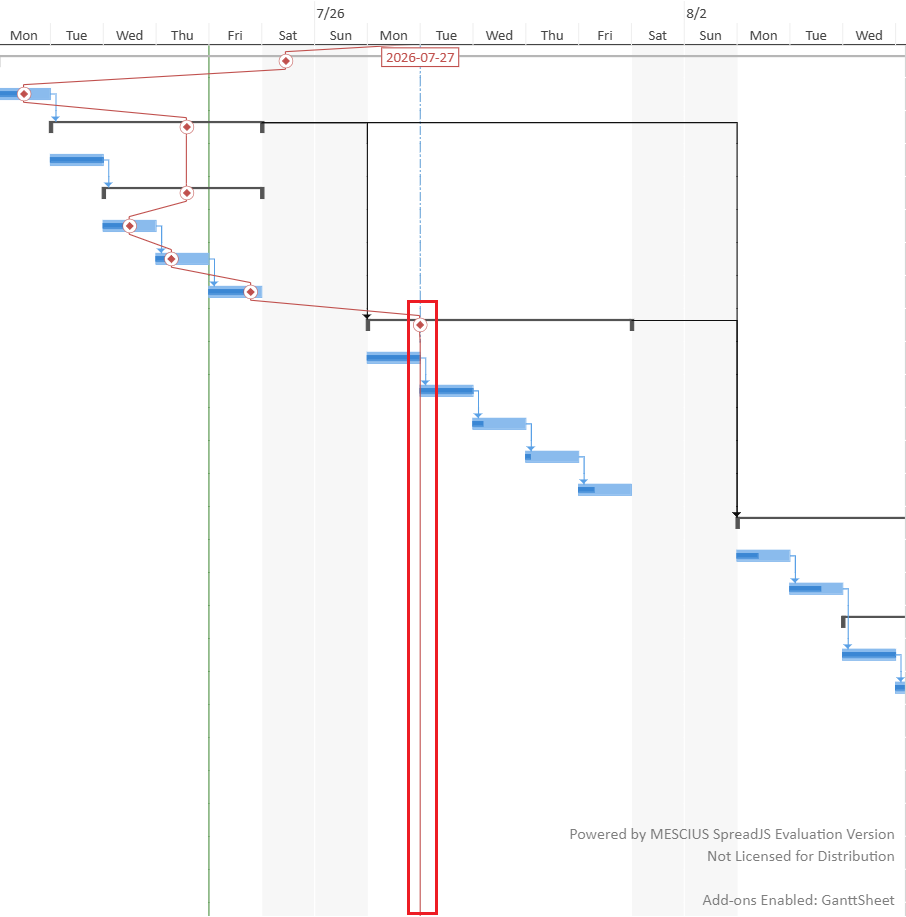
If a Progress Line is set to use the project status date but no status date is specified, the current date is used as the effective reference date.
Calendar: Represents the available work calendar formats applicable to the project. There are three predefined work calendars available for selection, such as Standard, Night Shift, and 24 Hours. You can also create or modify calendar information with the Change Working Time button.
Change Working Time
The Change Working Time button, available in the Properties group, enables you to create a new calendar or manage the selected calendar information with the following steps:
In the Change Working Time dialog, select which calendar information you want to modify from the For Calendar dropdown.
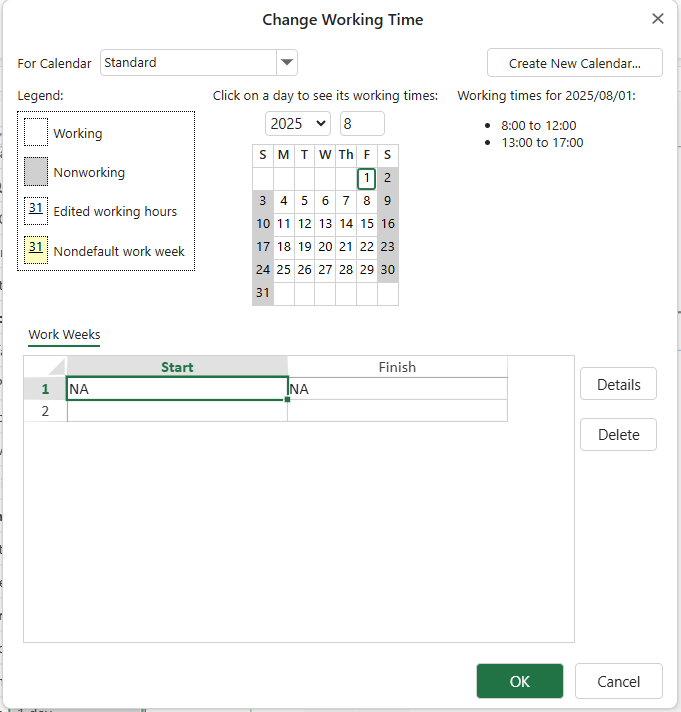
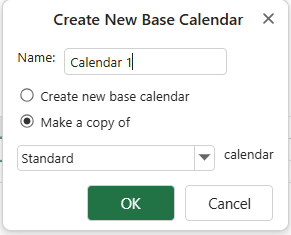
You can also create your own base calendar by selecting Create New Calendar... on the top right corner of the Change Working Time dialog.
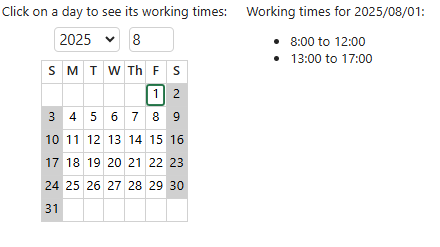
Check the specific working hours of the day by selecting different dates.
Select a period under the Work Weeks section to customize special working hours.
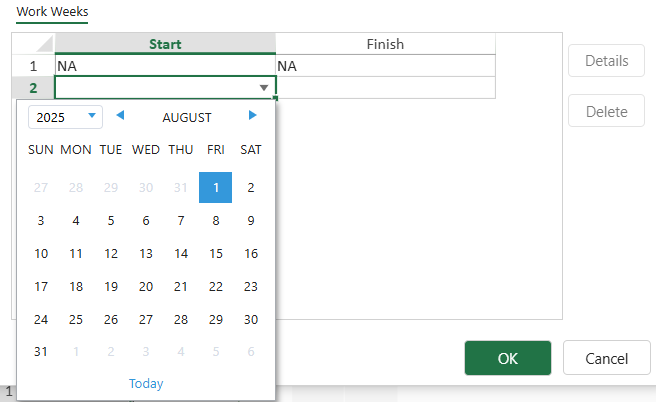
Click the Details button to open the Details for work week dialog where you can modify the default working hours for a work week.
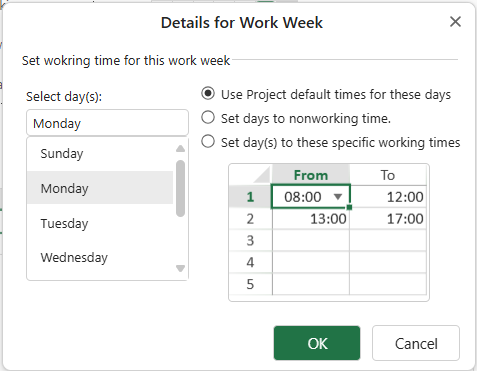
Select the days in the Select day(s) section and then choose the desired options to set the working hours based on the selection.
To know more about calendar settings, you can also refer to the Calendar Settings page.
For more information about Status Date gridlines and Progress Lines, see Gridlines and Progress Line.