


- Getting Started
-
Topics
- Wijmo
- Chart
- Map
- Cloud
- Gauge
- Grid
-
Scheduler
- overview
- Create and Bind Scheduler
- Configure Event Data
- Query, Filter, and Refresh Events
- Configure Resources
- Configure Views and Navigate the Schedule
- Create Advanced Layouts
- Synchronize Scrolling
- Configure Working Time
- Configure Time Zones
- Create, Edit, and Delete Events
- Drag and Resize Events
- Detect and Handle Conflicts
- Customize Event Display and Templates
- Customize Context Menus
- Hit Testing
- Keyboard Navigation, Focus, and Selection
- Troubleshooting
- OLAP
- Input
- Nav
- Viewer
- Tutorials
Customize Event Display and Templates
Use an item template and CSS to control how event content appears without changing the source item. Keep template code focused on presentation; use Scheduler and the bound collection for editing and persistence.
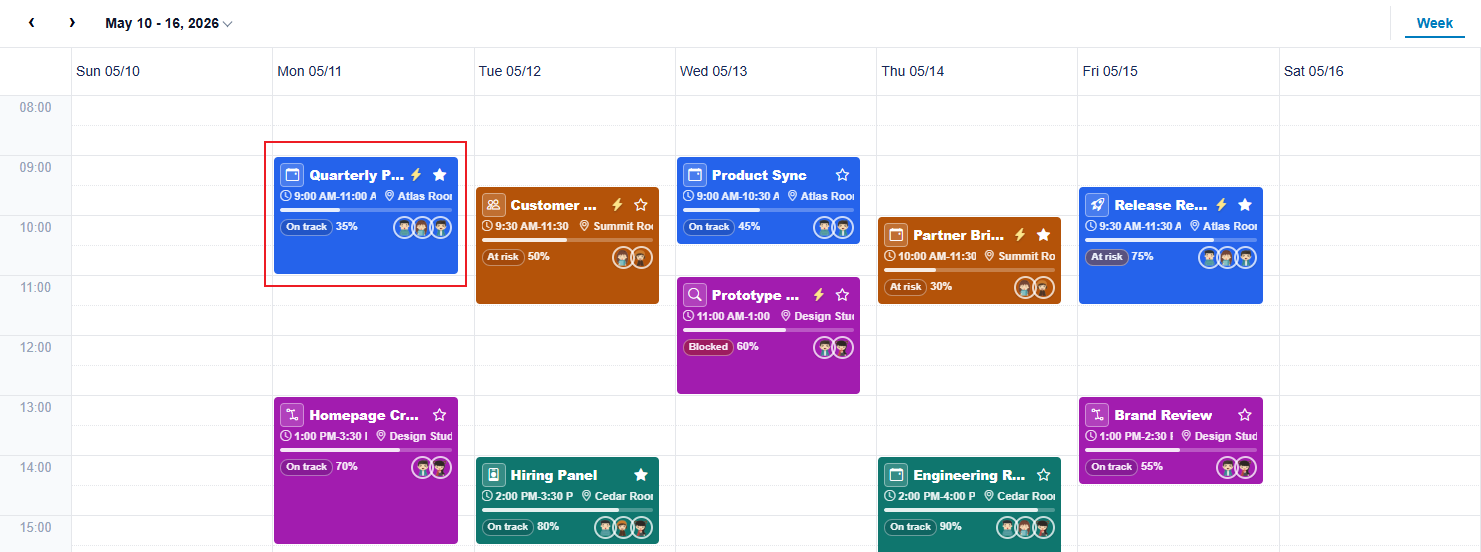
Create an item template
Assign a function to the active definition's itemTemplate. The function receives a template context and returns the content rendered inside each event fragment.
const escapeHtml = (value: unknown) => String(value ?? '')
.replaceAll('&', '&')
.replaceAll('<', '<')
.replaceAll('>', '>')
.replaceAll('"', '"')
.replaceAll("'", ''');
scheduler.definition.itemTemplate = context => `
<div class="appointment-title">${escapeHtml(context.item.subject)}</div>
<div class="appointment-location">${escapeHtml(context.item.location)}</div>
`;Scheduler assigns the returned string to the event element's innerHTML, so escape every value that comes from users or an external service. Unescaped markup can inject HTML into the page, which is an XSS risk. Return only the inner content of the event. Scheduler creates and owns the surrounding element and its interaction state, so do not return a wrapper element.
Use template context
When the application needs resource or conflict information, use the template context supplied by Scheduler.
scheduler.definition.itemTemplate = context => {
  const item = context.item;
  const conflicts = context.conflicts ?? [];
  const conflictClass = conflicts.length > 0 ? ' has-conflict' : '';

  return `<div class="appointment${conflictClass}">
    <strong>${escapeHtml(item.subject)}</strong>
    <span>${conflicts.length} conflict(s)</span>
  </div>`;
};
Use the API Reference for the complete SchedulerItemTemplateContext type and the fields available in the active Scheduler version.
context.item is the source item from itemsSource, not the rendered event. Read the property names your data actually uses. If you mapped fields with eventFields, such as subject: 'title', read context.item.title.
Keep templates presentation-only
Do not use a template to identify an event by reading DOM fragments. A source item can render as multiple fragments, and fragments can be recreated when the view, date, resource, or time zone changes. Use the source item from Scheduler events, getEvents, or hit testing for commands and persistence.
Scheduler recreates event elements whenever it refreshes the view, so do not attach event handlers in the template. A handler bound to a template element is lost on the next render. Use event delegation on the Scheduler host instead, and resolve the source item in the handler.
Change the template at runtime
Each view has its own definition, and each definition has its own itemTemplate. To change the template, create a definition with the new template and assign it to the Scheduler.
scheduler.definition returns a copy, so changing a property on the returned object has no effect. Build a new definition and assign the whole object instead.
If several definitions must use the same template, create the function once and set it on each definition.
Assigning a definition invalidates the Scheduler, and it renders again automatically. Call refresh() only when the update must appear immediately.
const definition = {
  ...scheduler.definition,
  itemTemplate: compactMode
  ? context => `<strong>${escapeHtml(context.item.subject)}</strong>`
  : context => `<strong>${escapeHtml(context.item.subject)}</strong><br>${escapeHtml(context.item.location)}`,
};
scheduler.definition = definition;
scheduler.refresh();