


- Getting Started
-
Topics
- Wijmo
- Chart
- Map
- Cloud
- Gauge
- Grid
-
Scheduler
- overview
- Create and Bind Scheduler
- Configure Event Data
- Query, Filter, and Refresh Events
- Configure Resources
- Configure Views and Navigate the Schedule
- Create Advanced Layouts
- Synchronize Scrolling
- Configure Working Time
- Configure Time Zones
- Create, Edit, and Delete Events
- Drag and Resize Events
- Detect and Handle Conflicts
- Customize Event Display and Templates
- Customize Context Menus
- Hit Testing
- Keyboard Navigation, Focus, and Selection
- Troubleshooting
- OLAP
- Input
- Nav
- Viewer
- Tutorials
Configure Resources
Use resources to divide the schedule into lanes such as rooms, teams, people, or equipment. A resource descriptor maps one property on each event to the records that define the available resource values.
Define a resource descriptor
import * as wjScheduler from '@mescius/wijmo.scheduler';

const events = [
  { subject: 'Project planning', start: new Date(2026, 7, 24, 9), end: new Date(2026, 7, 24, 10), roomId: 'room-a' },
  { subject: 'Design review', start: new Date(2026, 7, 24, 11), end: new Date(2026, 7, 24, 12), roomId: 'room-b' },
];

// rooms
const rooms = [
  { id: 'room-a', text: 'Conference room A', background: '#e8e3f4', color: '#3e276f' },
  { id: 'room-b', text: 'Conference room B', background: '#dbeeed', color: '#03544c' },
]
// resource
const resource = [{
  fieldExpr: 'roomId',
  label: 'Room',
  dataSource: rooms,
  valueExpr: 'id',
  displayExpr: 'text',
  backgroundColorExpr: 'background',
  foreColorExpr: 'color',
}];

const scheduler = new wjScheduler.FlexScheduler('#scheduler', {
  itemsSource: events,
  resources: resource,
  displayDate: new Date(2026, 7, 24),
});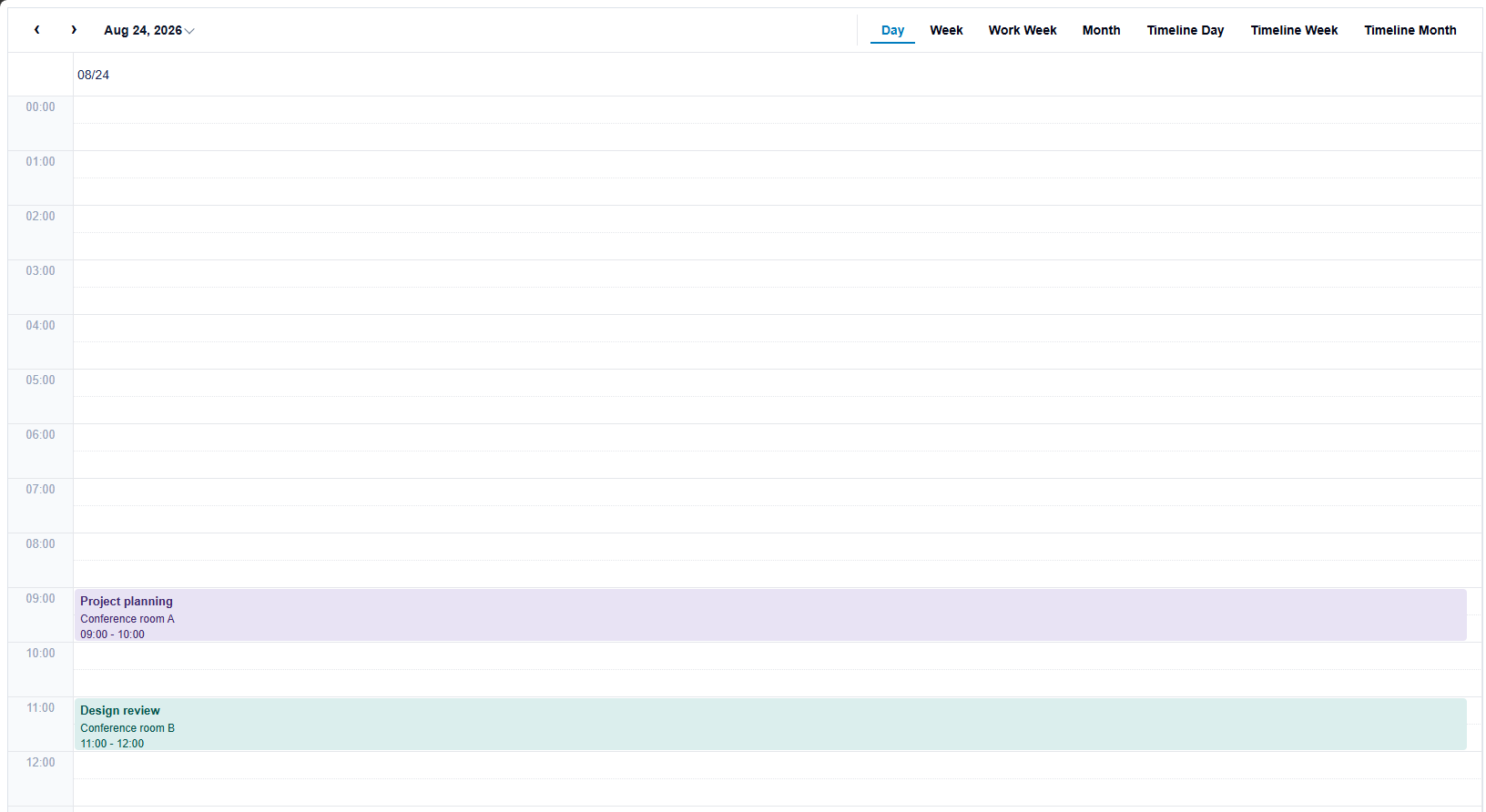
fieldExpr must match the event property that stores the resource value. dataSource contains the resource records. valueExpr identifies the value stored on the event, and displayExpr identifies the text shown in headers and editors.
Resource properties
Property | Purpose |
|---|---|
| Event property containing the resource value. |
| Label displayed for the resource field in the built-in Event Editor. |
| Array or collection of resource records. |
| Resource-record property used as the event value. |
| Resource-record property shown to users. |
| Optional property used for event background color. |
| Optional property used for event text color. |
| Specifies whether the built-in Event Editor accepts multiple selected values for this resource field. Defaults to |
If valueExpr or displayExpr is omitted, Scheduler uses id or text on each resource record. Specify the expressions when the application uses different property names.
backgroundColorExpr and foreColorExpr point to properties in each resource record; they are not color values themselves.
The built-in Event Editor displays label beside the resource selection field. For example, use Room or Team to distinguish resource fields. If label is omitted or empty, the editor uses the localized default resource label.
Use multiple resource dimensions
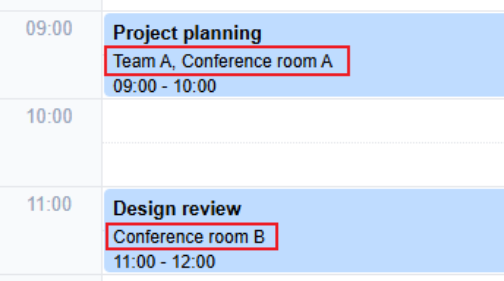
Add one descriptor for each dimension. The event must contain a property for every descriptor that applies to it.
const events = [
  { subject: 'Project planning', start: new Date(2026, 7, 24, 9), end: new Date(2026, 7, 24, 10), teamId: 'team-a', roomId: 'room-a' },
  { subject: 'Design review', start: new Date(2026, 7, 24, 11), end: new Date(2026, 7, 24, 12), roomId: 'room-b' },
];

const teams = [
  { id: 'team-a', text: 'Design team' },
  { id: 'team-b', text: 'Engineering team' },
];

scheduler.itemsSource = events;

scheduler.resources = [
  { fieldExpr: 'teamId', label: 'Team', dataSource: teams, valueExpr: 'id', displayExpr: 'text' },
  { fieldExpr: 'roomId', label: 'Room', dataSource: rooms, valueExpr: 'id', displayExpr: 'text' },
];
Descriptor order determines the nesting order when more than one resource binding is placed on an axis. The active definition must bind the resource fields to display their groups.
Allow multiple resource values
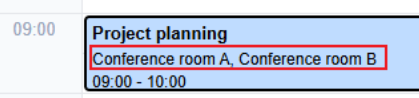
Set allowMultiple: true to allow users to select multiple values for a resource field in the built-in Event Editor. Store the assigned resource values in an array on the event item.
const event = [
  { subject: 'Project planning', start: new Date(2026, 7, 24, 9), end: new Date(2026, 7, 24, 10), roomId: ['room-a', 'room-b'] },
];

scheduler.resources = [{
  fieldExpr: 'roomId', label: 'Rooms', dataSource: rooms,
  valueExpr: 'id', displayExpr: 'text', allowMultiple: true,
}];
When allowMultiple is omitted or false, the Event Editor validates that no more than one resource value is selected. When multiple values are allowed, the editor saves the selection as an array.
Apply resource colors
Map color properties when events should inherit colors from their resource records.
scheduler.resources = [{
  fieldExpr: 'roomId', dataSource: [
    { id: 'room-a', text: 'Conference room A', background: '#bfdbfe', foreground: '#1e3a8a' },
    { id: 'room-b', text: 'Conference room B', background: '#bbf7d0', foreground: '#14532d' },
  ],
  valueExpr: 'id', displayExpr: 'text',
  backgroundColorExpr: 'background', foreColorExpr: 'foreground',
}];
Display resource lanes
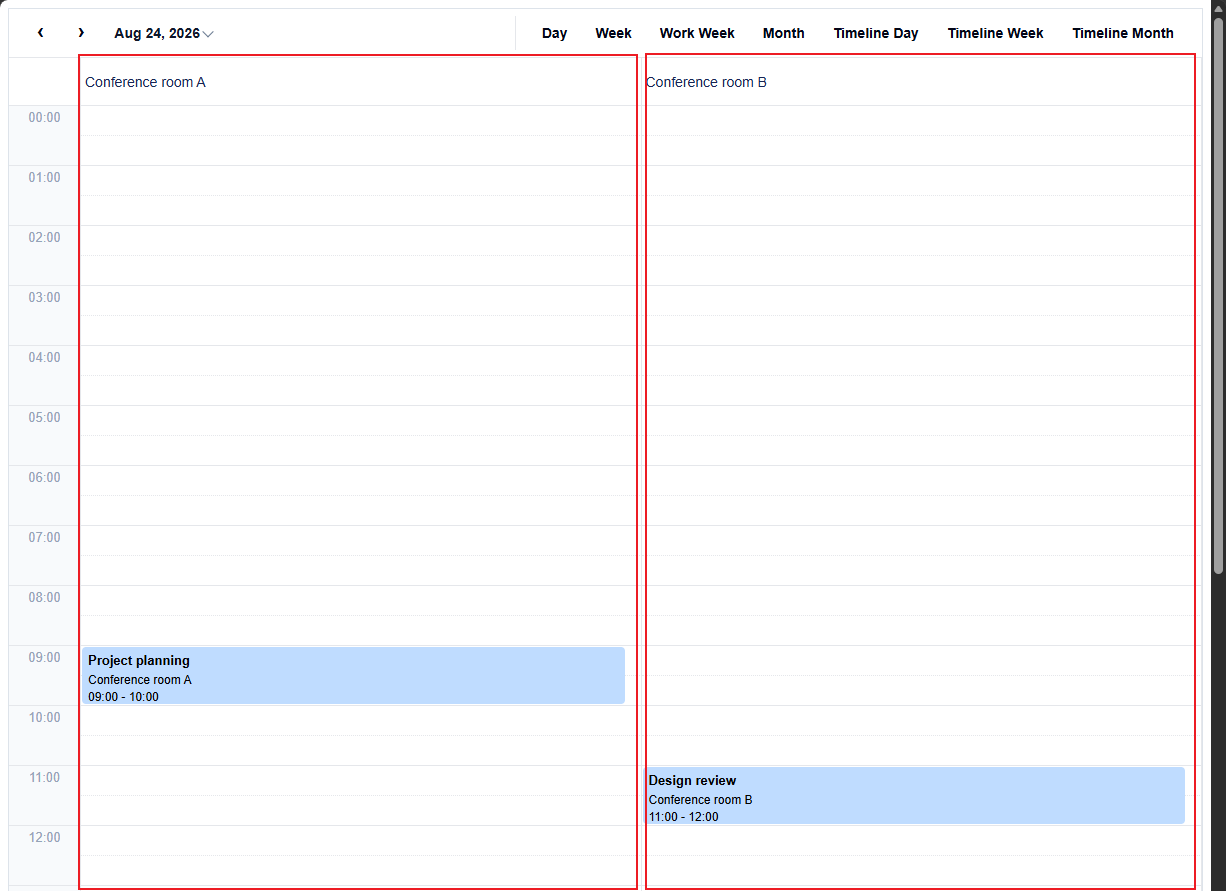
A resource lane is a separate row or column in the schedule that represents one resource value, such as a room, team, or person. Events assigned to that value are displayed in the corresponding lane.
Configuring resources makes resource values available to Scheduler, but does not create lanes by itself. To display lanes, the active definition must bind the resource field to a row or column axis. See Configure Views and Navigate the Schedule for definition.
scheduler.definition = {
  key: 'roomDay',
  rows: { bindings: [{ type: wjScheduler.SchedulerAxisBindingType.Time, unit: wjScheduler.SchedulerTimeUnit.Hour }] },
  columns: { bindings: [{ type: wjScheduler.SchedulerAxisBindingType.Resource, fieldExpr: 'roomId' }] },
  cellSemantic: wjScheduler.SchedulerCellSemantic.Timed,
};
The axis binding's fieldExpr must match the resource descriptor. An event created from a resource lane receives that lane's resource value.
Filter resource values
Filter the resource data source when the available resource values must change. This is different from filtering the event collection: resource filtering changes the available lanes, while event filtering changes the visible events. See Query, Filter, and Refresh Events for event filtering.