


- Getting Started
-
Topics
- Wijmo
- Chart
- Map
- Cloud
- Gauge
- Grid
-
Scheduler
- overview
- Create and Bind Scheduler
- Configure Event Data
- Query, Filter, and Refresh Events
- Configure Resources
- Configure Views and Navigate the Schedule
- Create Advanced Layouts
- Synchronize Scrolling
- Configure Working Time
- Configure Time Zones
- Create, Edit, and Delete Events
- Drag and Resize Events
- Detect and Handle Conflicts
- Customize Event Display and Templates
- Customize Context Menus
- Hit Testing
- Keyboard Navigation, Focus, and Selection
- Troubleshooting
- OLAP
- Input
- Nav
- Viewer
- Tutorials
Create, Edit, and Delete Events
Use the built-in editor for user-driven CRUD or update the bound collection from application code. Validate proposed changes before they are committed and persist accepted changes through the collection or service layer.
Use the built-in editor
Double-click an empty cell to create an event or an existing event to edit it. Save submits the candidate through the Scheduler CRUD lifecycle; Cancel closes the editor without changing the source item.
Editor mode | Initial values | Delete button | Example |
|---|---|---|---|
Create from a cell | Start, end, and resource values from the target cell; empty subject and description | Hidden |
|
Edit an event | Subject, start, end, description, and resource values from the source item | Visible |
|
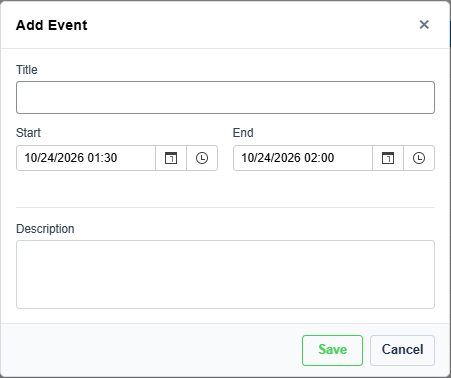
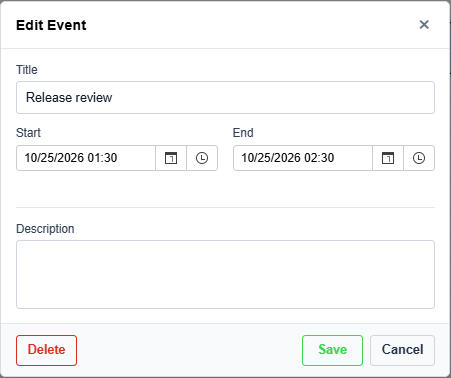
The editor requires a valid start and end, with end later than start. Subject, description, and resource values are populated from the configured event fields and resource descriptors. A missing subject uses the localized default title.
Resource fields support scalar values by default. A resource descriptor with allowMultiple: true saves its selected values as an array.
Each configured resource descriptor creates an editor resource field using its dataSource, displayExpr, and valueExpr. Its accessible name comes from label, or from the localized Resource label when label is omitted.
When Save is selected, the editor validates the values. Invalid fields are marked with localized messages, focus moves to the first invalid field, and the editor remains open until the errors are resolved. Start and end are required, and end must be later than start. A resource field accepts one value by default; when allowMultiple is omitted or false, selecting more than one value blocks the save and reports a validation error. Set allowMultiple: true to accept multiple values, which the editor then saves as an array.
Validate changes
Use itemChanging for permissions and business rules. Use conflictChecked when the application must inspect overlap or working-time conflicts before commit.
scheduler.itemChanging.addHandler((_sender, args) => {
  if (!canEdit(args.request.item)) {
    args.cancel = true;
  }
});

scheduler.conflictChecked.addHandler((_sender, args) => {
  const conflicts = args.result?.conflicts ?? [];
  if (conflicts.length > 0 && !allowConflicts) {
    args.cancel = true;
  }
});
Canceling either event leaves the bound source item unchanged and keeps the editor or interaction in its canceled state. See Detect and Handle Conflicts for conflict result details.
Persist accepted changes
itemChanged is raised after Scheduler accepts a create, update, or delete request. Use it to persist the resulting source item to the server.
The event handler is not an asynchronous transaction boundary. Scheduler does not wait for a Promise returned by an addHandler callback; the local collection change has already completed when itemChanged is raised. If edits can be submitted concurrently, use application-level request ordering or server-side version checks so responses cannot overwrite newer changes.
scheduler.itemChanged.addHandler(async (_sender, args) => {
  const item = args.result.item;
  try {
    switch (args.result.action) {
      case wjScheduler.SchedulerItemChangeAction.Create:
      case wjScheduler.SchedulerItemChangeAction.Update:
        await api.saveEvent(item);
        break;
      case wjScheduler.SchedulerItemChangeAction.Remove:
        await api.deleteEvent(item);
        break;
    }
  } catch (error) {
    await reloadEvents();
  }
});
The Scheduler does not replace server-side validation. Scheduler has already accepted the local change when itemChanged is raised. If a save fails, reload or otherwise reconcile the bound collection; this is an application-level reconciliation step, not an automatic rollback.
Create, update, and delete events programmatically
Use the Scheduler CRUD methods when the change must run through the Scheduler lifecycle. These methods raise itemChanging, run conflict detection, and raise itemChanged after the source collection is updated.
events.addNew({
  subject: 'Review',
  start: new Date(2026, 7, 24, 11),
  end: new Date(2026, 7, 24, 12),
});

if (created.item) {
  scheduler.update(created.item, { subject: 'Final review' });
  scheduler.remove(created.item);
}
To update or remove an existing event, get the source item from the collection and pass the same object reference:
const [event] = scheduler.getEvents(
  new Date(2026, 7, 24),
  new Date(2026, 7, 25)
);

if (event) {
  scheduler.update(event, { subject: 'Final review' });
  scheduler.remove(event);
}
Each method returns a result that reports whether the operation succeeded and includes the affected item.
Update the bound collection directly
Changing the bound CollectionView is appropriate when the change originates outside the Scheduler, such as a server refresh or another control. Scheduler renders the updated collection, but the Scheduler CRUD events and conflict checks do not run for that operation.
events.addNew({
  subject: 'Review',
  start: new Date(2026, 7, 24, 11),
  end: new Date(2026, 7, 24, 12),
});
events.commitNew();
Do not modify rendered event fragments directly. One source event can be rendered as several fragments in different dates or resource sections; updating the source item keeps all fragments consistent.
CRUD lifecycle
Stage | Event | Cancelable | Purpose |
|---|---|---|---|
Request starts |
| Yes | Permissions and application validation |
Candidate checked |
| Yes | Inspect and optionally reject conflicts |
Request accepted |
| No | Persist or reconcile the source collection |
itemChanging cancellation stops the request before conflict detection. conflictChecked cancellation rejects the candidate before the collection is updated. itemChanged means that the local source collection was updated successfully; it does not mean that a server save succeeded. The exact candidate and result properties are defined in the API Reference.