


Pages
Each page in a document is represented by a PdfPage object that includes references to the page content and other page attributes. DsPdfJS provides the PdfPage class so you can work with pages in a PdfDocument. To get started, add a page to your PDF document by using the newPage method. When you create a page, it's added to the collection of document pages. The collection supports standard operations such as adding, inserting, deleting, and moving pages. You can modify individual pages by setting page properties while creating a PDF document. PdfPage provides properties such as cropBox, mediaBox, and rotation.
Insert a Page
To insert an empty page in a PDF document:
Create an object of the PdfDocument class.
Use the newPage method.
Note: The examples on this page use helper functions from the Snippet Helpers module. These utilities are provided only to simplify the examples and are not part of the DsPdfJS API.
const doc = new PdfDocument();
// Adds a new blank page
const page = doc.newPage();
Get a particular Page
To get a particular page from a document:
Create an instance of the PdfPageCollection class that includes all the pages added in a PDF document.
Use the getAt method to access any particular page using its index value.
// Load an existing PDF
const doc = PdfDocument.load(await Util.loadFile("Wetlands.pdf"));

// Access the PageCollection
const pageCollection = doc.pages;

// Get the first page
const page = pageCollection.getAt(0);
Setting Header and Footer
In a DsPdfJS document, headers and footers can be added by drawing text directly on each page using the page context. By applying consistent layout and alignment, you can include elements like titles, dates, and page numbers across all pages.
Refer to the following code sample to set header and footer in a document:
// Text format for headers and footers:
const tf = new ds.Format({ fontSize: 12, foreColor: "Blue" });
// Function to add a header or footer to a page:
function drawHeaderFooter(isFooter, ctx, text, align) {
const tl = new ds.Layout({
    marginAll: 36,
    maxWidth: ctx.width,
    maxHeight: ctx.height,
    textAlignment: align,
    paragraphAlignment: isFooter ? ds.ParagraphAlignment.Far : ds.ParagraphAlignment.Near,
    runs: [ { text, format: tf } ]
});
ctx.drawLayout(tl, 0, 0);
}

// Load a PDF:
const fn = "Wetlands.pdf";
const bytes = await loadFileAsArray(`pdfs/${fn}`);
const doc = ds.PdfDocument.load(bytes);
// Add page headers and footers:
const date = new Date().toLocaleString();
for (let i = 0; i < doc.pages.count; ++i) {
const currCtx = doc.pages.getAt(i).context;
drawHeaderFooter(false, currCtx, "Headers added by DsPdfJS", ds.TextAlignment.Center);
drawHeaderFooter(false, currCtx, date, ds.TextAlignment.Leading);
drawHeaderFooter(false, currCtx, `Page ${(i + 1)} of ${doc.pages.count}`, ds.TextAlignment.Trailing);
drawHeaderFooter(true, currCtx, "Page footer - left", ds.TextAlignment.Leading);
drawHeaderFooter(true, currCtx, "Page footer - right", ds.TextAlignment.Trailing);
}
return doc;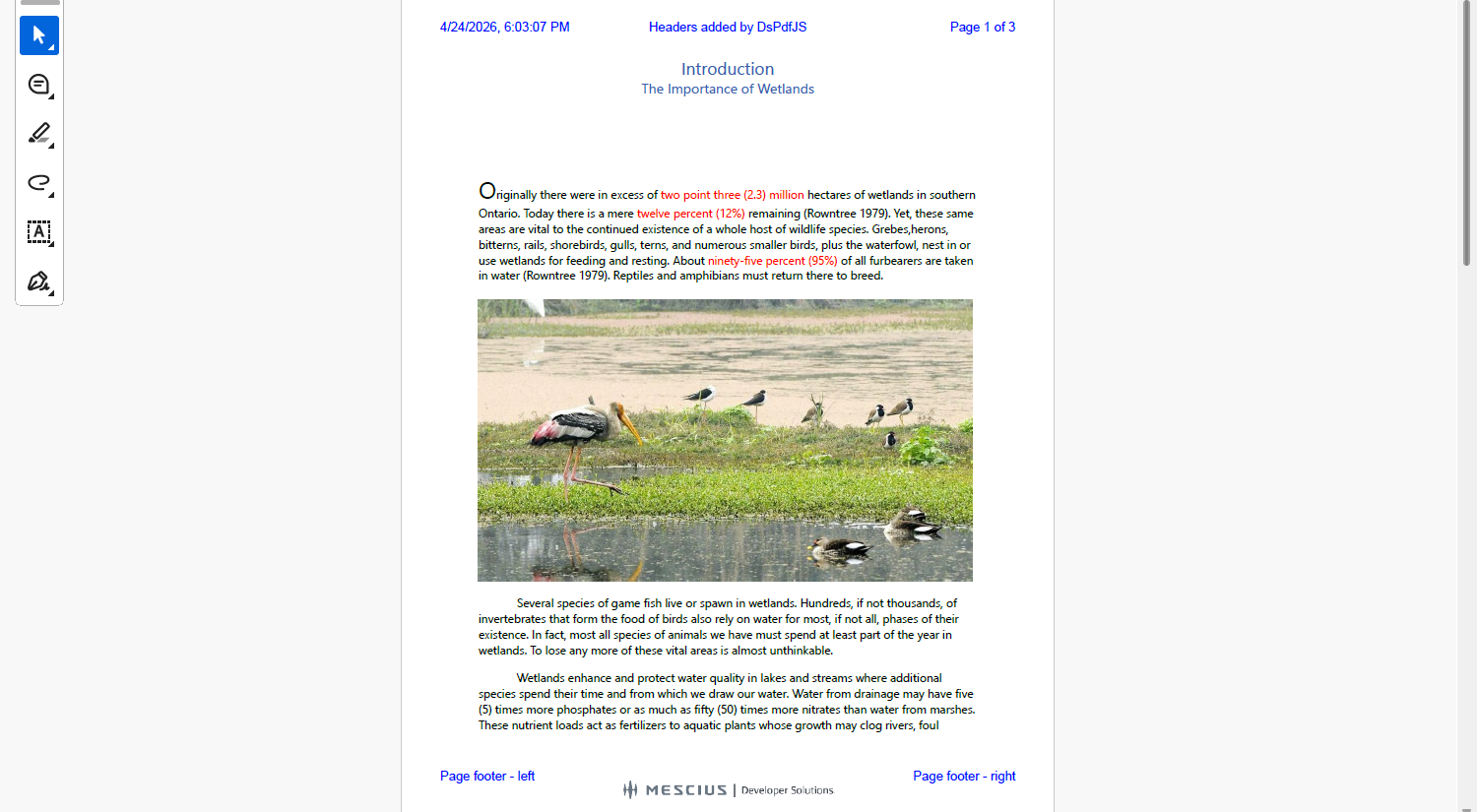
Get Page Properties
To get page properties:
Create an instance of the PageCollection class that includes all the pages added in a PDF document.
Use the getAt method to access any particular page using its index value.
Access its properties.
// Load an existing PDF
const doc = PdfDocument.load(await Util.loadFile("Wetlands.pdf"));

// Use the PageCollection object to get a particular page
const pageCollection = doc.pages;
// Get the width and height of first page
const page = pageCollection.getAt(0);
console.log(`Paper Size: ${page.width} x ${page.height}`);
Set Page Properties
To set page properties:
Create an object of the PdfDocument class.
Use the newPage method to create a blank new page.
Set its properties.
const doc = new PdfDocument();
// Adds a new blank page
const page = doc.newPage();

// Set the page property
page.rotate = 90;
Add Page Labels
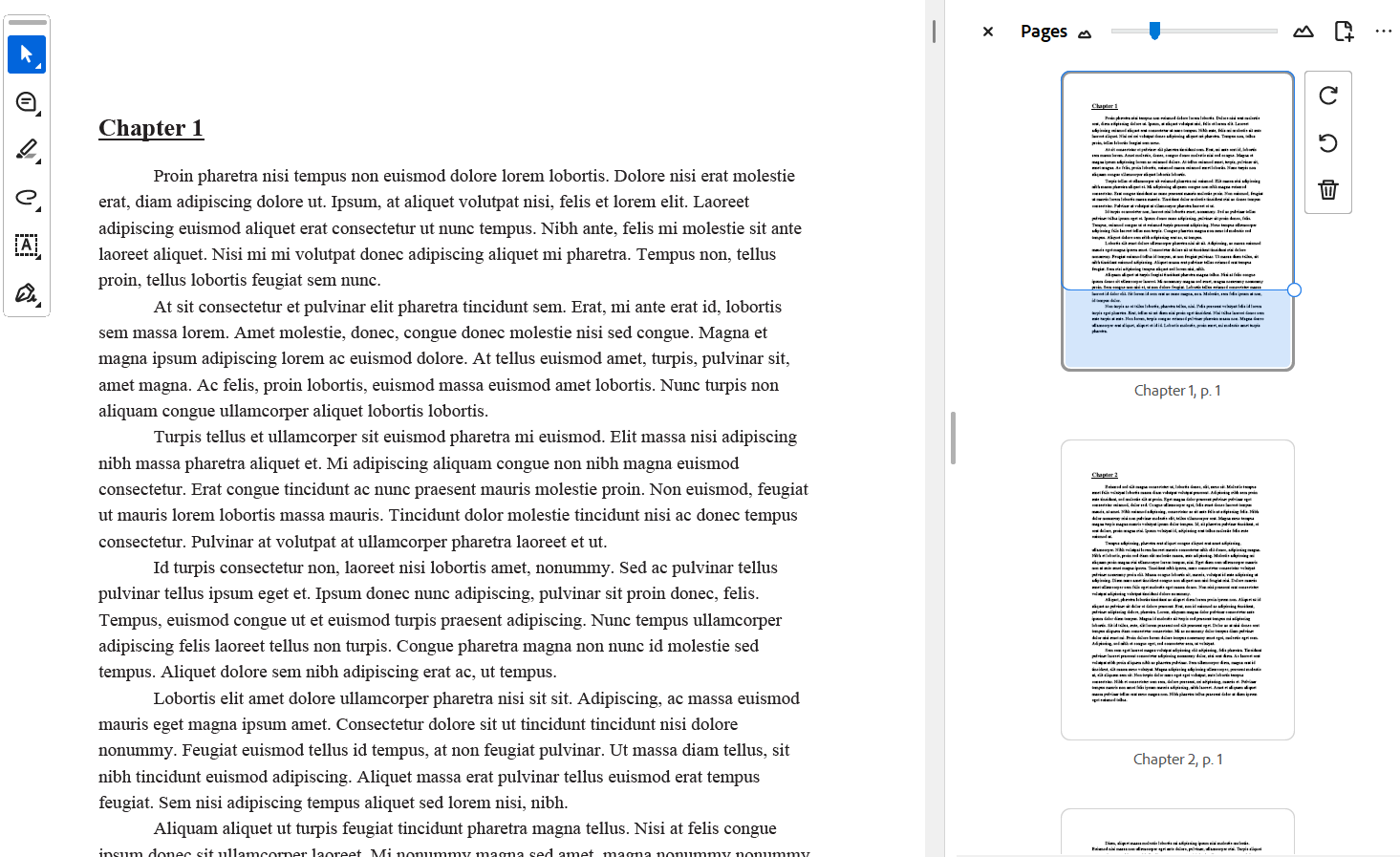
DsPdfJS allows you to define page labels with meaningful descriptions instead of simple page numbers for identifying pages in a PDF document. You can use page labels to divide a document into logically related page ranges. This is useful when a document contains different sections such as a preface, main content, or appendices.
In DsPdfJS, the PageLabelingRange class represents a page labeling range and defines the numbering style and optional prefix used for labels in that range. You can add page labeling ranges through the pageLabelingRanges property of the PdfDocument class.
Refer to the following code sample to add page labels to a document:
const nChapters = 20;
for (let i = 0; i < nChapters; i++) {
    const chapter = `Chapter ${i + 1}`;

    // All it takes to add page labels is to add a PageLabelingRange
    // associated with the index of the first page in the range,
    // and the range prefix and numbering style:
    const range = new PageLabelingRange();
    range.prefix = `${chapter}, p. `;
    range.numberingStyle = NumberingStyle.DecimalArabic;
    range.startPageNumber = 1;
    doc.pageLabelingRanges.add(doc.pages.count, range);

    // Add a new page for the chapter
    let lastPage = doc.newPage();
}
Clone a Page
DsPdfJS provides the clone method on the PageCollection class. It clones a page from a specified index in a PDF document and inserts it at a specified index in the same document. The clone method also supports two optional Boolean parameters, cloneAnnotations and cloneFields, which control whether annotations and form fields are cloned with the page.
// load PDF document
const doc = PdfDocument.load(await Util.loadFile("AddAcroFormFields.pdf"));

// Clone page at index 0 and insert it at index 1
doc.pages.clone(0, 1, true, true);
// Save the PDF document.
Util.saveFile("ClonePage.pdf", doc.savePdf());