


- SpreadJS Overview
- Getting Started
- JavaScript Frameworks
- Best Practices
-
Features
- Workbook
- Worksheet
- Rows and Columns
- Headers
-
Cells
- Work with Cells
- Cell Types
- Cell Format
- Cell States
- Cell Range
- Get Dirty Status
- Cell Buttons
- Cell Dropdowns
- Cell Comments
- Cell Threaded Comments
- Hyperlink
- Auto Merge Cells
- AutoFit
- Auto Fill Data
- Mask Input
- Shrink to Fit
- Cell Overflow
- Ellipsis or Tips for Cell Overflow
- Cell Alignment and Indentation
- Cell Padding and Label Styles
- Cell Span
- Cell Tags
- Styles
- Cell Decoration
- Cell Colors
- Cell Background Image
- Borders, Gridlines and Diagonal Lines
- Quote Prefix
- Insert Cut or Copied Cells
- Rotate Text In Cells
- Text Direction
- Text Decoration
- Rich Text
- Image Rich Data
- Wrap Text
- Drag and Drop
- Drag and Merge
- Editing
- Watermark
- Display Zero as Blank
- IME Mode
- Pattern Fill and Gradient Fill
- Paste Options
- Data Binding
- Data Manager
- TableSheet
- GanttSheet
- ReportSheet
- Data Charts
- JSON Schema with SpreadJS
- SpreadJS File Format
- Data Validation
- Conditional Formatting
- Sort
- Group
- Formulas
- What-If Analysis
- Serialization
- Keyboard Actions
- Shapes
- Floating Objects
- Barcodes
- Charts
- Sparklines
- Tables
- Pivot Table
- Slicer
- Theme
- User Management
- Culture
- AI Assistant
- SpreadJS Designer
- SpreadJS Designer VSCode Plugin
- Tutorials
- SpreadJS Designer Component
- SpreadJS Collaboration Server
- Touch Support
- Formula Reference
- Import and Export Reference
- Events
- API Documentation
- Release Notes
Image Rich Data
Image Rich Data is a cell value type that stores images as structured data.
Unlike picture shapes or background images, image rich data is stored directly as the cell’s value. Because it is treated as data rather than a visual object, it participates in worksheet operations such as sorting, filtering, formulas, search, and PivotTables.
Image rich data is designed for scenarios where images are part of the dataset and must behave consistently with other cell values.
Data Structure
Image Rich Data is a concrete implementation of the IRichData interface. To store an image in a cell, the value must include a type discriminator and a value payload.
The structure is:
{
    richDataType: "Image",
    value: {
        src: string,
        imageBase64Data?: string,
        altText?: string,
        drawType?: number,
        width?: number,
        height?: number,
        clipX?: number,
        clipY?: number,
        clipWidth?: number,
        clipHeight?: number,
        vAlign?: number,
        hAlign?: number
    }
}richDataTypemust be set to"Image".valuecontains the image source and optional layout or clipping settings.
The altText property is used as the primary comparison key in sorting, filtering, searching, and logical comparison operations.
Example
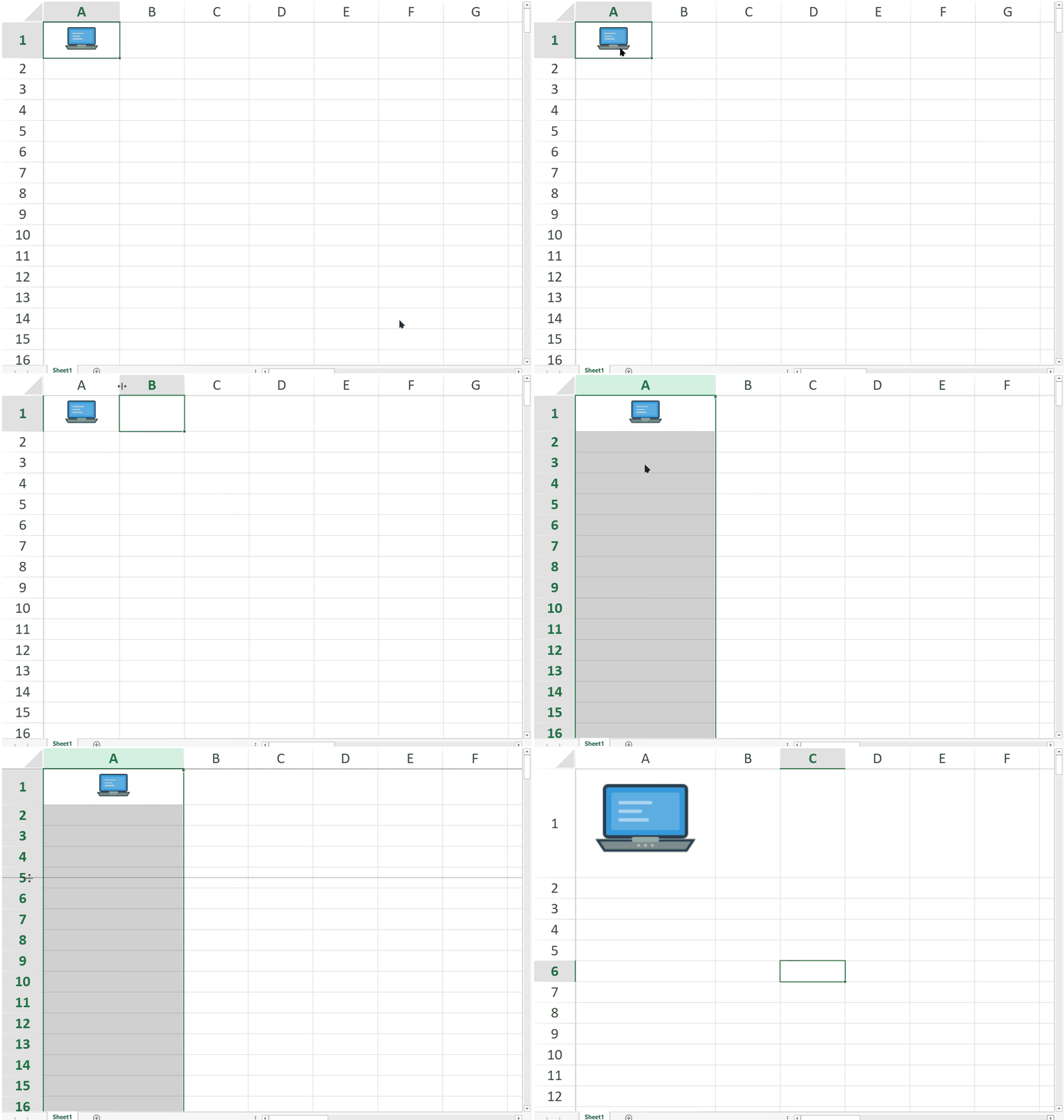
You can create Image Rich Data by assigning an object that conforms to the IImageRichData structure using sheet.setValue.
var sheet = spread.getActiveSheet();
sheet.setValue(0, 0, {
    richDataType: "Image",   // Identifies the value as Image Rich Data
    value: {
        src: "https://example.com/product.png",  // Image URL
        altText: "Laptop Pro",                   // Used for sorting, filtering, and search, and logical comparison operations
        drawType: 0,                             // Keep aspect ratio and fit within the cell
        vAlign: 1,                               // Vertically center the image
        hAlign: 1                                // Horizontally center the image
    }
});
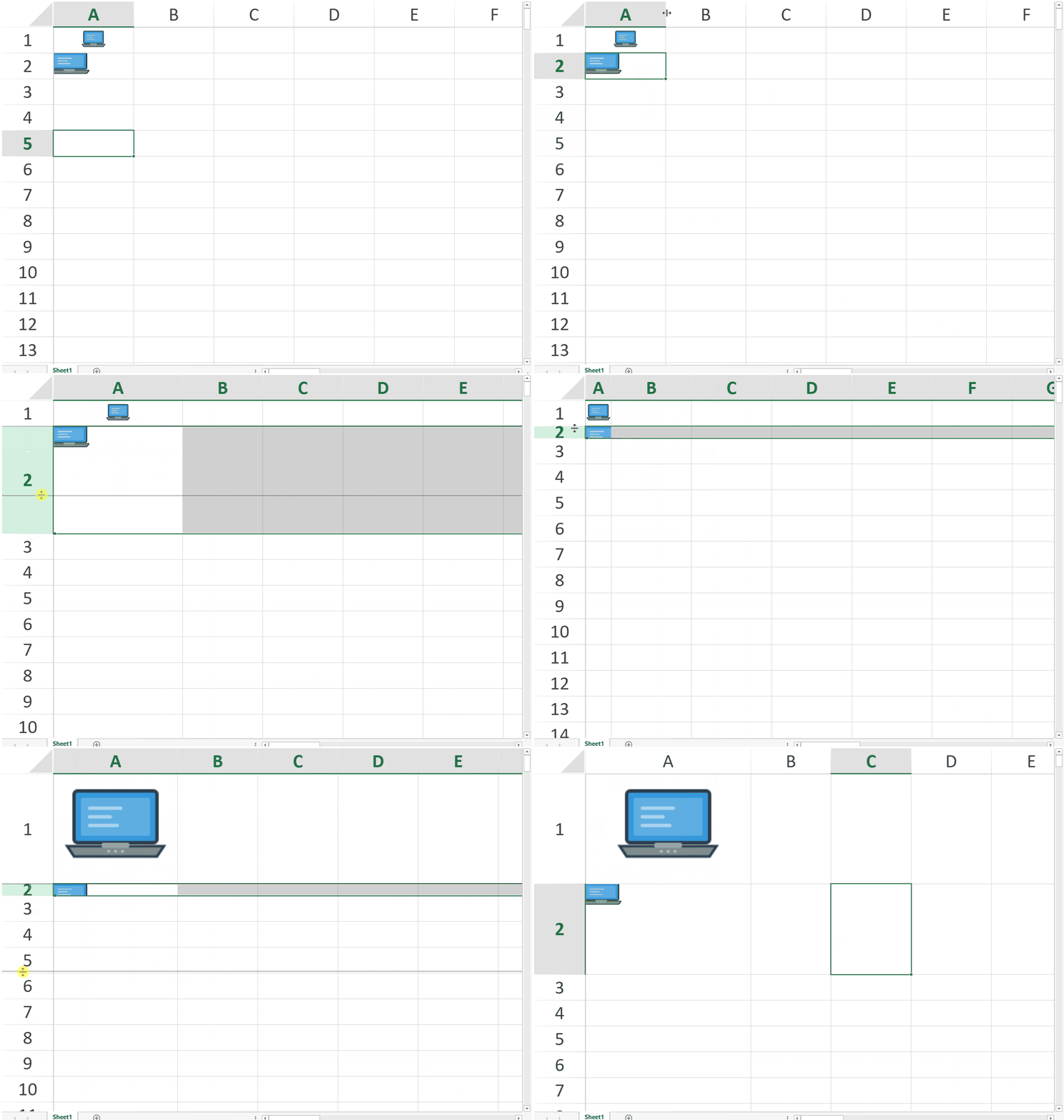
You can also use custom sizing and clipping options:
sheet.setValue(1, 0, {
    richDataType: "Image",
    value: {
        src: "https://example.com/product.png",
        altText: "Laptop Pro (Cropped)",
        drawType: 3,      // Enable custom size mode
        width: 80,        // Custom width (pixels)
        height: 60,       // Custom height (pixels)
        clipX: 20,        // Start X position of the clipped region
        clipY: 20,        // Start Y position of the clipped region
        clipWidth: 100,   // Width of the clipped region
        clipHeight: 100   // Height of the clipped region
    }
});
For complete property definitions and enum values, see the IRichData and IImageRichData API reference.
Behavioral Semantics
Type Participation
Image Rich Data:
Is treated as a first-class cell value type
Can be stored in ranges and tables
Can be referenced in formulas
Can appear in PivotTable data sources
It is not treated as a Shape object.
Sorting Semantics
Sorting behavior follows these rules:
Image Rich Data is ordered consistently with Excel when compared against primitive types.
When comparing two Image Rich Data values, ordering is primarily determined by the
altTextproperty.
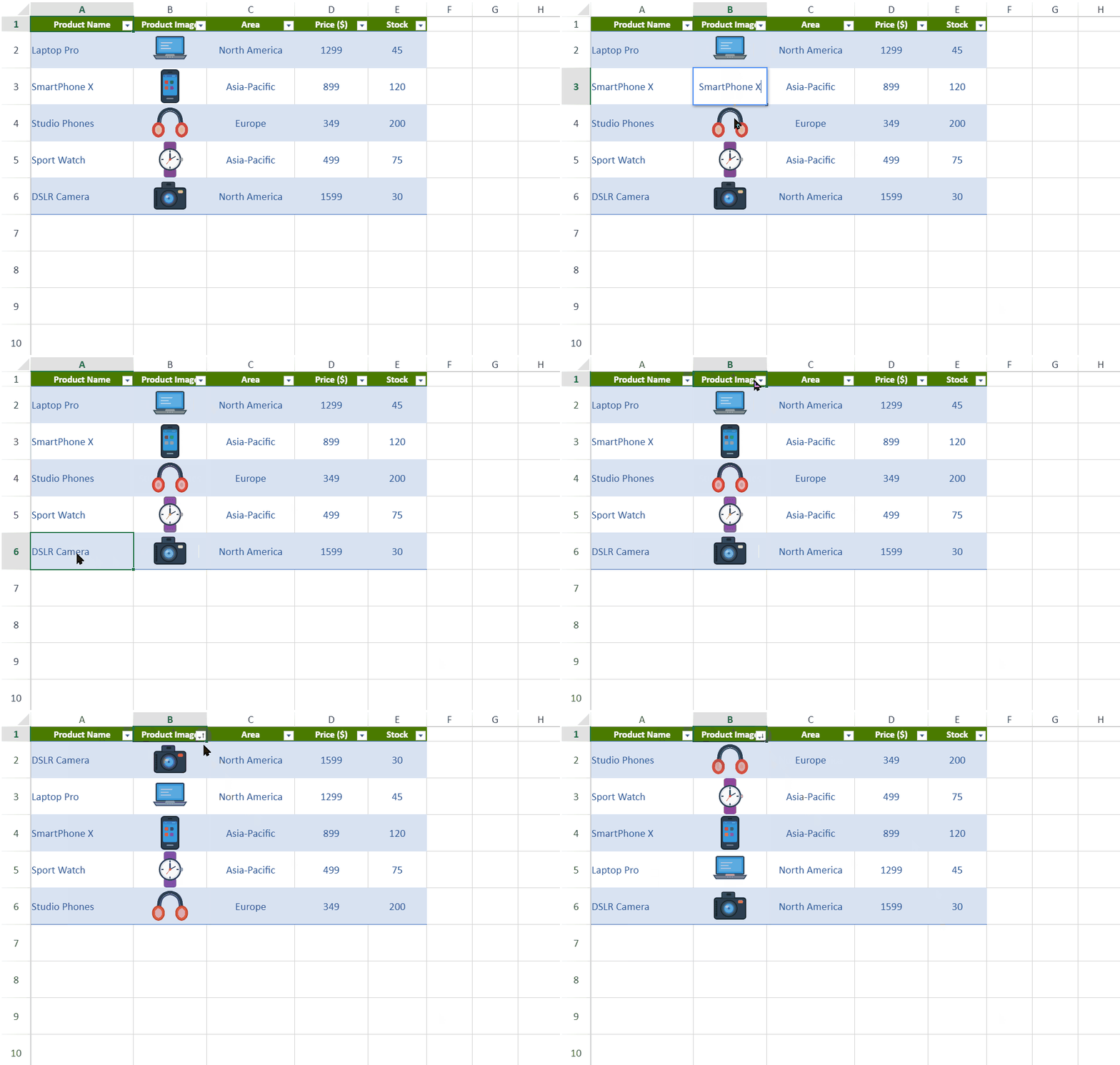
Notes:
If two values have identical
altText, sorting behavior may differ from Microsoft Excel.Because Excel does not provide publicly documented comparison rules for cell images, full behavioral equivalence cannot be guaranteed.
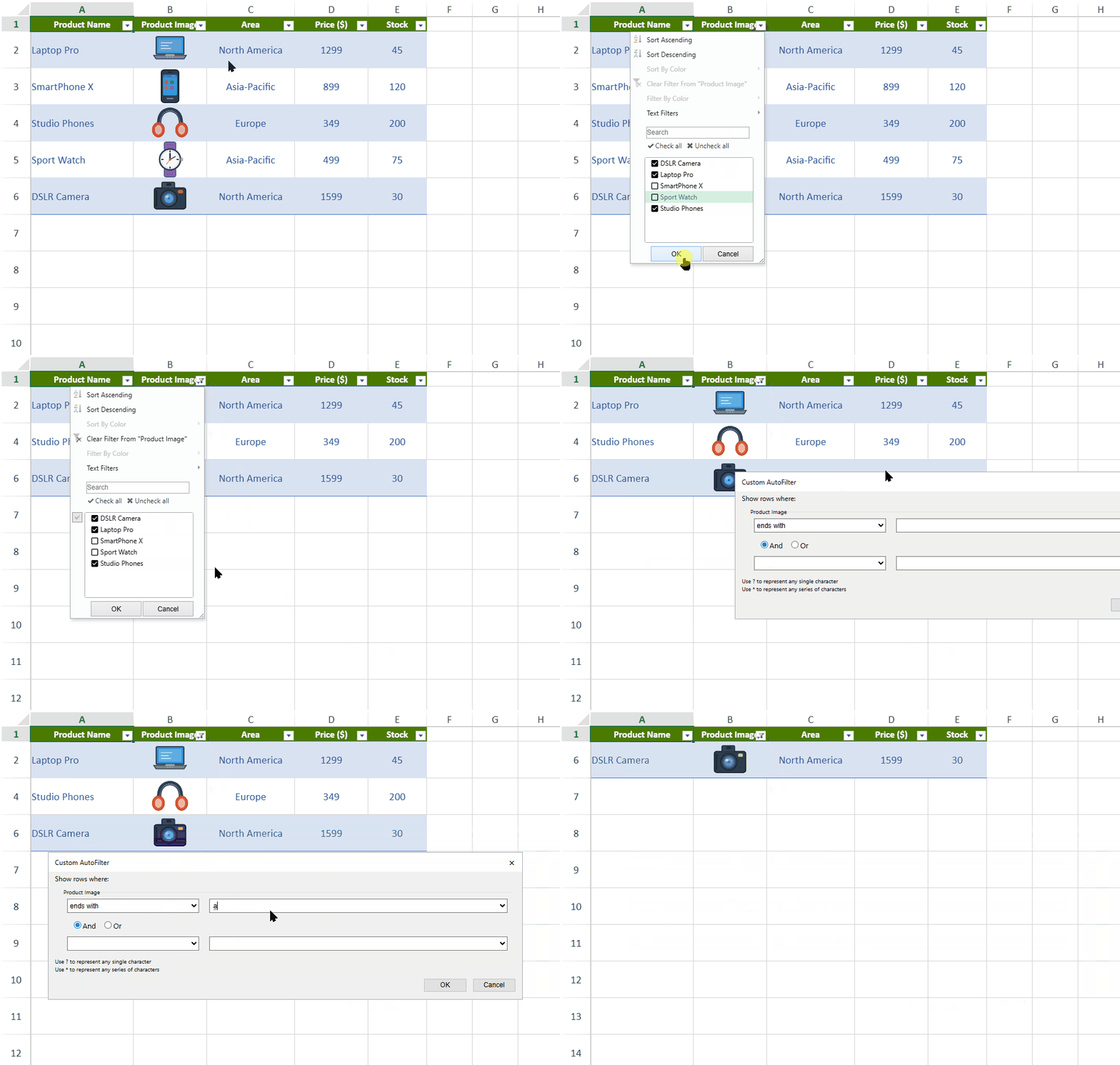
Filtering Semantics
Filtering operations evaluate Image Rich Data using the altText property.
Search Semantics
Search operations evaluate Image Rich Data using the altText property.
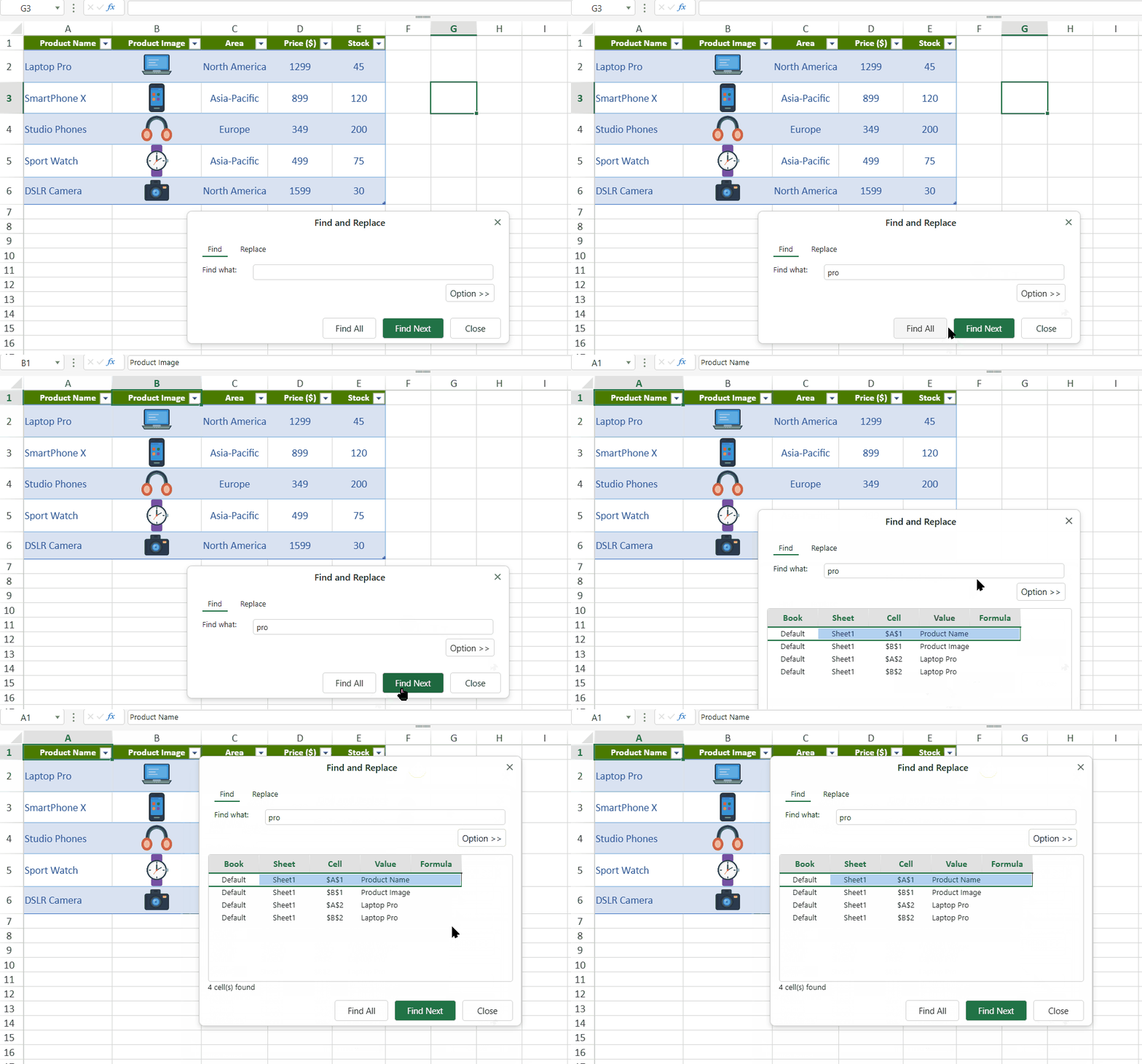
Formula Semantics
Image Rich Data can be used in:
Lookup and reference functions (such as
VLOOKUP,XLOOKUP,INDEX,MATCH)Dynamic array functions (such as
SORT,UNIQUE,FILTER)Logical comparison operators (
=,<>)Counting functions such as
COUNTandCOUNTACriteria parameters in functions such as
SUMIFandSUMIFS
Most mathematical and statistical functions do not support Image Rich Data.
Unsupported operations may return #VALUE! or produce results that differ from Excel.
Example Scenarios
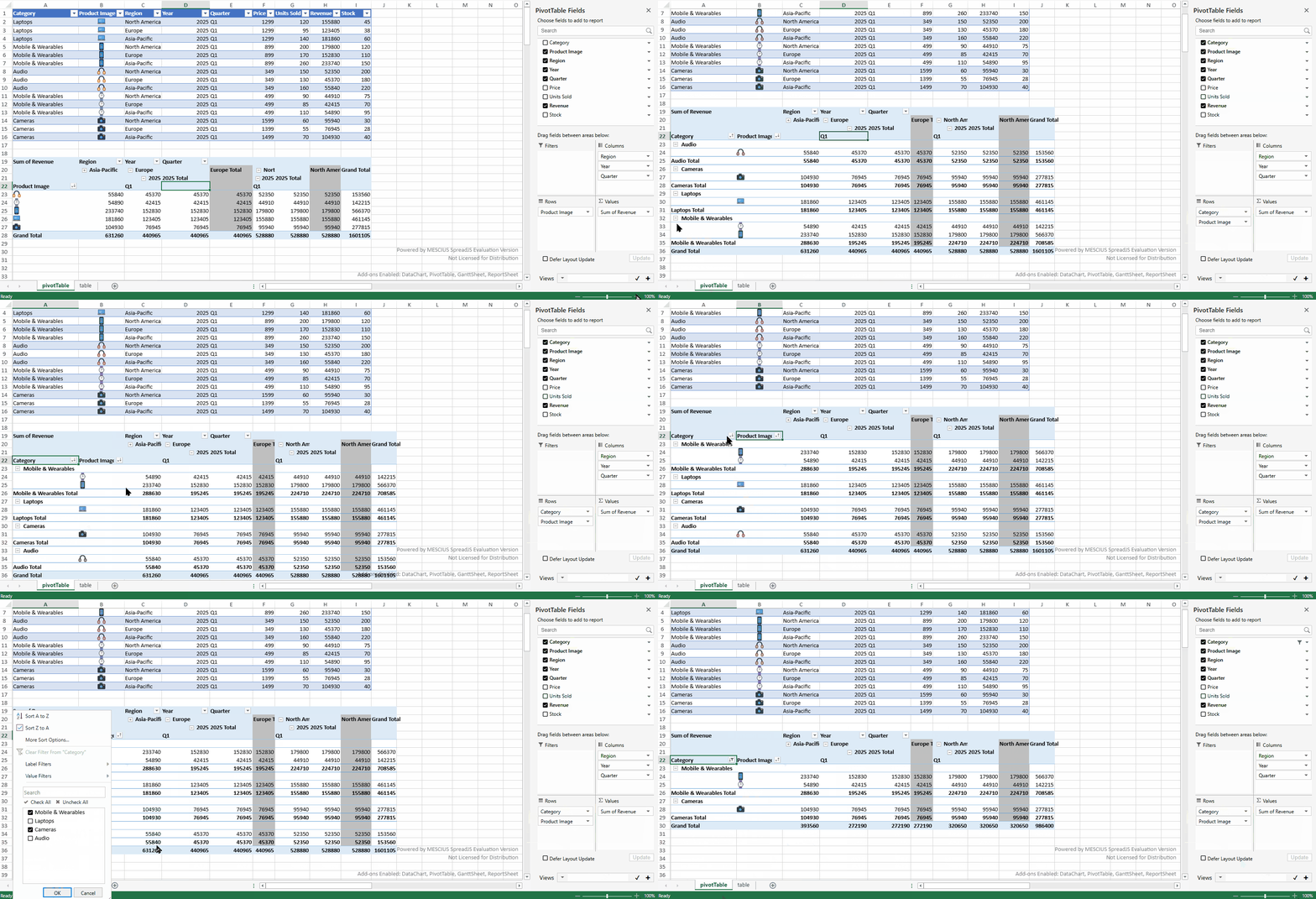
Example 1: Using Image Rich Data in a PivotTable
If a column contains Image Rich Data values with different altText values, the column can be used as a PivotTable field.
When creating a PivotTable from this range:
The images appear as field items.
Grouping and filtering are based on
altText.Sorting follows the same semantics described in the Sorting section.
No additional configuration is required.
Example 2: Using Image Rich Data in Conditional Formatting
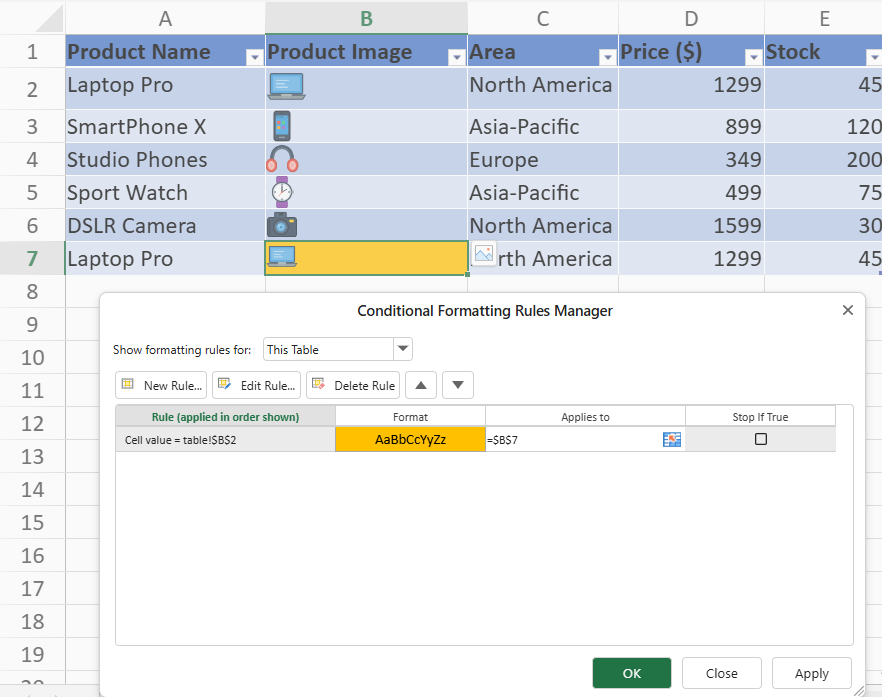
Image Rich Data can be used in conditional formatting rules that rely on logical comparison.
For example:
=B7="Laptop Pro"If cell B7 contains Image Rich Data whose altText is "Laptop Pro", the condition evaluates to TRUE.
Conditional formatting rules evaluate Image Rich Data using the altText property.
Example 3: Lookup with Image Rich Data
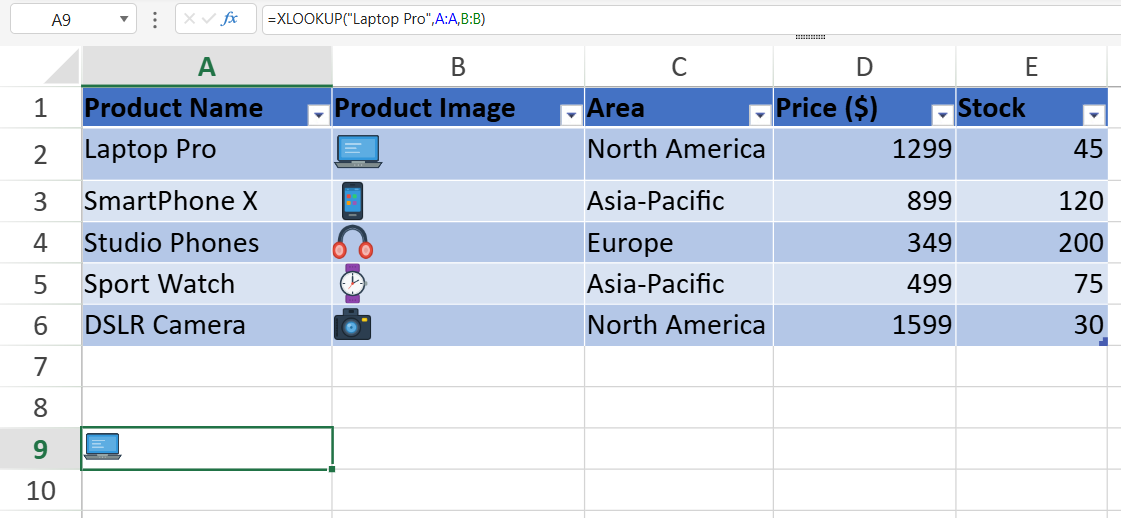
Image Rich Data can participate in lookup operations.
=XLOOKUP("Laptop Pro", A:A, B:B)If column A contains Image Rich Data with matching altText, the corresponding value in column B is returned.
Inserting Images in the Designer
You can insert images into cells using the SpreadJS Designer.
For detailed instructions about inserting and converting pictures in the Designer, see Insert Pictures in the Designer.
Import and Export Behavior
Excel Import (.xlsx)
Excel cell images are imported as Image Rich Data.
They are no longer mapped to
SparklineEx.
Import/export behavior for SparklineEx in .sjs and .ssjson formats is unchanged.
Excel Export
SVG images may cause errors when exporting to Excel.
No automatic validation or format conversion is performed at the API layer.
In the Designer, SVG images inserted using Place in Cell are converted to PNG before storage.
Clipboard Limitations
Cells containing images copied from Excel Desktop cannot be pasted into SpreadJS.
Excel places HTML clipboard data with <img src="file:///..."> references to local files.
Browsers cannot access local file paths, so SpreadJS cannot retrieve the image data.
This behavior is consistent with Excel Online.
Platform Limitations
Image Rich Data is not supported in:
Data Manager
TableSheet
GanttSheet
If a table containing Image Rich Data is converted using Convert to Data Table, the image values are discarded.
Related Features
Image Rich Data differs from:
IMAGE() Function (formula-generated image values)
Cell background images (visual only)
Picture Shape (Place over Cells)
Picture Shapes and Image Rich Data can be converted between each other in the Designer.
For details, see Insert Pictures in Designer.
Alt Text Behavior
Image Rich Data contains its own altText property used to describe the image content.
This alt text is consistent with Excel behavior.
It can be displayed in the Formula Bar.
It can be edited in the Alt Text panel.
This property is independent from the cell alternative text set using CellRange.altText().
The
altTextin Image Rich Data describes the image value itself.The cell-level alternative text in SpreadJS is a separate property and does not affect the image value.