


- SpreadJS Overview
- Getting Started
- JavaScript Frameworks
- Best Practices
-
Features
- Workbook
- Worksheet
- Rows and Columns
- Headers
-
Cells
- Work with Cells
- Cell Types
- Cell Format
- Cell States
- Cell Range
- Get Dirty Status
- Cell Buttons
- Cell Dropdowns
- Cell Comments
- Cell Threaded Comments
- Hyperlink
- Auto Merge Cells
- AutoFit
- Auto Fill Data
- Mask Input
- Shrink to Fit
- Cell Overflow
- Ellipsis or Tips for Cell Overflow
- Cell Alignment and Indentation
- Cell Padding and Label Styles
- Cell Span
- Cell Tags
- Styles
- Cell Decoration
- Cell Colors
- Cell Background Image
- Borders, Gridlines and Diagonal Lines
- Quote Prefix
- Insert Cut or Copied Cells
- Rotate Text In Cells
- Text Direction
- Text Decoration
- Rich Text
- Image Rich Data
- Wrap Text
- Drag and Drop
- Drag and Merge
- Editing
- Watermark
- Display Zero as Blank
- IME Mode
- Pattern Fill and Gradient Fill
- Paste Options
- Data Binding
- Data Manager
- TableSheet
- GanttSheet
- ReportSheet
- Data Charts
- JSON Schema with SpreadJS
- SpreadJS File Format
- Data Validation
- Conditional Formatting
- Sort
- Group
- Formulas
- What-If Analysis
- Serialization
- Keyboard Actions
- Shapes
- Floating Objects
- Barcodes
- Charts
- Sparklines
- Tables
- Pivot Table
- Slicer
- Theme
- User Management
- Culture
- AI Assistant
- SpreadJS Designer
- SpreadJS Designer VSCode Plugin
- Tutorials
- SpreadJS Designer Component
- SpreadJS Collaboration Server
- Touch Support
- Formula Reference
- Import and Export Reference
- Events
- API Documentation
- Release Notes
Cell Alignment and Indentation
SpreadJS provides flexible options for aligning and indenting text within cells.
Alignment and indentation can be set programmatically through the API (using methods such as hAlign, vAlign, and textIndent) or visually in the Designer.
These features give you full control over how cell content is positioned and displayed.
You can specify the horizontal alignment using the hAlign method.

Horizontal Alignment Type | Description |
|---|---|
General | Aligns text automatically based on cell content type. |
Left | Aligns content to the left edge of the cell. |
Center | Centers content horizontally within the cell. |
Right | Aligns content to the right edge of the cell. |
Center Across Selection | Centers content across the selected range without merging cells. |
Distributed | Evenly distributes characters across the cell width. |
Justify | Adjusts spacing so that text lines align with both left and right edges. |
You can specify the vertical alignment using the vAlign method.

Vertical Alignment Type | Description |
|---|---|
Top | Aligns content to the top edge of the cell. |
Center | Centers content vertically within the cell. |
Bottom | Aligns content to the bottom edge of the cell. |
Justify | Adjusts line spacing so text fills the cell height evenly. |
Center Across Selection Alignment
SpreadJS provides the "Center Across Selection" horizontal alignment which helps to center the contents of selected cells across columns without merging the cells. This type of horizontal alignment can be set using the HorizontalAlign.centerContinuous enumeration option.

The following table shows the different behavior observed when using the "Center Across Selection" horizontal alignment:
Behavior | Example |
|---|---|
When a range is set to the alignment, each cell will keep looking to the right for successive empty value cells, and finally place its contents in the center of all cells. |
|
If a value is entered into the selected range later, the selection and centering are updated to exclude that cell onward. |
|
The selection always starts from the formatted cell. So if selection extends from the left of the cell, those cells are not included. |
|
The centering is adjusted as columns are resized. |
|
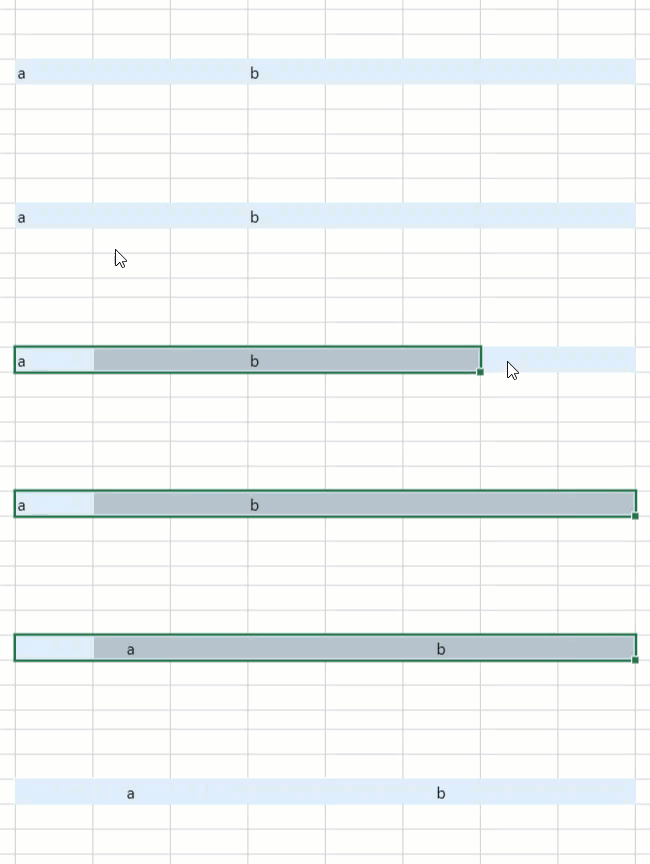



The following code sample implements the "Center Across Selection" horizontal alignment in a worksheet.
activeSheet.getCell(1,1).value("Center Across Selection");
activeSheet.getRange(1, 1, 1, 5, GC.Spread.Sheets.SheetArea.viewport).hAlign(GC.Spread.Sheets.HorizontalAlign.centerContinuous);
The "Center Across Selection" horizontal alignment interacts with other features of SpreadJS in the following ways:
Overflow - If the content in the "Center Across Selection" alignment exceeds the width of the selected range, an overflow to both sides will be triggered.
Wrap text - The row height property will force cells to wrap text within the boundaries of "Center Across Selection" regions.
Shrink to fit - If the option is selected, then the width property will be used to calculate the actual font size and fit the content in the selected range.
Accounting number format - "Center Across Selection" does not directly center the text, but stretches the symbols and values to the sides.
Text indent - "Center Across Selection" will lock indent to 0.
Orientation - "Center Across Selection" will lock orientation to 0.
Merged cells - A merged cell can't use the center across selection style. "Center Across Selection" will be replaced with "Center" if the cell is merged.
Distributed Horizontal Alignment
In SpreadJS, the Distributed horizontal alignment distributes the text evenly across the width of the cell. The Distributed option is the combination of center alignment and wrap text.
With Distributed horizontal alignment, each word in every line of text is aligned evenly across the width of the cell and both the left and right sides of the cell are padded when the indent value is applied.
Hence, when you apply the Distributed option along with the indent value, both margins are aligned with both edges of each line. This type of horizontal alignment can be set using the HorizontalAlign.distributed enumeration option.
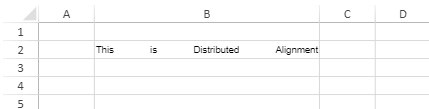
The following code sample implements the “Distributed” horizontal alignment in a worksheet.
style.hAlign = GC.Spread.Sheets.HorizontalAlign.distributed;
activeSheet.setStyle(1, 1, style, GC.Spread.Sheets.SheetArea.viewport);
activeSheet.getCell(1, 1).value("This is Distributed Alignment");
The “Distributed” horizontal alignment interacts with other features of SpreadJS in the following ways:
Wrap text- With "Distributed" aligned content, the wrap text feature is automatically implemented, so setting its value separately makes no difference.
Shrink to fit - Distributed alignment deactivates this option.
Text indent - In "Distributed" aligned content, both the left and right sides of the cell are indented.
Justify Last Line - Distributed alignment deactivates this option.
Show Ellipsis - Distributed alignment deactivates this option.
Justify Alignment
The Justify Alignment Feature provides users with both horizontal and vertical justify alignment, ensuring that text is evenly distributed across the width and height of a cell.
By automatically enabling text wrapping and adjusting spacing between words and lines, justify alignment helps users achieve professional, neatly formatted documents with minimal manual adjustments.
The following figure and table describe how the justification behaves horizontally and vertically in different layout conditions.

Text Direction | Behavior Description | Visual Example |
|---|---|---|
Horizontal |
|
|
Vertical |
|
|
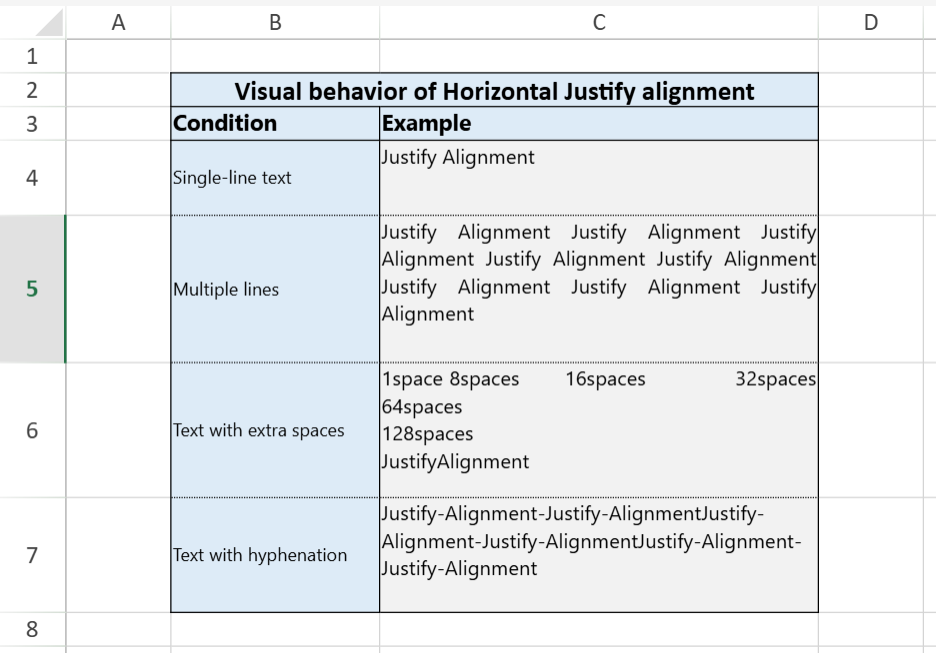
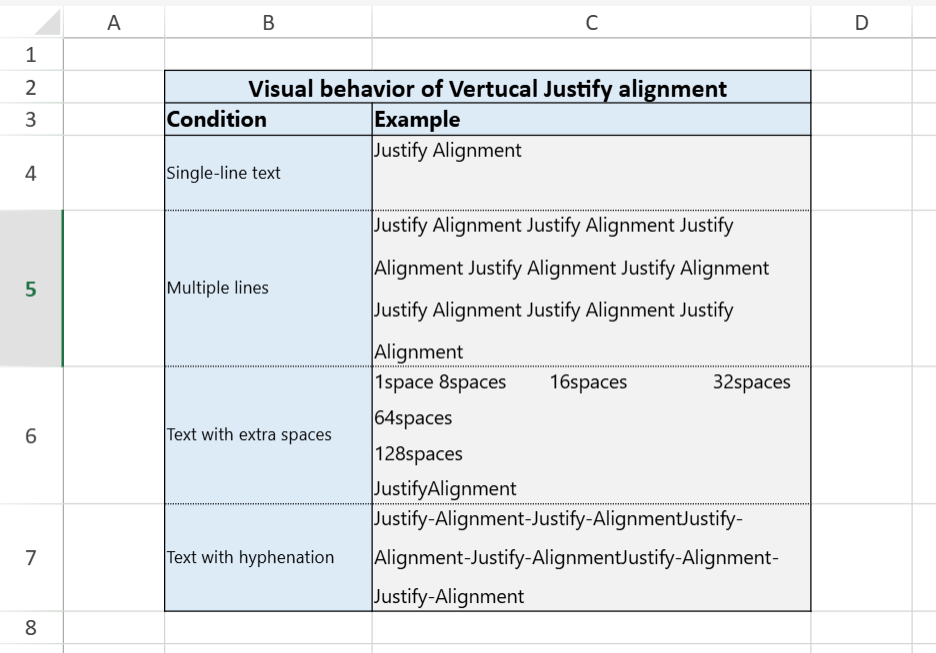
Usage Instructions
var style = new GC.Spread.Sheets.Style();
style.hAlign = GC.Spread.Sheets.HorizontalAlign.justify;
style.vAlign = GC.Spread.Sheets.VerticalAlign.justify;
activeSheet.setStyle(1, 1, style, GC.Spread.Sheets.SheetArea.viewport);
activeSheet.getCell(1, 1).value("Justified paragraph demonstration.");
The following table describes how the Justify alignment interacts with other layout features, such as automatic text wrapping, merged cells, and text orientation.
Related Feature | Interaction Details |
|---|---|
Automatic Text Wrapping |
|
Merged Cell Compatibility | The Justify alignment automatically adapts to the merged cell’s combined width and height, maintaining even text distribution across the enlarged area. |
Text Orientation |
|
Shrink to Fit |
|
Show Ellipsis | The “Show Ellipsis” option is ignored when justify alignment is enabled. |
Rich Text |
|
Indent | Indentation is ignored when horizontal alignment is set to Justify |
The following figures illustrate how Justify alignment behaves in merged cells and under different text orientations.


The following figure compares how Justify alignment affects rich text with different formatting types—including underlines, strikethroughs, lists, and superscripts/subscripts—against the default Top Left alignment.

Using SpreadJS Designer
You can use alignment and indentation features by accessing the Alignment tab in the Format Cells window. Click the "HOME" tab > "Alignment" group > bottom right arrow button to open the "Format Cells" window.
