


- SpreadJS Overview
- Getting Started
- JavaScript Frameworks
- Best Practices
-
Features
- Workbook
- Worksheet
- Rows and Columns
- Headers
- Cells
- Data Binding
- Data Manager
- TableSheet
-
GanttSheet
- Create GanttSheet
- Data Manager
- Add Hierarchy Types
- Gantt Chart Components
- Task Properties
- CRUD Operations
- Task Operations
- Non-Working Time
- Table Themes
- Taskbar Styles
- Task Layout
- Gridlines
- Progress Line
- Zoom
- Scroll
- Timescale Range and Auto Fit
- Splitter Handle
- Context Menu
- Sort
- Calendar Settings
- GanttSheet IO
- Resource and Assignment
- ReportSheet
- Data Charts
- JSON Schema with SpreadJS
- SpreadJS File Format
- Data Validation
- Conditional Formatting
- Sort
- Group
- Formulas
- What-If Analysis
- Serialization
- Keyboard Actions
- Shapes
- Floating Objects
- Barcodes
- Charts
- Sparklines
- Tables
- Pivot Table
- Slicer
- Theme
- User Management
- Culture
- AI Assistant
- SpreadJS Designer
- SpreadJS Designer VSCode Plugin
- Tutorials
- SpreadJS Designer Component
- SpreadJS Collaboration Server
- Touch Support
- Formula Reference
- Import and Export Reference
- Events
- API Documentation
- Release Notes
Progress Line
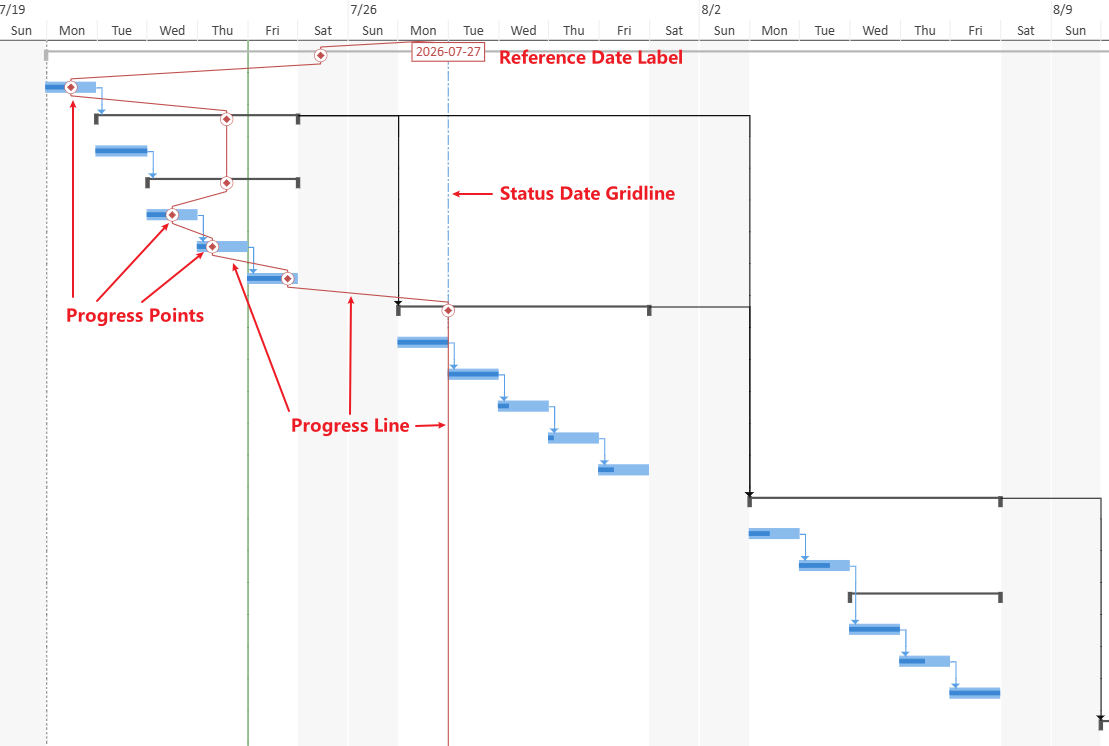
The Progress Line is an analytical overlay drawn on the Gantt chart. It helps you compare task progress against a selected project reference date.
A Progress Line is generated from the following parts:
a project-level reference date
a reference-date anchor in the timescale
progress points generated from eligible tasks
a path that connects the progress points
an optional date label
The Progress Line is configured independently from Gantt gridlines, although it can use the same project date as the Status Date gridline.
Status Date
The Status Date is a project-level date used as a status-reporting reference date.
It can be used by:
the Status Date gridline
the Progress Line, when the Progress Line reference date is set to the project status date
// Set the project status date.
ganttSheet.project.statusDate = new Date(2026, 0, 27);
Status Date Gridline
The Status Date gridline is an optional gridline that marks the project status date in the Gantt chart.
The Status Date gridline belongs to the gridline system and is configured separately from the Progress Line. It follows the same configuration pattern as other Gantt gridlines, such as the Current Date gridline.
When displayed, the Status Date gridline is drawn at the right edge of the timescale cell that contains the status date. This position is aligned with the Progress Line reference-date anchor when the Progress Line uses the project status date.
ganttSheet.gridlines.statusDate = {
    lineType: GC.Spread.Sheets.GanttSheet.GanttGridlineType.dashDot,
    lineColor: "#5B9BD5"
};
For more information about gridline configuration, see Gridlines.
Reference Date
The Progress Line uses one project-level reference date at a time. The reference date determines the date against which task progress is compared.
The reference date can be one of the following:
Project status date
Project current date
When the Progress Line uses the project status date, it references project.statusDate.
When it uses the project current date, it references project.currentDate.
The project current date always has an effective value. If it is not explicitly set, the current system date is used. If the Progress Line is set to use the project status date but project.statusDate is not set, the Progress Line falls back to the project current date as its effective reference date.
// Set the project status date.
ganttSheet.project.statusDate = new Date(2026, 0, 27);

// Display the Progress Line at the project status date.
ganttSheet.progressLine = {
    display: true,
    referenceDate: "statusDate"
};
Reference-Date Anchor
The Progress Line uses its own reference-date anchor for path generation and return behavior.
The reference-date anchor is positioned at the right edge of the timescale cell that contains the active reference date. This rule applies to both reference date modes:
When the reference date is the project status date, the anchor is placed at the right edge of the status date cell.
When the reference date is the project current date, the anchor is placed at the right edge of the current date cell.
This anchor is part of the Progress Line overlay. It is not the same object as a gridline.
For example, the Current Date gridline is drawn at the left edge of the corresponding timescale cell, while the Progress Line anchor for the current date is drawn at the right edge of that cell. Therefore, they may not appear at the same horizontal position.
Progress Points
A progress point represents how far progress has been made for an eligible task.
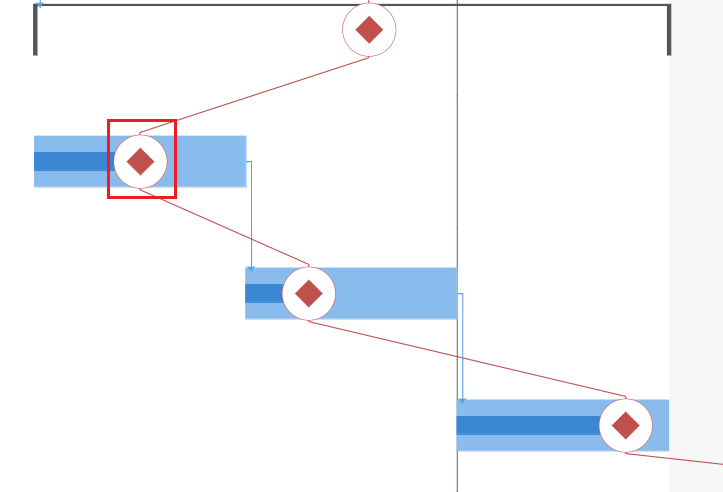
Each eligible task contributes at most one progress point to the Progress Line. An eligible task is a task that has a drawable task bar and can produce a drawable progress point in the Gantt chart.
A progress point is derived from the task’s:
start date
finish date
percent complete
The effective date of a progress point is equivalent to the task’s “complete through” position.
Tasks that start on or after the reference date do not contribute a progress point. Tasks that finish on or before the reference date contribute a progress point only when they are not 100% complete. Tasks that cross the reference date contribute a progress point, and the point does not extend beyond the reference date.
For a summary task that crosses the reference date, the progress point is calculated from the progress of its non-summary, non-milestone descendant tasks up to the reference date.
Path Type
The Progress Line path type controls how the line is routed across progress points and the reference-date anchor.
A path type is determined by two behaviors:
whether the line returns to the reference-date anchor after each progress point
whether the connecting segments use diagonal or orthogonal connections
The built-in path types combine these behaviors.
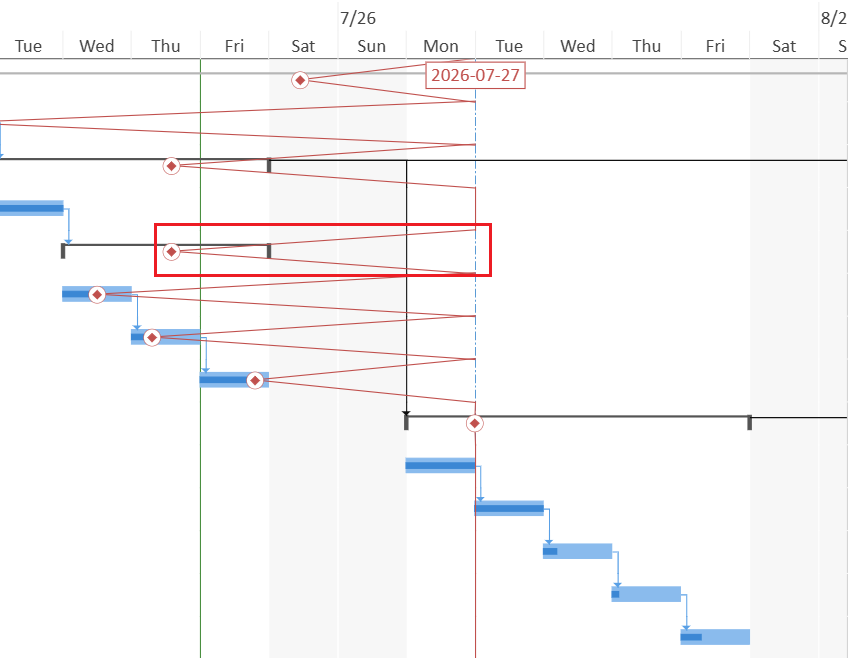
Return to Reference Date with Diagonal Connections
The line connects each progress point and returns to the reference-date anchor using diagonal segments.
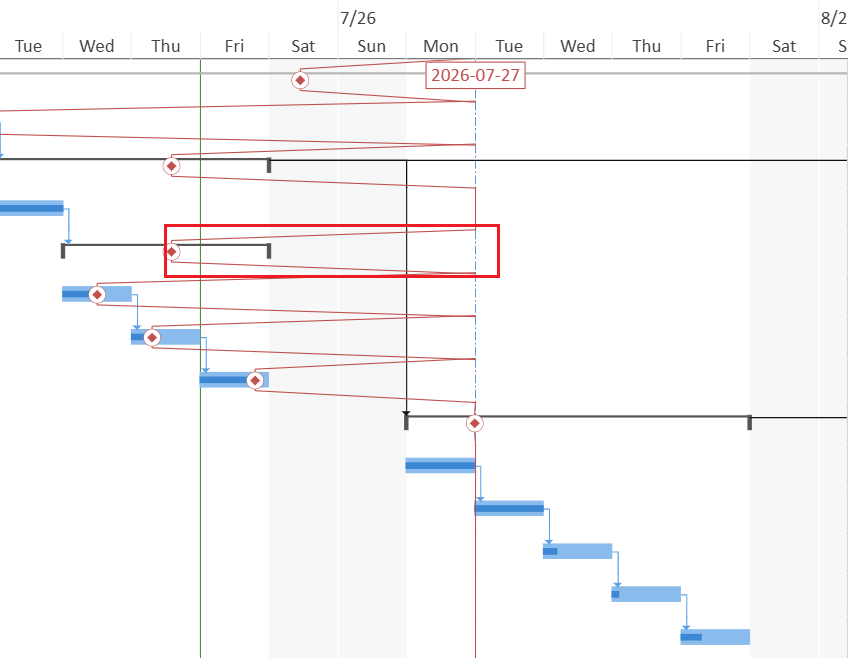
Return to Reference Date with Orthogonal Connections
The line connects each progress point and returns to the reference-date anchor using orthogonal segments.
No Return to Reference Date with Diagonal Connections
The line connects progress points without returning to the reference-date anchor after each point. The connections use diagonal segments.
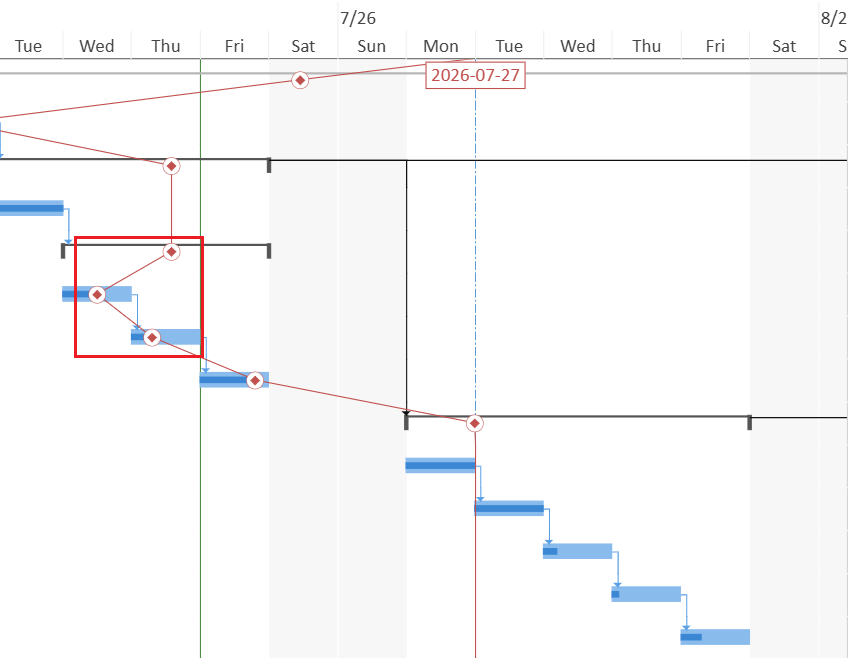
No Return to Reference Date with Orthogonal Connections
The line connects progress points without returning to the reference-date anchor after each point. The connections use orthogonal segments.
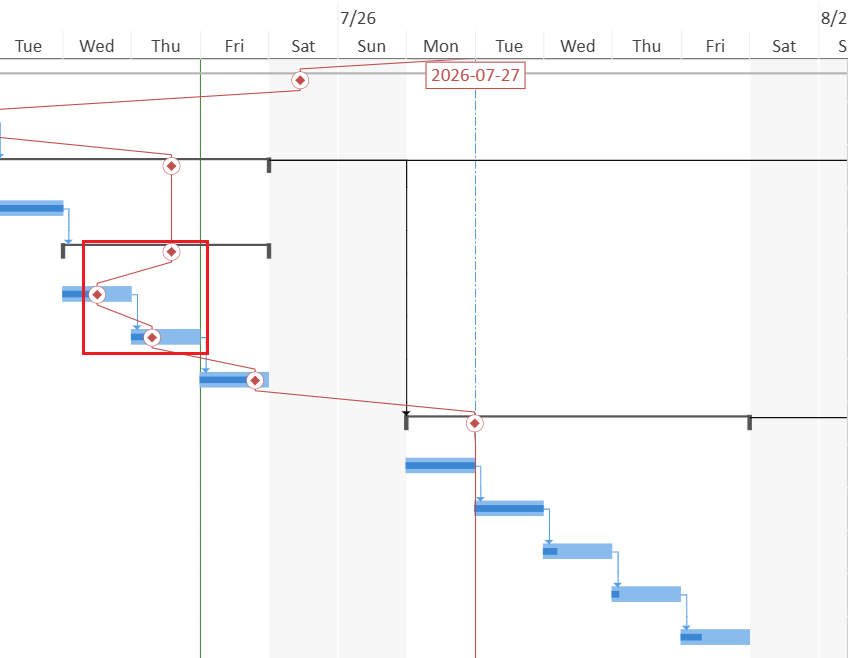
ganttSheet.progressLine = {
    display: true,
    referenceDate: "statusDate",
    pathType: {
        returnToReferenceDate: false,
        pointConnectionType: "orthogonal"
    }
};
Progress Line Style
You can customize the visual style of the Progress Line.
Progress Line styling includes:
path type
progress point style
progress line style
date label style
Progress Point Style
The progress point style controls how each progress point is rendered.
You can configure:
point shape
point color
Progress Line Style
The progress line style controls how the connecting path is rendered.
You can configure:
line type
line color
These settings belong to the Progress Line itself, not to the gridline system.
Date Label Style
The Progress Line can display a date label above the reference-date anchor.
The date label shows the active reference date. You can configure:
whether the label is displayed
date format
font
The label color follows the Progress Line line color.
ganttSheet.progressLine = {
    display: true,
    referenceDate: "statusDate",
    lineStyle: {
        lineType: GC.Spread.Sheets.GanttSheet.GanttGridlineType.thin,
        lineColor: "#C0504D"
    },
    pointStyle: {
        shape: "diamond",
        color: "#C0504D"
    },
    dateLabelStyle: {
        display: true,
        format: "yyyy-MM-dd",
        font: "10pt Calibri"
    }
};
Display Behavior
The Progress Line has a display switch.
When the Progress Line is not displayed, its path, progress points, and date label are not painted.
// Hide the Progress Line.
ganttSheet.progressLine = {
    display: false
};
If no task produces a valid progress point, the Progress Line is displayed as a vertical line at the reference date.
Progress Line and Status Date Gridline
The Status Date gridline and the Progress Line are configured independently.
The Status Date gridline belongs to the gridline system and marks project.statusDate in the Gantt chart. The Progress Line is an analytical overlay that generates its own reference-date anchor, progress points, path, and optional date label.
You can display either one independently, or display both together.
When the Progress Line uses the project status date, its reference-date anchor is aligned with the Status Date gridline because both are drawn at the right edge of the status date timescale cell.
For more information about the Status Date gridline, see Gridlines.
Impact on Timescale Auto Fit
When timescale.autoFitMode is set to "project", the scrollable horizontal range is normally bounded by:
project start
project finish
When there is a valid active Progress Line, its active reference date is also included in the project auto-fit range.
As a result:
If the reference date is earlier than the project start date, it may extend the scrollable range to the left.
If the reference date is later than the project finish date, it may extend the scrollable range to the right.
If the reference date is within the project range, the project boundaries remain unchanged.
Under project auto-fit mode, the active Progress Line reference date may become a scroll boundary.
For more information, see Timescale Range and Auto Fit.
Example
The following example sets a project status date, displays the Status Date gridline, and configures a Progress Line that uses the project status date as its reference date.
// Set the project status date.
ganttSheet.project.statusDate = new Date(2026, 0, 27);

// Configure the Status Date gridline.
ganttSheet.gridlines.statusDate = {
    lineType: GC.Spread.Sheets.GanttSheet.GanttGridlineType.dashDot,
    lineColor: "#5B9BD5"
};

// Configure the Progress Line.
ganttSheet.progressLine = {
    display: true,
    referenceDate: "statusDate",
    pathType: {
        returnToReferenceDate: false,
        pointConnectionType: "orthogonal"
    },
    lineStyle: {
        lineType: GC.Spread.Sheets.GanttSheet.GanttGridlineType.thin,
        lineColor: "#C0504D"
    },
    pointStyle: {
        shape: "diamond",
        color: "#C0504D"
    },
    dateLabelStyle: {
        display: true,
        format: "yyyy-MM-dd",
        font: "10pt Calibri"
    }
};