


- ASP.NET MVC
- Getting Started
- Configuring your MVC Application
- Adding NuGet Packages to your App
- Adding Controls
- Client-Side Support
- Globalization
-
Working with Controls
- Accordion
- Barcode
- CollectionView
- DashboardLayout
- Excel
- File Manager
- Financial Charts
- FlexChart
-
FlexGrid
- Key Features
- Quick Start
-
Work with FlexGrid
- Clip String
- Columns
- Custom Cell Template
- Custom Editors
- Data Binding
- Data Map
- Detail Row
- Disable Server Reading
- Editing
- Excel Import and Export
- Excel RTL Export
- Exclusive Value Search
- Filtering
- FlexGrid Selector
- Full Text Search
- Case-sensitive Search
- Grouping
- Header Focusability
- Keyboard Handling
- Merging
- Overlays
- Paging
- PDF Export
- ReSize
- Right To Left Rendering
- Scaffolding
- Selection Modes
- Star Sizing
- Styling and CSS
- Transposed Grid
- TreeGrid
- Unbound FlexGrid
- Unobtrusive Validation
- Virtual Scrolling
- FlexMap
- FlexPie
- FlexRadar
- FlexReport
- FlexSheet
- FlexViewer
- Gauge
- Input Controls
- MultiRow
- TransposedMultiRow
- OLAP
- Sunburst Chart
- TabPanel
- TreeMap
- TreeView
- Styling
- ASP.NET MVC Samples
- Release History
Set the Tree Column
FlexGrid renders hierarchical data models as a TreeGrid when binding the ChildItemsPath property. By default, node expansion toggles and structural indentation render in the leading visible column.
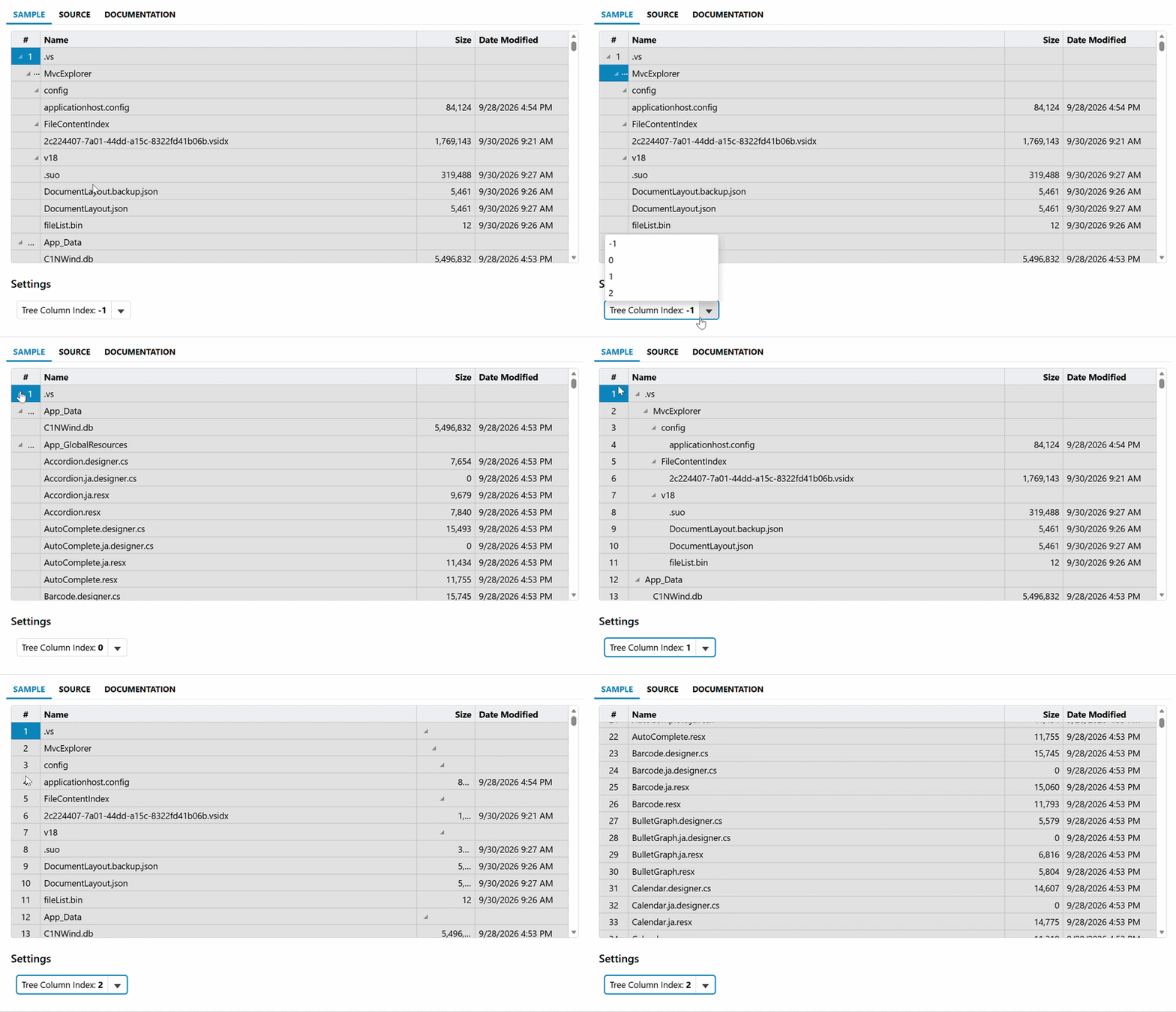
The TreeColumnIndex property specifies the zero-based index of the target column designated to host these hierarchy indicators.
Index Configuration
Index Setting | Indicator Placement & Behavior |
|---|---|
-1 (Default) | Allocates expansion toggles and level indentation to the first visible column in the viewport. |
0 | Explicitly binds hierarchy indicators to column index 0. Produces the same visual result as |
1 or greater | Shifts node glyphs and structural indentation to the column at the specified zero-based index. Descendant items remain indented relative to their parent row. |
The following examples configure a file-system hierarchy, shifting the tree indicators from the leading # row-index column (Index 0) to the Name column (Index 1).
Code Snippet
The following examples display the tree outline in the first visible column.
Controllers
The controller action constructs the hierarchical folder model, numbers of items sequentially using depth-first traversal, and passes the collection to the view:
public ActionResult Index()
{
    var items = Folder.Create(Server.MapPath("~")).Children;
    NumberTreeItems(items, 1);
    return View(items);
}
// Numbers the items depth first, so the "#" column follows the order the
// rows appear in when the tree is fully expanded.
private static int NumberTreeItems(IList<ITreeItem> items, int next)
{
    foreach (var item in items)
    {
        item.Index = next++;
        if (item.Children != null)
        {
            next = NumberTreeItems(item.Children, next);
        }
    }
    return next;
}
MVC View
Configure the HTML Helper with ChildItemsPath and set .TreeColumnIndex(1):
@(Html.C1().FlexGrid().Id("TreeGrid")
    .Bind(Model)
    .ChildItemsPath("Children")
    .IsReadOnly(true)
    .AutoGenerateColumns(false)
    .HeadersVisibility(HeadersVisibility.Column)
    .Columns(columns =>
    {
        columns.Add().Binding("Index").Header("#").Width("50").Align("center");
        columns.Add().Binding("Header").Header("Name").Width("*");
        columns.Add().Binding("Size").Header("Size").Width("100").Align("right");
        columns.Add().Binding("DateModified").Header("Date Modified").Width("160").Format("g");
    })
    .TreeColumnIndex(1)
    .CssStyle("height", "400px")
)