


- ASP.NET MVC
- Getting Started
- Configuring your MVC Application
- Adding NuGet Packages to your App
- Adding Controls
- Client-Side Support
- Globalization
-
Working with Controls
- Accordion
- Barcode
- CollectionView
- DashboardLayout
- Excel
- File Manager
- Financial Charts
- FlexChart
-
FlexGrid
- Key Features
- Quick Start
-
Work with FlexGrid
- Clip String
- Columns
- Custom Cell Template
- Custom Editors
- Data Binding
- Data Map
- Detail Row
- Disable Server Reading
- Editing
- Excel Import and Export
- Excel RTL Export
- Exclusive Value Search
- Filtering
- FlexGrid Selector
- Full Text Search
- Case-sensitive Search
- Grouping
- Header Focusability
- Keyboard Handling
- Merging
- Overlays
- Paging
- PDF Export
- ReSize
- Right To Left Rendering
- Scaffolding
- Selection Modes
- Star Sizing
- Styling and CSS
- TreeGrid
- Unbound FlexGrid
- Unobtrusive Validation
- Virtual Scrolling
- Transposed Grid
- FlexMap
- FlexPie
- FlexRadar
- FlexReport
- FlexSheet
- FlexViewer
- Gauge
- Input Controls
- MultiRow
- TransposedMultiRow
- OLAP
- Sunburst Chart
- TabPanel
- TreeMap
- TreeView
- Styling
- ASP.NET MVC Samples
- Release History
Full Text Search
Searching a grid with huge data source can be a tedious task even in a grid that supports column filtering and sorting. To make this task easier, FlexGrid supports searching the entire data source connected to the grid through full-text search. To support full-text search in FlexGrid, you need to use the FlexGridSearch control which is represented by the FlexGridSearch class. This control appears similar to a search box that allows users to quickly search the items displayed in a FlexGrid.
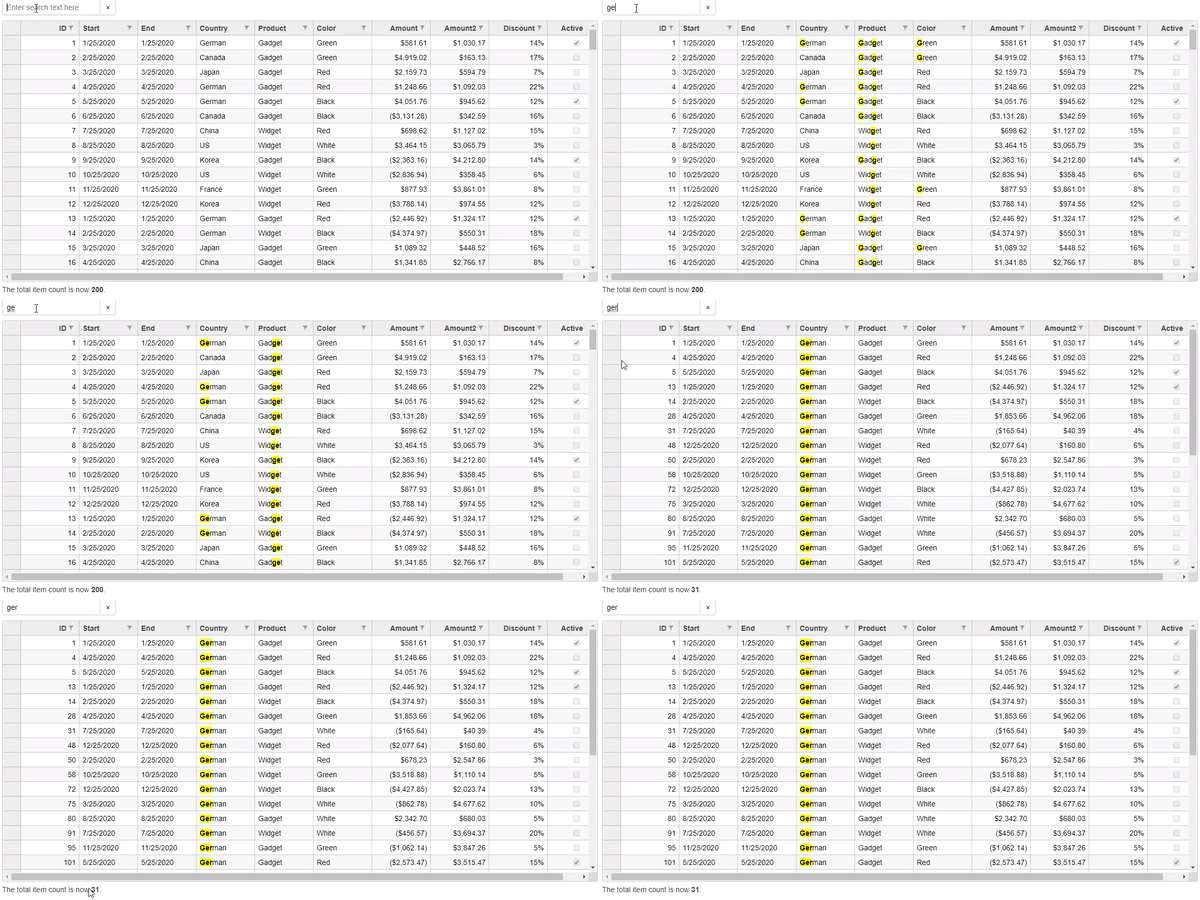
The following example shows the use of FlexGridSearch control to search the items in FlexGrid. The example uses Sale.cs model added in the QuickStart. The grid updates dynamically as you enter text and highlights any full or partial matches according to the text you enter.
Controller Code
public ActionResult Index(FormCollection data)
{
        return View(Sale.GetData(200));
}
View Code
@model IEnumerable<Sale>
<p id="theSearch"></p>
@(Html.C1().FlexGrid<Sale>()
        .AutoGenerateColumns(false)
        .Id("theFlexGrid")
        .CssClass("grid")
        .Height(500)
        .ScrollIntoView(10, 2)
        .IsReadOnly(true).AutoSizeMode(C1.Web.Mvc.Grid.AutoSizeMode.Both)
        .Bind(Model)
        .Columns(bl =>
        {
                bl.Add(cb => cb.Binding("ID"));
                bl.Add(cb => cb.Binding("Start"));
                bl.Add(cb => cb.Binding("End"));
                bl.Add(cb => cb.Binding("Country"));
                bl.Add(cb => cb.Binding("Product"));
                bl.Add(cb => cb.Binding("Color"));
                bl.Add(cb => cb.Binding("Amount").Format("c"));
                bl.Add(cb => cb.Binding("Amount2").Format("c"));
                bl.Add(cb => cb.Binding("Discount").Format("p0"));
                bl.Add(cb => cb.Binding("Active"));
        })
        .Filterable(f => f.DefaultFilterType(FilterType.Both))
)
@(Html.C1().FlexGridSearch("#theSearch")
          .Grid("theFlexGrid")
          .Placeholder("Enter search text here")
)
<p>The total item count is now <b><span id="searchCount"></span></b>.</p>
@section Scripts{
        <script>
                function saveValue(key, value) {
                        if (sessionStorage) {
                        sessionStorage.setItem(key, value);
                        } else {
                        $.cookies.set(key, value);
                        }
                }
                function getValue(key) {
                        if (sessionStorage) {
                        return sessionStorage.getItem(key);
                        } else {
                        return $.cookies.get(key);
                        }
                }
                function updateSearchCount(theGrid) {
                        let cnt = theGrid.collectionView.items.length;
                        document.getElementById('searchCount').textContent = cnt;
                }
                window.onbeforeunload = function () {
                        let theSearch = wijmo.Control.getControl("#theSearch");
                        saveValue("SearchValue", theSearch.text || "");
                }
                c1.documentReady(function () {
                        let theSearch = wijmo.Control.getControl("#theSearch");
                        theSearch.text = getValue("SearchValue") || "";
                        let theGrid = wijmo.Control.getControl("#theFlexGrid");
                        theGrid.collectionView.collectionChanged.addHandler(() => {
                                updateSearchCount(theGrid);
                        });
                });
        </script>
}
Search Options
Property | Type | Values | Description |
|---|---|---|---|
is-submit-on-change | Boolean | true / false | true: Search only triggers after pressing Enter. false: Search updates as user types. |
Exact Match
By default, FlexGrid converts each row into a space-separated string when performing search operations. As a result, searches may return unexpected matches when cell values contain spaces. To perform exact matching against individual cell values, set the exactMatch property to true.
This sample demonstrates how to enable exactMatch.
Controller
public IActionResult Index()
{
    return View(Sale.GetData(15));
}
View
@model IEnumerable<Sale>
<style type="text/css">
    .grid {
        height: 500px;
        border: 2px solid #e0e0e0;
        font-family: Cambria;
        font-weight: bold;
    }
</style>
<div>
<p id="theSearch"></p>
 </div>
@*Instantiate FlexGrid and set its properties*@
@(Html.C1().FlexGrid<Sale>()
           .Id("fgrid")
           .AutoGenerateColumns(false)
           .Width(700)
           .AllowAddNew(true)
           .SelectionMode(C1.Web.Mvc.Grid.SelectionMode.Cell)
           .CssClass("grid")
           .Bind(Model)
           //Binding columns data to FlexGrid
           .Columns(bl =>
           {
               bl.Add(cb => cb.Binding("ID"));
               bl.Add(cb => cb.Binding("Start"));
               bl.Add(cb => cb.Binding("Product"));
               bl.Add(cb => cb.Binding("Amount").Format("c"));
               bl.Add(cb => cb.Binding("Discount").Format("p0"));
               bl.Add(cb => cb.Binding("Active"));
           })
           .Filterable(f => f.DefaultFilterType(FilterType.Both))
           .AutoSearch(true)
           .CaseSensitiveSearch(true)
)
@(Html.C1().FlexGridSearch("#theSearch")
    .Grid("fgrid")
    .Placeholder("Enter text to search")
    .ExactMatch(true)
 )