- SpreadJS Overview
- Getting Started
- JavaScript Frameworks
- Best Practices
-
Features
- Workbook
- Worksheet
- Rows and Columns
- Headers
- Cells
- Data Binding
- Data Manager
- TableSheet
- GanttSheet
-
ReportSheet
-
Template Sheet Settings
- Set Template Cell Type
- Set Spill Mode
- Apply Cell Expansion
- Set Spill Direction
- Set Pin
- Set Cell Context
- Set Filter Condition
- Sort Cell Data
- Auto Fit Template Cell
- Change Cell Styles
- Apply Conditional Formatting
- Add Data Validation
- Change Cell States
- Add Show/Collapse Button
- Show Hidden Row and Col
- ReportSheet Formula Functions
- Preserve Formula in Export
- Configure Data Entry Settings
- Set Pagination
- Fill Blank Data
- Configure Layout Settings
- Add Picture Shape
- Report Sheet Settings
- Report Sheet Data Entry Support
- Report Sheet Data Charts
-
Template Sheet Settings
- Data Charts
- JSON Schema with SpreadJS
- SpreadJS File Format
- Data Validation
- Conditional Formatting
- Sort
- Group
- Formulas
- What-If Analysis
- Serialization
- Keyboard Actions
- Shapes
- Floating Objects
- Barcodes
- Charts
- Sparklines
- Tables
- Pivot Table
- Slicer
- Theme
- User Management
- Culture
- AI Assistant
- SpreadJS Designer
- SpreadJS Designer VSCode Plugin
- Tutorials
- SpreadJS Designer Component
- SpreadJS Collaboration Server
- Touch Support
- Formula Reference
- Import and Export Reference
- Events
- API Documentation
- Release Notes
Preserve Formula in Export
The Preserve Formula in Export feature allows users to retain formulas when exporting data to Excel.
Usage Scenarios
When exporting reports, developers often face the issue that calculated fields or formulas are converted into static values. This breaks dynamic behavior in the resulting Excel files and forces users to re‑enter or rebuild formulas manually.
With Preserve Formula in Export, these challenges are avoided:
Retained calculations: Formulas defined in your dataset, templates, or computed fields remain intact after export, ensuring Excel users can continue working with live calculations rather than fixed numbers.
Editable Excel output: Exported workbooks allow end‑users to adjust cell values or ranges, with dependent formulas updating automatically, just as in the original environment.
Related API
This feature is configured through the GC.Spread.Report.TemplateSheet.setTemplateCell method.
When applying the setting on a StaticCell, use the preserveFormulaInExport property.
export type StaticCell = {
    type: 'Static',
    preserveFormulaInExport?: boolean;
    // see API reference for other properties
};
Notes:
Formula preservation is only available in preview mode.
This feature is effective only when the related option has been properly configured.
Formula Export Behavior
Formula Type | Condition | Export Behavior | Example |
|---|---|---|---|
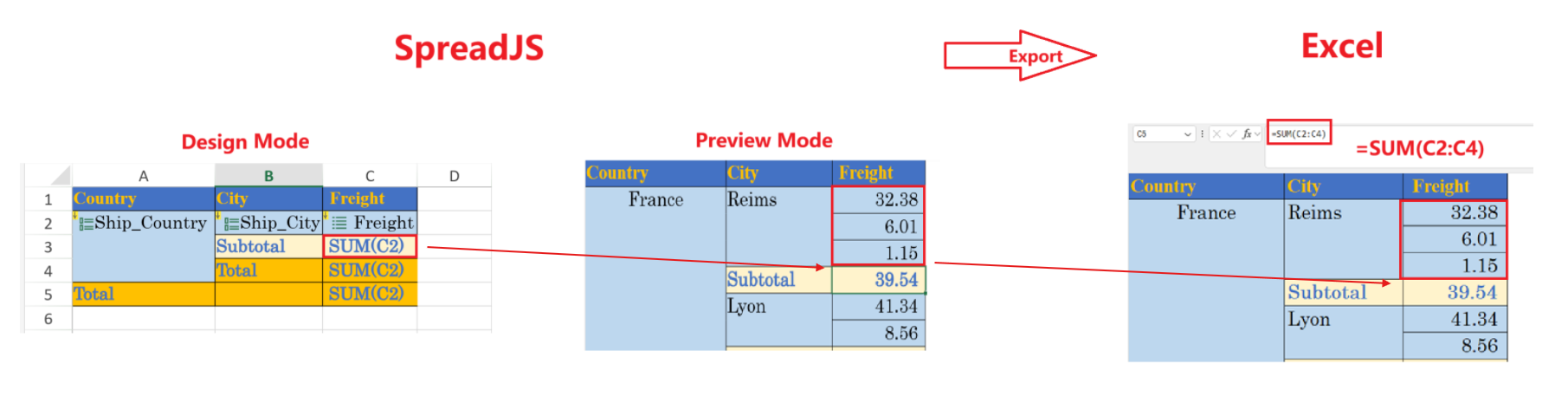
Standard Excel Functions | Expanded cell range is continuous | The reference is exported as a single range. |
|
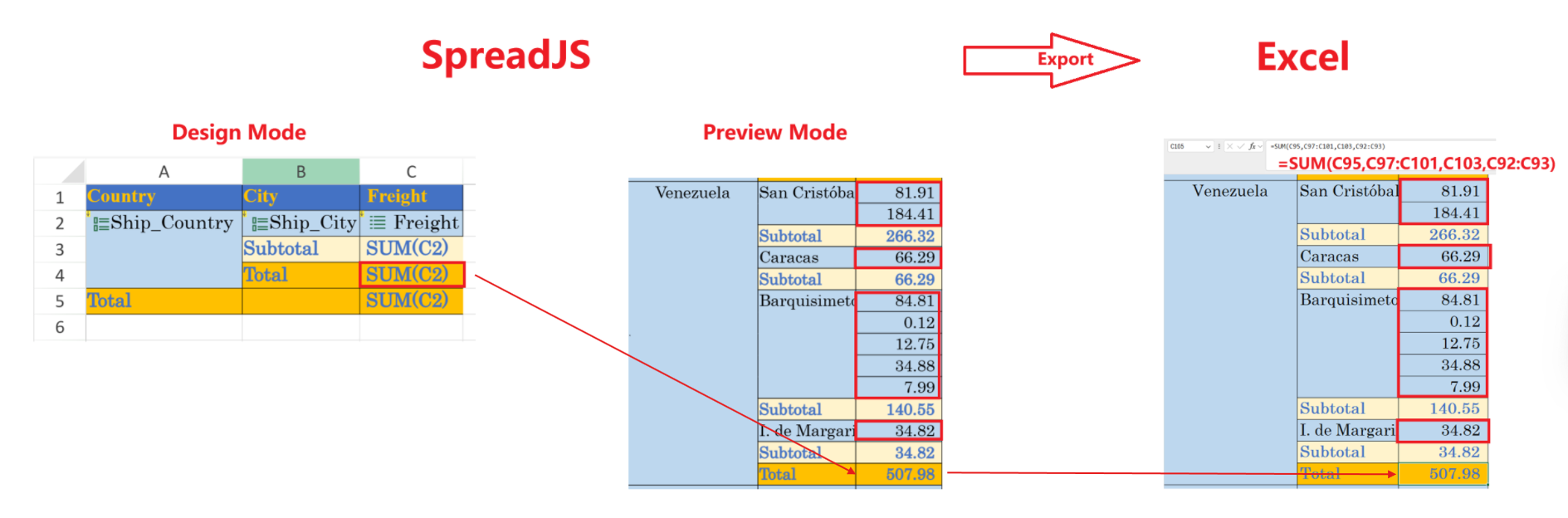
Expanded cell range is non‑continuous | Supported functions ( |
| |
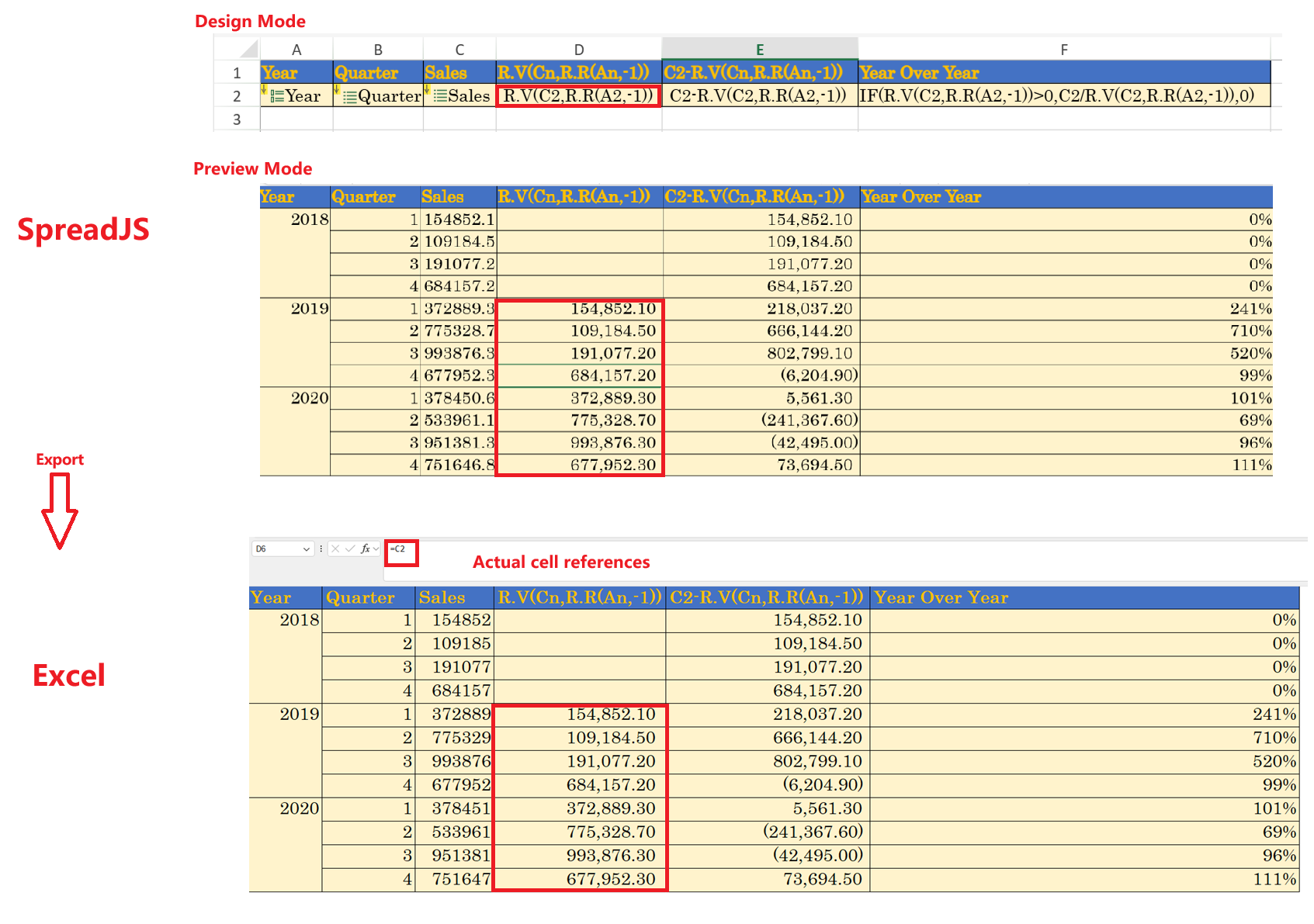
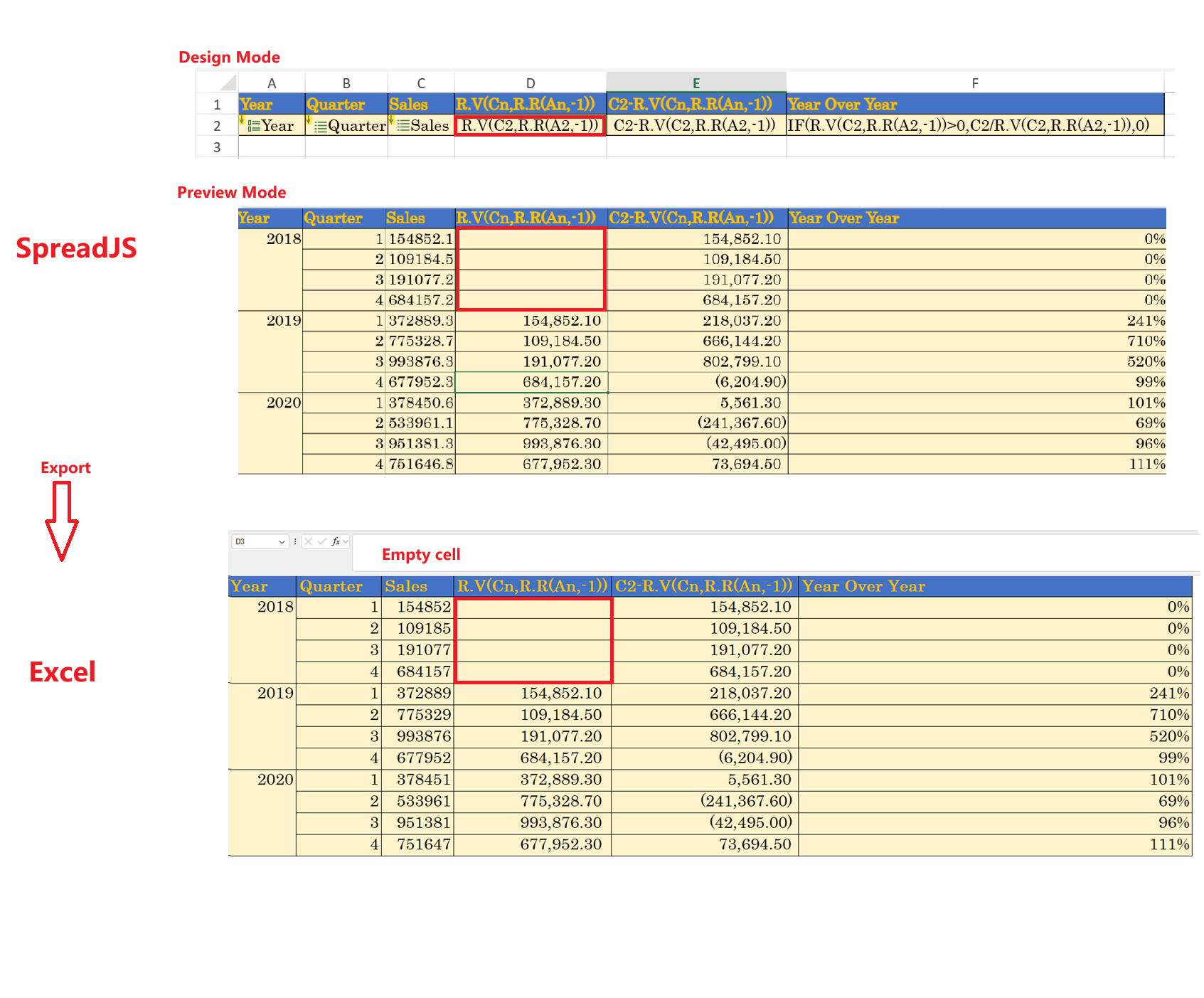
R.V Formulas | Resolvable in preview mode | Converted into actual cell references |
|
Not resolvable | Exported as empty cells |
| |
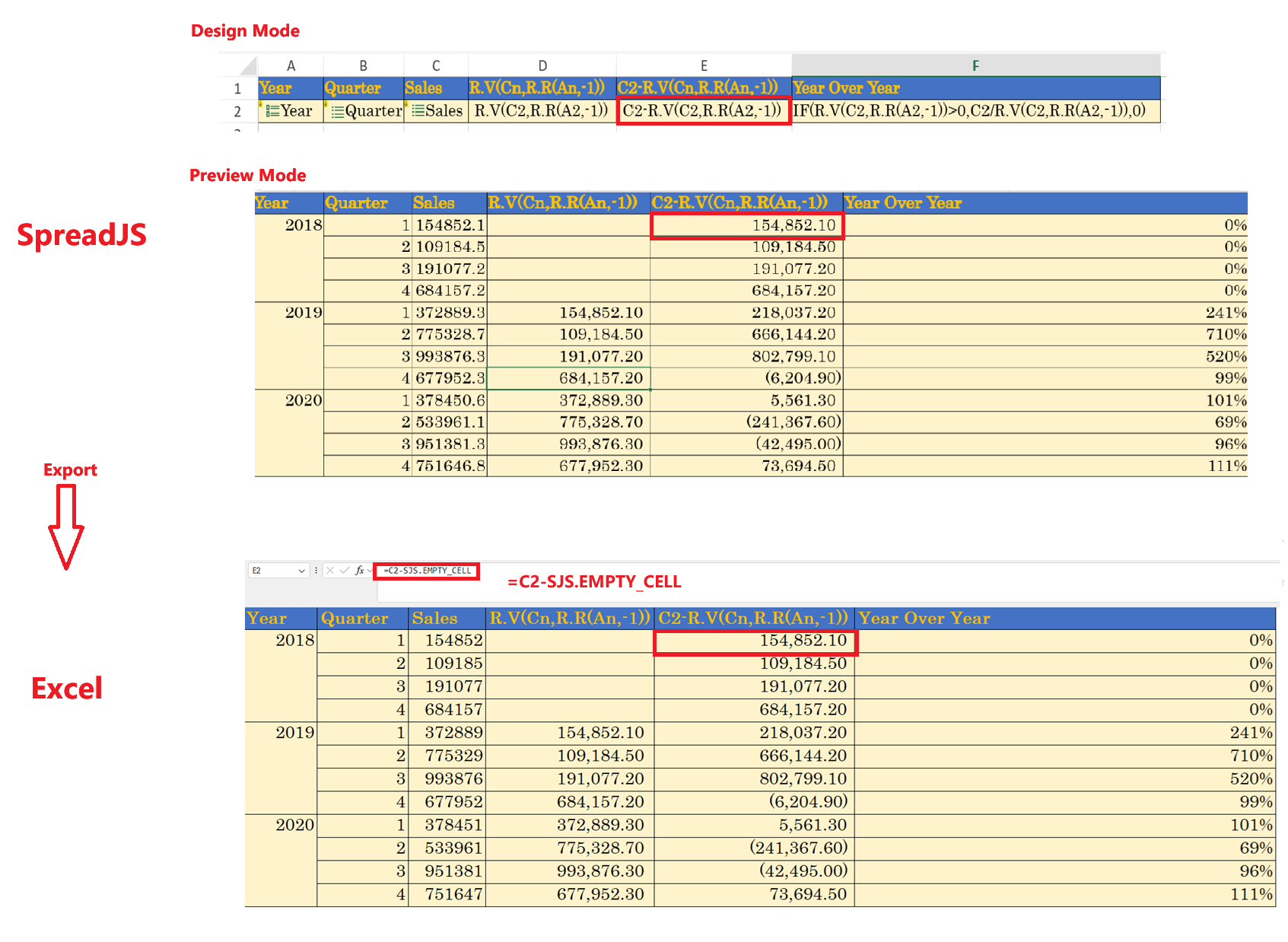
Partially resolvable within expressions | Replaced by 'SJS.EMPTY_CELL' (value = 0) |
| |
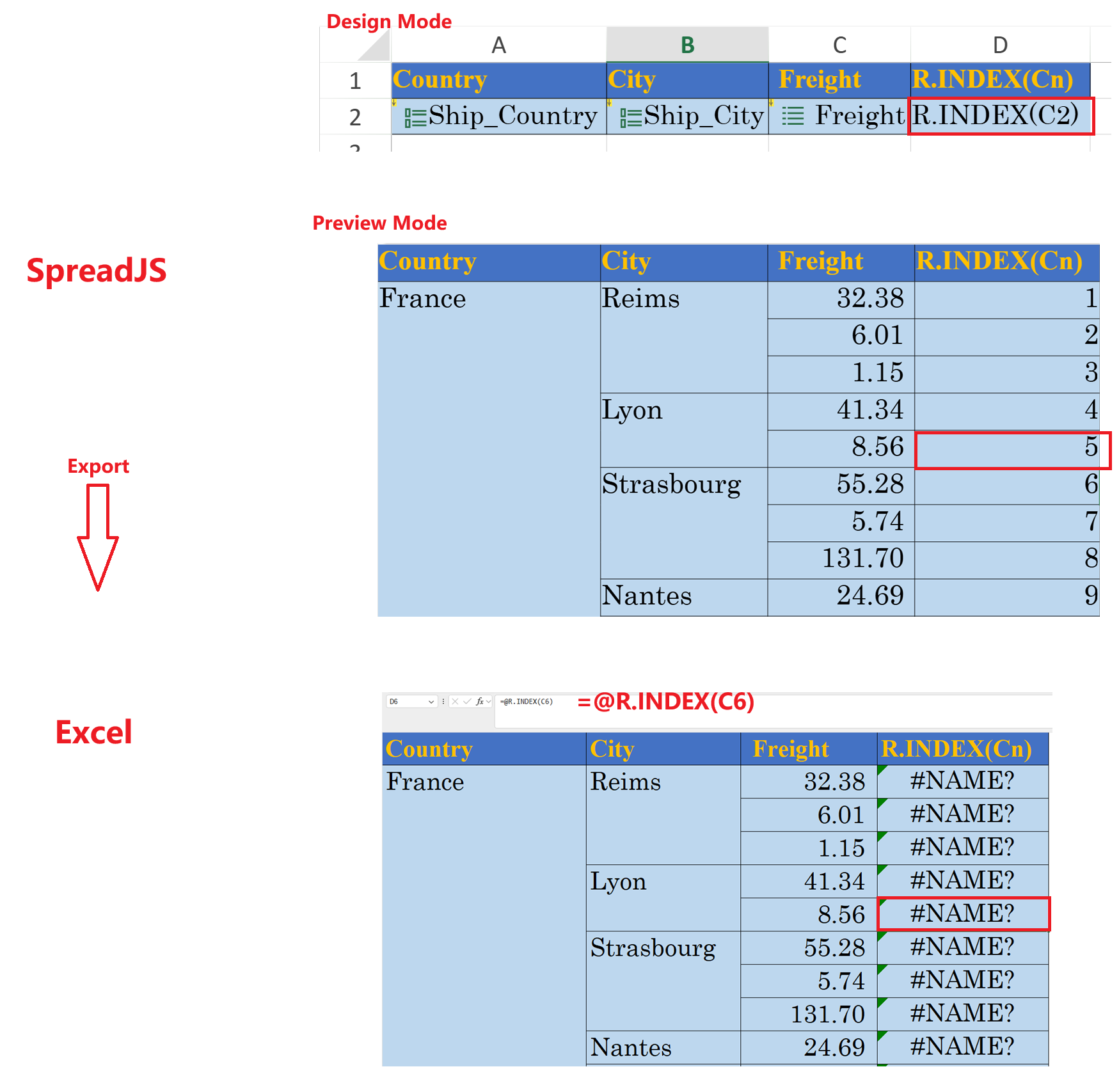
SpreadJS Report Sheet Specific Formulas | Functions like |
|
|
Usage Example
const templateSheet = reportSheet.getTemplate();
templateSheet.setFormula(3, 3, '=SUM(D2)');

// Set the preserveFormulaInExport as true.
templateSheet.setTemplateCell(3, 3, {
  type: 'Static',
  preserveFormulaInExport: true,
});
Using Designer
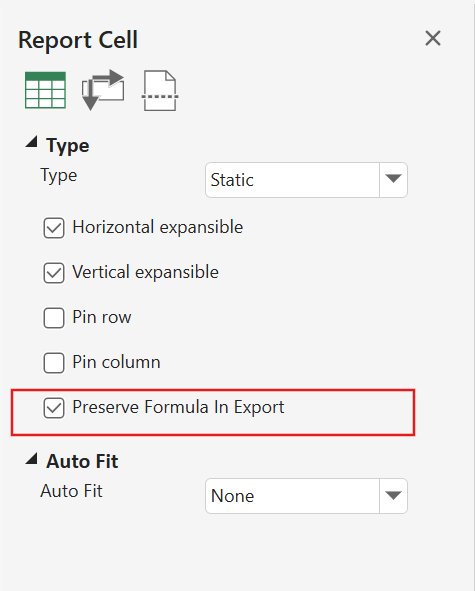
You can also set the preserveFormulaInExport property of the template cell using the SpreadJS designer's Preserve Formula In Export option available in the Report Cell properties panel.