


- SpreadJS Overview
- Getting Started
- JavaScript Frameworks
- Best Practices
-
Features
- Workbook
- Worksheet
- Rows and Columns
- Headers
-
Cells
- Work with Cells
- Cell Types
- Cell Format
- Cell States
- Cell Range
- Get Dirty Status
- Cell Buttons
- Cell Dropdowns
- Cell Comments
- Cell Threaded Comments
- Hyperlink
- Auto Merge Cells
- AutoFit
- Auto Fill Data
- Mask Input
- Shrink to Fit
- Cell Overflow
- Ellipsis or Tips for Cell Overflow
- Cell Alignment and Indentation
- Cell Padding and Label Styles
- Cell Span
- Cell Tags
- Styles
- Cell Decoration
- Cell Colors
- Cell Background Image
- Borders, Gridlines and Diagonal Lines
- Quote Prefix
- Insert Cut or Copied Cells
- Rotate Text In Cells
- Text Direction
- Text Decoration
- Rich Text
- Image Rich Data
- Wrap Text
- Drag and Drop
- Drag and Merge
- Editing
- Watermark
- Display Zero as Blank
- IME Mode
- Pattern Fill and Gradient Fill
- Paste Options
- Data Binding
- Data Manager
- TableSheet
- GanttSheet
- ReportSheet
- Data Charts
- JSON Schema with SpreadJS
- SpreadJS File Format
- Data Validation
- Conditional Formatting
- Sort
- Group
- Formulas
- What-If Analysis
- Serialization
- Keyboard Actions
- Shapes
- Floating Objects
- Barcodes
- Charts
- Sparklines
- Tables
- Pivot Table
- Slicer
- Theme
- User Management
- Culture
- AI Assistant
- SpreadJS Designer
- SpreadJS Designer VSCode Plugin
- Tutorials
- SpreadJS Designer Component
- SpreadJS Collaboration Server
- Touch Support
- Formula Reference
- Import and Export Reference
- Events
- API Documentation
- Release Notes
Auto Fill Lists
SpreadJS allows users to automatically fill lists by using the drag fill option in the following ways.
Using Drag Fill for Built-in Lists
Built-in lists are provided by default when you work with SpreadJS. These lists are used especially when users want to fill in abbreviated day names, day names, abbreviated month names, and month names. While executing the drag fill operation for built-in lists, you can ignore the case but the filled value should exactly match the entry in the list.
For various built-in cultures, a built-in list displays a different language, as shown in the table shared below. The default culture is "en-US" which defines the list in the English language.
Culture | List |
|---|---|
"en-US" | [ ['Sun', 'Mon', 'Tue', 'Wed', 'Thu', 'Fri', 'Sat'], ['Sunday', 'Monday', 'Tuesday', 'Wednesday', 'Thursday', 'Friday', 'Saturday'], ['Jan', 'Feb', 'Mar', 'Apr', 'May', 'Jun', 'Jul', 'Aug', 'Sep', 'Oct', 'Nov', 'Dec'], ['January', 'February', 'March', 'April', 'May', 'June', 'July', 'August', 'September', 'October', 'November', 'December'] ] |
"ja-JP" | [ ['日', '月', '火', '水', '木', '金', '土'], ['日曜日', '月曜日', '火曜日', '水曜日', '木曜日', '金曜日', '土曜日'], ['1', '2', '3', '4', '5', '6', '7', '8', '9', '10', '11', '12'], ['1月', '2月', '3月', '4月', '5月', '6月', '7月', '8月', '9月', '10月', '11月', '12月'] ] |
"zh-cn" | [ ['周日', '周一', '周二', '周三', '周四', '周五', '周六'], ['星期日', '星期一', '星期二', '星期三', '星期四', '星期五', '星期六'], ['1月', '2月', '3月', '4月', '5月', '6月', '7月', '8月', '9月', '10月', '11月', '12月'], ['一月', '二月', '三月', '四月', '五月', '六月', '七月', '八月', '九月', '十月', '十一月', '十二月'] ] |
"ko-kr" | [ ["일", "월", "화", "수", "목", "금", "토"], ["일요일", "월요일", "화요일", "수요일", "목요일", "금요일", "토요일"], ["1", "2", "3", "4", "5", "6", "7", "8", "9", "10", "11", "12"], ["1월", "2월", "3월", "4월", "5월", "6월", "7월", "8월", "9월", "10월", "11월", "12월"] ] |
The following code sample shows how to use built-in lists.
const sheet = spread.getActiveSheet();

sheet.setValue(0, 0, "Sunday");
sheet.setValue(1, 0, "Monday");

sheet.fillAuto(
    new GC.Spread.Sheets.Range(0, 0, 2, 1),
    new GC.Spread.Sheets.Range(0, 0, 8, 1),
    {
        fillType: GC.Spread.Sheets.Fill.FillType.auto,
        series: GC.Spread.Sheets.Fill.FillSeries.column,
        fillDirection: GC.Spread.Sheets.Fill.FillDirection.down
    }
);

// Result:
// Sunday
// Monday
// Tuesday
// Wednesday
// Thursday
// Friday
// Saturday
// Sunday
Using Drag Fill for Custom Lists
Custom lists let users define their own repeated sequences for drag fill. This is useful when a worksheet uses business-specific sequences, such as region names, product categories, or custom reporting periods.
To use a custom list, define the list in the workbook options. When users enter one or more consecutive values from the list and drag the fill handle, SpreadJS fills the remaining cells according to the order of the custom list.
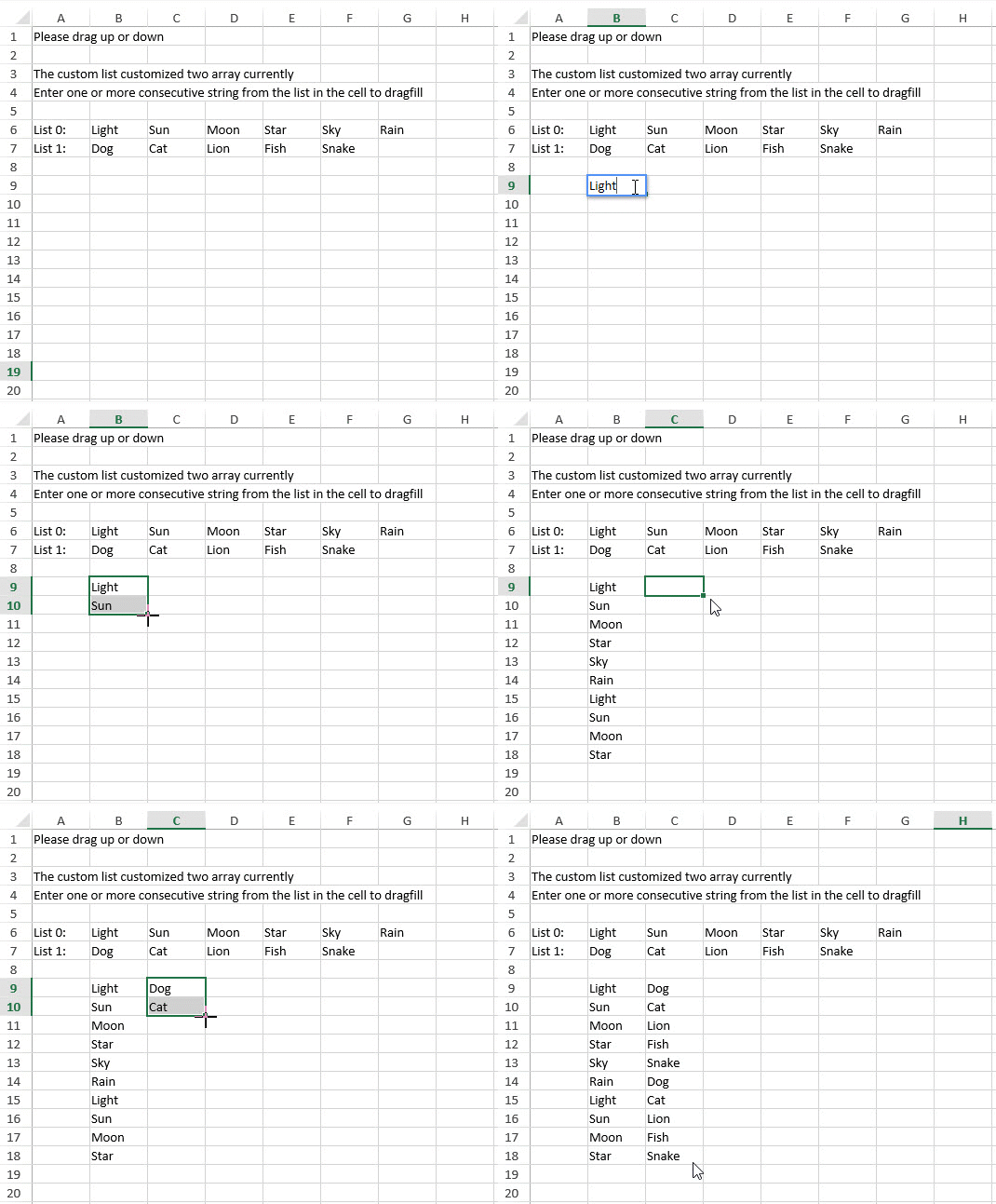
The following code sample shows how to define and use custom lists.
const customList = [
    ["Light", "Sun", "Moon", "Star", "Sky", "Rain"],
    ["Dog", "Cat", "Lion", "Fish", "Snake"]
];

const spread = new GC.Spread.Sheets.Workbook(document.getElementById("ss"), {
    sheetCount: 1,
    customList: customList
});

const sheet = spread.getActiveSheet();

sheet.setValue(0, 0, "Light");
sheet.setValue(1, 0, "Sun");

sheet.fillAuto(
    new GC.Spread.Sheets.Range(0, 0, 2, 1),
    new GC.Spread.Sheets.Range(0, 0, 8, 1),
    {
        fillType: GC.Spread.Sheets.Fill.FillType.auto,
        series: GC.Spread.Sheets.Fill.FillSeries.column,
        fillDirection: GC.Spread.Sheets.Fill.FillDirection.down
    }
);

// Result:
// Light
// Sun
// Moon
// Star
// Sky
// Rain
// Light
// Sun