


- SpreadJS Overview
- Getting Started
- JavaScript Frameworks
- Best Practices
-
Features
- Workbook
- Worksheet
- Rows and Columns
- Headers
- Cells
- Data Binding
- Data Manager
- TableSheet
- GanttSheet
- ReportSheet
- Data Charts
- JSON Schema with SpreadJS
- SpreadJS File Format
- Data Validation
- Conditional Formatting
- Sort
- Group
- Formulas
- What-If Analysis
- Serialization
- Keyboard Actions
- Shapes
- Floating Objects
- Barcodes
- Charts
- Sparklines
- Tables
- Pivot Table
- Slicer
- Theme
- User Management
- Culture
- AI Assistant
- SpreadJS Designer
- SpreadJS Designer VSCode Plugin
- Tutorials
- SpreadJS Designer Component
- SpreadJS Collaboration Server
- Touch Support
- Formula Reference
- Import and Export Reference
- Events
- API Documentation
- Release Notes
Data Binding
SpreadJS supports binding worksheet data to JavaScript array objects, and Data Manager tables. SpreadJS also supports cell-level binding, which allows individual cells to bind to properties in an object or a Data Manager table record.
SpreadJS supports two-way data binding.
Cell Binding
Cell binding binds object properties to specific cells in a worksheet. To use cell binding, wrap the source data with GC.Spread.Sheets.Bindings.CellBindingSource, set binding paths on the target cells, and then bind the wrapped source to the sheet with setDataSource.
Bind Cells to an Object
The following example binds cells to properties in an object.
var person = {
    name: "Wang feng",
    age: 25,
    address: {
        postcode: "710075"
    }
};
var source = new GC.Spread.Sheets.Bindings.CellBindingSource(person);
activeSheet.setBindingPath(0, 0, "name");
activeSheet.setBindingPath(1, 1, "age");
activeSheet.setBindingPath(3, 3, "address.postcode");
activeSheet.setDataSource(source);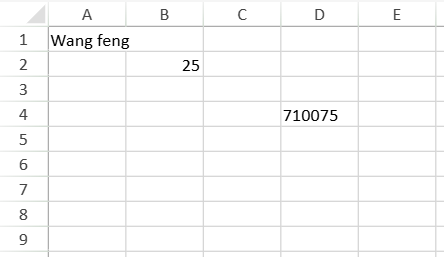
Binding paths can refer to nested fields by using dot notation. For example, address.postcode refers to the postcode field in the nested address object.
Bind Cells to a Data Manager Table
Cell binding can also use a Data Manager table as the binding source. In this case, the sheet is bound to one record from the table, and each cell binding path resolves against that record.
The following example binds cells to fields from the first record in a Data Manager table.
var dataManager = spread.dataManager();
var activeSheet = spread.getActiveSheet();
var ordersTable = dataManager.addTable("Orders", {
    data: [
        {
            orderId: 10248,
            customerId: "VINET",
            freight: 32.38
        },
        {
            orderId: 10249,
            customerId: "TOMSP",
            freight: 11.61
        }
    ]
});

var source = new GC.Spread.Sheets.Bindings.CellBindingSource(ordersTable, 0);

activeSheet.setBindingPath(0, 0, "orderId");
activeSheet.setBindingPath(1, 0, "customerId");
activeSheet.setBindingPath(2, 0, "freight");

activeSheet.setDataSource(source);
The second argument of CellBindingSource specifies the active record index. For example, index 0 uses the first record, and index 1 uses the second record.
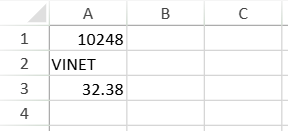
You can change the active record index to bind the same cells to another record in the Data Manager table.
var source = activeSheet.getDataSource();
source.activeRecordIndex(1);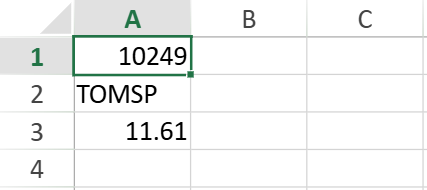
Sheet Binding
Sheet binding binds a data source to a worksheet. When the data source is an array of objects, each object is displayed as a row, and object fields are displayed as columns.
Bind a Sheet to an Array Object
The following example binds a worksheet to an array of objects.
var datasource = [
    { name: "Alice", age: 27, birthday: "1985/08/31", position: "PM" },
    { name: "Aimee", age: 28, birthday: "1984/07/31", position: "TL" },
    { name: "Charles", age: 29, birthday: "1983/03/31", position: "QC" },
    { name: "Fred", age: 30, birthday: "1982/02/20", position: "DL" },
    { name: "Angelia", age: 31, birthday: "1981/05/30", position: "QC" },
    { name: "Peter", age: 32, birthday: "1980/11/08", position: "QC" }
];

activeSheet.autoGenerateColumns = true;
activeSheet.setDataSource(datasource);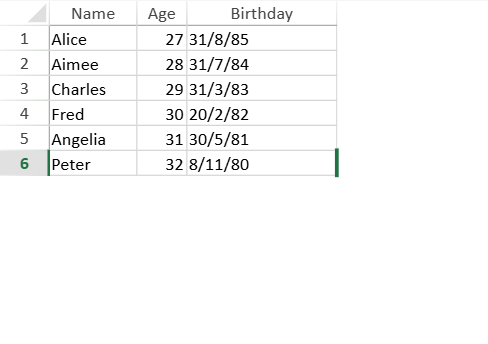
Bind a Sheet to a Data Manager Table
You can bind a Data Manager table directly to a worksheet. This binding mode supports collaboration.
The following example creates a Data Manager table and binds it to the active sheet.
var dataManager = spread.dataManager();
var activeSheet = spread.getActiveSheet();
var personsTable = dataManager.addTable("Persons", {
    data: [
        { name: "Alice", age: 27, birthday: "1985/08/31", position: "PM" },
        { name: "Aimee", age: 28, birthday: "1984/07/31", position: "TL" },
        { name: "Charles", age: 29, birthday: "1983/03/31", position: "QC" },
        { name: "Fred", age: 30, birthday: "1982/02/20", position: "DL" },
        { name: "Angelia", age: 31, birthday: "1981/05/30", position: "QC" },
        { name: "Peter", age: 32, birthday: "1980/11/08", position: "QC" }
    ]
});

activeSheet.autoGenerateColumns = true;
activeSheet.setDataSource(personsTable);
After a record is added to the bound sheet, the change is synchronized to the Data Manager table.
When columns are added to the sheet, the Data Manager table remains unchanged. The added columns and their cell contents are stored in the sheet.
Due to the sorting and filtering features, only local data sources are currently supported; remote data sources are not supported, For advanced binding needs, TableSheet is recommended.
Column Binding
Column binding lets you configure how specific fields from a data source are displayed in worksheet columns.
Use bindColumn to bind a column to a field and define column settings such as header text, width, formatter, resizability, and visibility.
The following example binds specific columns with the bindColumn method.
var datasource = [
    { name: "Alice", age: 27, birthday: "1985/08/31", position: "PM" },
    { name: "Aimee", age: 28, birthday: "1984/07/31", position: "TL" },
    { name: "Charles", age: 29, birthday: "1983/03/31", position: "QC" },
    { name: "Fred", age: 30, birthday: "1982/02/20", position: "DL" },
    { name: "Angelia", age: 31, birthday: "1981/05/30", position: "QC" },
    { name: "Peter", age: 32, birthday: "1980/11/08", position: "QC" }
];

var nameColInfo = { name: "name", displayName: "Name", size: 70 };
var ageColInfo = { name: "age", displayName: "Age", size: 40, resizable: false };
var birthdayColInfo = { name: "birthday", displayName: "Birthday", formatter: "d/M/yy", size: 120 };
var positionColInfo = { name: "position", displayName: "Position", size: 50, visible: false };

activeSheet.autoGenerateColumns = true;
activeSheet.setDataSource(datasource);

activeSheet.bindColumn(0, nameColInfo);
activeSheet.bindColumn(1, ageColInfo);
activeSheet.bindColumn(2, birthdayColInfo);
activeSheet.bindColumn(3, positionColInfo);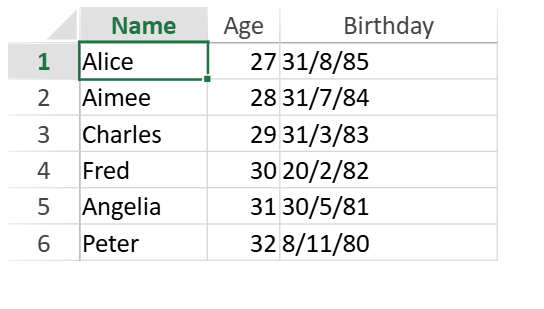
The following example binds a worksheet to a JSON array object.
var jsonArray = '{"phoneNumbers": [{"type": "home","number": "212 555-1234"},{"type": "fax","number": "646 555-4567"}]}';
var arr = JSON.parse(jsonArray);

activeSheet.setDataSource(arr.phoneNumbers);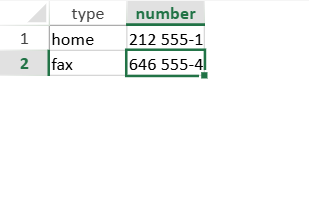
Table Binding
You can create a table and bind it to a data source.
Bind a Table to a Data Source
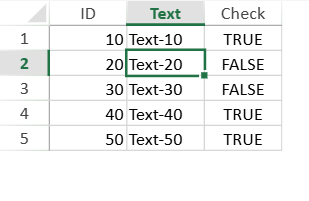
The following example manually creates a data source and binds it to the active sheet.
window.onload = function () {
    var spread = new GC.Spread.Sheets.Workbook(document.getElementById("ss"), { sheetCount: 3 });
    var activeSheet = spread.getActiveSheet();

    var sampleTable = [
        { "ID": 10, "Text": "Text-10", "Check": true },
        { "ID": 20, "Text": "Text-20", "Check": false },
        { "ID": 30, "Text": "Text-30", "Check": false },
        { "ID": 40, "Text": "Text-40", "Check": true },
        { "ID": 50, "Text": "Text-50", "Check": true }
    ];

    activeSheet.setDataSource(sampleTable);
};
Bind a Table to a Data Manager Field by Binding Path
A table can use bindingPath to bind to a field from the active record of a Data Manager table. This is useful when a field in the active record contains the data that should populate a table.
The following example binds the sheet to a Data Manager table record, and then binds a table to the project field in that record.
var persons = [
    {
        name: "Wang feng",
        age: 25,
        address: {
            postcode: "710075"
        },
        project: [
            { name: "project1", budget: 10000 },
            { name: "project2", budget: 20000 }
        ]
    },
    {
        name: "Li lei",
        age: 26,
        address: {
            postcode: "710076"
        },
        project: [
            { name: "project3", budget: 30000 },
            { name: "project4", budget: 40000 }
        ]
    }
];

var dataManager = spread.dataManager();

var personsTable = dataManager.addTable("Persons", {
    data: persons
});

var source = new GC.Spread.Sheets.Bindings.CellBindingSource(personsTable, 0);

activeSheet.setDataSource(source);

var table = activeSheet.tables.add("table1", 1, 1, 4, 4);
table.bindingPath("project");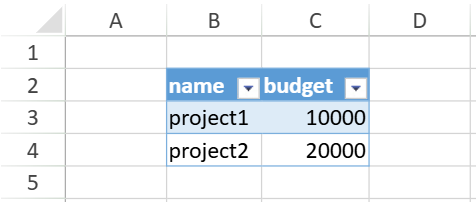
In this example, CellBindingSource sets the active record to the first record in the Persons table. The table then uses bindingPath("project") to bind to the project field of that record.
Update Bound Data
After a worksheet is bound to a data source, you can still add rows or columns to the worksheet.
Add New Rows and Update the Data Source
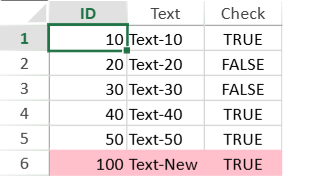
The following example adds a row after the last row in a bound sheet. The new row is added to the data source.
window.onload = function () {
    var spread = new GC.Spread.Sheets.Workbook(document.getElementById("ss"), { sheetCount: 3 });
    var activeSheet = spread.getActiveSheet();

    var sampleTable = [
        { "ID": 10, "Text": "Text-10", "Check": true },
        { "ID": 20, "Text": "Text-20", "Check": false },
        { "ID": 30, "Text": "Text-30", "Check": false },
        { "ID": 40, "Text": "Text-40", "Check": true },
        { "ID": 50, "Text": "Text-50", "Check": true }
    ];

    activeSheet.setDataSource(sampleTable);

    document.getElementById("button1").addEventListener("click", function () {
        console.log("The number of all rows in the datasource before addition: " + sampleTable.length);

        var row = activeSheet.getRowCount();

        activeSheet.addRows(row, 1);

        activeSheet.setValue(row, 0, 100);
        activeSheet.setValue(row, 1, "Text-New");
        activeSheet.setValue(row, 2, true);
        activeSheet.getCell(row, -1).backColor("pink");

        console.log("The number of all rows in the datasource after addition: " + sampleTable.length);
        console.log("The value of the Text field in the last row of the datasource: " + sampleTable[sampleTable.length - 1].Text);
    });
};
Add Unbound Columns
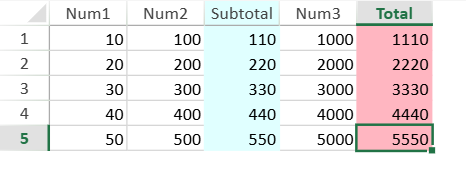
You can add unbound columns to a bound sheet. Unbound columns are stored in the sheet and are not added to the original data source.
The following example adds unbound columns and uses formulas to calculate subtotal and total values.
window.addEventListener("DOMContentLoaded", function () {
    var spread = new GC.Spread.Sheets.Workbook(document.getElementById("ss"), { sheetCount: 3 });
    var activeSheet = spread.getActiveSheet();
    var rowCount, colCount;

    var sampleTable = [
        { "Num1": 10, "Num2": 100, "Num3": 1000 },
        { "Num1": 20, "Num2": 200, "Num3": 2000 },
        { "Num1": 30, "Num2": 300, "Num3": 3000 },
        { "Num1": 40, "Num2": 400, "Num3": 4000 },
        { "Num1": 50, "Num2": 500, "Num3": 5000 }
    ];

    activeSheet.setDataSource(sampleTable);

    activeSheet.addColumns(2, 1);
    activeSheet.addColumns(activeSheet.getColumnCount(), 1);

    rowCount = activeSheet.getRowCount();
    spread.options.referenceStyle = GC.Spread.Sheets.ReferenceStyle.R1C1;

    activeSheet.setValue(0, 2, "Subtotal", GC.Spread.Sheets.SheetArea.colHeader);

    for (var i = 0; i < rowCount; i++) {
        activeSheet.setFormula(i, 2, "=SUBTOTAL(9, RC[-2]:RC[-1])");
    }

    activeSheet.getRange(-1, 2, -1, 1).backColor("LightCyan");
    activeSheet.getCell(0, 2, GC.Spread.Sheets.SheetArea.colHeader).backColor("LightCyan");
    activeSheet.setColumnWidth(2, 60);

    colCount = activeSheet.getColumnCount();

    activeSheet.setValue(0, colCount - 1, "Total", GC.Spread.Sheets.SheetArea.colHeader);

    for (var i = 0; i < rowCount; i++) {
        activeSheet.setFormula(i, colCount - 1, "SUBTOTAL(9, RC[-4]:RC[-1])");
    }

    activeSheet.getRange(-1, colCount - 1, -1, 1).backColor("LightPink");
    activeSheet.getCell(0, colCount - 1, GC.Spread.Sheets.SheetArea.colHeader).backColor("LightPink");
    activeSheet.setColumnWidth(colCount - 1, 60);
});
Related Topics
For information about configuring binding in the SpreadJS Designer Component, see Sheet Binding in SpreadJS Designer.