


- SpreadJS Overview
- Getting Started
- JavaScript Frameworks
- Best Practices
-
Features
- Workbook
- Worksheet
- Rows and Columns
- Headers
- Cells
- Data Binding
- Data Manager
- TableSheet
- GanttSheet
- ReportSheet
- Data Charts
- JSON Schema with SpreadJS
- SpreadJS File Format
- Data Validation
- Conditional Formatting
- Sort
- Group
- Formulas
- What-If Analysis
- Serialization
- Keyboard Actions
- Shapes
- Floating Objects
- Barcodes
- Charts
- Sparklines
- Tables
- Pivot Table
- Slicer
- Theme
- User Management
- Culture
- AI Assistant
- SpreadJS Designer
- SpreadJS Designer VSCode Plugin
- Tutorials
- SpreadJS Designer Component
- SpreadJS Collaboration Server
- Touch Support
- Formula Reference
- Import and Export Reference
- Events
- API Documentation
- Release Notes
Bind Cells
You can use cell-level binding in SpreadJS.
Cell-level binding binds an object's property to a sheet cell. Wrap the data object to GC.Spread.Sheets.Bindings.CellBindingSource before binding the cell. Then bind the wrapped source to the sheet (sheet.setDataSource).
The following code sample binds cells in the sheet.
var person = {name: "Wang feng", age: 25, address: {postcode: "710075"}};
var source = new GC.Spread.Sheets.Bindings.CellBindingSource(person);
activeSheet.setBindingPath(0, 0, "name");
activeSheet.setBindingPath(1, 1, "age");
activeSheet.setBindingPath(3, 3, "address.postcode");
activeSheet.setDataSource(source);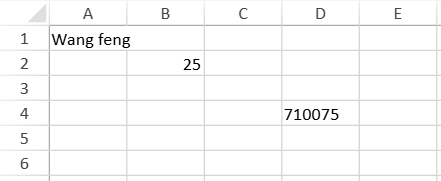
Bind Cells to a Data Manager Table
Cell-level binding can also use a Data Manager table as the binding source. In this case, the sheet is bound to one record from the table, and each cell binding path resolves against that record.
The following example binds cells to fields from the first record in a Data Manager table.
var dataManager = spread.dataManager();
var ordersTable = dataManager.addTable("Orders", {
    data: [
        {
            orderId: 10248,
            customerId: "VINET",
            freight: 32.38
        },
        {
            orderId: 10249,
            customerId: "TOMSP",
            freight: 11.61
        }
    ]
});
var source = new GC.Spread.Sheets.Bindings.CellBindingSource(ordersTable, 0);
activeSheet.setBindingPath(0, 0, "orderId");
activeSheet.setBindingPath(1, 0, "customerId");
activeSheet.setBindingPath(2, 0, "freight");
activeSheet.setDataSource(source);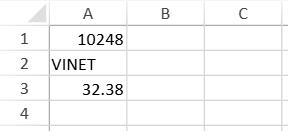
The second argument of CellBindingSource specifies the active record index. For example, index 0 uses the first record, and index 1 uses the second record.
Binding paths can also refer to nested fields by using dot notation. For example, the binding path address.postcode refers to the postcode field in the nested address object.
activeSheet.setBindingPath(3, 0, "address.postcode");