- SpreadJS Overview
- Getting Started
- JavaScript Frameworks
- Best Practices
-
Features
- Workbook
- Worksheet
- Rows and Columns
- Headers
- Cells
- Data Binding
- Data Manager
- TableSheet
- GanttSheet
- ReportSheet
- Data Charts
- JSON Schema with SpreadJS
- SpreadJS File Format
- Data Validation
- Conditional Formatting
- Sort
- Group
- Formulas
- What-If Analysis
- Serialization
- Keyboard Actions
- Shapes
- Floating Objects
- Barcodes
- Charts
- Sparklines
- Tables
- Pivot Table
- Slicer
- Theme
- User Management
- Culture
- AI Assistant
- SpreadJS Designer
- SpreadJS Designer VSCode Plugin
- Tutorials
- SpreadJS Designer Component
- SpreadJS Collaboration Server
- Touch Support
- Formula Reference
- Import and Export Reference
- Events
- API Documentation
- Release Notes
Customize Display Null and Empty Values
By default, when a data value is null, undefined, or an empty string (""), the cell appears blank in a TableSheet. This makes it difficult to distinguish between:
A
nullvalueAn empty string
A missing value
To improve clarity, you can specify custom display text for these values at the column level.
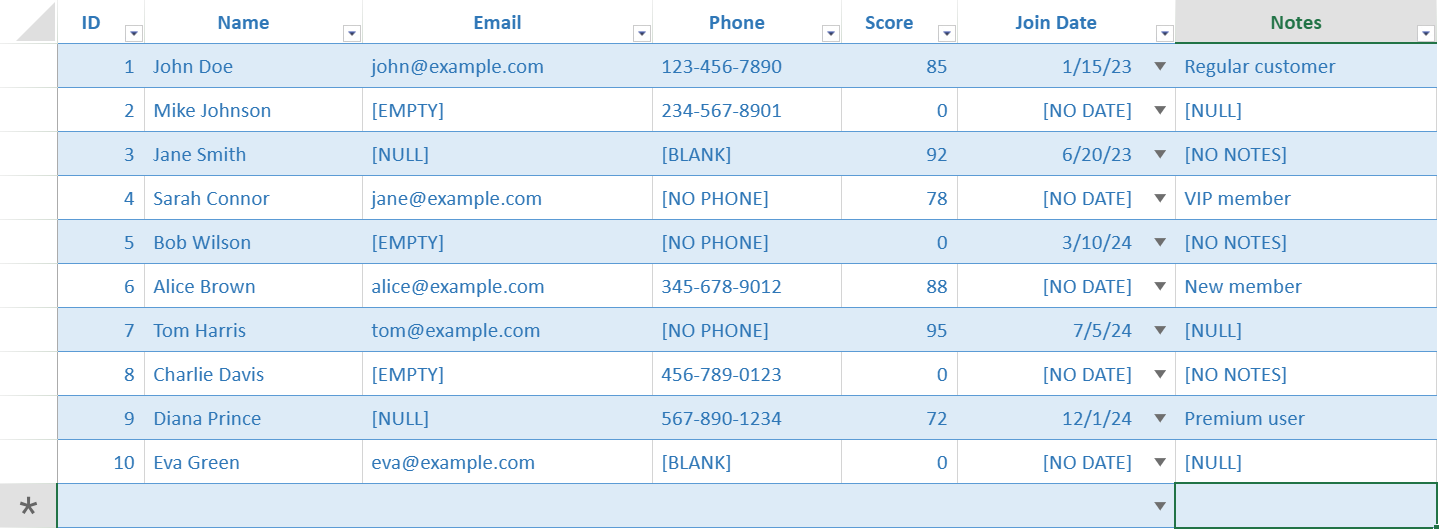
Column Properties
interface GC.Data.IColumn {
  showNullAs?: string;   // Display text for null or undefined
  showEmptyAs?: string;  // Display text for empty string ("")
}showNullAsapplies when the value isnullorundefined.showEmptyAsapplies when the value is an empty string ("").
Both properties can be used on the same column.
Configure in Code
This example demonstrates:
Default blank behavior
Configuration at the table schema level
Additional configuration at the view level
Step 1: Prepare Sample Data
var sampleData = [
  { Id: 1, Name: "John Doe", Email: "john@example.com", Phone: "123-456-7890", Score: 85, Notes: "Regular" },
  { Id: 2, Name: null, Email: "", Phone: "234-567-8901", Score: null, Notes: null },
  { Id: 3, Name: "Jane Smith", Email: null, Phone: "", Score: 92, Notes: "" },
  { Id: 4, Name: "", Email: "jane@example.com", Phone: null, Score: 78, Notes: "VIP" },
  { Id: 5, Name: "Bob Wilson", Email: "", Phone: null, Score: null, Notes: "" }
];
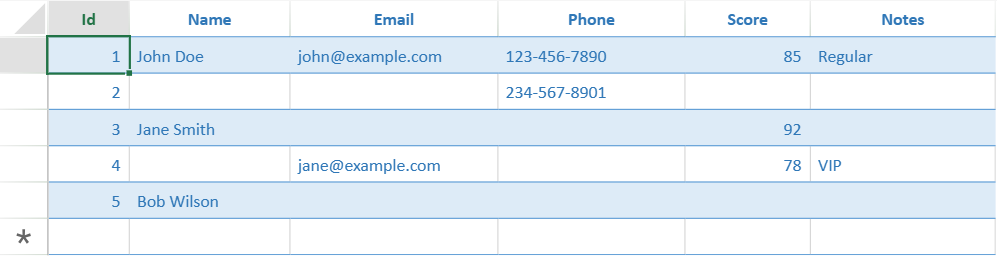
Without configuration, null and empty string values appear as blank cells.
Step 2: Configure at the Table Schema Level
var myTable = dataManager.addTable("myTable", {
    data: sampleData,
    schema: {
        columns: {
            Id: { dataType: "number" },
            Name: { showNullAs: "[NULL]", showEmptyAs: "[EMPTY]" },
            Email: { showNullAs: "[NULL]", showEmptyAs: "[EMPTY]" },
            Score: { showNullAs: "[N/A]", dataType: "number" }
        }
    }
});
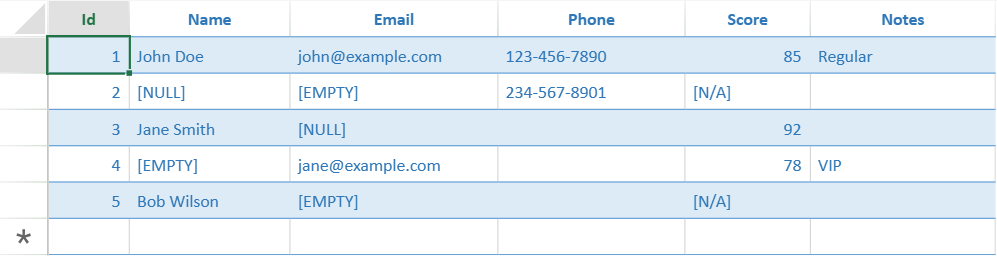
In this step:
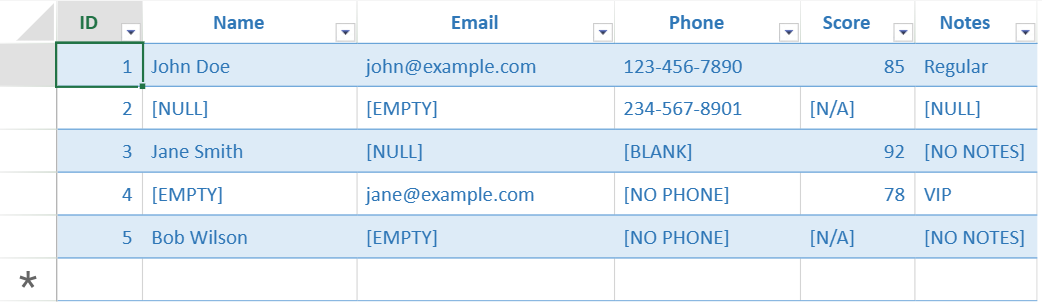
NameandEmaildisplay custom text for bothnulland empty string values.Scoredisplays[N/A]when the value isnull.
Step 3: Configure at the View Level
var myView = myTable.addView("myView", [
    { value: "Id", caption: "ID", width: 60 },
    { value: "Name", caption: "Name", width: 150 },
    { value: "Email", caption: "Email", width: 200 },
    // View-level configuration for Phone and Notes
    { value: "Phone", caption: "Phone", width: 130, showNullAs: "[NO PHONE]", showEmptyAs: "[BLANK]" },
    { value: "Score", caption: "Score", width: 80},
    { value: "Notes", caption: "Notes", width: 150, showNullAs: "[NULL]", showEmptyAs: "[NO NOTES]" }
]);
In this step:
PhoneandNotesare configured at the view level.View-level settings apply to that specific view.
If a column is not configured in the view, the schema-level configuration is used (if defined).
Step 4: Render the View
myView.fetch().then(function() {
    tableSheet.setDataView(myView);
});
When rendered in the TableSheet, null and empty string values display the configured text.
Alignment Considerations
If hAlign is not explicitly defined in the column style, alignment follows the default rule based on the underlying data type.
When a custom display text is used:
The alignment of normal values follows their data type.
The custom display text follows text alignment.
Example
Assume Email is a number column:
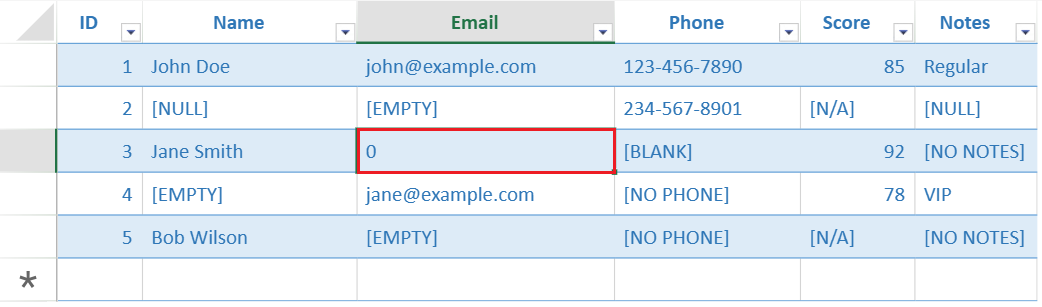
showNullAs: "0"Then:
Numeric values are right-aligned.
The displayed
"0"fornullis left-aligned.
Configure in Designer
On the View
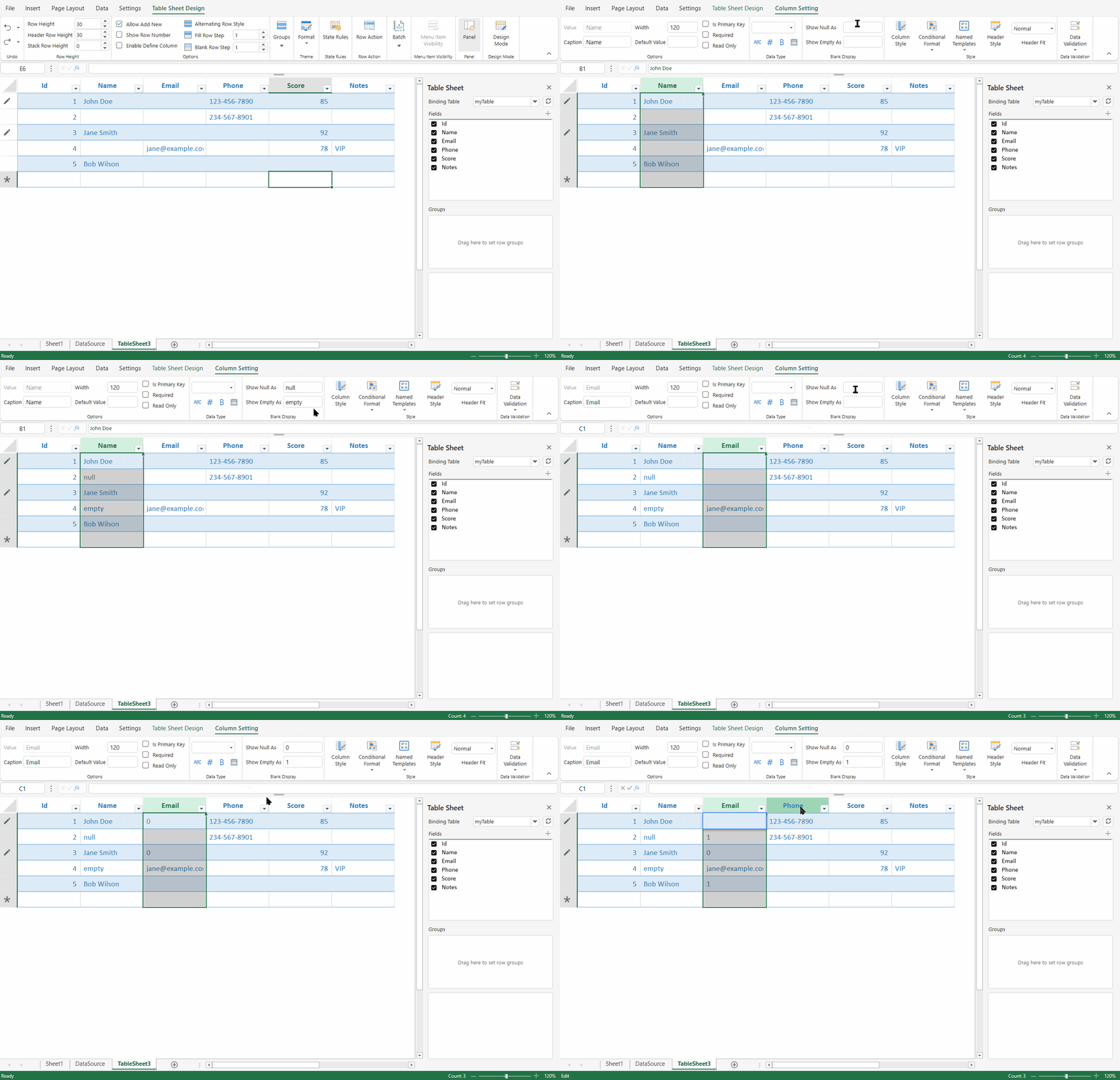
Select the TableSheet view.
Open the Column Setting ribbon tab.
In the Blank Display section, set display text for:
Null values
Empty values
On the Table Schema
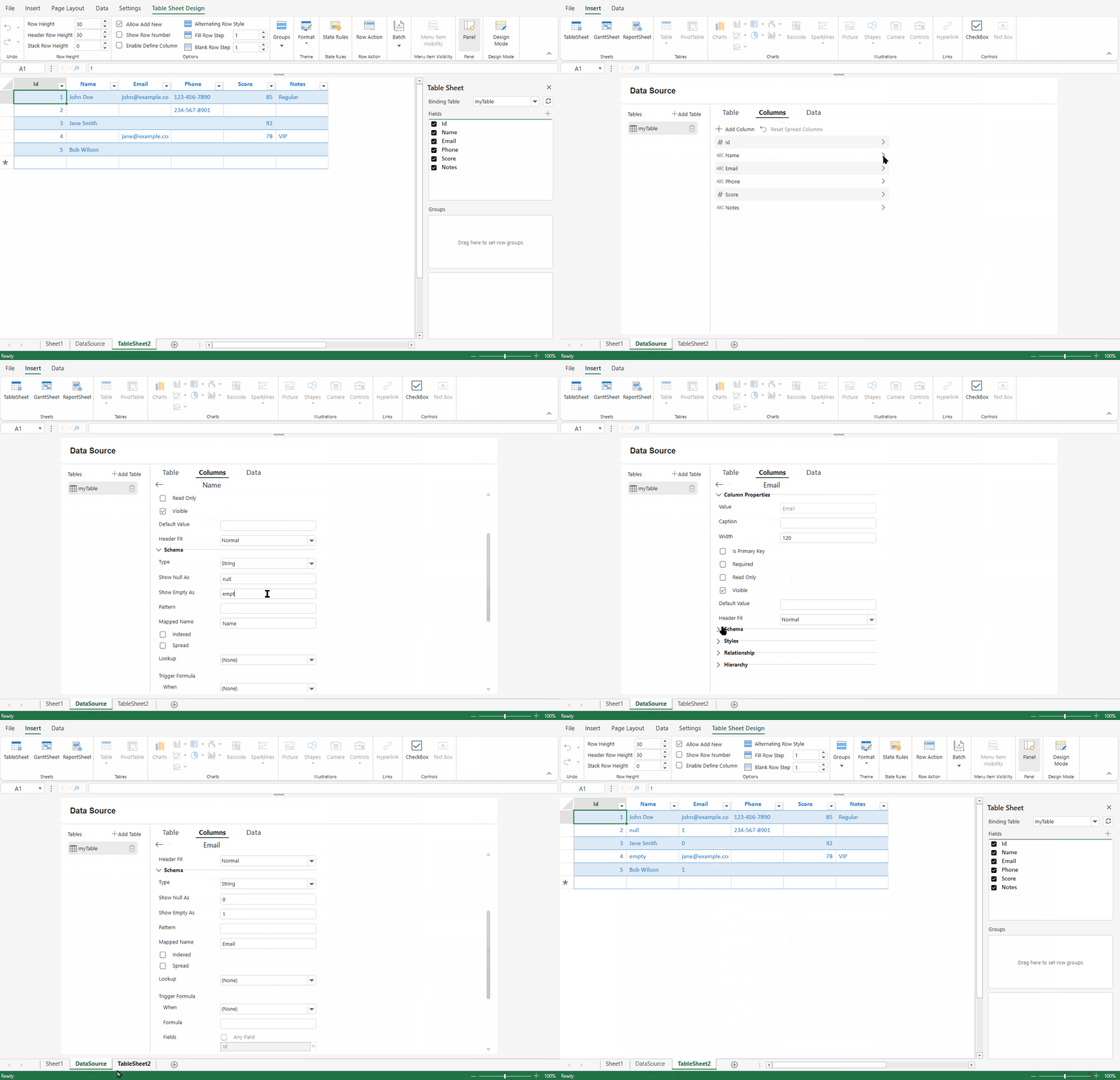
Open Data Source.
Select the table.
Go to Column Setting.
Configure blank display options for the column.
Export Behavior
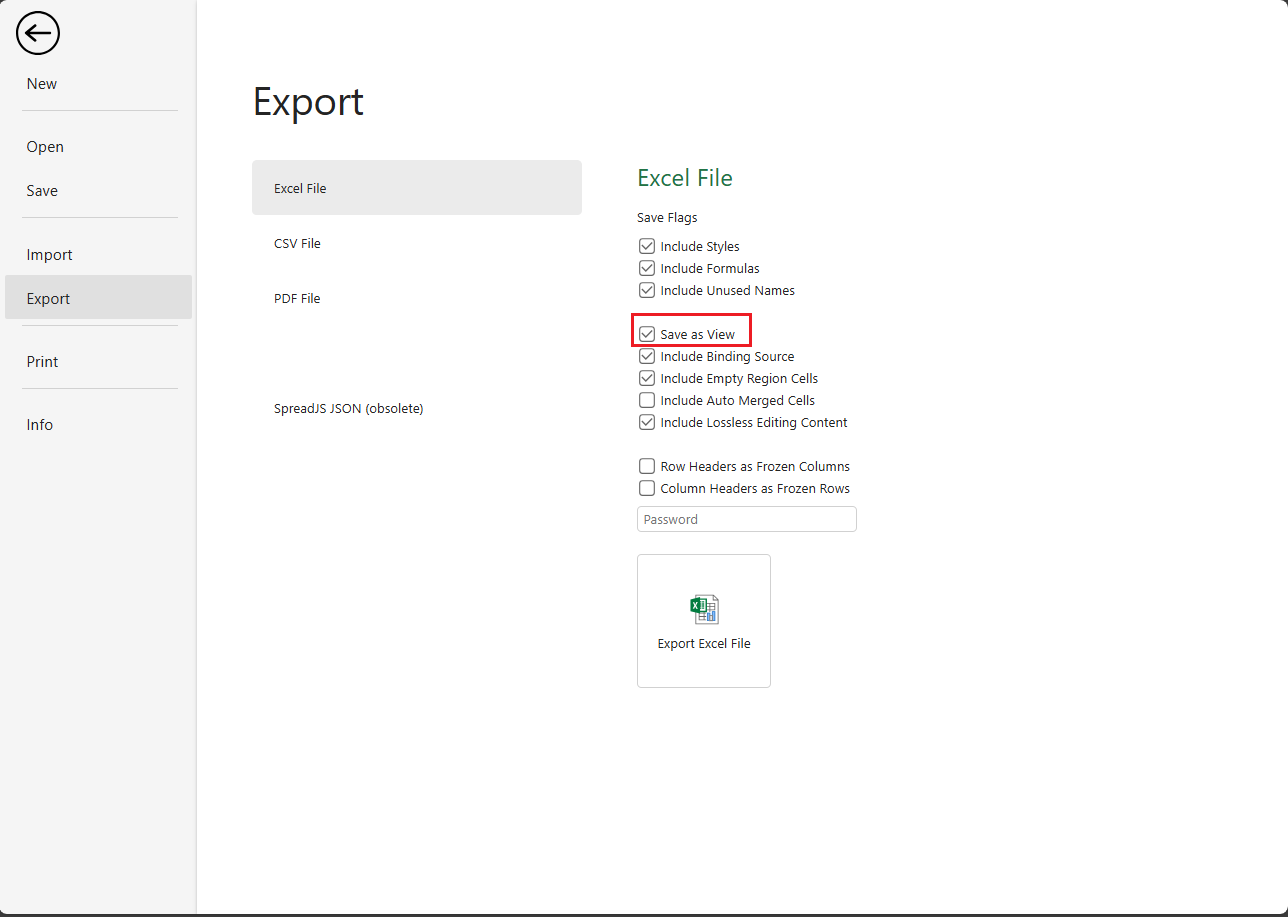
When exporting to Excel, whether the custom display text is exported depends on the saveAsView in ExportOptions.
saveAsView = true: The exported Excel file contains the displayed text defined byshowNullAsandshowEmptyAs.saveAsView = false(default): The exported file contains the original underlying values. Cells with null or empty string values appear blank in Excel.
Using saveAsView
spread.export(function (blob) {
    saveAs(blob, "export.xlsx");
}, function (e) {
    console.log(e);
}, {
    fileType: GC.Spread.Sheets.FileType.excel,
    saveAsView: true
});
In the Designer, the corresponding export checkbox controls the same option.