Edit Appointment
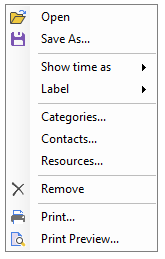
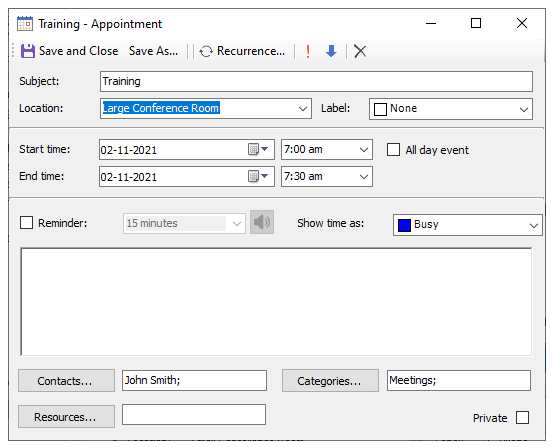
Open an appointment in the Appointment dialog box from the context menu or by double-clicking the appointment.
For a recurring appointment, the Open Recurring Appointment dialog box provides the following options:
Open this occurrence: Opens only the selected occurrence.
Open the series: Opens every occurrence in the recurring appointment series.
Edit Appointment
The context menu provides options for editing an appointment without opening the Appointment dialog box. Assign a status, label, category, contact, or resource directly from the context menu.
To change the appointment status or label, select Status or Label, and then select an option from the corresponding submenu.
To assign categories, contacts, or resources, select Categories, Contacts, or Resources. Each command opens the corresponding dialog box.
Saving Appointment
Save an appointment as a binary (.dat), iCalendar (.ics), or XML file.
Use one of the following methods:
Select the appointment, right-click it, and select Save As.
Open the appointment and select Save As on the Appointment dialog box toolbar.