Availability
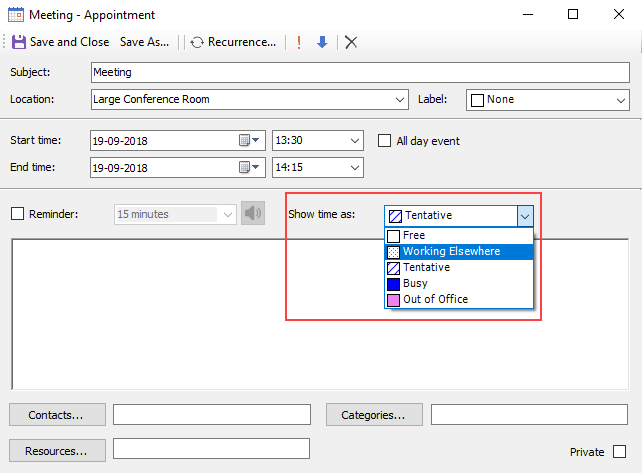
C1Schedule provides five predefined availability states that can be assigned to appointments:
Busy
Free
Out of Office
Tentative
Working Elsewhere
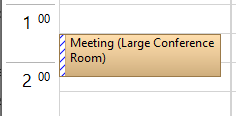
The availability color appears only in WorkWeekView, WeekView, and DayView. For an appointment associated with a time interval, the color appears in the time-slot area to the left of the appointment.
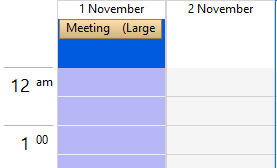
For an all-day event, the appointment appears in the all-day area. The availability color appears in the time-slot area for all appointments scheduled on that date.
Note: The Office 2007 Black, Office 2007 Blue, and Office 2007 Silver visual styles do not display the availability color directly in appointments or events.
The Office 2007 Blue, Office 2007 Black, and Office 2007 Silver visual styles set the ShowDayStatus property to false by default. Therefore, availability does not appear in the time-slot area beside appointments in WeekView, WorkWeekView, or DayView.
To display availability, open the Visual Style dialog box from the C1Schedule Smart Designer, expand the Day View node, and select Show day status.
In Office 2007 visual styles, availability does not appear beside the appointment. Instead, the background color of the date or time slot reflects the availability status of its appointments.
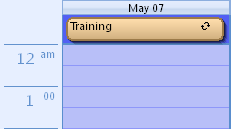
In Office 2007 visual styles, the HighlightDayStatus property is set to True by default. To disable the property, clear the Highlight day status check box under the Common node in the Visual Style dialog box in the C1Schedule Smart Designer.
Predefined Availabilities
The predefined availability states include the following:
Availability | Color | Index |
|---|---|---|
Busy |
| 0 |
Free |
| 1 |
Out of Office |
| 2 |
Tentative |
| 3 |
Working Elsewhere |
| 4 |


Assigning Predefined Availabilities to an Appointment
Assign availability in code or at run time through the Appointment dialog box.
The following code, added to the Form_Load event, assigns the Tentative availability to an appointment:
c1Schedule1.ViewType = C1.Win.Schedule.ScheduleViewEnum.WorkWeekView;
// Add a new appointment.
C1.C1Schedule.Appointment app;
app = this.c1Schedule1.DataStorage.AppointmentStorage.Appointments.Add();
// Set some details for the appointment.
app.Subject = "Meeting";
app.Location = "Large Conference Room";
app.Duration = TimeSpan.FromMinutes(45);
app.Start = new DateTime(2021, 11, 01, 13, 30, 0);
// Assign a predefined label to the appointment.
app.Label = this.c1Schedule1.DataStorage.LabelStorage.Labels[6];
// Assign a predefined availability to the appointment.
app.BusyStatus = this.c1Schedule1.DataStorage.StatusStorage.Statuses[C1.C1Schedule.StatusTypeEnum.Tentative];
Note: Availability can be assigned by using either a StatusTypeEnum value or its corresponding index.
At run time, select an availability option from the Show time as drop-down list in the Appointment dialog box.