Categories
A category is a keyword or phrase used to organize appointments. C1Schedule provides 20 predefined appointment categories.
Categories are stored in the CategoryCollection class, and multiple categories can be assigned to an appointment.
Assigning Predefined Categories to an Appointment
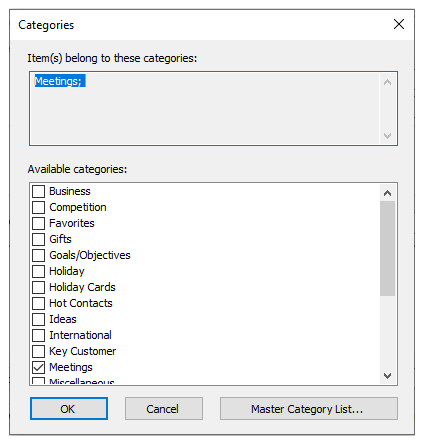
Assign categories in code or at run time through the Categories dialog box.
The following code, added to the Form_Load event, assigns the Strategies category to an appointment.
C1.C1Schedule.Appointment app;
app = this.c1Schedule1.DataStorage.AppointmentStorage.Appointments.Add();
// Set some details for the appointment.
app.Subject = "Meeting";
app.Location = "Large Conference Room";
app.Duration = TimeSpan.FromMinutes(45);
app.Start = new DateTime(2021, 11, 01, 13, 30, 0);
// Assign a predefined label to the appointment.
app.Label = this.c1Schedule1.DataStorage.LabelStorage.Labels[6];
// Assign a predefined availability to the appointment.
app.BusyStatus = this.c1Schedule1.DataStorage.StatusStorage.Statuses[C1.C1Schedule.StatusTypeEnum.Tentative];
// Assign a category to the appointment.
C1.C1Schedule.Category category;
category = this.c1Schedule1.DataStorage.CategoryStorage.Categories[15];
app.Categories.Add(category);
To assign categories at run time:
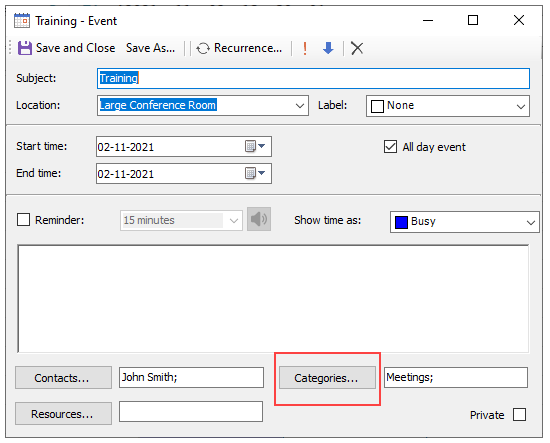
Open the appointment in the Appointment dialog box.
Select Categories to open the Categories dialog box.
Select the categories to associate with the appointment.
Select OK.
Adding Custom Categories to the Master Category List
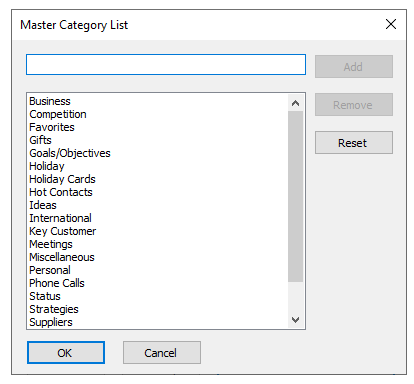
C1Schedule supports custom categories created in code or at run time through the Master Category List dialog box.
The following code in the Form_Load event creates a custom Meetings category.
// Create the Meetings category.
C1.C1Schedule.CategoryCollection catcol;
catcol = this.c1Schedule1.DataStorage.CategoryStorage.Categories;
C1.C1Schedule.Category meetings = new C1.C1Schedule.Category();
meetings.Text = "Meetings";
// Insert the Meetings category into the Master Category List.
catcol.Insert(0, meetings);
category = this.c1Schedule1.DataStorage.CategoryStorage.Categories[0];
app1.Categories.Add(category);
To create, remove, or reset categories at run time:
Open the Categories dialog box.
Select Master Category List.
Add, remove, or reset the required categories.
Select OK.