


Create New Appointment
Create an appointment at run time by opening the Scheduler context menu and selecting one of the following commands:
New Appointment
New All Day Event
New Recurring Appointment
New Recurring Event
Note: Double-click a date or time to create an appointment and open the Appointment dialog box for the selected date or time.
Creating an appointment at run time opens the Appointment dialog box.
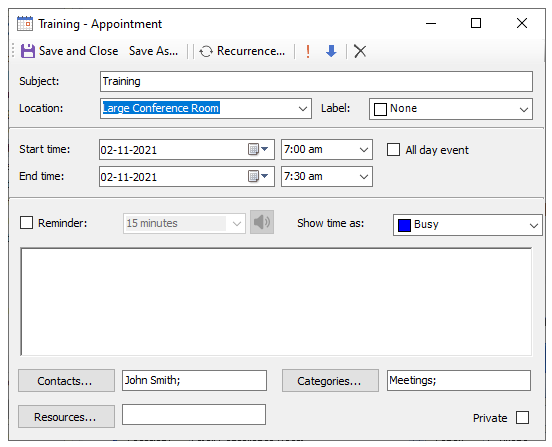
The following keyboard commands are available in the Appointment dialog box:
Key | Action |
|---|---|
TAB or ENTER | Moves focus between fields according to the tab order. |
ESC | Closes the Appointment dialog box without saving the changes. |
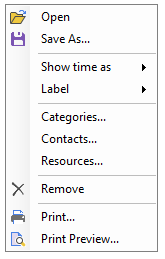
After creating an appointment, right-click it to open a context menu with options for editing, saving, or deleting the appointment.
Appointment Dialog Box Properties
The following Appointment properties can be configured in the Appointment dialog box at run time:
Property | Description |
|---|---|
AllDayEvent | Gets or sets a Boolean value that indicates whether the appointment is an all-day event. |
Body | Gets or sets a string value that represents the appointment body. |
BusyStatus | Gets or sets the |
Duration | Gets or sets the |
End | Gets or sets the |
Importance | Gets or sets the |
Label | Gets or sets the |
Location | Gets or sets the String value that specifies the appointment location. |
Private | Gets or sets a Boolean value that indicates whether the calendar owner has marked the appointment as private. |
ReminderSet | Gets or sets a Boolean value that indicates whether a reminder is associated with the appointment. Setting this property to |
ReminderSoundFile | Gets or sets the String value that specifies the path and file name of the sound played when the reminder occurs. This property applies only when |
ReminderTimeBeforeStart | Gets or sets the |
Sensitivity | Gets or sets the |
Start | Gets or sets the |
Subject | Gets or sets the string value that represents the appointment subject. |