


- Spread for WPF Overview
- About the Product
- Getting Started
- Quick Start
- Designer
- Features
- Assembly Reference
Pivot Table Style Options
A PivotTable style is composed of multiple table style elements, with each element defining the formatting for a specific part of the PivotTable. The supported element types are listed in the TableStyleElementType enumeration. The PivotTable object provides properties to configure style options according to the selected style.
Spread WPF supports four key style options: Row Headers, Column Headers, Banded Rows, and Banded Columns. These settings control whether headers are displayed and whether alternating rows or columns are formatted with banded styles, based on the applied PivotTable style.
Apply Row Header Formatting
Spread WPF provides the IPivotTable.ShowTableStyleRowHeaders property to apply the pivot table style to row headers. Enabling this option ensures that row headers are clearly highlighted according to the applied style.
Row Header Formatting Enabled | Row Header Formatting Disabled |
|---|---|
|
|
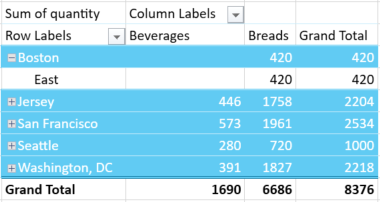
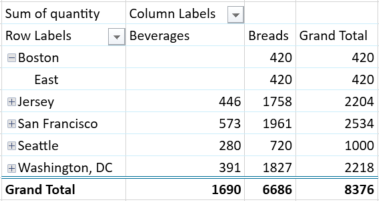
The following example demonstrates how to show row header formatting in the pivot table.
pvTable.ShowTableStyleRowHeaders = true;pvTable.ShowTableStyleRowHeaders = TrueApply Column Header Formatting
You can use the IPivotTable.ShowTableStyleColumnHeaders property to apply the selected pivot table style to column headers. This enhances the visibility of column groupings and provides a more organized structure for the presented data.
Column Header Formatting Enabled | Column Header Formatting Disabled |
|---|---|
|
|
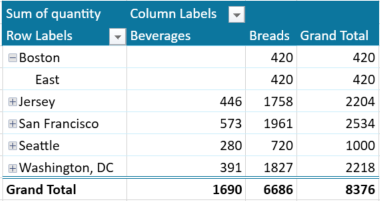
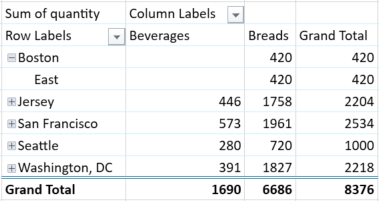
The following example demonstrates how to show column header formatting in the pivot table.
pvTable.ShowTableStyleColumnHeaders = true;pvTable.ShowTableStyleColumnHeaders = TrueApply Banded Row Formatting
Banded rows use alternating background colors or styles to distinguish between adjacent rows. You can enable this option using the IPivotTable.ShowTableStyleRowStripes property.
Banded Row Formatting Enabled | Banded Row Formatting Disabled |
|---|---|
|
|
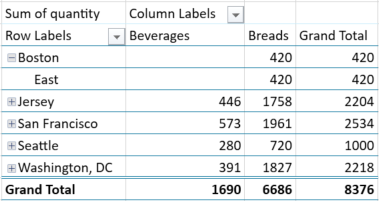
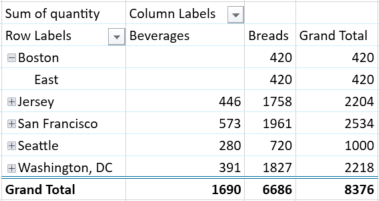
The following example demonstrates how to show banded row formatting in the pivot table.
pvTable.ShowTableStyleRowStripes = true;pvTable.ShowTableStyleRowStripes = TrueApply Banded Column Formatting
Banded columns work similarly to banded rows, but apply alternating formatting to columns instead. Use the IPivotTable.ShowTableStyleColumnStripes property to enable this feature.
Banded Column Formatting Enabled | Banded Column Formatting Disabled |
|---|---|
|
|
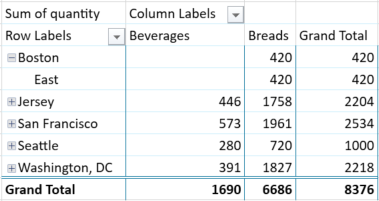
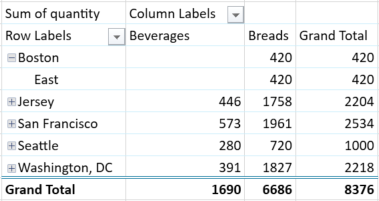
The following example demonstrates how to show banded column formatting in the pivot table.
pvTable.ShowTableStyleColumnStripes = true;pvTable.ShowTableStyleColumnStripes = True