


- Spread for WPF Overview
- About the Product
- Getting Started
- Quick Start
- Designer
- Features
- Assembly Reference
Built-in Dialogs
Spread for WPF provides the BuiltInDialogs class, which offers several built-in dialogs for managing and configuring pivot tables. After running the code, you can use these dialogs to customize various pivot table options through an interactive interface, similar to Excel.
Pivot Field Settings
You can configure settings for a specific pivot table field (e.g., "Product"), such as filter, field name, and layout.
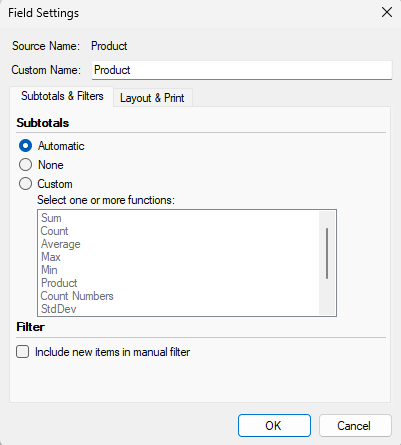
Refer to the sample code below to enable the built-in Field Settings dialog.
C#
IWorkbook WorkBook = GcSpreadSheet1.Workbook;
IWorksheet Sheet1 = WorkBook.ActiveSheet;
IWorkbookSet WorkbookSet = WorkBook.WorkbookSet;

// Set data.
Sheet1.SetValue(0, 0, new object[,]
{
    {"Order no.","Product","Country","Seller","Amount","Rating","Prices" },
    {1001,"Apples","USA","Anna",  250 , 25  , 6 },
    {1002,"Oranges","USA","John",  120 , 5 , 8 },
    {1003,"Bananas","Canada","John",  157 , 14  , 3.5 },
    {1004,"Grapes","USA","Sarah",  150 , 27  , 5 },
    {1005,"Apples","Mexico","Carlos",  270 , 10  , 1.8 },
    {1006,"Oranges","Canada","Anna",  133 , 12  , 9 },
    {1007,"Bananas","Mexico","Sarah",  165 , 30  , 4 },
    {1008,"Grapes","Canada","Emily",  220 , 26  , 12  },
    {1001,"Apples","USA","John",  250 , 35  , 5 },
    {1010,"Oranges","Mexico","Emily",  105 , 18  , 4 },
    {1011,"Bananas","USA","Emily",  135 , 22  , 2.8 },
    {1012,"Grapes","Mexico","Carlos",  145 , 14  , 6.5 },
    {1013,"Apples","Canada","John",  288 , 31  , 3 }
});
IWorksheet sheet2 = WorkBook.Worksheets.Add();
IPivotCache pvCache = WorkBook.PivotCaches.Create("Sheet1!A1:G14");
IPivotTable pvTable = pvCache.CreatePivotTable(sheet2.Cells["A3"]);
IPivotFields pvFields = pvTable.PivotFields;

// Configure Pivot Table fields.
pvTable.AddDataField(pvFields["Amount"]);
pvTable.AddDataField(pvFields["Country"]);
pvFields["Product"].Orientation = PivotFieldOrientation.Row;
pvFields["Country"].Orientation = PivotFieldOrientation.Row;
pvTable.DataPivotField.Orientation = PivotFieldOrientation.Column;
pvFields["Product"].Position = 0;
pvFields["Country"].Position = 1;
pvTable.DataPivotField.Position = 2;

// Show the built-in PivotFieldSettings dialog.
BuiltInDialogs.PivotFieldSettings(GcSpreadSheet1, pvFields["Product"]).ShowDialog();
VB
Dim WorkBook As IWorkbook = spreadSheet1.Workbook
Dim Sheet1 As IWorksheet = WorkBook.ActiveSheet
Dim workbookSet As IWorkbookSet = WorkBook.WorkbookSet

' Set data.
Sheet1.SetValue(0, 0, New Object(,) {
    {"Order no.", "Product", "Country", "Seller", "Amount", "Rating", "Prices"},
    {1001, "Apples", "USA", "Anna", 250, 25, 6},
    {1002, "Oranges", "USA", "John", 120, 5, 8},
    {1003, "Bananas", "Canada", "John", 157, 14, 3.5},
    {1004, "Grapes", "USA", "Sarah", 150, 27, 5},
    {1005, "Apples", "Mexico", "Carlos", 270, 10, 1.8},
    {1006, "Oranges", "Canada", "Anna", 133, 12, 9},
    {1007, "Bananas", "Mexico", "Sarah", 165, 30, 4},
    {1008, "Grapes", "Canada", "Emily", 220, 26, 12},
    {1001, "Apples", "USA", "John", 250, 35, 5},
    {1010, "Oranges", "Mexico", "Emily", 105, 18, 4},
    {1011, "Bananas", "USA", "Emily", 135, 22, 2.8},
    {1012, "Grapes", "Mexico", "Carlos", 145, 14, 6.5},
    {1013, "Apples", "Canada", "John", 288, 31, 3}
})

Dim sheet2 As IWorksheet = WorkBook.Worksheets.Add()
Dim pvCache As IPivotCache = WorkBook.PivotCaches.Create("Sheet1!A1:G14")
Dim pvTable As IPivotTable = pvCache.CreatePivotTable(sheet2.Cells("A3"))
Dim pvFields As IPivotFields = pvTable.PivotFields

' Configure Pivot Table fields.
pvTable.AddDataField(pvFields("Amount"))
pvTable.AddDataField(pvFields("Country"))
pvFields("Product").Orientation = PivotFieldOrientation.Row
pvFields("Country").Orientation = PivotFieldOrientation.Row
pvTable.DataPivotField.Orientation = PivotFieldOrientation.Column
pvFields("Product").Position = 0
pvFields("Country").Position = 1
pvTable.DataPivotField.Position = 2

' Show the built-in PivotFieldSettings dialog.
BuiltInDialogs.PivotFieldSettings(spreadSheet1, pvFields("Product")).ShowDialog()
Pivot Value Field Settings
You can define settings for a value field (e.g., "Amount"), including calculation type (Sum, Count, Average, etc.) and display options.
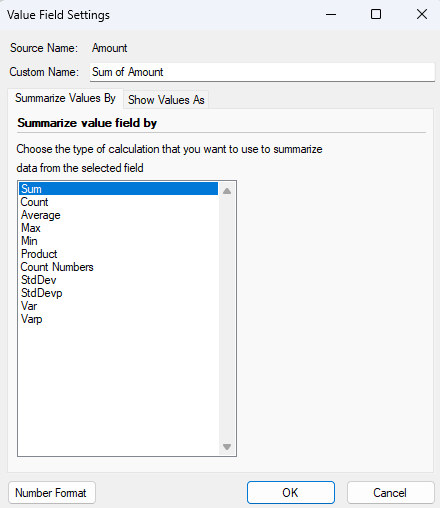
Refer to the sample code below to enable the built-in Value Field Settings dialog.
C#
BuiltInDialogs.PivotValueFieldSettings(GcSpreadSheet1, pvTable.DataFields[0]).ShowDialog();VB
BuiltInDialogs.PivotValueFieldSettings(spreadSheet1, pvTable.DataFields(0)).ShowDialog()Pivot Table Fields
This dialog displays the field list, enabling you to drag and drop fields to set up the rows, columns, values, and filters for the pivot table.
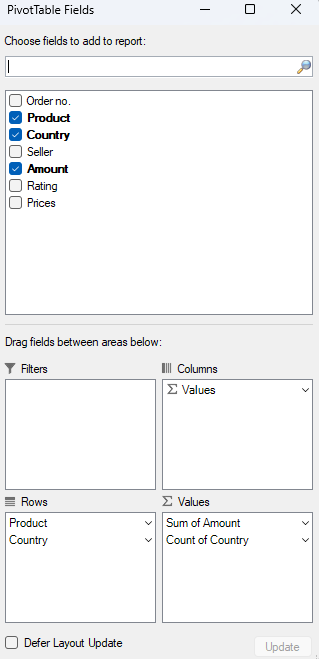
Refer to the sample code below to enable the built-in PivotTable Fields dialog.
C#
BuiltInDialogs.PivotTableFields(GcSpreadSheet1, pvTable).ShowDialog();VB
BuiltInDialogs.PivotTableFields(spreadSheet1, pvTable).ShowDialog()Pivot Table Options
This dialog provides options to customize global settings for the pivot table, such as format, totals, layout, and display.
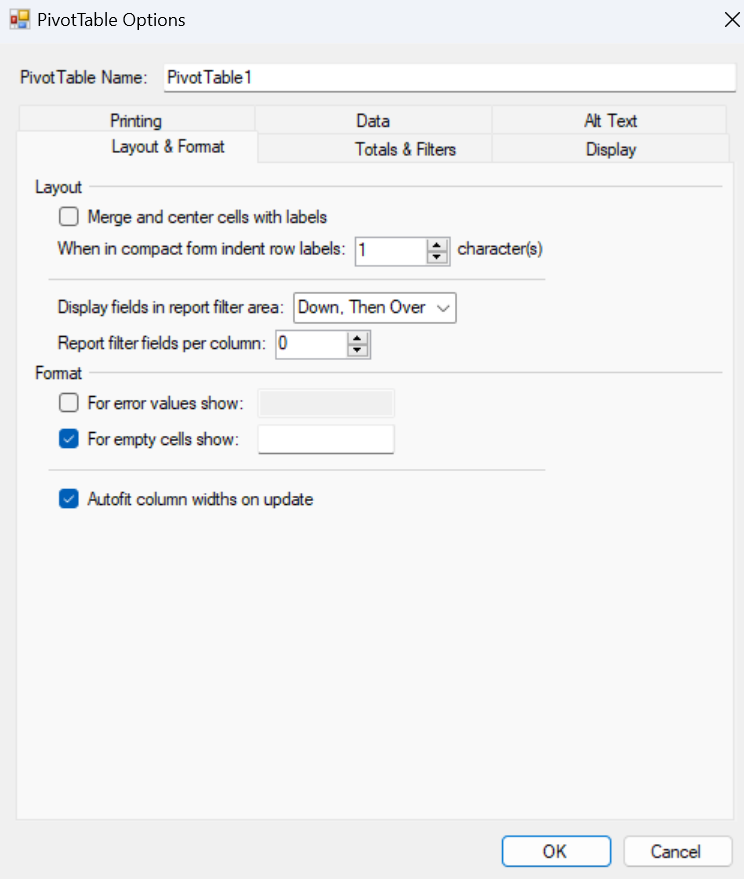
Refer to the sample code below to enable the built-in PivotTable Options dialog.
C#
BuiltInDialogs.PivotTableOptions(GcSpreadSheet1, pvTable).ShowDialog();VB
BuiltInDialogs.PivotTableOptions(spreadSheet1, pvTable).ShowDialog()