


- SpreadJS Overview
- Getting Started
- JavaScript Frameworks
- Best Practices
-
Features
- Workbook
- Worksheet
- Rows and Columns
- Headers
- Cells
- Data Binding
- Data Manager
- TableSheet
- GanttSheet
- ReportSheet
- Data Charts
- JSON Schema with SpreadJS
- SpreadJS File Format
- Data Validation
- Conditional Formatting
- Sort
- Group
- Formulas
- What-If Analysis
- Serialization
- Keyboard Actions
- Shapes
- Floating Objects
- Barcodes
- Charts
- Sparklines
- Tables
- Pivot Table
- Slicer
- Theme
- User Management
- Culture
- AI Assistant
- SpreadJS Designer
- SpreadJS Designer VSCode Plugin
- Tutorials
- SpreadJS Designer Component
- SpreadJS Collaboration Server
- Touch Support
- Formula Reference
- Import and Export Reference
- Events
- API Documentation
- Release Notes
Sort
The PivotTable sorting feature in SpreadJS enables developers to control the order of data items within PivotTables for clearer and more efficient data analysis.
Sorting can be configured programmatically through the PivotTable.sort() API and sortInfo object, or interactively within the Designer.
Developers can specify sort orders by field name, value, or custom logic, and optionally use advanced features such as Custom Callback Function sorting, Custom List sorting(“First key sort order” List) and manual drag‑and‑drop reordering.
These options provide a flexible way to define and maintain consistent sort behavior across PivotTables in a worksheet.
Sorting Modes
Supports 4 main sorting modes:
Modes | Description | UI Indicator |
|---|---|---|
Ascending | Sort field items in alphabetical/ascending order. |
|
Descending | Sort field items in reverse/alphabetical descending order. |
|
Custom (Callback) | Use a custom comparison function for sorting logic. |
|
Custom (List) | Define an explicit order using a predefined list of values. |
|


Related API
Type | Name | Description |
|---|---|---|
Enumeration | Sorting modes: | |
Interface | Sorts configuration for a field. Key fields: | |
Method | Gets or sets a field's sort configuration. | |
Method | Queries/toggles a field's auto-sort state (default: enabled). When enabled, | |
Method | Returns field items.
If sorted by value, returns the internal label order from the latest label sort. | |
Method | Gets/sets the worksheet‑shared custom sort list. Takes effect only when a field’s |
Notes:
Sorting precedence:
autoSort(enabled by default) overrides the worksheet‑sharedcustomList. Only whenautoSort = falseandsortType ∈ {asc, desc}will the sharedcustomListaffect order.Scope:
PivotTableManager.customListapplies to all PivotTables within the same worksheet; it is not workbook‑scope.Persistence: the shared custom list is not saved to
Workbook.options.customListand is not exported/imported to Excel.For detailed behavior explanations and design rationale, see Design Notes and Restrictions.
Usage Examples
Foundation Code
All examples in this section are based on the foundational setup below, which creates a sample workbook and pivot table for demonstration purposes.
// Initialize a workbook with sample data and create a base pivot table.
// The following setup is shared by all examples below.

var spread = new GC.Spread.Sheets.Workbook(document.getElementById("ss"),{sheetCount:3});
var sourceSheet = spread.getSheet(0);
var sheet = spread.getSheet(1);

var sourceData = [["Date","Buyer","Type","Amount"],
                  ["01-Jan","Mom","Fuel",74],
                  ["15-Jan","Mom","Food",235],
                  ["17-Jan","Dad","Sports",20],
                  ["21-Jan","Kelly","Books",125]];
sourceSheet.setArray(0, 0, sourceData );
sourceSheet.tables.add('sourceData', 0, 0, 5, 4);

var layout = GC.Spread.Pivot.PivotTableLayoutType.compact;
var theme = GC.Spread.Pivot.PivotTableThemes.medium2;
var options = {showRowHeader: true, showColumnHeader: true};

var pivotTable = sheet.pivotTables.add("pivotTable_1",'sourceData',1,1,layout,theme,options);

pivotTable.add("Buyer","Buyer",GC.Spread.Pivot.PivotTableFieldType.rowField);
pivotTable.add("Type","Type",GC.Spread.Pivot.PivotTableFieldType.columnField);
pivotTable.add("Amount","Amount",GC.Spread.Pivot.PivotTableFieldType.valueField);

pivotTable.autoFitColumn();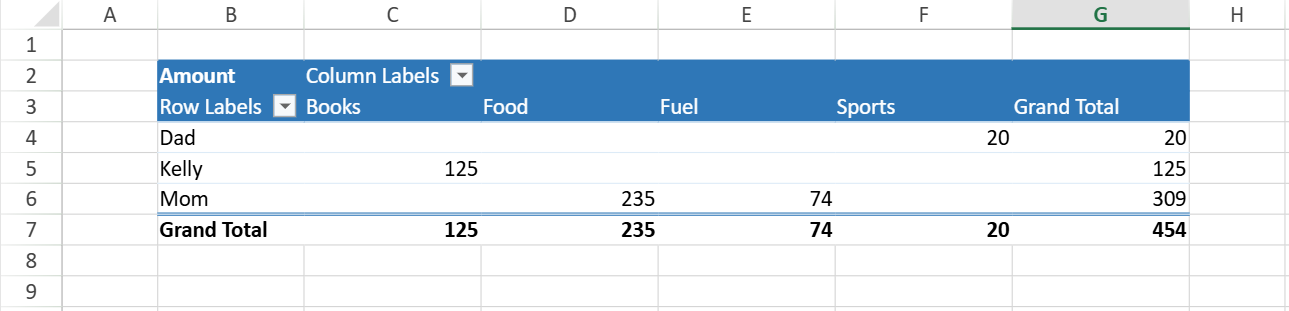
Setting the Sorting Mode
Set the sorting mode using the sortType property of sortInfo.
// Ascending
pivotTable.sort("Buyer", { sortType: GC.Pivot.SortType.asc });

// Descending
pivotTable.sort("Buyer", { sortType: GC.Pivot.SortType.desc });

// Custom Order
pivotTable.sort("Buyer", {sortType: GC.Pivot.SortType.custom });Note:
When you choose the
custommode (GC.Pivot.SortType.custom), be sure to specify a sort rule usingcustomSortCallbackorcustomSortList.
Sorting by Field Item Name
To sort data in a pivot table by a specific field, call the pivotTable.sort(fieldName, sortInfo) method and set the sortType property in sortInfo to define the sorting order (ascending, descending, or custom).
pivotTable.sort("Buyer", { sortType: GC.Pivot.SortType.desc });
// Result: [“Mom”, “Kelly”, “Dad”]
Sorting by Value Field
You can sort pivot fields based on the aggregated values of another field.
To do this, configure the following properties in the sortInfo object when calling pivotTable.sort():
sortType– defines the sort direction (ascending or descending).sortValueFieldName– specifies which value field to use as the basis for comparison.sortByPivotReferences– defines the pivot area (such as a specific column) whose aggregated value is used for sorting.
pivotTable.sort("Buyer", {
  sortType: GC.Pivot.SortType.asc,
  sortValueFieldName: "Amount",
  sortByPivotReferences: [
        {
            fieldName: "Type",
            items: [
                "Books"
            ]
        }
  ]
});
// Result: [“Dad”, “Mom”, “Kelly”]
Sorting by Custom Callback Function
You can define a custom sorting logic for a field by setting the sortType to GC.Pivot.SortType.custom and providing a customSortCallback function.
The callback receives an array (list) containing all items of the target field and should return the reordered array. This allows you to implement any custom rule, such as sorting by string length, alphabetical pattern, or an external ranking.
pivotTable.sort("Buyer", {
  sortType: GC.Pivot.SortType.custom,
  customSortCallback: function (list) {
    return list.sort((a, b) => a.length - b.length);
  }
});
// Result: [“Mom”, “Dad”, “Kelly”]
Sorting by Custom Sort List
You can specify a fixed sorting order for a field by setting the field’s sortType to GC.Pivot.SortType.custom and specifying a customSortList.
The items in customSortList define the exact order in which field items appear.
Notes:
Only items that exist in the pivot field are sorted; non‑existing items in the list are ignored.
Sorting is case‑insensitive.
Items not included in
customSortListappear after the specified items, keeping their default order.
pivotTable.sort("Type", {
  sortType: GC.Pivot.SortType.custom,
  customSortList: ["FOOD", "sports", "Books", "fUel" ]// Case-insensitive
});
// Result: [“Food”, “Sports”, “Books”, “Fuel”]

pivotTable.sort("Buyer", {
  sortType: GC.Pivot.SortType.custom,
  customSortList: ["Food", "Sports"]// Other items keep default order
});
// Result: [“Food”, “Sports”, “Books”, “Fuel”]
Both examples produce the same order.
The first demonstrates case‑insensitive matching, while the second shows that unlisted items retain their default order.
Combining Custom List with AutoSort State
You can combine a custom list with a pivot table's sort behavior.
To make the list order take effect, disable AutoSort first and then apply a PivotManager.customList:
pivotTable.autoSortState("Type", false);
sheet.pivotTables.customList(["Food", "Sports"]);

// Ascending behavior
pivotTable.sort("Type", { sortType: GC.Pivot.SortType.asc });
// Result: [“Food”, “Sports”, “Books”, “Fuel”]

// Descending behavior
pivotTable.sort("Type", { sortType: GC.Pivot.SortType.desc });
// Result: [“Fuel”, “Books”, “Sports”, “Food”]
Manual Reordering (Drag-and-Drop)
Users can manually reorder Pivot field items by dragging them after a global sort.
The change takes effect immediately and is saved as a custom sort state.
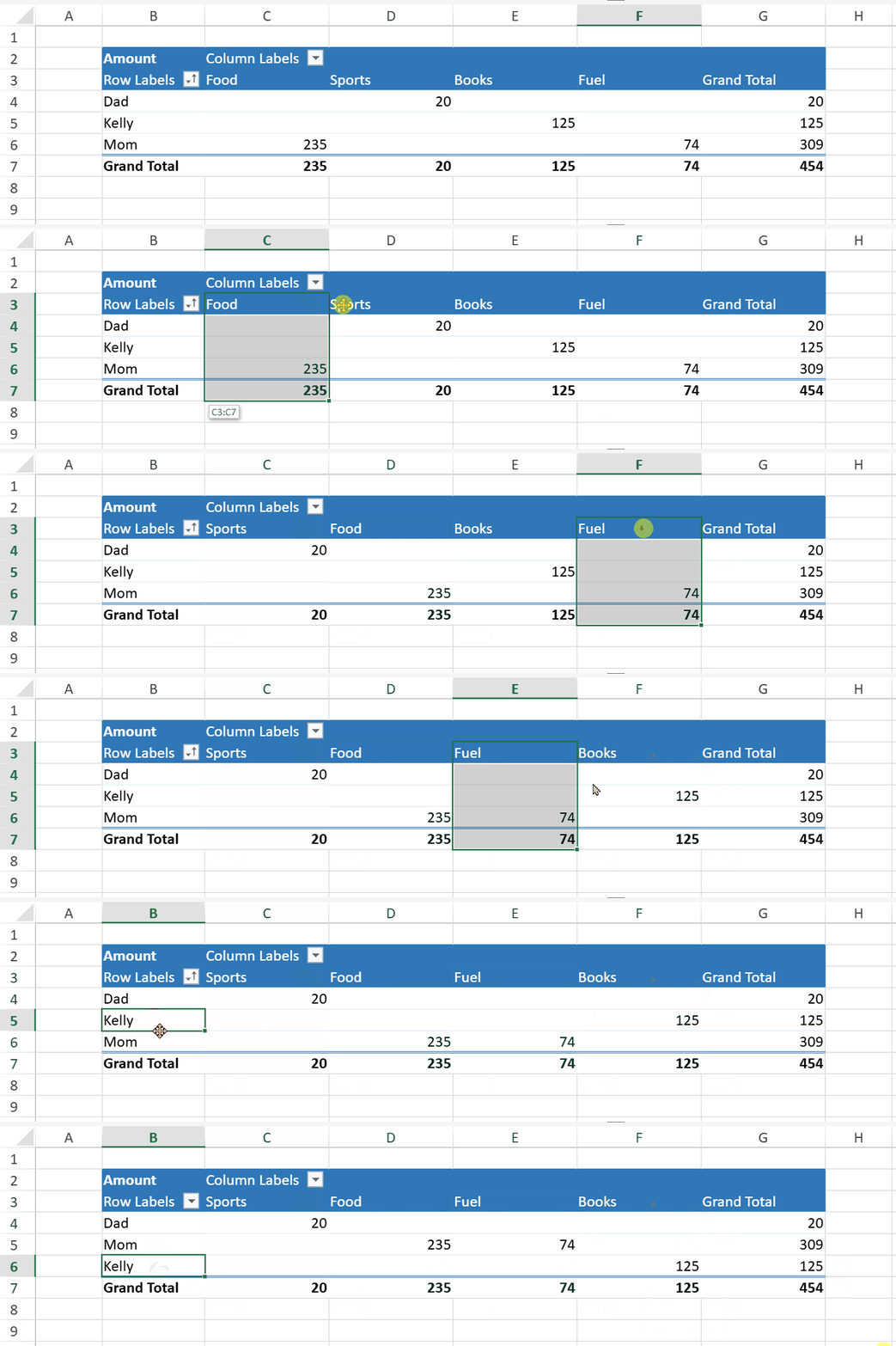
See Drag-and-Drop for more details.
Getting and Clearing Sort Info
You can get or clear the sort information of a field using the pivotTable.sort() method.
// Get current sort info
let info = pivotTable.sort("Buyer");

// Clear sort
pivotTable.sort("Buyer", null);
Using the Designer
In the Designer, you can sort PivotTable data directly through the context menu.
When you right‑click an item in the pivot table (whether it belongs to a row, column, or value area), the context menu displays a Sort option.
The Sort option provides the following three sub‑options:
Sort Ascending (A → Z / Smallest → Largest)
Sort Descending (Z → A / Largest → Smallest)
More Sort Options…
The first two sub‑options perform quick ascending or descending sorts based on the data type of the selected field.
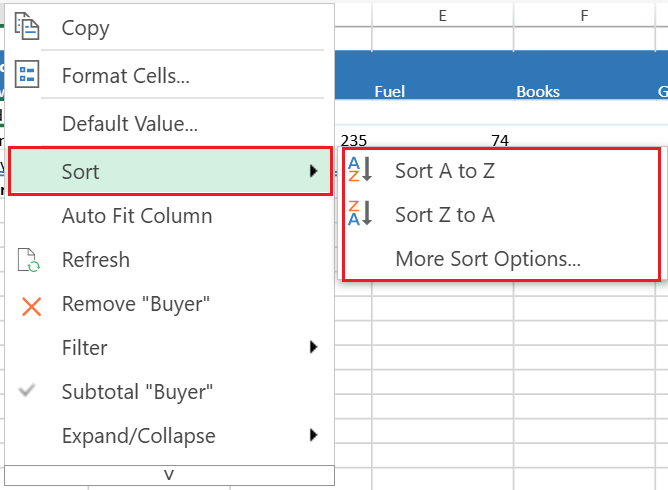
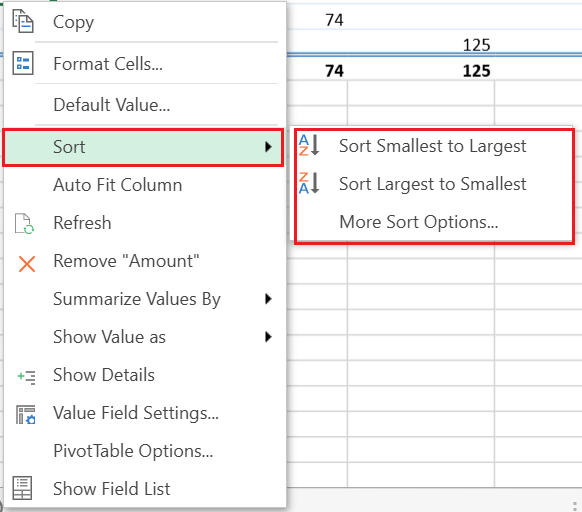
Selecting More Sort Options… opens a corresponding dialog box that provides additional sorting controls.
The following table describes how the More Sort Options… command behaves when accessed from different areas of a pivot table.
Item Area | Dialog | Behavior |
|---|---|---|
Normal Value Area |
| The Sort by Value dialog appears. |
Grand Total Area |
| The Sort by Value dialog appears. However, sort direction is disabled along with the following conditions:
|
Row Header Area/Corner Area |
| Opens the Sort Field dialog along with the following conditions:
|
Column Header Area |
| Opens the Sort Field dialog along with the following conditions:
|
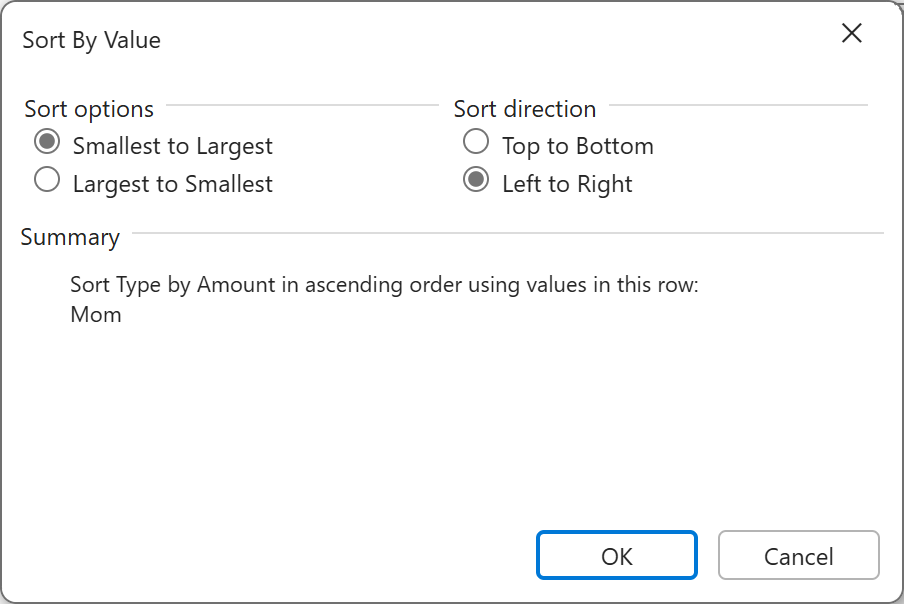
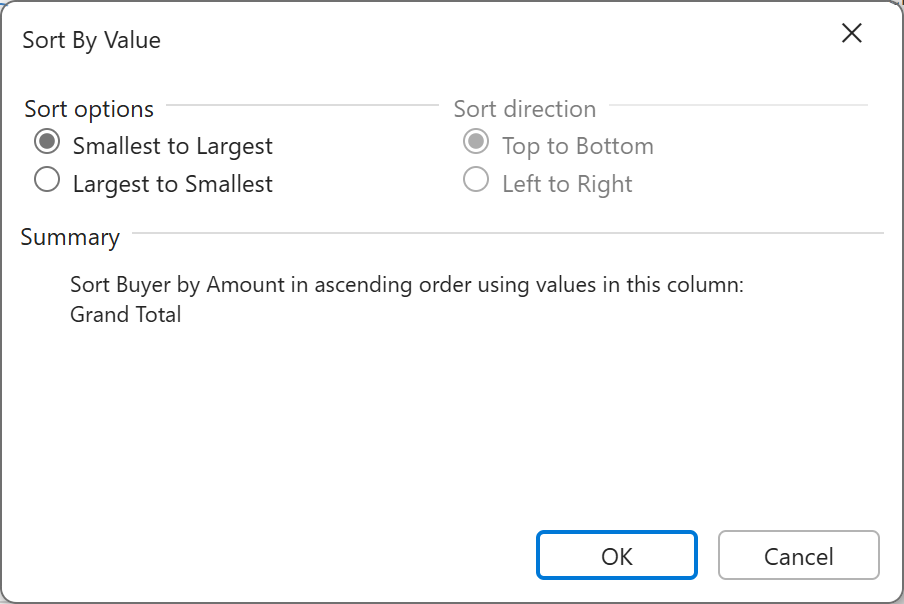
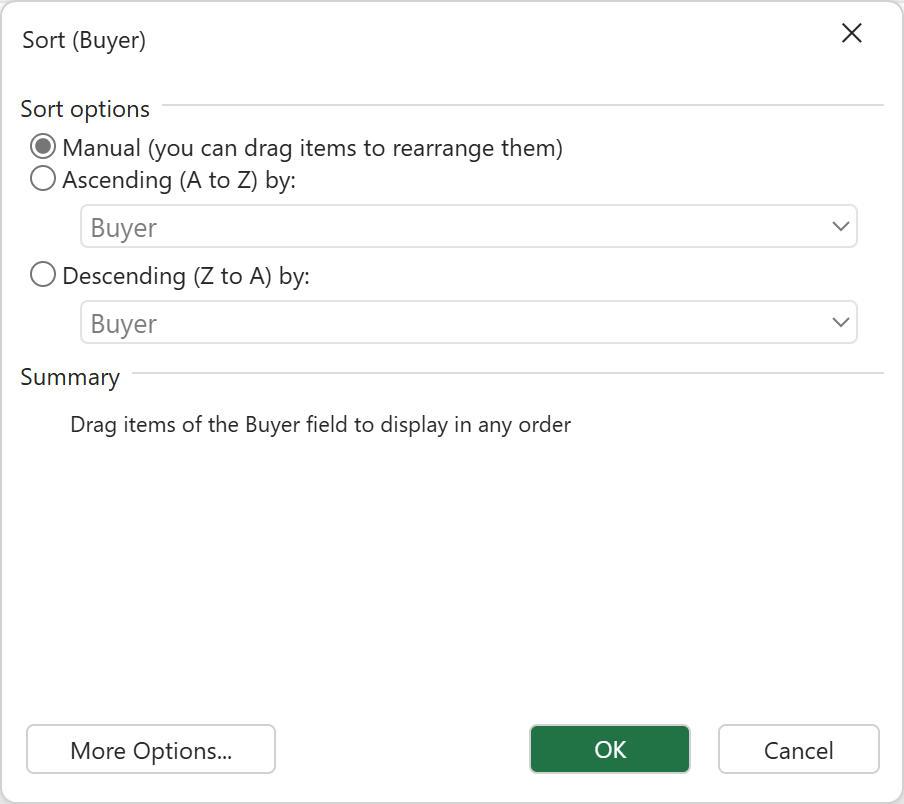
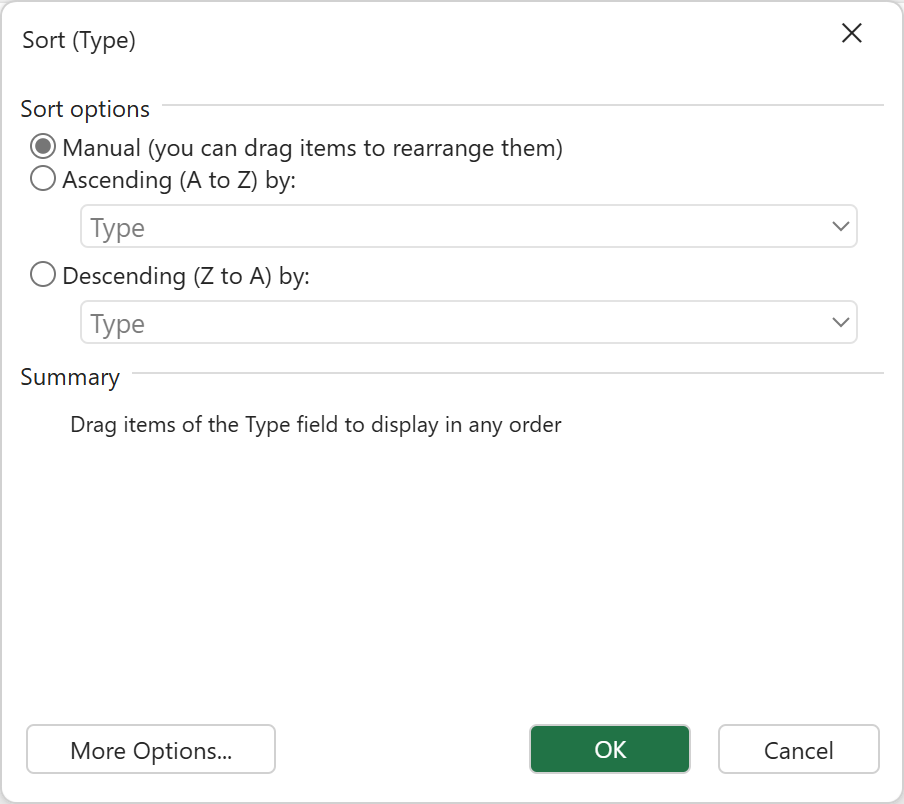
Note:
When a custom sort is performed, the Sort Options dialog automatically switches to Manual.
Clicking More Options... opens an additional Sort dialog that provides advanced sorting controls.
In the Sort dialog, you can sort items based on the Grand Total values (the default option) or sort according to values from a specific field or item.
The following image shows an example of the Sort (Type) dialog as displayed in the Designer:
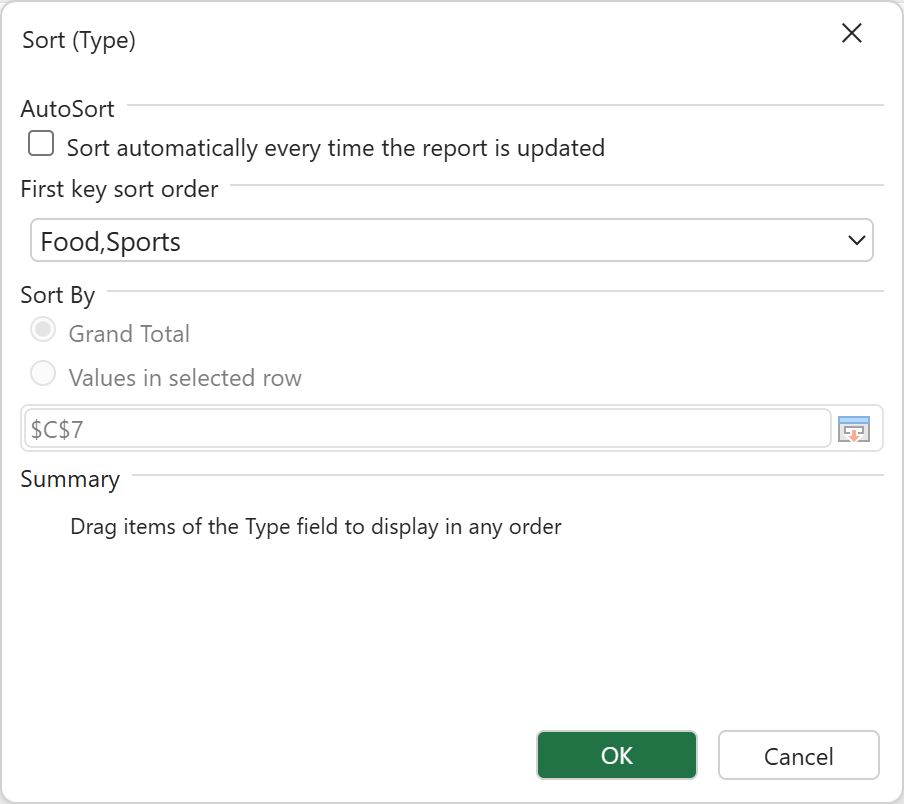
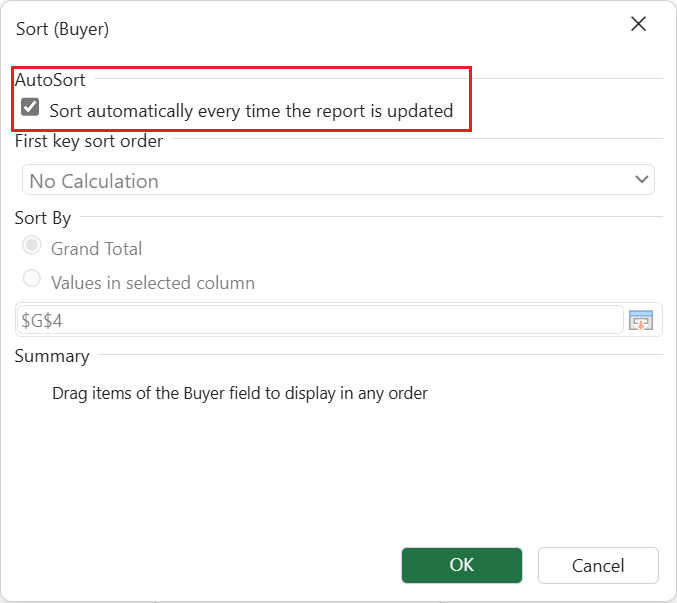
Fields without sort settings remain in AutoSort mode, and opening More Sort Options will show the Auto option selected by default.
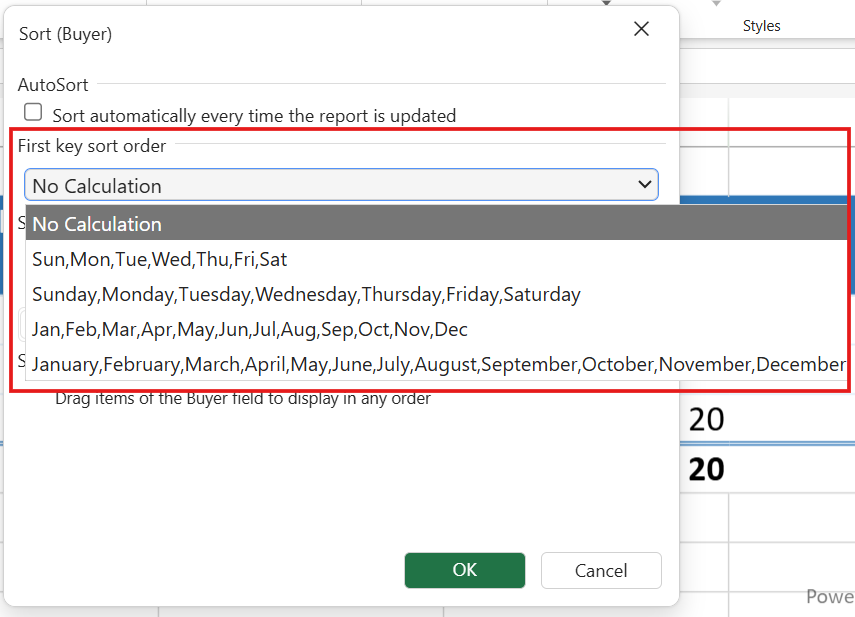
When you uncheck the AutoSort option, the Pivot Field enters Manual sort mode. You can then specify a First Key Sort Order, which defines how ascending and descending custom sorts are applied.
Note:
The More Options... button may be disabled when it is accessed from a field placed in the Row or Column area.
Drag-and-Drop
The Drag‑and‑Drop feature in the Designer allows you to rearrange PivotTable fields directly within the table by simply dragging and dropping them.
This functionality provides an intuitive and efficient way to customize the PivotTable layout without relying on dialogs or menus.
Supported Areas
Drag‑and‑drop is supported for both Column Pivot Fields and Row Pivot Fields, following the same basic interaction pattern.
Selection Modes
Selection Mode | Example View |
|---|---|
PivotField Header Only |
|
Header with Partitioned Value Ranges |
|
Header with Entire Value Ranges |
|
Clicking Field Header to Select Entire Range |
|
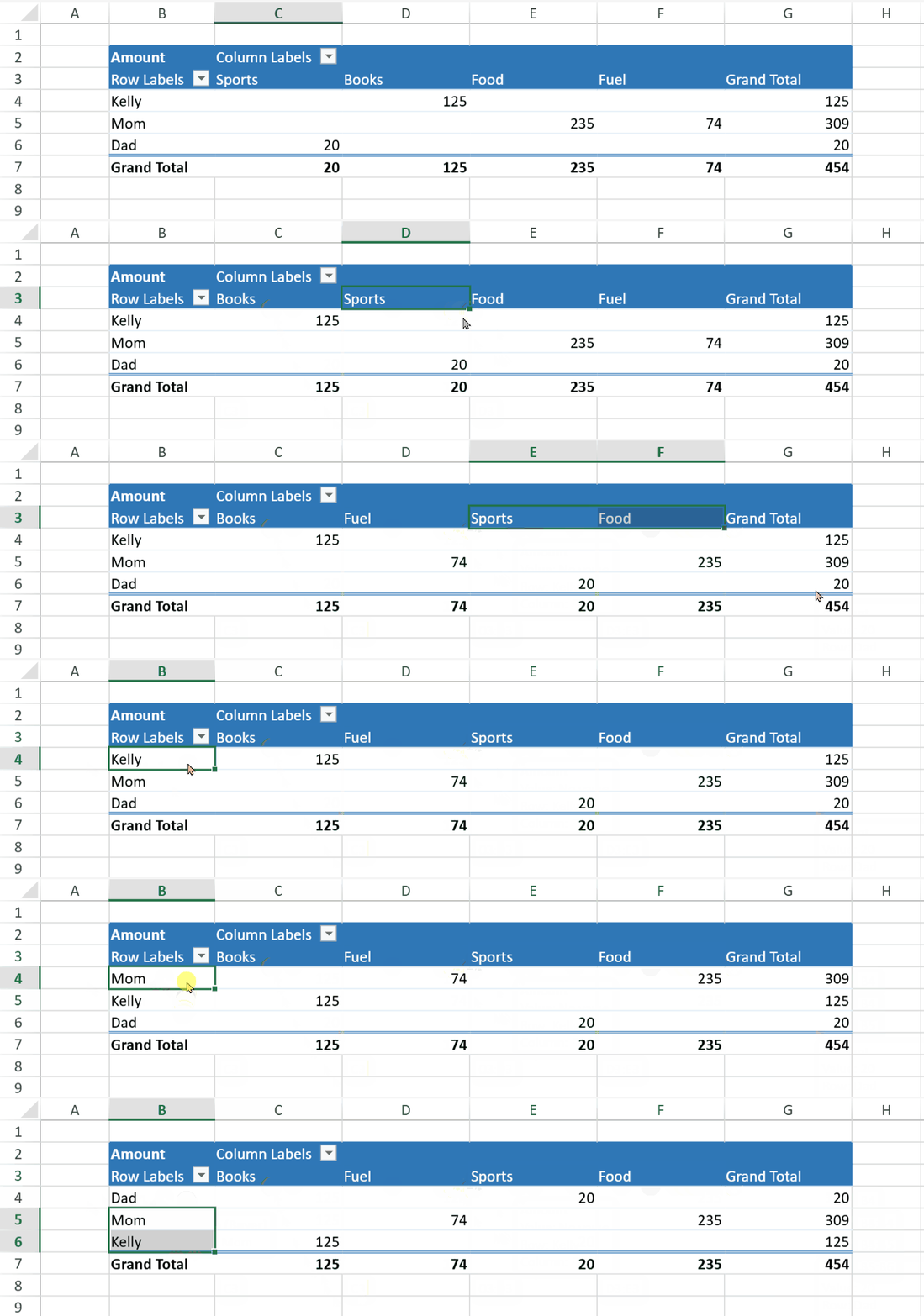
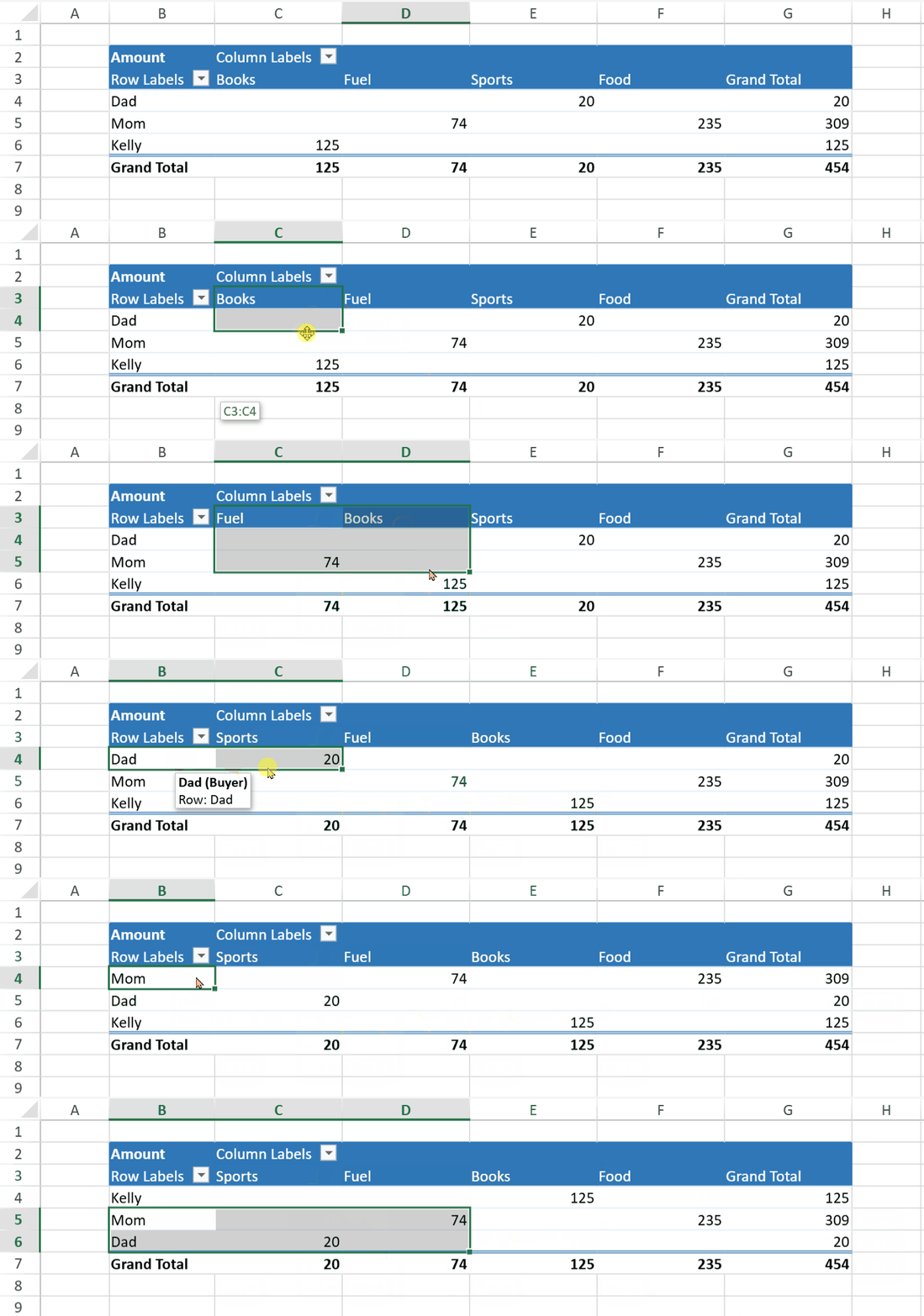
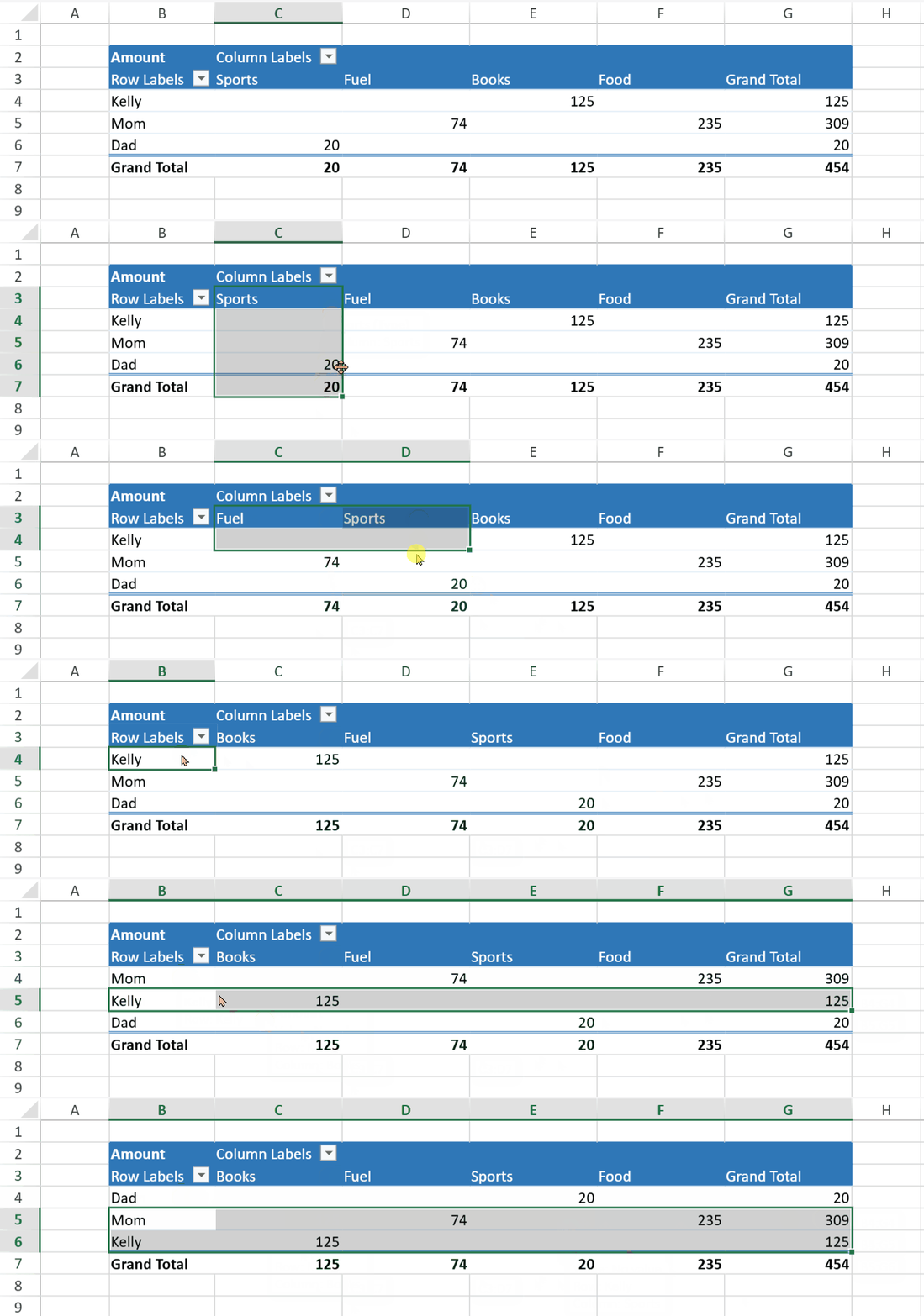
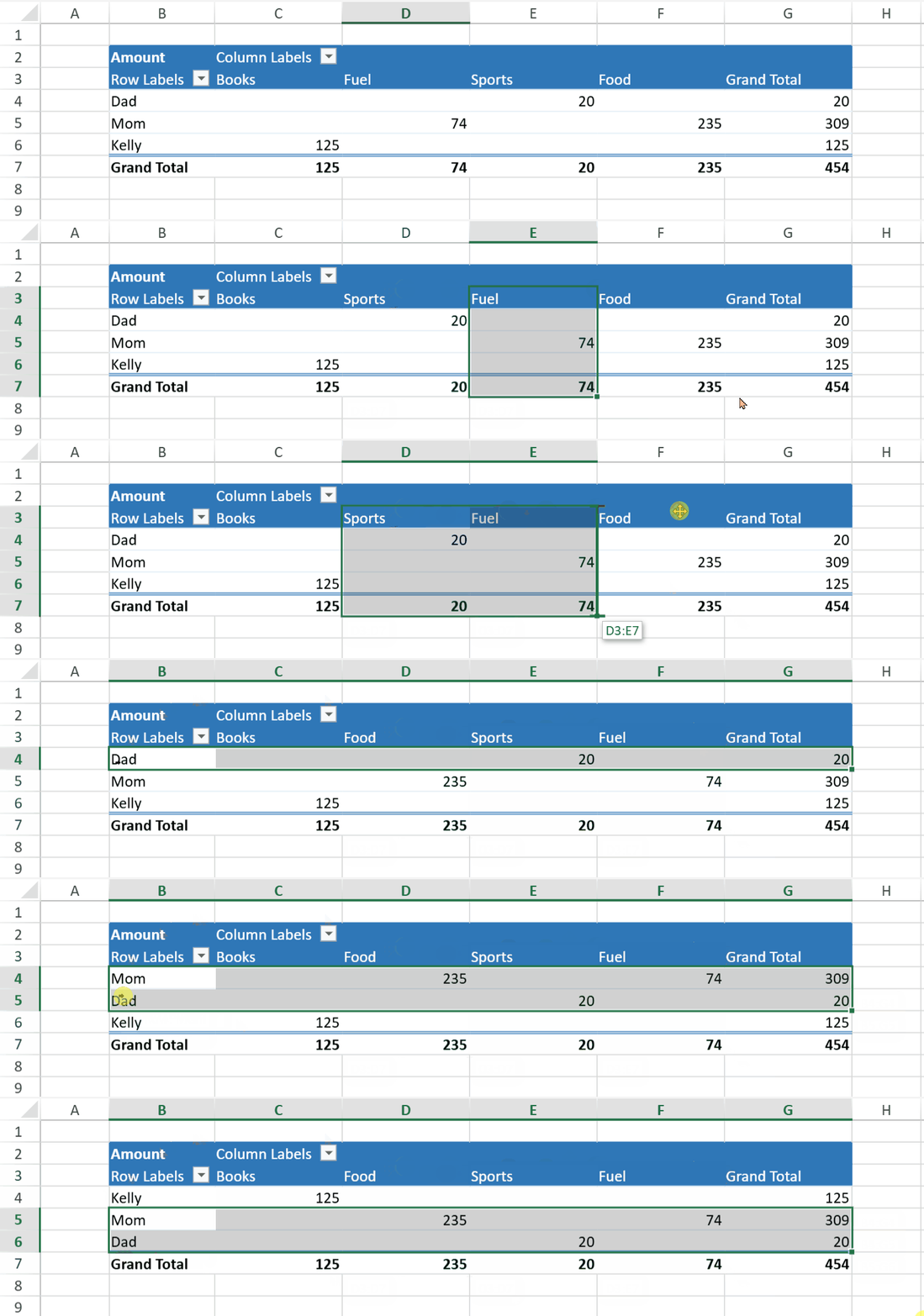
Note:
Only the above four selection modes support drag‑and‑drop. Other selection modes are not supported.
How to Drag and Drop
Start a drag operation
Move the cursor to the border of a selected Pivot Field.
When the cursor changes to a move icon, press and hold the mouse button to begin dragging.
A drag indicator appears to show the potential insertion position.
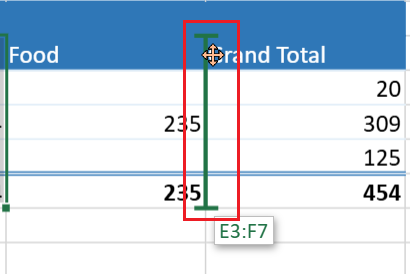
Move and position the field
Column Fields:
If the cursor moves beyond half the width of the target column, the indicator shows insertion on the right; otherwise, on the left.
Row Fields:
If the cursor moves beyond half the height of the target row, the indicator shows insertion below; otherwise, above.
Parent Fields:
When dragging a parent Pivot Field, child fields are automatically skipped to maintain structural integrity.
Drop the field
Release the mouse button to insert the selected Pivot Field(s) into the new position.
Note:
After manual rearrangement, opening the Sort Options dialog will show that the sorting mode is set to Manual.
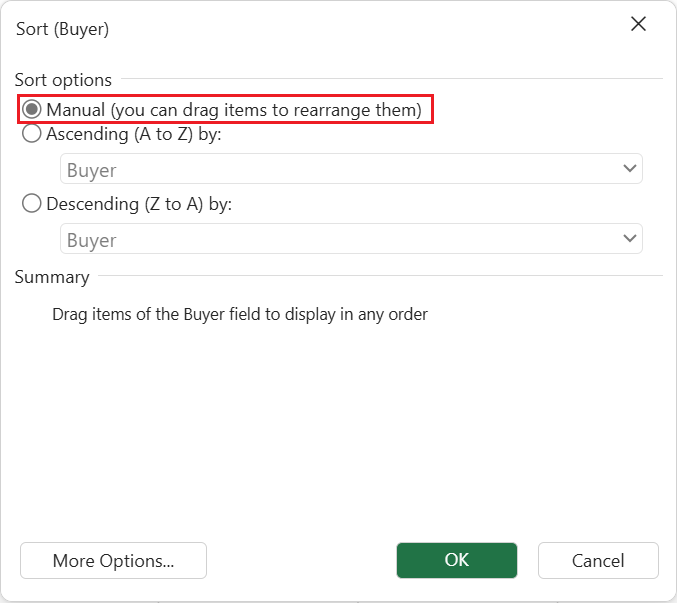
Note: When a Dimension Subtotal cell is dragged, SpreadJS moves the entire item block instead of only the subtotal line. The Dimension Subtotal function order remains fixed after the item block is moved. For more information, see Dimension Subtotals.
Unsupported Cases
Drag‑and‑drop is not supported in the following situations:
Dragging after selecting an entire worksheet column or row.
Attempting to drag multiple identical sub‑Pivot Fields under different parent fields.
Design Notes and Restrictions
Sorting Precedence and Interaction
Automatic sorting (autoSortState = true) has higher priority than the shared custom list, ensuring consistent order for dynamically changing datasets.
When auto‑sort is active, PivotTableManager.customList is ignored. The shared list takes effect only when autoSort is off and sortType is asc or desc.
Scope and Persistence
The worksheet‑shared customList does not propagate across workbooks. It is not automatically written to Workbook.options.customList, nor included during Excel import/export. This prevents unintended order carry‑over when multiple PivotTables coexist.
Behavior of Custom Sort Lists
customSortList uses case‑insensitive matching.
If the list covers all field items → the list defines the complete order.
If partial → listed elements appear first (for ascending) or last (for descending, reversed), and non‑listed items remain in original relative order.
These lists affect only fields in ascending/descending modes, and only when auto‑sort is disabled.
Value‑Based Sorting Integration
When a field is sorted by value (sortValueFieldName specified), the label order in getItemsByField(sorted=true) reflects the internal label order determined by the latest label‑based sort. This keeps display order consistent across value‑driven updates.
Failure Recovery
If a customSortCallback throws an error or produces inconsistent comparisons, the pivot falls back to label order to maintain predictable sorting and UI stability.