


Ribbon Modes
SpreadJS Designer Component provides two different ribbon modes as shown below:
Default Ribbon Mode

Toolbar Ribbon Mode

The toolbar ribbon mode is especially useful for mobile devices.
Switch to Toolbar Ribbon Mode
SpreadJS Designer Component launches with the default ribbon mode. However, you can follow the steps from Quick Start and switch to the toolbar ribbon mode by setting GC.Spread.Sheets.Designer.ToolbarModeConfig in the setConfig method as shown below.
// Initialize designer component with default ribbon mode
var designer = new GC.Spread.Sheets.Designer.Designer('designerHost');

// Switch to toolbar ribbon mode
designer.setConfig(GC.Spread.Sheets.Designer.ToolBarModeConfig);
Switch between Default and Toolbar Ribbon Mode
The following code sample shows how you can switch between the default ribbon mode and the toolbar ribbon mode.
    <script>
        window.onload = function () {

            var switchConfig = true;

            var designer = new GC.Spread.Sheets.Designer.Designer("designerHost");

            document.getElementById('btn').addEventListener('click', function () {
                designer.setConfig(switchConfig ? GC.Spread.Sheets.Designer.ToolBarModeConfig : GC.Spread.Sheets.Designer.DefaultConfig);
                switchConfig = !switchConfig;
            });

        }
    </script>
</head>
<body>
    <!--DOM element-->
    <div id="designerHost" style="width:100%; height:400px;border: 1px solid gray;"></div>
    <button id="btn">Switch Mode</button>
The below output will be generated:
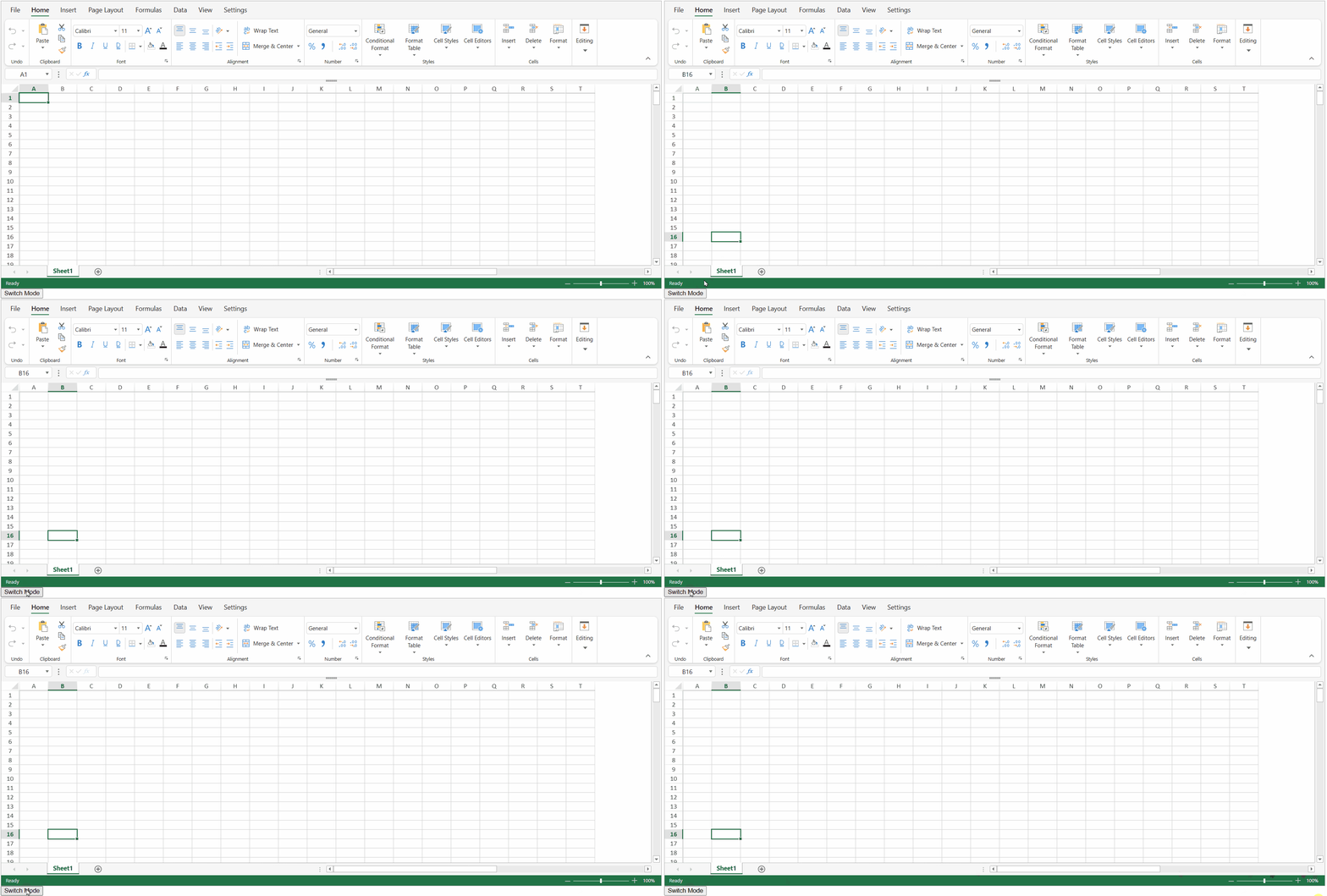
Set Ribbon Height in Toolbar Mode
You can set the ribbon height in the toolbar mode by using the ribbonHeight option in the toolbar config. The default and the recommended value of ribbonHeight for toolbar mode are 50.
The following code sample sets the ribbon height to 80.
var designer = new GC.Spread.Sheets.Designer.Designer("designerHost");
var config = GC.Spread.Sheets.Designer.ToolBarModeConfig;
// Set the ribbon height
config.ribbon.ribbonHeight = 80;
// Set the customized config
designer.setConfig(config);
The below output will be generated:

Note: The recommended ribbon height for the default ribbon mode is 115 or not defined. To retain the toolbar ribbon mode, the
ribbonHeightshould be set to less than 115.