


- SpreadJS Overview
- Getting Started
- JavaScript Frameworks
- Best Practices
-
Features
- Workbook
- Worksheet
- Rows and Columns
- Headers
- Cells
- Data Binding
- Data Manager
- TableSheet
- GanttSheet
- ReportSheet
- Data Charts
- JSON Schema with SpreadJS
- SpreadJS File Format
- Data Validation
- Conditional Formatting
- Sort
- Group
- Formulas
- What-If Analysis
- Serialization
- Keyboard Actions
- Shapes
- Floating Objects
- Barcodes
- Charts
- Sparklines
- Tables
- Pivot Table
- Slicer
- Theme
- User Management
- Culture
- AI Assistant
- SpreadJS Designer
- SpreadJS Designer VSCode Plugin
- Tutorials
- SpreadJS Designer Component
- SpreadJS Collaboration Server
- Touch Support
- Formula Reference
- Import and Export Reference
- Events
- API Documentation
- Release Notes
Configure Default Paper Size and Page Setup Units
SpreadJS can use the current culture to determine the default paper size for print settings. This helps applications use a paper size that matches the expected print format for a locale, such as using A4 in cultures where A4 is commonly used.
You can also configure how page setup values, such as paper dimensions and margins, are displayed in the SpreadJS Designer Component.
Paper Kind and Display Unit
SpreadJS uses two related settings for print page setup:
Paper Kind - Specifies the default paper size used when a new paper size is initialized.
Unit - Specifies how page setup values, such as paper dimensions and margins, are displayed in Designer.
Set the Default Paper Size by Culture
You can set the default paper size for the current culture by using the paperKind setting on the culture information. The value uses the GC.Spread.Sheets.Print.PaperKind enumeration.
GC.Spread.Common.CultureManager.getCultureInfo().paperKind =
    GC.Spread.Sheets.Print.PaperKind.a4;
When a new paper size is created without an explicit paper kind, SpreadJS uses the paper kind from the current culture. If the current culture does not define a paper kind, SpreadJS uses Letter.
var paperSize = new GC.Spread.Sheets.Print.PaperSize();The culture-based paper kind is used as the initial value when new print settings are created. For example, it applies when:
A new worksheet or sheet tab is added.
A new
PrintInfoinstance is created.A new
PaperSizeinstance is created without an explicit paper kind.
Change the Paper Size for an Existing Sheet
Changing the paper kind on the current culture does not update paper sizes that have already been initialized. Existing sheets keep their current paper size until you change it directly.
To change the paper size for an existing sheet, set the paper size on the sheet print information.
var sheet = spread.getActiveSheet();
var printInfo = sheet.printInfo();

printInfo.paperSize(new GC.Spread.Sheets.Print.PaperSize(
    GC.Spread.Sheets.Print.PaperKind.a4
));

sheet.printInfo(printInfo);
Configure Paper Size in Designer
In the SpreadJS Designer Component, users can select a paper size from the Page Setup dialog.
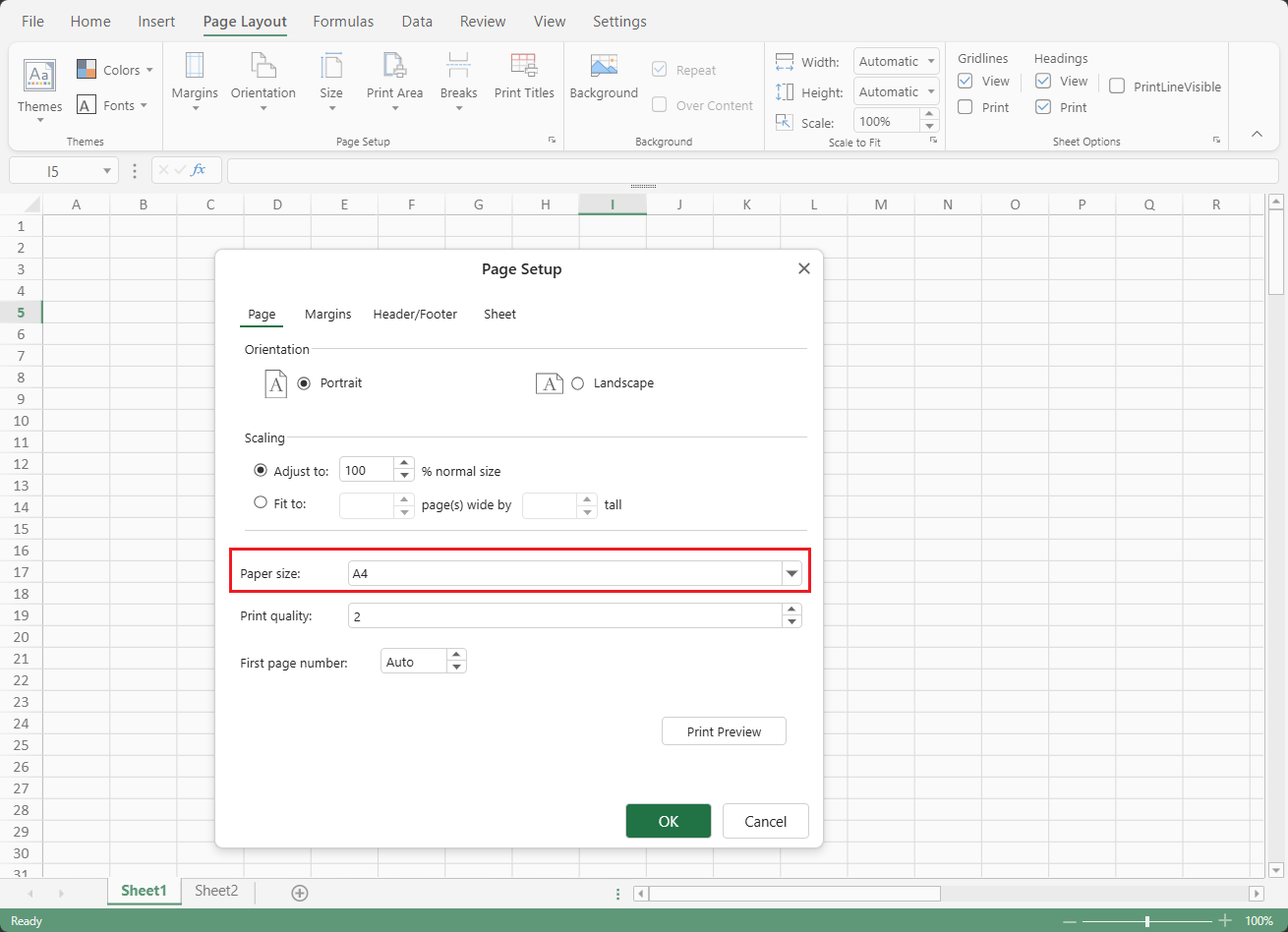
To configure the paper size:
Open the Page Layout tab.
In the Page Setup group, open the Page Setup dialog.
On the Page tab, select a value from Paper size.
Click OK.
The selected paper size applies to the current sheet print settings.
Set the Page Setup Display Unit Programmatically
You can set the Designer page setup display unit programmatically by using setData.
designer.setData("PageSetupDisplayUnit", "Centimeters");Valid values are:
"Inches""Centimeters""Millimeters"
If the value is invalid, Designer falls back to "Inches".
This setting affects display units in Designer. It does not change the actual paper size or margin values.
The selected unit affects how paper dimensions and margin values are displayed in Designer, including the Size and Margins menus, the Page Setup dialog, and the File > Print view.
8.5" x 11"
21.59 cm x 27.94 cm
0.75"
1.91 cm
Note: When Millimeters is selected, some summary displays, such as paper size and margin descriptions in dropdowns or print preview areas, may show equivalent centimeter values. Margin input fields in the Page Setup dialog can display millimeter values.
Import and Export Behavior
For SSJSON and SJS files, paper size information is restored from the file if it is already stored in the file.
When importing from Excel, SpreadJS uses the paper size stored in the file when it is available. If the file does not contain page setup information, SpreadJS uses the current culture paper kind as the default. If the file contains page setup information but does not specify a paper size, SpreadJS uses Letter.
When exporting to Excel, SpreadJS writes the paper size information to the exported file.
Notes
Culture-based paper kind is used only when paper size settings are newly initialized.
Existing sheet print settings are not updated automatically when the culture paper kind changes.
If the current culture does not define a paper kind, SpreadJS uses Letter.
The page setup display unit affects Designer display values only.