


- SpreadJS Overview
- Getting Started
- JavaScript Frameworks
- Best Practices
-
Features
- Workbook
- Worksheet
- Rows and Columns
- Headers
- Cells
- Data Binding
- Data Manager
- TableSheet
- GanttSheet
- ReportSheet
- Data Charts
- JSON Schema with SpreadJS
- SpreadJS File Format
- Data Validation
- Conditional Formatting
- Sort
- Group
- Formulas
- What-If Analysis
- Serialization
- Keyboard Actions
- Shapes
- Floating Objects
- Barcodes
- Charts
- Sparklines
- Tables
- Pivot Table
- Slicer
- Theme
- User Management
- Culture
- AI Assistant
- SpreadJS Designer
- SpreadJS Designer VSCode Plugin
- Tutorials
- SpreadJS Designer Component
- SpreadJS Collaboration Server
- Touch Support
- Formula Reference
- Import and Export Reference
- Events
- API Documentation
- Release Notes
Sparkline Rule
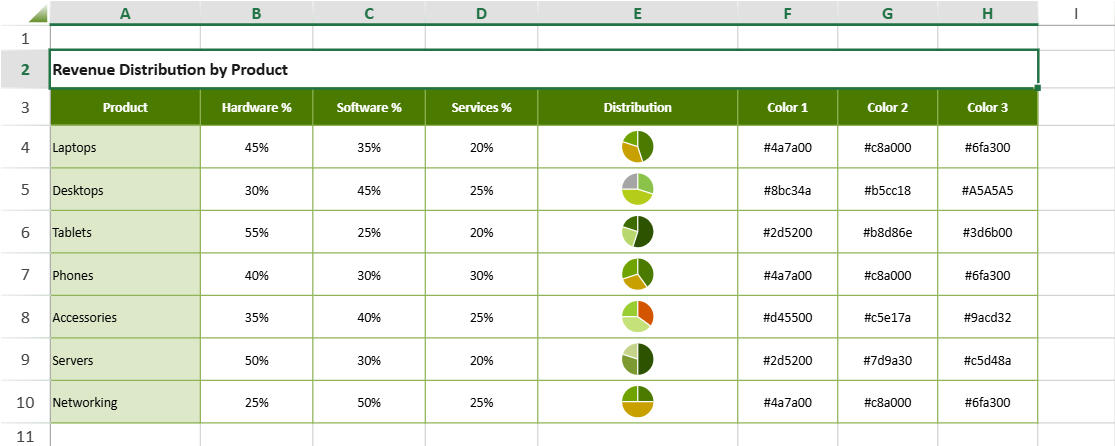
A Sparkline Rule allows you to render cell values as sparklines through conditional formatting.
Instead of inserting sparkline formulas into individual cells, you can apply a Sparkline Rule to a range. The rule automatically generates and renders sparklines for each cell in that range.
It introduces built-in context identifiers that automatically align sparkline configuration with the rule range and the current cell, eliminating hardcoded references.
When to Use a Sparkline Rule
Use a Sparkline Rule when:
Applying sparklines to a full column, row or range
When adding Sparklines to a highly correlated data region, such as worksheet table, TableSheet or DataManager, ReportSheet template.
To avoid altering the original cell data, avoid using formula-based sparkline injection.
Managing visual rules through conditional formatting priority
How Sparkline Rule Differs from Formula-Based Sparklines
Traditional sparklines are inserted by writing a sparkline function in each cell.
Each formula must explicitly define its data range and, when necessary, the point index.
A Sparkline Rule works differently:
A single rule is applied to a range.
Each cell in that range is rendered as a sparkline.
The rule automatically resolves:
The full rule range
The current cell value
The current cell position within the rule range
This behavior is enabled by two built-in context identifiers
Built-in Context Identifiers
Sparkline conditional formatting rules support two identifiers:
Identifier | Scope | Purpose |
|---|---|---|
| Rule-level | Refers to the entire conditional formatting range |
| Cell-level | Refers to the current cell value or its index within the rule range |
These identifiers may be used:
As the entire parameter value (for example:
value: '@',points: '$CF_RANGE$')Inside expressions (for example:
IF(@>0,@,0),SUM($CF_RANGE$))
Structured references such as [@Sales] or Table1[@[Column1]:[Column2]] retain their original meaning and are not treated as placeholders.
$CF_RANGE$ — Rule-Level Context
$CF_RANGE$ represents the current range to which the Sparkline Rule is applied.
It always resolves to the rule’s effective conditional formatting range.
If the rule applies to
B1:B5,$CF_RANGE$resolves toB1:B5.If the rule is resized to
B1:B10,$CF_RANGE$automatically resolves toB1:B10.
Instead of hardcoding a data range such as:
dataRange: "$A$1:$A$5"you can write:
dataRange: "$CF_RANGE$"Example:
sheet.conditionalFormats.addSparklineRule(
    "HISTOGRAMSPARKLINE",
    {
        dataRange: "$CF_RANGE$"
    },
    [new GC.Spread.Sheets.Range(0, 0, 5, 1)]
);
Benefits
Automatically follows rule range changes
Eliminates hardcoded references
Supports expression usage such as
SUM($CF_RANGE$)Improves rule portability and reuse
@ — Cell-Level Context
@ represents the current cell within the rule range.
Its meaning depends on the parameter in which it is used:
In
index→ 0-based index of the current cell within$CF_RANGE$In
pointIndex→ 1-based index of the current cell within$CF_RANGE$In other parameters → the current cell value
If @ appears inside a structured reference (for example, [@Sales]), it keeps its structured-reference meaning.
If @ is embedded in an expression and the current cell is blank, it resolves to an empty string literal to ensure the expression remains valid.
Some sparkline types use index (0-based), while others use pointIndex (1-based). Refer to the API reference for type-specific parameter definitions.
Example 1: Using @ for Value and Index
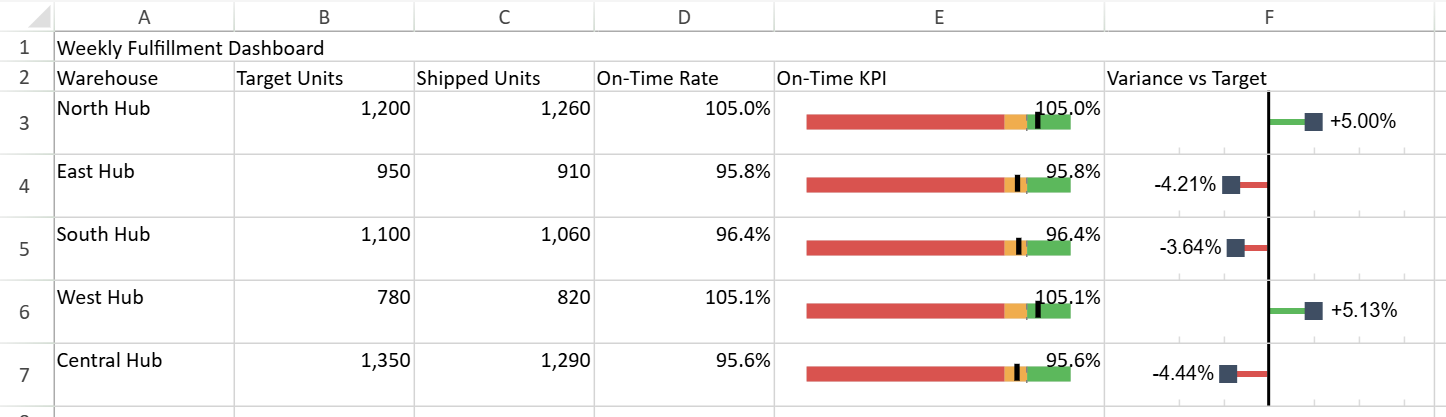
The following example creates a fulfillment dashboard.
In the
On-Time KPIcolumn,@resolves to the current cell value.In the
Variance vs Targetcolumn,@resolves to the current row's 0-based index inside the rule range.
var sheet = spread.getActiveSheet();
// Title
sheet.addSpan(0, 0, 1, 6);
sheet.setValue(0, 0, "Weekly Fulfillment Dashboard");
// Header
sheet.setArray(1, 0, [[
    "Warehouse",
    "Target Units",
    "Shipped Units",
    "On-Time Rate",
    "On-Time KPI",
    "Variance vs Target"
]]);
// Data
var data = [
    ["North Hub", 1200, 1260],  // +5%
    ["East Hub", 950, 910],  // -4%
    ["South Hub", 1100, 1060],  // -3.6%
    ["West Hub", 780, 820],  // +5%
    ["Central Hub", 1350, 1290]   // -4.4%
];
sheet.setArray(2, 0, data);
sheet.getRange('D3:D7').formula("=C3/B3",true);
sheet.getRange('E3:E7').formula("=C3/B3",true);
sheet.getRange(2, 1, data.length, 2).formatter("#,##0");
sheet.getRange(2, 3, data.length, 2).formatter("0.0%");
// Optional column width for better visuals
sheet.getRange("A:D").width(120);
sheet.getRange("E:F").width(220);
sheet.getRange("3:7").height(42);
// Sparkline Rule
var cfs = sheet.conditionalFormats;
// @ = current cell value in E3:E7.
var gaugeRule = cfs.addSparklineRule(
    "GAUGEKPISPARKLINE",
    {
        targetValue: 1, // targetValue = 1 represents a 100% on-time fulfillment goal.
        currentValue: "@",
        minValue: 0,
        maxValue: 1.2,
        showLabel: false,
        gaugeType: 2,
        colorRange: [
            { start: 0, end: 0.9, color: "#D9534F" },
            { start: 0.9, end: 1, color: "#F0AD4E" },
            { start: 1, end: 1.2, color: "#5CB85C" }
        ]
    },
    [new GC.Spread.Sheets.Range(2, 4, data.length, 1)]
);
// @ = current row index inside F3:F7.
var varianceRule = cfs.addSparklineRule(
    "LOLLIPOPVARISPARKLINE",
    {
        plannedValue: "$B$3:$B$7",
        actualValue: "$C$3:$C$7",
        index: "@",
        reference: 0,
        mini: -0.15,
        maxi: 0.15,
        tickUnit: 0.05,
        legend: true,
        colorPositive: "#5CB85C",
        colorNegative: "#D9534F",
        lollipopHeaderColor: "#3F4E63"
    },
    [new GC.Spread.Sheets.Range(2, 5, data.length, 1)]
);
What happens
In
currentValue,@resolves to each cell's own KPI value in$E$3:$E$7.In
index,@resolves to0,1,2,3, and4for$F$3:$F$7.The gauge rule visualizes whether each warehouse meets the 100% service target.
The lollipop rule compares each row's shipped units against its target without hardcoded row indices.
Note:
The
plannedValueandactualValueranges are written explicitly ($B$3:$B$7 and $C$3:$C$7) for clarity.In production scenarios, these can be replaced with expressions based on
$CF_RANGE$to avoid hard-coded addresses.See the example 2 demonstrating
$CF_RANGE$usage.
Example 2: Using $CF_RANGE$ to Eliminate Hardcoded Data Ranges
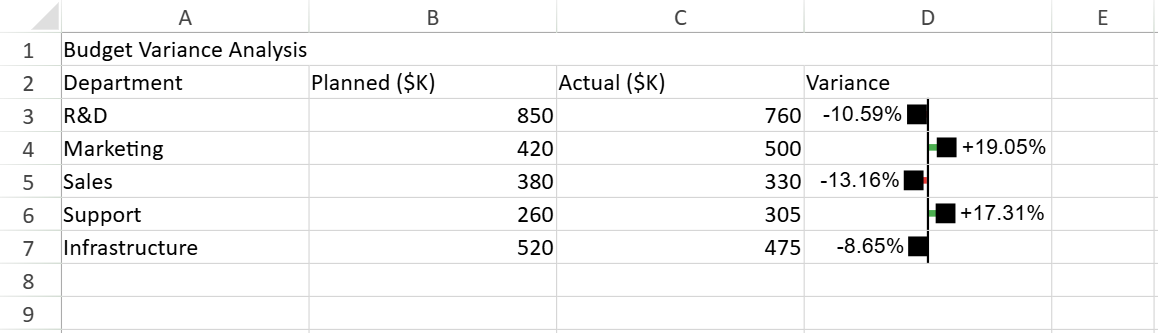
The following example renders a lollipop variance sparkline for each cell in the Variance column by using the entire rule range as context.
var sheet = spread.getActiveSheet();

// Title
sheet.addSpan(0, 0, 1, 4);
sheet.setValue(0, 0, "Budget Variance Analysis");

// Headers
var headers = ["Department", "Planned ($K)", "Actual ($K)", "Variance"];
sheet.setArray(1, 0, [headers]);

// Data
var data = [
    ["R&D", 850, 760],
    ["Marketing", 420, 500],
    ["Sales", 380, 330],
    ["Support", 260, 305],
    ["Infrastructure", 520, 475]
];

sheet.setArray(2, 0, data);

// Optional column width for better visuals
sheet.getRange("A:D").width(150);

// Sparkline Rule (Advanced Usage)

sheet.conditionalFormats.addSparklineRule(
    "LOLLIPOPVARISPARKLINE",
    {
        // $CF_RANGE$  → D3:D7
        plannedValue: "OFFSET($CF_RANGE$,0,-2)",// Planned column → B
        actualValue: "OFFSET($CF_RANGE$,0,-1)",// Actual column → C
        index: "@",
        reference: 0,
        legend: true,
        colorPositive: "#4CAF50",
        colorNegative: "#E53935"
    },
    [new GC.Spread.Sheets.Range(2, 3, data.length, 1)]// Rule is applied to the Variance column (D3:D7)
);
Why this is useful
The rule always evaluates against the current conditional formatting range.
Adding or removing rows does not require updating the planned or actual data range.
The rule remains portable and self-adjusting.
ReportSheet Template Context
When using Sparkline Rules inside a ReportSheet template, the rule is defined on template cells that expand at runtime.
If a sparkline option needs to reference the expanded cell range generated from a template cell, use the R.V(...) formula.
R.V(reference) resolves to the runtime-expanded range corresponding to the specified template cell.
Example:
const spread = new GC.Spread.Sheets.Workbook("ss");
const dataManager = spread.dataManager();

// 1. Data Source
const budgetData = [
    { department: "R&D", planned: 850, actual: 760 },
    { department: "Marketing", planned: 420, actual: 500 },
    { department: "Sales", planned: 380, actual: 330 },
    { department: "Support", planned: 260, actual: 305 },
    { department: "Infrastructure", planned: 520, actual: 475 }
];
dataManager.addTable("Budget", {
    data: budgetData
});

//2. Create ReportSheet
const reportSheet = spread.addSheetTab(
    0,
    "Budget Report",
    GC.Spread.Sheets.SheetType.reportSheet
);
const templateSheet = reportSheet.getTemplate();

const columns = ['department', 'planned', 'actual'];
columns.forEach((columnName, i) => {
    templateSheet.setValue(0, i, `${columnName}`);
    templateSheet.setTemplateCell(1, i, {
        type: 'List',
        binding: `Budget[${columnName}]`,
    });
    templateSheet.setColumnWidth(i, 80)
});
templateSheet.setValue(0, 3, "Variance");
templateSheet.setTemplateCell(1, 3, {
    type: "List"
});
templateSheet.setColumnWidth(3, 150);

//3. Sparkline Rule
templateSheet.conditionalFormats.addSparklineRule(
    "LOLLIPOPVARISPARKLINE",
    {
        plannedValue: "R.V(B2)",
        actualValue: "R.V(C2)",
        index: "@",
        reference: 0,
        legend: true,
        colorPositive: "#2E7D32",
        colorNegative: "#C62828"
    },
    [new GC.Spread.Sheets.Range(1, 3, 1, 1)]
);

// 4. Refresh
reportSheet.refresh();
Explanation
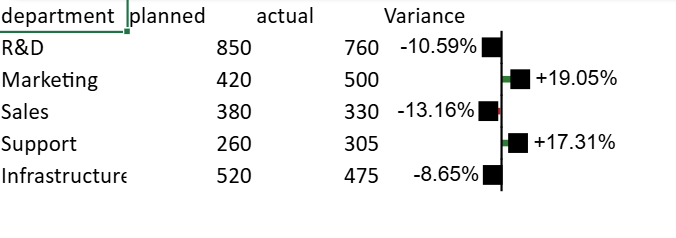
The Sparkline Rule is defined on template cell D2.
When the report is refreshed, the template row expands based on the bound data.
R.V(D2)resolves to the expanded runtime range corresponding to template cellD2.index: '@'represents the 0-based position of the current cell within the rule range.
Use R.V(...) in ReportSheet templates when a sparkline option must reference the expanded range generated from a template-bound cell.
Behavior and Policy
Supported sheet types: Worksheet, TableSheet, ReportSheet
stopIfTrueis always treated asfalsefor Sparkline RulesRelative references are anchored to the origin of the conditional formatting range
Formula-like option values participate in reference rebasing during copy, move, swap, and sheet rename operations
Sparkline Rules participate in rule priority ordering
Excel Export
If Save as View is enabled → exported as images (recommended)
Otherwise → downgraded to generic Data Bar rules
Sparkline-specific visuals are not preserved
Only rule priority is retained
Designer Support
When selecting Sparkline as the format style in the Designer:
The property panel dynamically updates based on the selected sparkline type.
Certain properties display an Auto option by default:
ActualValuedefaults to $CF_RANGE$PointIndexdefaults to @
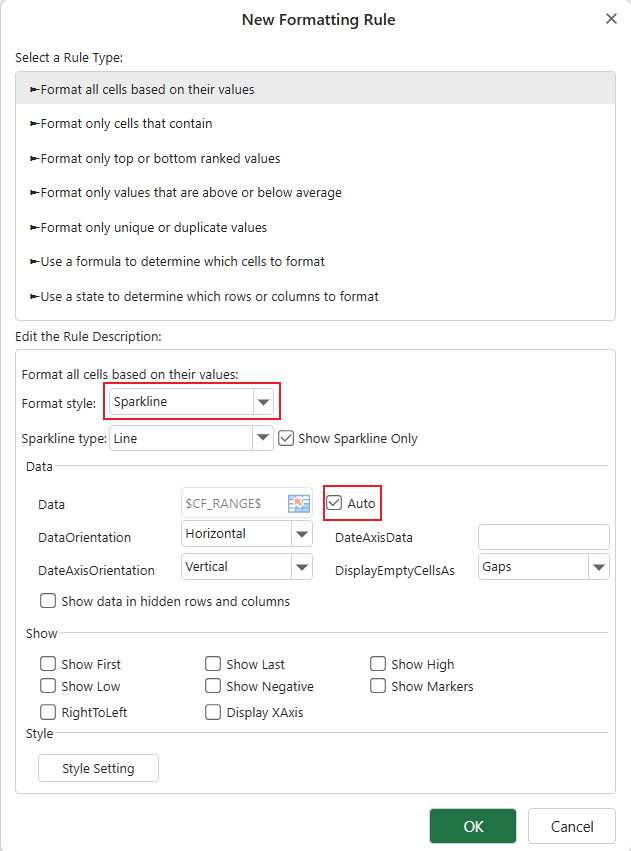
Unchecking Auto allows manual configuration.