- Document Solutions for PDF .NET Overview
- Key Features
- Getting Started
- Product Architecture
-
Features
- Attachment
-
Annotations
- Text Annotation
- Free Text Annotation
- Line Annotation
- Polyline Annotation
- Square Annotation
- Circle Annotation
- Polygon Annotation
- 3D Annotation
- Stamp Annotation
- Ink Annotation
- File Attachment Annotation
- RichMedia Annotation
- Sound Annotation
- Widget Annotation
- Watermark Annotation
- Redact Annotation
- Text Markup Annotation
- Caret Annotation
- Appearance Streams
- Document
- Document Optimization
- Font
- Forms
- Form XObjects
- Actions
- Graphics
- Output Intents
- Images
- Incremental Update
- Linearization
- Links
- Outline
- Pages
- Layouts
- Complex Graphic Layouts
- Tables
- Security
- Digital Signature
- Soft Mask
- Stamps
- Tagged PDF
- PDF Conformance
- Parse PDF Documents
- Layers
- Text
- Text Search, Replace and Delete
- Watermark
- AI Assistant
- Access Primitive and High-Level PDF Objects
- Render HTML to PDF
- Save PDF as Image
- Barcodes in PDF
- Best Practices
- Walkthrough
- Tutorials
- Samples
- API Reference
- Document Solutions PDF Viewer Overview
- Release Notes
Redact Annotation
Redact annotation removes content from a PDF document that is not supposed to be shared. DsPdf provides RedactAnnotation class to enable users to mark and apply redact annotations to the PDF file.
You can apply redact annotation in two phases:
Mark Redact Area
When you mark the redact area, a marking or highlight appears in the place of content to show that the region has been marked for redaction. With DsPdf class library, you can find all instances of texts and mark the content for redaction. This allows anyone in charge for redaction to apply redactions on the marked content.
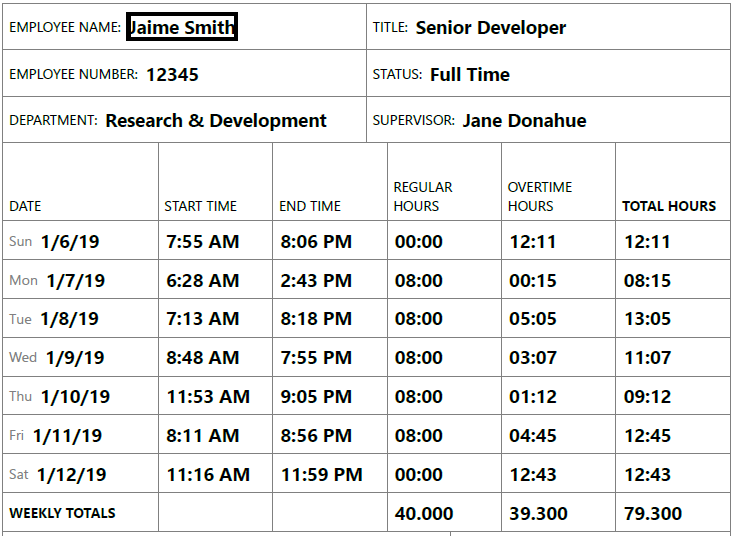
Refer to the following example code to mark a redact area in a PDF document:
public void CreatePDF()
{
    GcPdfDocument doc = new GcPdfDocument();
    var fs = new FileStream(Path.Combine("TimeSheet.pdf"), FileMode.Open, FileAccess.Read);
    doc.Load(fs);  //Load the document

    //Create Redact annotation
    RedactAnnotation redactAnnotation = new RedactAnnotation();
    //search the text(e.g employee name) which needs to be redacted
    var l = doc.FindText(new FindTextParams("Jaime Smith", true, false), null);

    // add the text's fragment area to the annotation
    List<Quadrilateral> area = new List<Quadrilateral>();
    area.Add(l[0].Bounds[0]);
    redactAnnotation.Area = area;
    redactAnnotation.Justification = VariableTextJustification.Centered;
    redactAnnotation.MarkBorderColor = Color.Black;

    //Add the redact annotation to the page
    doc.Pages[0].Annotations.Add(redactAnnotation);
    doc.Save("TimeSheet_Redacted.pdf");
}
Apply Redaction
Once the areas in a PDF document are marked for redaction, redaction can be applied to those areas to remove the content from PDF documents. After the PDF content is redacted, it cannot be extracted, copied or pasted in other documents. However, you can add overlay text in the place of redacted content.
DsPdf allows you to apply redact to areas marked for redaction in PDF documents by using the Redact method of GcPdfDocument class. The Redact method has three overloads which provides you with the option to apply redaction to all the areas marked for redaction, to a particular area marked for redaction or a list of areas marked for redaction in a PDF document.
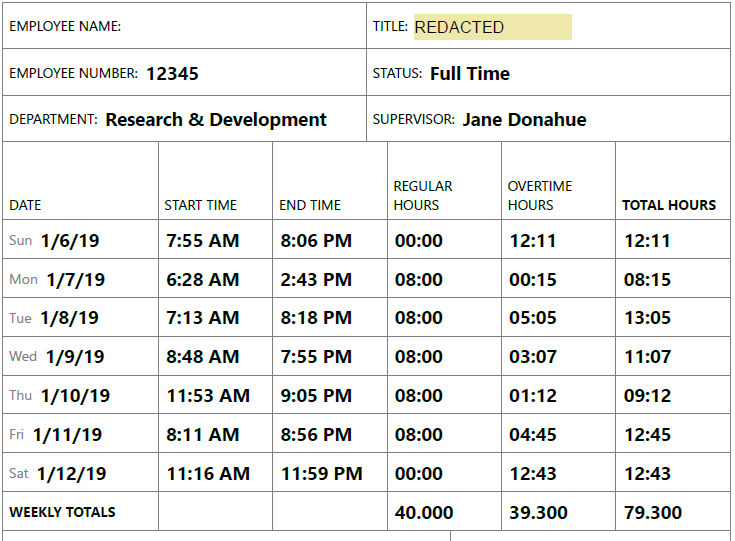
Refer to the following example code to apply redaction to a PDF document:
var doc = new GcPdfDocument();
using (var fs = new FileStream(Path.Combine("Resources", "PDFs", "TimeSheet_Redacted.pdf"), FileMode.Open, FileAccess.Read))
{
    // Load the PDF containing redact annotations (areas marked for redaction)
    doc.Load(fs);

    //mark new redact area
    var rc = new RectangleF(280, 150, 100, 30);

    var redact = new RedactAnnotation()
    {
        PdfRect = rc,
        Page = doc.Pages[0],
        OverlayFillColor = Color.PaleGoldenrod,
        OverlayText = "REDACTED",
        OverlayTextRepeat = true
    };

    // Apply all redacts (above redact and existing area marked for redaction)
    doc.Redact();

    doc.Save(stream);
    return doc.Pages.Count;
}
Note: Once redact annotations are applied, they no longer exist in the PDF document. It is a destructive change, the content marked for redaction is removed from the PDF along with the redact annotations that were used to mark it.
Preserve Original Image
When redacting an image, if the same image is present in other locations, DsPdf redacts all the images by replacing them with the redacted ones. However, DsPdf enables you to choose whether the images within the redacted area appearing in other locations will be copied before applying the redact using CopyImagesOnRedact property of RedactOptions class. The default value is false.
Refer to the following example code to copy images before applying the redact:
// Initialize GcPdfDocument.
var doc0 = new GcPdfDocument();

// Open PDF document.
using var fs0 = File.OpenRead("image3pg.pdf");
doc0.Load(fs0);

// Redact part of the image on the first page.
doc0.Pages[0].Annotations.Add(new RedactAnnotation() { Rect = new RectangleF(90, 160, 72 * 4.5f, 72 * 2.8f) });

// Copy images before applying redact.
RedactOptions options = new RedactOptions();
options.CopyImagesOnRedact = true;

// Apply redact.
doc0.Redact(options);

// Save PDF document.
doc0.Save("Redacted.pdf");
Find and redact text links
Many PDF documents contain hyperlinks to internal portals/URLs, documents or confidential resources. Redacting these links can help prevent unauthorised access to such content. With DsPdf, you can find all link annotations in a PDF document, where the ActionURI property points to the target URL for removal. Then, by applying RedactAnnotation, you can erase all content within the detected link areas.
Refer to the following example code to find and remove all links to a certain URL from a PDF:
// Load the PDF with links that need to be removed.
var doc = new GcPdfDocument();
using var fs = File.OpenRead(Path.Combine("Resources", "PDFs", "fendo-13-1005722.pdf"));
doc.Load(fs);

// Remove all links containing this string.
const string targetUrl = "frontiersin.org";

// Find all relevant link annotations.
var linkAnnotations = new HashSet<LinkAnnotation>();
foreach (var page in doc.Pages)
{
    foreach (var a in page.Annotations)
    {
        if (a is LinkAnnotation la && la.Action is ActionURI actUri)
        {
            if (!string.IsNullOrEmpty(actUri.URI) && actUri.URI.Contains(targetUrl))
            {
                linkAnnotations.Add(la);
            }
        }
    }
}

// Loop through the found links, add redact annotations for each.
foreach (var la in linkAnnotations)
{
    foreach (var page in la.Pages)
    {
        // We must make a copy of page.Annotations to be able to add redact annotations in a foreach loop.
        var annots = page.Annotations.Where(a_ => a_ == la).ToList();
        foreach (var a in annots)
        {
            page.Annotations.Add(new RedactAnnotation()
            {
                Rect = la.Rect,
                OverlayFillColor = Color.Red
            });
        }
    }
}

// Apply the redacts.
doc.Redact();

// Done:
doc.Save("Redacted_Document.pdf");
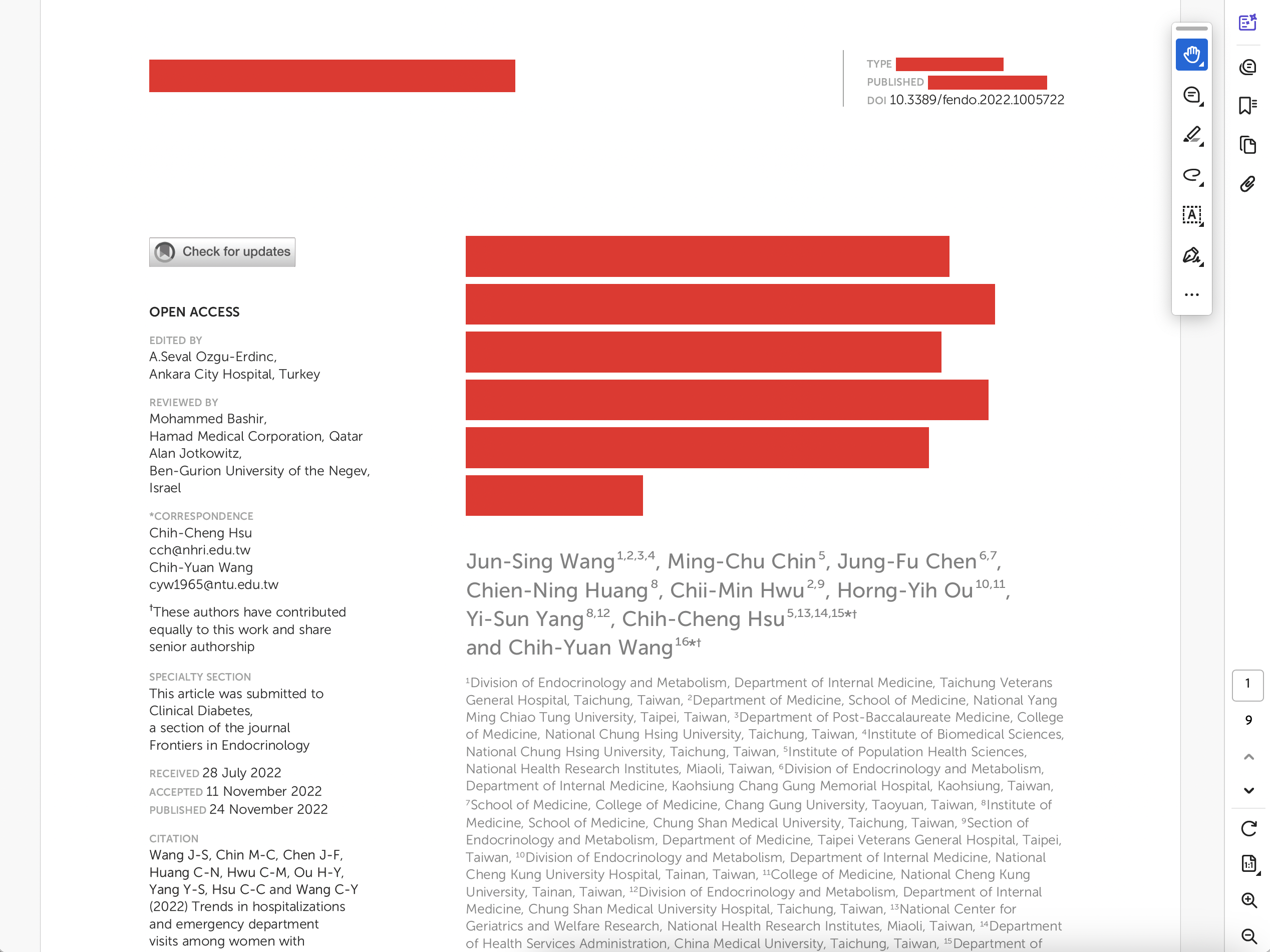
Following image shows a PDF document with links redacted using above code: