


Data Labels
You can add data labels in the FlexChart to show the exact values corresponding to a particular column, bar or point in the chart area. All you have to do is set the Position property and set the required position using ChartLabelPosition enumeration. Users can set data labels at the following positions.
- TOP: on the top of the column, bar or point in the chart area
- BOTTOM: below the edge of the column, bar or point in the chart area
- RIGHT: to the right side of the column, bar or point in the chart area
- LEFT: to the left side of the column, bar or point in the chart area
- CENTER: to the center of the column, bar or point in the chart area
The image given below shows a FlexChart control that displays sales and expenses with data labels corresponding to months.
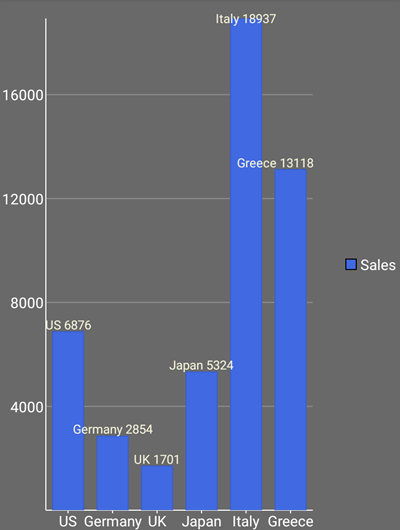
The following code example shows how to set data labels for FlexChart control. The example uses the sample created in the Quick Start section.
//Set the data labelsmChart.DataLabel.Content = "{x} {y}";

mChart.DataLabel.Position = ChartLabelPosition.Top;mChart.DataLabel.BorderStyle = new ChartStyle { Stroke = Color.Blue, StrokeThickness = 1 };mChart.DataLabel.Style = new ChartStyle { Stroke = Color.Beige, FontSize = 12 };