


- Spread for WPF Overview
- About the Product
- Getting Started
- Quick Start
- Designer
- Features
- Assembly Reference
Filling Cells with Drag and Fill
You can allow users to drag and fill data from one cell or a selected range to adjacent cells. With a cell or range of cells selected, users can drag to fill horizontally (across columns) or vertically (across rows).
To enable drag fill, set the AllowDragFill property of the GcSpreadSheet class to true. When enabled, a fill handle appears at the bottom-right corner of the selected cell or range. Dragging the fill handle to adjacent cells initiates the drag fill operation.
By default, a context menu button appears during the drag operation. To hide this button, set the ShowContextMenu property to false in the DragFillStarting event.
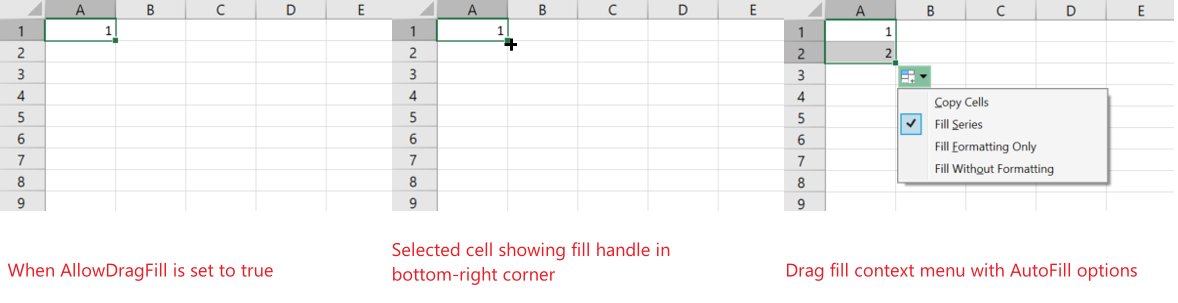
Auto Fill Options
The available AutoFill options in the drag fill context menu depend on the selected data type.
You can select a fill type from the drag fill dropdown menu displayed after dragging.
Option | Description |
|---|---|
Copy Cells | Copies the selected data to the target range. |
Fill Series | Increments or decrements values based on a detected series. Drag downward or to the right to increment values; drag upward or to the left to decrement values. Note: When using Fill Series, the component evaluates the data model to determine whether the selected data can be extended as a series. If a built-in cell type is applied, the displayed values take precedence over the underlying data model when generating the series. |
Fill Formatting Only | Applies only the formatting of the source cells to the target range without copying values. |
Fill Without Formatting | Copies values without applying source formatting. |
Fill Days | Extends days from the source range to the target range. Formatting is copied. |
Fill Weekdays | Extends workweek day names to the target range. Formatting is copied. |
Fill Months | Extends months to the target range. Formatting is copied. |
Fill Years | Extends years to the target range. Formatting is copied. |
Context Menu Items by Data Type
If the selected data can be extended as a series
The context menu contains:
Copy Cells
Fill Series
Fill Formatting Only
Fill Without Formatting
If the data is in a date format, the following additional options are available:
Fill Days
Fill Weekdays
Fill Months
Fill Years
The default selected option is Fill Series.
If the selected data cannot be extended as a series
The context menu contains:
Copy Cells
Fill Formatting Only
Fill Without Formatting
The default selected option is Copy Cells.
The following examples use the fill copy option.
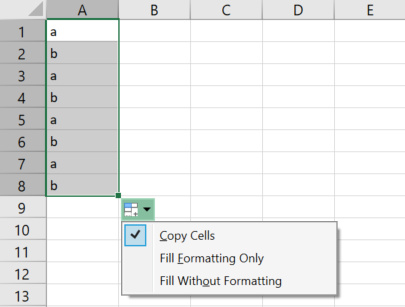
The following example uses the fill series option.
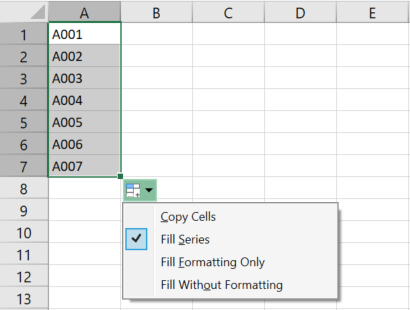
The following example uses the fill months option.
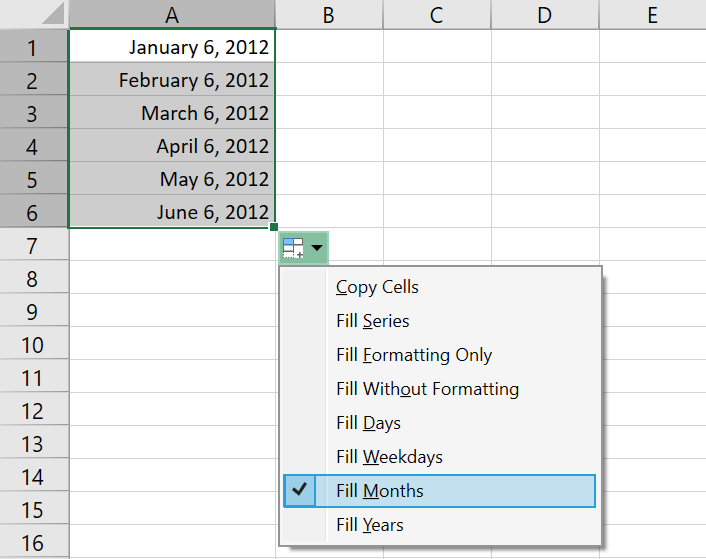
You can customize the fill behavior by using the FillRange EventArgs.
For more information on event arguments, refer to DragFillStarting event and DragFillEventArgs.
Using Code
Refer to the following example code that shows how to enable drag fill in both XAML view and in the code view.
XAML
<Grid>
    <gss:GcSpreadSheet x:Name="GcSpreadSheet1" AllowDragFill="True"/>
</Grid>
C#
spreadSheet.AllowDragFill = true;VB
spreadSheet.AllowDragFill = True