[]
TableSheet provides column-based sorting and filtering at the View level.
Both behaviors are defined by View options and column configuration, and are executed through the column header filter button.
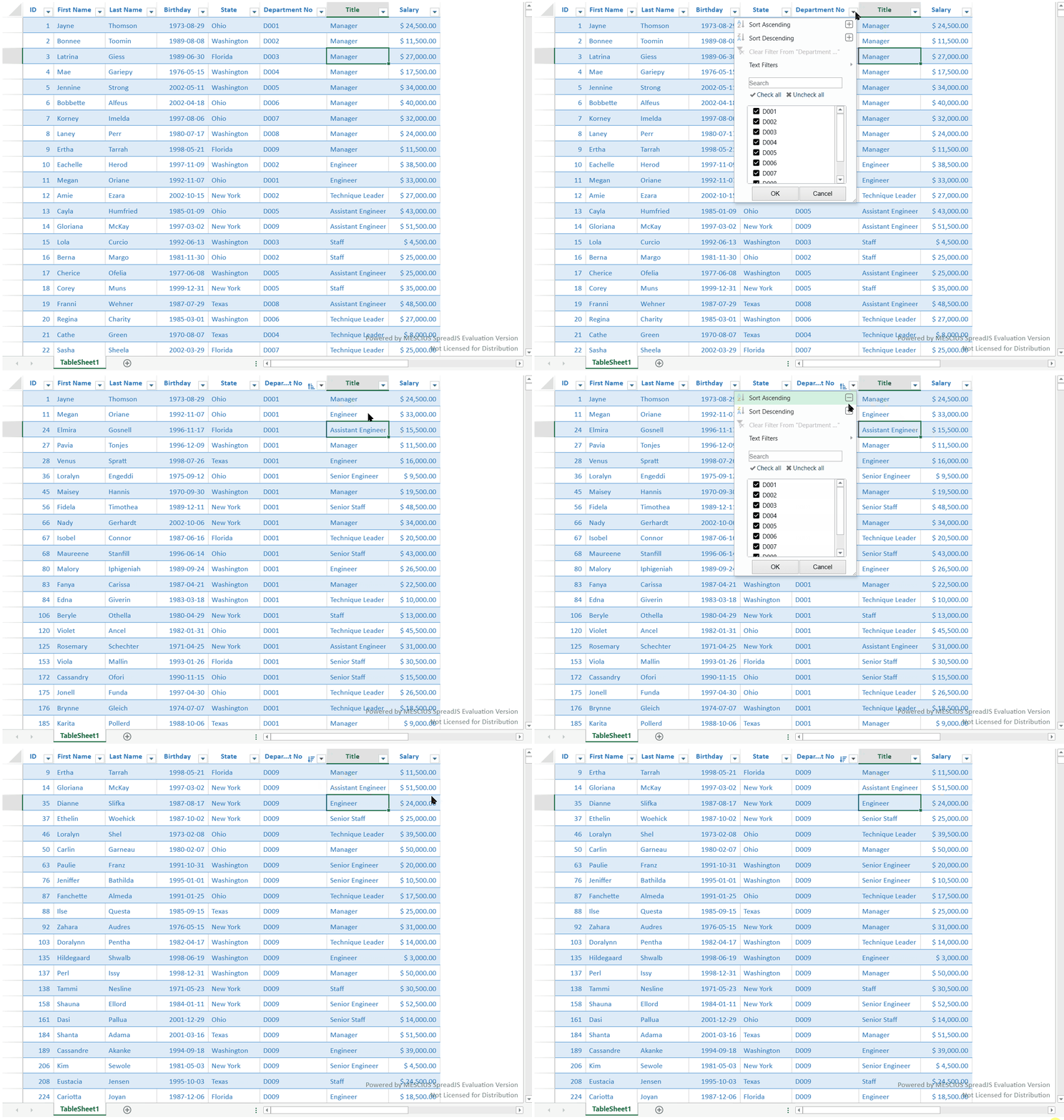
Each column has three possible states:
Ascending
Descending
None
By default, TableSheet supports multi-column sorting.
When multiple columns are sorted, the View maintains an ordered list of sort descriptors. Sorting is applied sequentially based on that order. Each subsequent sort operates within the result set produced by the previous sort.
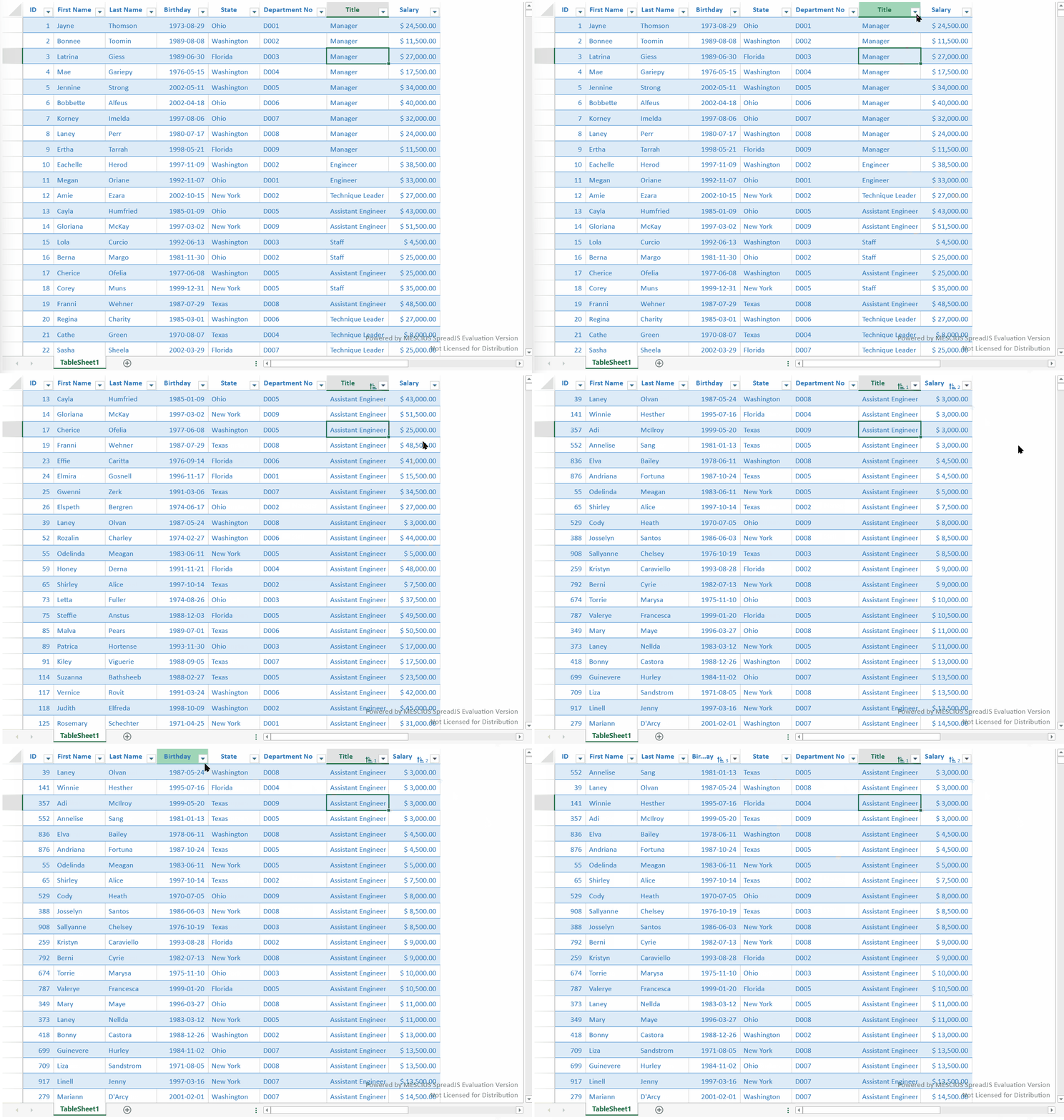
Clearing all sorting restores the original data order.
Multi-column Mode
Controlled by ITableSheetOptions.allowSorts:
interface GC.Spread.Sheets.TableSheet.ITableSheetOptions {
allowSorts?: boolean; // Default: true
}true — multiple active sorts allowed.
false — only one active sort is retained.
If multiple sorts exist, only the first remains.
Automatic Re-sorting
Controlled by the View property:
view.autoSort = false;Default: true
When enabled, editing values in sorted columns triggers re-sorting.
When disabled, edits do not reapply sorting.
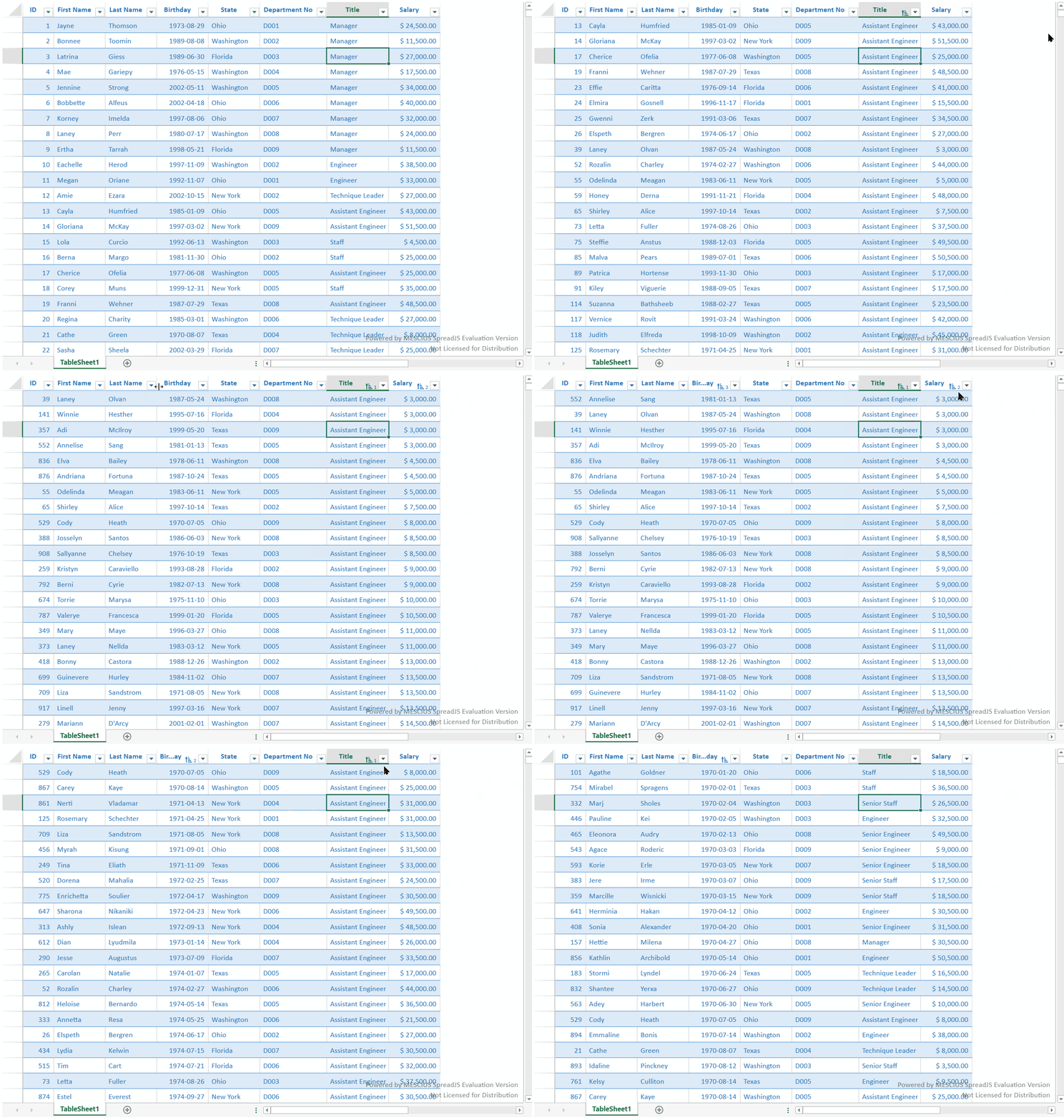
Applying Sorts
From the column menu:
Primary action — applies sorting to the column and clears other sorts.
Add/Remove action (multi-column mode only):
+ adds the column to the active sort list.
– removes it.
The order in which columns are added determines sort priority.
When a sort is removed, remaining sort descriptors are reordered and data is re-evaluated accordingly.
Use the sort method to get or set active sort definitions for a TableSheet.
When sort definitions are passed to the method, the previous active sorts are cleared and replaced by the new definitions.
tableSheet.sort([
{ field: "state", ascending: true }
]);You can also apply multiple sort definitions. Sorts are applied in the order they appear in the array.
tableSheet.sort([
{ field: "state", ascending: true },
{ field: "title", ascending: false }
]);If tableSheet.options.allowSorts is false, only the first sort definition is applied.
tableSheet.options.allowSorts = false;
tableSheet.sort([
{ field: "state", ascending: true },
{ field: "title", ascending: false }
]);Calling sort without arguments returns a copy of the active sort definitions.
const sortInfos = tableSheet.sort();To clear all active sorts, use removeSort.
tableSheet.removeSort();Custom Sort Compare
You can specify a custom compare function for sorting. To preserve the compare function after serialization, register the function and reference it by name.
function StateSortCompare() {
GC.Spread.CalcEngine.Functions.Function.apply(this, ["StateSortCompare", 3, 3]);
}
StateSortCompare.prototype = new GC.Spread.CalcEngine.Functions.Function();
StateSortCompare.prototype.evaluate = function (item1, item2, ascending) {
const value1 = String(item1.state || "");
const value2 = String(item2.state || "");
return ascending ? value1.localeCompare(value2) : value2.localeCompare(value1);
};
spread.addCustomFunction(new StateSortCompare());
tableSheet.sort([
{
field: "state",
ascending: true,
compare: "StateSortCompare"
}
]);A function reference can also be used directly, but function references are not preserved after serialization.
Sorted columns display:
Direction (ascending or descending)
Sequence number (visible only when multiple sorts are active)
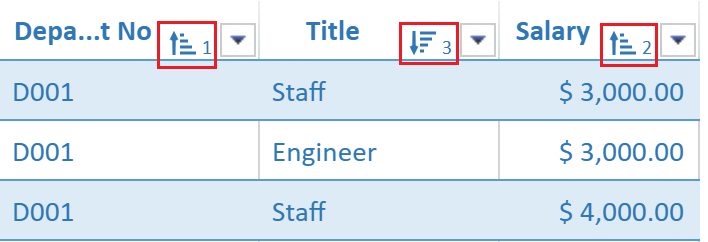
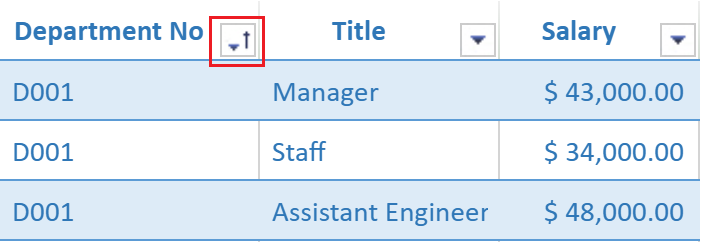
Indicators are hidden when no sorting is applied.
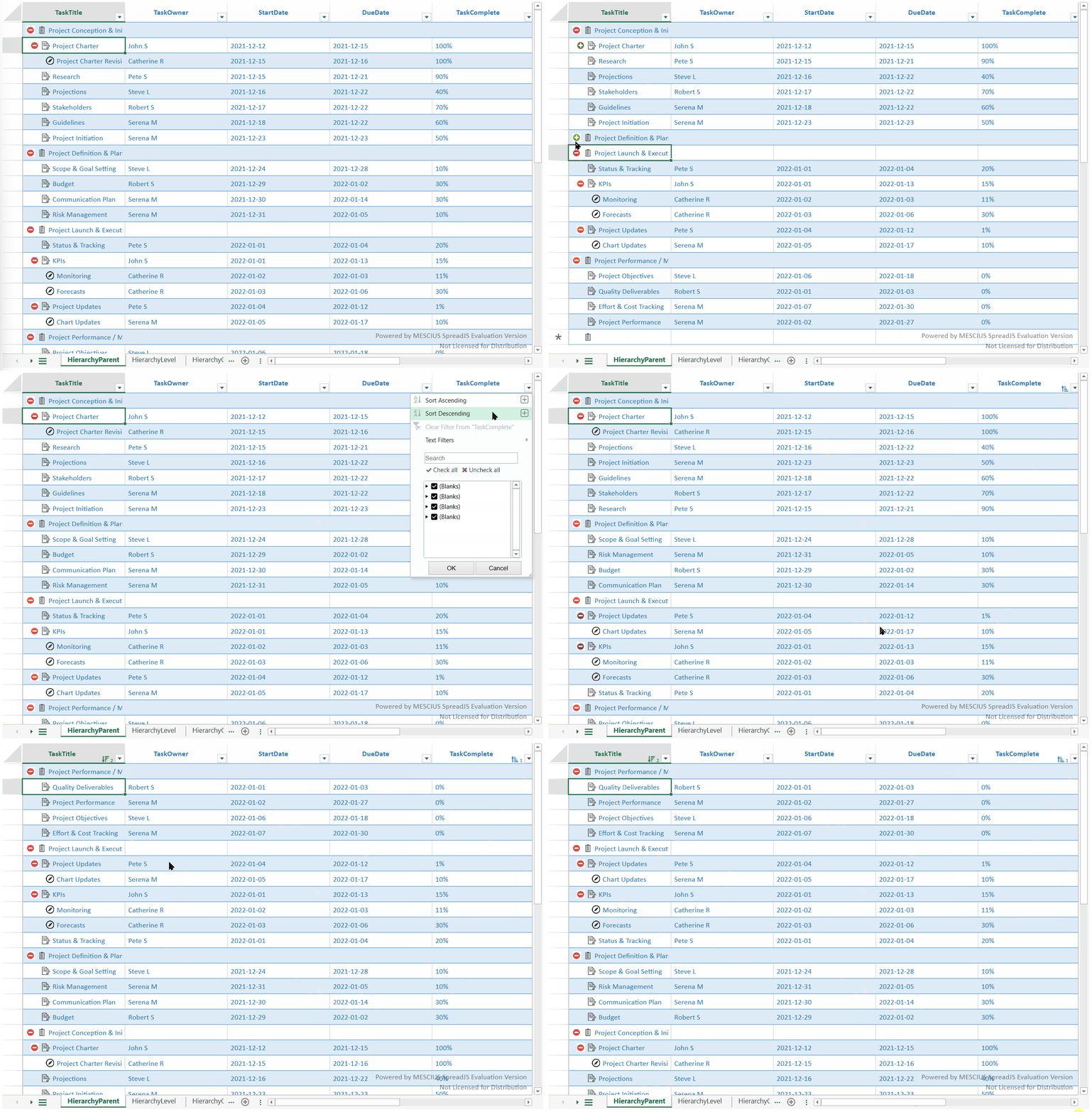
Hierarchical Data
Sorting applies only to sibling nodes.
The hierarchy structure is preserved.
Grouped Data
Grouped columns and their source columns share the same sorting state.
In multi-column mode, each group level may contain multiple sorts.
Sorting priority:
Higher group levels
Lower group levels
Regular columns
Sorting on grouping-related columns may be reset if grouping structure changes.
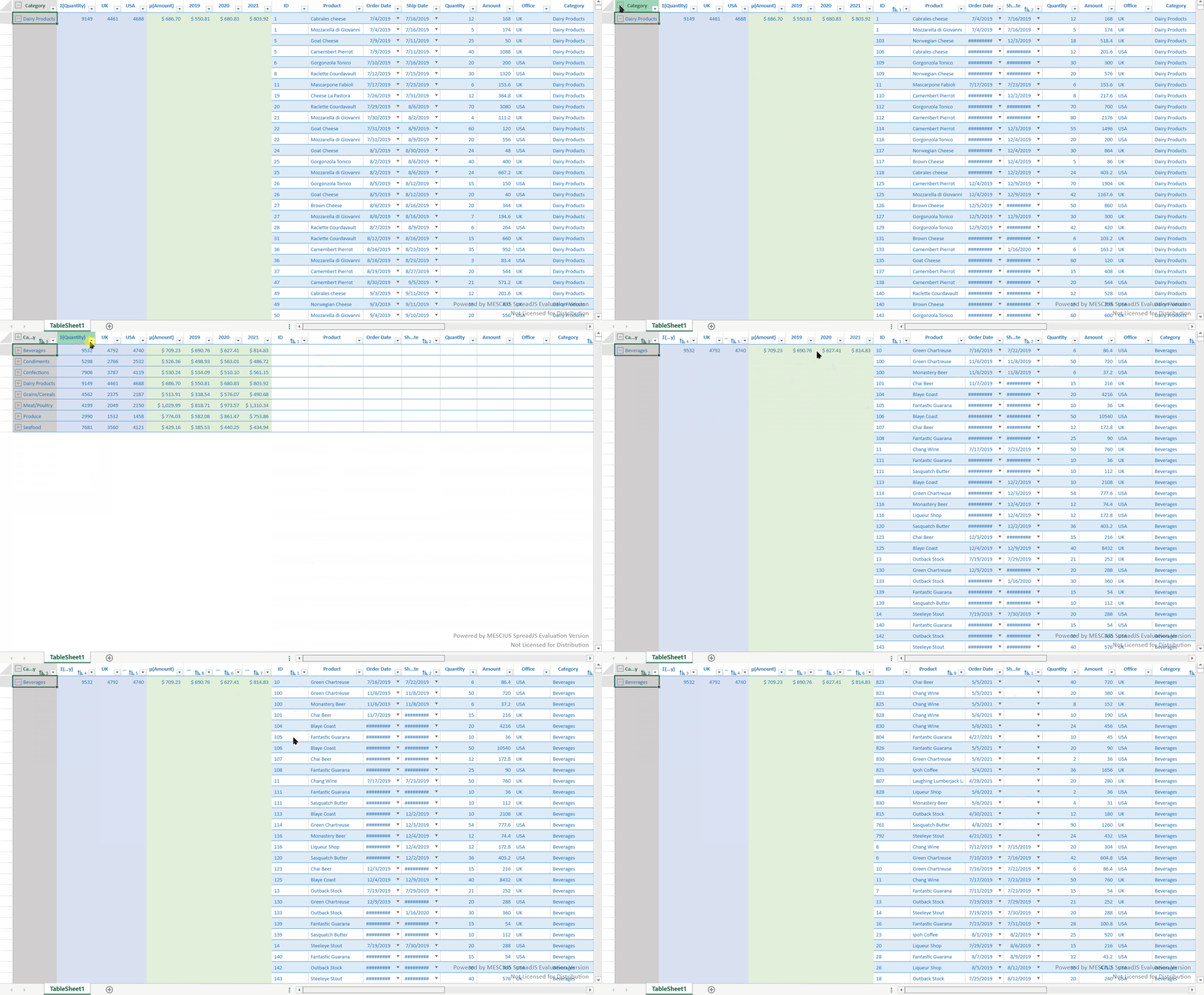
Cross Columns
Sorting can be applied to cross columns.
It may be lost if the data changes or the View columns are rebuilt.
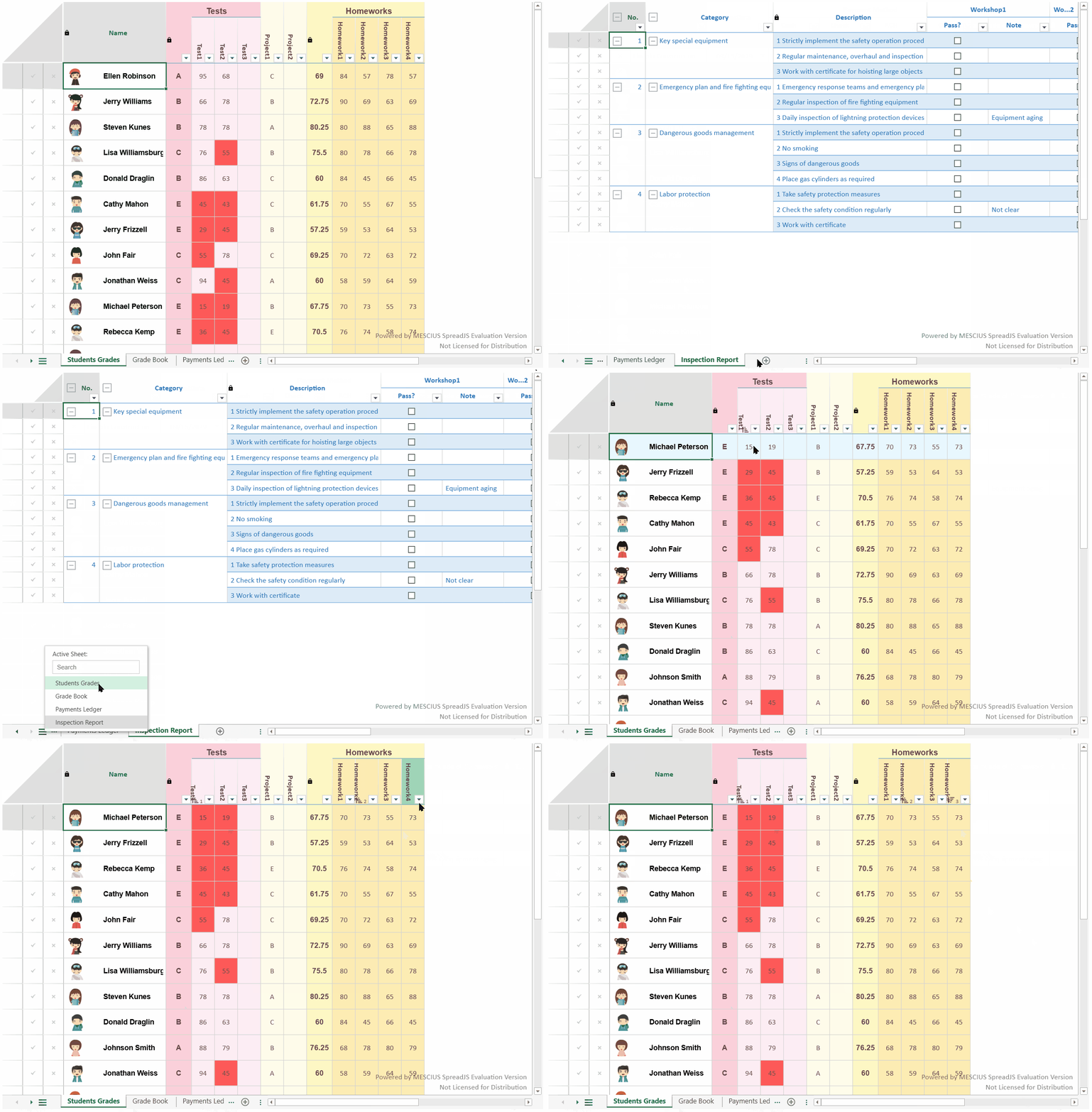
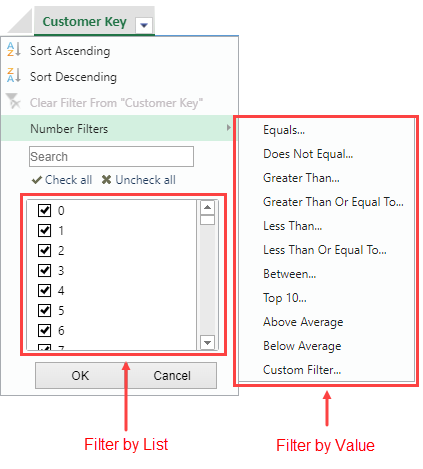
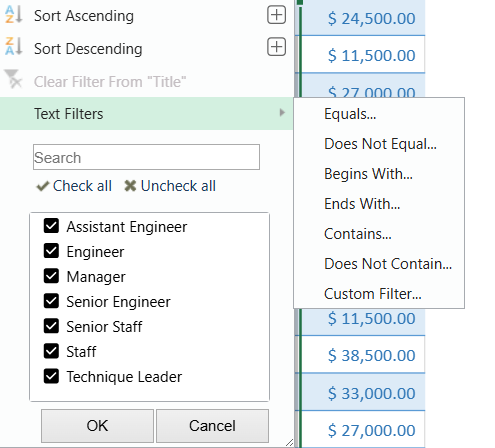
Filtering is column-based and supports multiple active filters simultaneously.
Filter Types
Filter by Value — filters data by text, number, date, or other conditions.
Filter by List — filters data by selecting values from the distinct column values.

Column-level visibility of filter options is controlled by:
allowFilterByValue
allowFilterByList
Automatic Re-filtering
Controlled by:
view.autoFilter = true;Default: false
When enabled, newly added or modified values are filtered out only if they match values already excluded by the active filter.
Otherwise, new values remain visible.
Use the filter method to get or set active filter definitions for a TableSheet.
When filter definitions are passed to the method, the previous active filters are cleared and replaced by the new definitions.
tableSheet.filter([
{
field: "state",
values: [{ value: "New York" }]
}
]);Calling filter without arguments returns a copy of the active filter definitions.
const filterInfos = tableSheet.filter();To clear all active filters, use removeFilter.
tableSheet.removeFilter();Use value filters when you need to show rows that match one or more specific values.
tableSheet.filter([
{
field: "title",
values: [
{ value: "Senior Engineer" },
{ value: "Technique Leader" }
]
}
]);To filter blank values, set the value type to "blank".
tableSheet.filter([
{
field: "state",
values: [
{ value: null, type: "blank" }
]
}
]);For date values, set the value type to "date".
tableSheet.filter([
{
field: "birth",
values: [
{ value: "1998-01-01", type: "date" },
{ value: "1998-10-01", type: "date" }
]
}
]);For hierarchical data, use a path filter to identify the hierarchy path to display.
tableSheet.filter([
{
field: "state",
paths: [
{ path: ["North America", "USA", "New York"] },
{ path: ["North America", "USA", "California"] }
]
}
]);Value filters and condition filters match values in the specified field. Path filters match values by their hierarchy path.
Use condition filters for more complex filtering logic, such as text, number, or date conditions.
const condition = new GC.Spread.Sheets.ConditionalFormatting.Condition(
GC.Spread.Sheets.ConditionalFormatting.ConditionType.textCondition,
{
compareType: GC.Spread.Sheets.ConditionalFormatting.TextCompareType.contains,
expected: "*New*"
}
);
tableSheet.filter([
{
field: "state",
condition: condition
}
]);Define one filter type for a field at a time: values, paths, or condition.
Sorting and filtering UI behavior can be configured per column:
allowSort
allowFilterByValue
allowFilterByList
var view = customerTable.addView("myView", [
{ value: "customerKey", allowSort: false, allowFilterByValue: false, allowFilterByList: false },
{ value: "customer", allowSort: false },
{ value: "billToCustomer", allowFilterByValue: false },
{ value: "category", allowFilterByList: false }
]);
sheet.setDataView(view);TableSheet provides commands for column-level sorting and filtering. Use commands when you need to integrate sorting or filtering with the command manager or the undo and redo workflow.
Common TableSheet sorting and filtering commands include:
TableSheetFilterColumn
TableSheetRemoveFilterColumn
TableSheetSortColumn
TableSheetAddSortColumn
TableSheetRemoveSortColumn
The following example filters a column through the command manager.
spread.commandManager().execute({
cmd: "TableSheetFilterColumn",
sheetName: "Sheet1",
col: 1,
values: [{ value: "New York" }]
});The following example sorts a column through the command manager.
spread.commandManager().execute({
cmd: "TableSheetSortColumn",
sheetName: "Sheet1",
col: 1,
ascending: true
});Sorting and filtering operations trigger events before and after the operation. The “before” events can be canceled.
Sorting events include:
TableSheetSorting
TableSheetSorted
TableSheetSortClearing
TableSheetSortCleared
Filtering events include:
TableSheetFiltering
TableSheetFiltered
TableSheetFilterClearing
TableSheetFilterCleared
For full command options and event arguments, refer to the API reference.
The sort and filter methods use field names to identify columns.
For regular columns, the field name usually comes from the table column name or the related table column name. For generated columns, such as grouped, formula, sliced, or cross columns, use the data view column information to get the field name instead of constructing it manually.
const columnIndex = 1;
const columnInfo = tableSheet.getDataView().getColumn(columnIndex);
const fieldName = columnInfo.value;
tableSheet.sort([
{
field: fieldName,
ascending: true
}
]);This approach helps ensure that sorting and filtering target the correct TableSheet field, even when the displayed column is generated by grouping, formulas, slicing, or cross-column configuration.